SystemUI.ShowComposeMessageAsync Method
Shows the compose message user interface.
Syntax
public:
static IAsyncAction^ ShowComposeMessageAsync(
         IUser^ requestingUser,
         String^ defaultMessageText,
         IVector<String^ >^ recipientUserIdList
)
Parameters
requestingUser
Type: IUser
The user initiating the action.
defaultMessageText
Type: String
Optional. Text to initialize the user interface with. Maximum of 250 characters. If you do not want to specify any default text, use NULL for this argument in C#; the empty string (“”) in JScript. Note that the user interface will display a standard message (shown below) if no default text is specified.
recipientUserIdList
Type: IVector<String^ >
Optional. List of XUIDs of recipients for the message. If you do not want to specify a recipient list, use NULL for this argument in either C# or JScript. If a recipient list is not specified, the user will be required to add recipients manually. The maximum list size is 32 XUIDs.
Return value
Type: IAsyncAction
Returns an IAsyncAction object that represents the state of the asynchronous operation. Completion of the asynchronous operation is signaled by using a handler that is passed to the IAsyncAction.Completed property.
Requirements
Namespace: Windows.Xbox.UI
Metadata: windows.winmd
Remarks
This method displays the Compose Message user interface. This should be called from a ‘Send Message’ feature in your title or app. The displayed user interface looks like one of the following images:
Figure 1. No recipient list or default text specified.
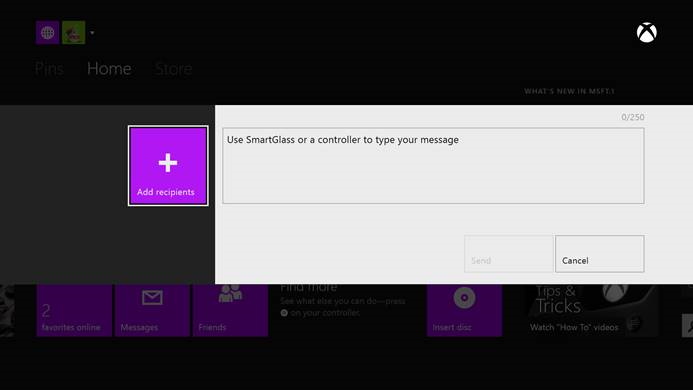
Figure 2. A pre-populated recipient and pre-populated text.
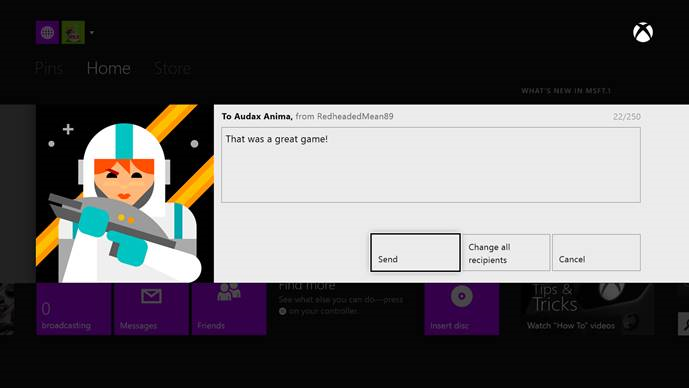
If the recipient list has a list of users, the users’ gamerpics will show up in place of the “add recipients” button. The requesting user can still “change all recipients” before sending.
If the message text is passed by the caller, the text box is pre-populated with the passed text. If no default text is specified, a standard prompt message will be displayed in the user interface until the user starts entering their own message (shown in Figure 1). Note that the user can always edit the text before sending the message.
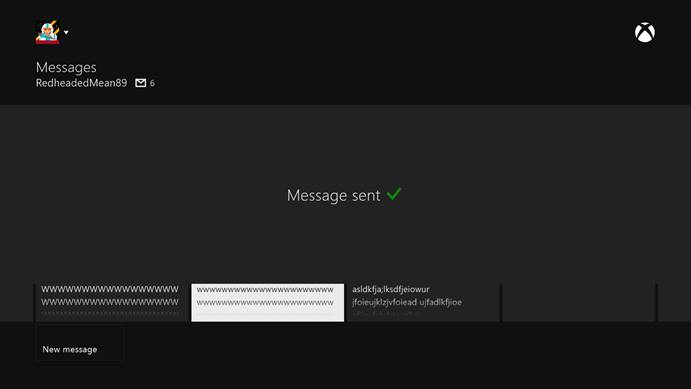
When the user clicks “send” a quick confirmation screen is shown, then automatically dismisses, as shown in the next image:
Figure 3. Confirmation screen.