ACP Overview
Provides a description and examples of the flowgraphs that are used to direct the Audio Control Processor (ACP).
ACP Overview
This section describes the programming interface to the Audio Control Processor (ACP).
The acphal library (acphal.lib) defines the API set for SHAPE. Also included in the Xbox One XDK is a collection of audio utilities, including source code, which will make preparing audio data to use with SHAPE much easier. The utility headers define context structures for each of the supported data formats, and a full set of functions to read and write to these contexts.
A title application should define one or more flowgraphs to route the audio date though the SHAPE blocks. The ACP manages the SHAPE blocks and ensures efficiency.
The API set, including the structures and enumerations declared in the utility files are described in the ACP HAL Reference section.
For more details on the SHAPE architecture, refer to the SHAPE Overview.
Note Make sure to include the file ShapeContext.h, and not the individual context header files, in the source files of a title project.
- Flowgraphs
- DMA Utilities
- EQ Compressor Utilities
- Filter Volume Utilities
- PCM Utilities
- SRC Utilities
- XMA Utilities
- Target Values
- Thread Safety
- Sample Rate Conversion Guidelines for PCM and XMA Data
- Pause and Resume
Flowgraphs
To utilize SHAPE, a title would normally create a SHAPE flowgraph (refer to the XMA Utilities section for a description of an alternative). A SHAPE flowgraph is an array of commands (one per SHAPE block) and accompanying context data, which effectively describes the order of operations of the individual blocks and the data they operate on. The ACP (Audio Control Processor) uses the data in the flowgraph to properly schedule the operations within the SHAPE blocks.
The title is responsible for building the flowgraph and submitting it to the ACP.
Use the Flowgraph Utility Methods to build a flowgraph.
In the examples below, the green blocks represent SHAPE components. The cyan blocks are the source material and the yellow circles labeled are the hardware mix buffers.
- 3D Sounds
- Front End to a Software Audio Engine
- Rendering Audio
- Flowgraph Parsing
- Updating Flowgraphs
- Multiple Flowgraphs
3D Sounds
Figure 1. Shows two voices each panned between two outputs with a send to a common output.
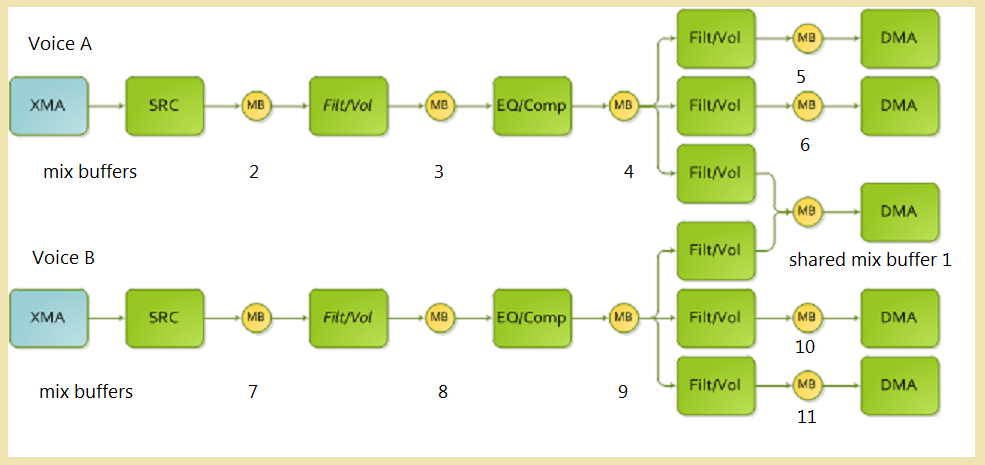
This flowgraph can be represented in code as follows:
        typedef enum mixBuffers
        {
          noBuffer         =   0,
          mixBuffer_1      =   1,
          mixBuffer_2      =   2,
          mixBuffer_3      =   3,
          mixBuffer_4      =   4,
          mixBuffer_5      =   5,
          mixBuffer_6      =   6,
          mixBuffer_7      =   7,
          mixBuffer_8      =   8,
          mixBuffer_9      =   9,
          mixBuffer_10     =   10,
          mixBuffer_11     =   11
        };

        typedef enum DMAcontexts
        {
          DMAcontext_0    = 0,
          DMAcontext_1    = 1,
          DMAcontext_2    = 2,
          DMAcontext_3    = 3,
          DMAcontext_4    = 4,
        };

        typedef enum FLTVOLcontexts
        {
          FLTVOLcontext_0    = 0,
          FLTVOLcontext_1    = 1,
          FLTVOLcontext_2    = 2,
          FLTVOLcontext_3    = 3,
          FLTVOLcontext_4    = 4,
          FLTVOLcontext_5    = 5,
          FLTVOLcontext_6    = 6,
          FLTVOLcontext_7    = 7,
        };

        typedef enum EQcontexts
        {
          EQcontext_0    = 0,
          EQcontext_1    = 1,
        };

        typedef enum SRCcontexts
        {
          SRCcontext_0    = 0,
          SRCcontext_1    = 1,
        };

        typedef enum XMAcontexts
        {
          XMAcontext_0    = 0,
          XMAcontext_1    = 1,
        };

        //
        // Command structure to be initialized
        //
        #define nSHAPE_3Dpan_commands       28
        //
        SHAPE_FLOWGRAPH_COMMAND cmd[nSHAPE_3Dpan_commands];

        //
        // Shared mix buffer
        //

        // SetShapeAllocMixBufferCommand parameters:
        //                           command,    virtualID,      numIn, numOut,   attenuation
        SetShapeAllocMixBufferCommand(&cmd[0],   mixBuffer_1,     2,      1,      SHAPE_MIXBUFFER_ATTENUATION_0_DB);

        //
        // Mix buffers for voice A
        //

        // SetShapeAllocMixBufferCommand parameters:
        //                           command,    virtualID,      numIn, numOut,   attenuation
        SetShapeAllocMixBufferCommand(&cmd[1],   mixBuffer_2,     1,      1,      SHAPE_MIXBUFFER_ATTENUATION_0_DB);
        SetShapeAllocMixBufferCommand(&cmd[2],   mixBuffer_3,     1,      1,      SHAPE_MIXBUFFER_ATTENUATION_0_DB);
        SetShapeAllocMixBufferCommand(&cmd[3],   mixBuffer_4,     1,      3,      SHAPE_MIXBUFFER_ATTENUATION_0_DB);
        SetShapeAllocMixBufferCommand(&cmd[4],   mixBuffer_5,     1,      1,      SHAPE_MIXBUFFER_ATTENUATION_0_DB);
        SetShapeAllocMixBufferCommand(&cmd[5],   mixBuffer_6,     1,      1,      SHAPE_MIXBUFFER_ATTENUATION_0_DB);

        //
        // Voice A
        //

        // SetShapeSrcXmaCommand parameters:
        //                     command,      contextID,            XMAContextID,       leftorMonoMixBuffer, rightMixBuffer
        SetShapeSrcXmaCommand( &cmd[6],      SRCcontext_0,         XMAcontext_0,       mixBuffer_2,         noBuffer);

        // SetShapeFiltVolCommand parameters:
        //                     command,      contextID,          inputMixBuffer, outputMixBuffer
        SetShapeFiltVolCommand(&cmd[7],      FLTVOLcontext_0,    mixBuffer_2,    mixBuffer_3   );

        // SetShapeEqCompCommand parameters:
        //                  command,         contextID,     inputMixBuffer, sidechainMixBuffer, outputMixBuffer
        SetShapeEqCompCommand( &cmd[8],      EQcontext0,    mixBuffer_3,   noBuffer,           mixBuffer_4);

        // SetShapeFiltVolCommand parameters:
        //                  command,       contextID,            inputMixBuffer,   outputMixBuffer
        SetShapeFiltVolCommand(&cmd[9],    FLTVOLcontext_1,      mixBuffer_4,   mixBuffer_5   );
        SetShapeFiltVolCommand(&cmd[10],   FLTVOLcontext_2,      mixBuffer_4,   mixBuffer_6   );
        SetShapeFiltVolCommand(&cmd[11],   FLTVOLcontext_3,      mixBuffer_4,   mixBuffer_1   );

        //
        // Mix buffers for voice B
        //

        // SetShapeAllocMixBufferCommand parameters:
        //                           command,     virtualID,      numIn, nmmOut,   attenuation
        SetShapeAllocMixBufferCommand(&cmd[12],   mixBuffer_7,      1,      1,      SHAPE_MIXBUFFER_ATTENUATION_0_DB);
        SetShapeAllocMixBufferCommand(&cmd[13],   mixBuffer_8,      1,      1,      SHAPE_MIXBUFFER_ATTENUATION_0_DB);
        SetShapeAllocMixBufferCommand(&cmd[14],   mixBuffer_9,      1,      3,      SHAPE_MIXBUFFER_ATTENUATION_0_DB);
        SetShapeAllocMixBufferCommand(&cmd[15],   mixBuffer_10,     1,      1,      SHAPE_MIXBUFFER_ATTENUATION_0_DB);
        SetShapeAllocMixBufferCommand(&cmd[16],   mixBuffer_11,     1,      1,      SHAPE_MIXBUFFER_ATTENUATION_0_DB);

        //
        // Voice B
        //

        // SetShapeSrcXmaCommand parameters:
        //                     command,    contextID,            XMAContextID,         leftorMonoMixBuffer, rightMixBuffer
        SetShapeSrcXmaCommand( &cmd[17],   SRCcontext_1,         XMAcontext_1,         mixBuffer_7,         noBuffer);

        // SetShapeFiltVolCommand parameters:
        //                     command,    contextID,            inputMixBuffer, outputMixBuffer
        SetShapeFiltVolCommand(&cmd[18],   FLTVOLcontext_4,      mixBuffer_7,    mixBuffer_8   );

        // SetShapeEqCompCommand parameters:
        //                     command,    contextID,       inputMixBuffer, sidechainMixBuffer, outputMixBuffer
        SetShapeEqCompCommand( &cmd[19],   EQcontext1,      mixBuffer_8,    noBuffer,           mixBuffer_9);

        // SetShapeFiltVolCommand parameters:
        //                     command,    contextID,            inputMixBuffer, outputMixBuffer
        SetShapeFiltVolCommand(&cmd[20],   FLTVOLcontext_5,      mixBuffer_9,    mixBuffer_10   );
        SetShapeFiltVolCommand(&cmd[21],   FLTVOLcontext_6,      mixBuffer_9,    mixBuffer_11   );
        SetShapeFiltVolCommand(&cmd[22],   FLTVOLcontext_7,      mixBuffer_9,    mixBuffer_1   );

        //
        // DMA all outputs
        //

        // SetShapeDmaCommand parameters:
        //                     command,       contextID,         mixBuffer,      write
        SetShapeDmaCommand(    &cmd[23],      DMAcontext_0,      mixBuffer_1,    true);
        SetShapeDmaCommand(    &cmd[24],      DMAcontext_1,      mixBuffer_5,    true);
        SetShapeDmaCommand(    &cmd[25],      DMAcontext_2,      mixBuffer_6,    true);
        SetShapeDmaCommand(    &cmd[26],      DMAcontext_3,      mixBuffer_10,   true);
        SetShapeDmaCommand(    &cmd[27],      DMAcontext_4,      mixBuffer_11,   true);
Front End to a Software Audio Engine
Figure 2. Shows a basic front end to a software engine. All voices using this model would potentially use the same structure.

This flowgraph can be represented in code as follows:
        typedef enum mixBuffers
        {
          noBuffer      =   0,
          mixBuffer_1   =   1,
          mixBuffer_2   =   2,
          mixBuffer_3   =   3
        };

        typedef enum DMAcontexts
        {
          DMAcontext_0    = 0,
        };

        typedef enum FLTVOLcontexts
        {
          FLTVOLcontext_0   = 0,
        };

        typedef enum EQcontexts
        {
          EQcontext_0    = 0,
        };

        typedef enum SRCcontexts
        {
          SRCcontext_0    = 0,
        };

        typedef enum XMAcontexts
        {
          XMAcontext_0    = 0,
        };

        //
        // Command structure to be initialized
        //
        #define nSHAPE_frontend_commands        7
        //
        SHAPE_FLOWGRAPH_COMMAND cmd[nSHAPE_frontend_commands];

        //
        // Mix buffer allocation for the voice
        //

        // SetShapeAllocMixBufferCommand parameters:
        //                            command,   virtualID,      numIn,  numOut,   attenuation
        SetShapeAllocMixBufferCommand(&cmd[0],   mixBuffer_1,    1,        1,      SHAPE_MIXBUFFER_ATTENUATION_0_DB);
        SetShapeAllocMixBufferCommand(&cmd[1],   mixBuffer_2,    1,        1,      SHAPE_MIXBUFFER_ATTENUATION_0_DB);
        SetShapeAllocMixBufferCommand(&cmd[2],   mixBuffer_3,    1,        1,      SHAPE_MIXBUFFER_ATTENUATION_0_DB);

        //
        // SHAPE blocks
        //

        // SetShapeSrcXmaCommand parameters:
        //                     command,      contextID,            XMAContextID,          leftorMonoMixBuffer, rightMixBuffer
        SetShapeSrcXmaCommand( &cmd[3],      SRCcontext_0,         XMAcontext_0,          mixBuffer_1,         noBuffer);

        // SetShapeEqCompCommand parameters:
        //                     command,      contextID,       inputMixBuffer, sidechainMixBuffer,   outputMixBuffer
        SetShapeEqCompCommand( &cmd[4],      EQcontext_0,     mixBuffer_1,   noBuffer,             mixBuffer_2);

        // SetShapeFiltVolCommand parameters:
        //                     command,      contextID,           inputMixBuffer, outputMixBuffer
        SetShapeFiltVolCommand(&cmd[5],      FLTVOLcontext_0,     mixBuffer_2,   mixBuffer_3   );

        // SetShapeDmaCommand parameters:
        //                     command,   contextID,         mixBuffer,    write
        SetShapeDmaCommand(    &cmd[6],   DMAcontext_0,      mixBuffer_3,   true   );
Rendering Audio
The process for rendering audio is as follows.
- First create a flowgraph similar to the examples above that defines the audio graph to be processed.
- Create context structures that define how and what the flowgraph will process.
- Submit the flowgraph to the ACP using the SubmitCommand method. Based on the parameters to SubmitCommand, the flowgraph will either be processed once and then discarded, or processed every audio frame.
- The title is responsible for updating the context data for each audio frame using the ACP_COMMAND_UPDATE_*_CONTEXT commands, or by properly synchronizing the updates with the flowgraph processing and manually updating the contexts.
- When updating contexts note there is a flag parameter to SubmitCommand that determines if the update is to be done ASAP or at the next audio frame.
Refer to the ACP_COMMAND_LOAD_SHAPE_FLOWGRAPH command for details of one method of manually synchronizing the updating of contexts. In general the use of the ACP_COMMAND_TYPE_UPDATE_*_CONTEXT commands should be used if a small number of contexts need to be updated per audio frame. It is inefficient for a large number of context updates due to the amount of context data that needs to be copied and transmitted to the ACP, along with the processing of the commands. If a large number of contexts are to be updated a title should either modify the context data, then submit non-persistent flowgraphs to the ACP, or make good use of the ACP_COMMAND_TYPE_START_FLOWGRAPH command along with the waitForStart parameter to the ACP_COMMAND_LOAD_SHAPE_FLOWGRAPH command to hold on processing until the context is updated. When the flowgraph has completed processing, the contexts are free to be updated again.
A third alternative to updating contexts is to use a double buffering process. The title can update the second copy of the contexts while the flowgraph is being processed, and swap the contexts at the start of an audio frame.
Flowgraph Parsing
The ACP will terminate persistent flowgraph parsing at the end of the audio frame (an ACP audio frame with a 2.667ms limit). This means that if a title has a flowgraph that takes 75% of an audio frame to process, but does not let the processing start until 30% of the way through the audio frame, the portions of the flowgraph that were not parsed are purged (though the flowgraph itself is not altered). When this occurs the ACP sends the message ACP_MESSAGE_TYPE_FLOWGRAPH_TERMINATED (if the title has registered to receive messages). A title can determine which commands did not get inserted into the internal SHAPE queues by examining the queued flag of the flowgraph command.
Non-persistent flowgraphs will normally be processed to completion regardless of when they are submitted. Exceptions include that one or more commands are blocked due to unavailability of the source data or poor use of the disabled flag. This means that a title can submit a non-persistent flowgraph at any point during an ACP audio frame and be certain (except for the few boundary cases) that it will completed. The benefit to this is that a title does not have to be perfectly in sync with the audio clock as long as the title is still servicing the flowgraphs within the ACP audio frame interval of 2.667ms. The risk is that a title can cause audio dropouts if does not submit the flowgraphs consistently, or their flowgraphs requires more than 2.667 ms.
The lifetime of flowgraphs can be summarized as follows:
- A persistent flowgraph stays active on the ACP until replaced. It is replaced by submitting a new flowgraph, or submitting a null flowgraph which effectively removes it.
- The ACP will start processing a persistent flowgraph at the beginning of an audio frame unless the client instructs it to wait for a start command.
- The ACP will stop processing a persistent flowgraph shortly before the end of the audio frame even if it has not been completely processed.
- A non-persistent flowgraph is active only until it completes, then is removed.
- A non-persistent flowgraph will remain active between audio frames. It is only removed when it has been completed.
Updating Flowgraphs
The options for updating flowgraphs are similar to those for updating contexts described above. The basic rule is the same, do not update flowgraphs while they are being processed.
There are three main strategies that can be used for updating flowgraphs.
- Use non-persistent flowgraphs, rebuild them as needed and submit them at the beginning of the audio frame. A title can re-use the same flowgraph as many times as required. If the flowgraph does not change, a title does not need to rebuild it. A developer can also double buffer this approach by constructing a new flowgraph while the old one is being processed. When rebuilding flowgraphs they can be constructed from scratch, but also flowgraph sections can be stored and linked together as needed by appropriately setting the mix buffer Ids.
- Use persistent flowgraphs, only rebuilding and replacing them when changes are needed. Double buffering works here as well. The ACP can be allowed to run free (by not using the waitForStart parameter to ACP_COMMAND_LOAD_SHAPE_FLOWGRAPH), which means the ACP will start processing the flowgraph as soon as the audio frame starts and right after commands tagged for that audio frame are processed. Alternatively the waitForStart parameter can be set to prevent the flowgraph from being processed until the ACP_COMMAND_TYPE_START_FLOWGRAPH command is sent. This does not directly impact flowgraph updates, but allows for a little better synchronization.
- Use the disabled flag on the flowgraph commands to disable portions of a flowgraph. For example a master flowgraph can be built but only the required sections are enabled for each run. This must be tied with option 1 or 2 to get the new flowgraph to the ACP. Note that the ACP currently does not traverse the flowgraph to look for orphaned blocks. A title must disable complete paths through the graph (not just the first nodes), otherwise the SHAPE commands will temporarily stall the hardware. These stalls could be simple, such as a single block that cannot be processed and will be removed at a small cost, or could stall an entire voice.
Multiple Flowgraphs
A title can process multiple flowgraphs per audio frame if their combined requirements do not exceed the hardware capabilities. The benefit to doing this is that a title can run multiple audio engines (both middleware and custom), or break their parsing up into more manageable chunks. The downside is that the SHAPE hardware will not run as efficiently in this mode. To reach the maximum throughput of SHAPE, each SHAPE block must be kept one hundred percent busy, something that is impossible when processing multiple flowgraphs.
Only a single flowgraph can be loaded per ACP client. If a new flowgraph is submitted by a client, it replaces the existing one. This means that a title that requires support for multiple flowgraphs either needs to have separate clients for each flowgraph type (each client with its own command and message queues), or will need to wait for a flowgraph to complete before submitting a new one. Multiple flowgraph support is designed to be used by multiple clients, not a single client. This allows a middleware engine to submit its flowgraph, and the title to submit a separate flowgraph for additional custom processing.
For each ACP client required by the title, an instance of the IACPHAL interface needs to be created.
Because all ACP and SHAPE resources are shared between all clients (context arrays in particular), the clients will have to coordinate the allocation and sharing of those resources.
DMA Utilities
Include the DMA utilities in the ShapeDMAContext.h file. The following utilities operate on a SHAPE_DMA_CONTEXT structure.
DMA Utility Methods
EQ Compressor Utilities
Include the EQCOMP utilities in the ShapeEqCompContext.h file. These utilities operate on a SHAPE_EQCOMP_CONTEXT structure.
EQCOMP Utility Methods
Filter Volume Utilities
Include the Filter Volume utilities in the ShapeFiltVolContext.h file. These utilities operate on a SHAPE_FILTVOL_CONTEXT structure.
FLTVOL Utility Methods
PCM Utilities
Include the PCM utilities in the ShapePCMContext.h file. These utilities operate on a SHAPE_PCM_CONTEXT structure.
PCM Utility Methods
SRC Utilities
Include the SRC utilities in the ShapeSRCContext.h file. These utilities operate on a SHAPE_SRC_CONTEXT structure.
SRC Utility Methods
XMA Utilities
Include the XMA utilities in the ShapeXMAContext.h file. These utilities operate on a SHAPE_XMA_CONTEXT structure.
XMA Utility Methods
A title can use XMA data without using flowgraphs, but the data still has to go through the ACP. There are a collection of ACP_COMMAND_TYPE commands that enable this:
| Command | Description |
|---|---|
| ACP_COMMAND_TYPE_ENABLE_XMA_CONTEXT | Enable a single XMA context (and the ACP starts decoding the buffer specified in the context). |
| ACP_COMMAND_TYPE_ENABLE_XMA_CONTEXTS | Enable a block of XMA contexts (and the ACP starts decoding buffers defined in the contexts). |
| ACP_COMMAND_TYPE_DISABLE_XMA_CONTEXT | Disable a single XMA context (and the ACP stops decoding the buffer specified in the context). |
| ACP_COMMAND_TYPE_DISABLE_XMA_CONTEXTS | Disable a block of XMA contexts (and the ACP stops decoding buffers defined in the contexts). |
| ACP_COMMAND_TYPE_UPDATE_XMA_CONTEXT | Update one or more fields in the XMA context. This can either be done synchronously on the ACP or asynchronously. |
The commands listed above allow a title to use the Xbox One ACP HAL in an almost identical manner to the Xbox 360 XMA HAL, with an order of operation as follows:
- Populate the context or contexts with relevant data (buffers, offsets, etc.).
- Enable the contexts.
- Update the contexts. If the context is disabled, the title is free to modify the contents directly. If the context is enabled, the title should either disable it first, or use the ACP_COMMAND_TYPE_UPDATE_XMA_CONTEXT command, which can be more efficient as the ACP deals with disabling, waiting and updating.
In general though, a title should not use just the XMA component of SHAPE. It is almost trivial to create a “front-end” flowgraph that needs only minor maintenance that gives the title a free high quality sample rate convertor (SRC), and other features. Flowgraphs are easy to create and manage, and will offload the SRC from the main CPU and improving quality.
Target Values
The target values that can be set in the utility functions represent the final values of the parameter at the end of the audio frame.
For example, in the SHAPE_FILTVOL_CONTEXT structure there are values for gain and gainTarget. While the frame is being processed the gain is calculated using linear interpolation using the equation:
gain = ((gainTarget - gain) / 127) * i + gain
Where i goes from 0 to 127.
At the end of the frame the gain will equal the gainTarget.
The following table lists the target parameters that can be set for the ACP.
| Component | Target | Description |
|---|---|---|
| EQCOMP | eqAB0Target | EQ A b0 coefficient target. |
| EQCOMP | eqAB1Target_L | EQ A b1 coefficient target (low 8 bits). |
| EQCOMP | eqAB1Target_H | EQ A b1 coefficient target (high 16 bits). |
| EQCOMP | eqAB2Target_L | EQ A b2 coefficient target (low 16 bits). |
| EQCOMP | eqAB2Target_H | EQ A b2 coefficient target (high 8 bits). |
| EQCOMP | eqAA1Target | EQ A a1 coefficient target. |
| EQCOMP | eqAA2Target | EQ A a2 coefficient target. |
| EQCOMP | eqBB0Target_L | EQ B b0 coefficient target (low 8 bits). |
| EQCOMP | eqBB0Target_H | EQ B b0 coefficient target (high 16 bits). |
| EQCOMP | eqBB1Target_L | EQ B b1 coefficient target (low 16 bits). |
| EQCOMP | eqBB1Target_H | EQ B b1 coefficient target (high 8 bits). |
| EQCOMP | eqBB2Target | EQ B b2 coefficient target. |
| EQCOMP | eqBA1Target | EQ B a1 coefficient target. |
| EQCOMP | eqBA2Target_L | EQ B a2 coefficient target (low 8 bits). |
| EQCOMP | eqBA2Target_H | EQ B a2 coefficient target (high 16 bits). |
| EQCOMP | eqCB0Target_L | EQ C b0 coefficient target (low 16 bits). |
| EQCOMP | eqCB0Target_H | EQ C b0 coefficient target (high 8 bits). |
| EQCOMP | eqCB1Target | EQ C b1 coefficient target. |
| EQCOMP | eqCB2Target | EQ C b2 coefficient target. |
| EQCOMP | eqCA1Target_L | EQ C a1 coefficient target (low 8 bits). |
| EQCOMP | eqCA1Target_H | EQ C a1 coefficient target (high 16 bits). |
| EQCOMP | eqCA2Target_L | EQ C a2 coefficient target (low 16 bits). |
| EQCOMP | eqCA2Target_H | EQ C a2 coefficient target (high 8 bits) |
| EQCOMP | compGainTarget | User settable target for output gain. |
| FILTVOL | gainTarget | Volume target level. |
| FILTVOL | qRecipTarget | Target 1-over-Q value. |
| FILTVOL | fcTarget | Target frequency value. |
| SRC | samplingIncrementTarget | End value of sampling increment. |
Thread Safety
The IACPHAL Interface Methods and ACPHAL Methods are thread-safe. If the call ApuCreateHeap is made, the heap is used by all threads.
The utility functions listed below are not thread-safe. However source code is provided for them and developers can make them thread-safe if required. The typical way to do this is to use Critical Section Objects.
Sample Rate Conversion Guidelines for PCM and XMA Data
The following are guidelines for how to use the SRC block with PCM and XMA data.
| Target | Implementation |
|---|---|
| Non-looping linear PCM | Start the voice using SHAPE_SRC_COMMAND_TYPE_START for the SRC. Let the voice play to the end, or optionally stop it short of the end using SHAPE_SRC_COMMAND_TYPE_STOP_IMMEDIATE. |
| Infinite looping linear PCM | Set the PCM context loop count (loopCount) to SHAPE_PCM_INFINITE_LOOP_COUNT. Start the voice using SHAPE_SRC_COMMAND_TYPE_START for the SRC. 0 Let the voice play until you want to stop, either at the end of a loop issuing SHAPE_SRC_COMMAND_TYPE_STOP_END and let the voice play out, or immediately by issuing SHAPE_SRC_COMMAND_TYPE_STOP_IMMEDIATE. |
| Finite looping linear PCM | Set the PCM context loop count (loopCount) to [0, 254]. Start the voice using SHAPE_SRC_COMMAND_TYPE_START for the SRC. Let the voice play to the end, or optionally stop it at the end of a loop using SHAPE_SRC_COMMAND_TYPE_STOP_END and let the voice play out, or immediately by issuing SHAPE_SRC_COMMAND_TYPE_STOP_IMMEDIATE. |
| Circular PCM | Start the voice using SHAPE_SRC_COMMAND_TYPE_START for the SRC. Keep streaming data, updating the PCM context write pointer, until you want to stop. Issue SHAPE_SRC_COMMAND_TYPE_STOP_END to let the SRC play to the current PCM write pointer (loopStartWritePointer), or SHAPE_SRC_COMMAND_TYPE_STOP_IMMEDIATE to stop immediately. |
| Streaming (non-HW-looping) XMA | Start the voice using SHAPE_SRC_COMMAND_TYPE_START for the SRC. When the last XMA input buffer is consumed, issue SHAPE_SRC_COMMAND_TYPE_STOP_END to play to the end of the decoded buffer (see note below), or optionally issue SHAPE_SRC_COMMAND_TYPE_STOP_IMMEDIATE to stop immediately. |
| Infinite HW-looping XMA | Set the XMA context loop count (numLoops) to SHAPE_XMA_INFINITE_LOOP_COUNT. Start the voice using SHAPE_SRC_COMMAND_TYPE_START for the SRC. Let the voice play until you want to stop, either at the end of a loop by setting the XMA loop count to zero and issue SHAPE_SRC_COMMAND_TYPE_STOP_END and let the voice play out, or immediately by issuing SHAPE_SRC_COMMAND_TYPE_STOP_IMMEDIATE. |
| Finite HW-looping XMA | Set the XMA context loop count (numLoops) to [0, 254]. Start the voice using SHAPE_SRC_COMMAND_TYPE_START for the SRC. Let the voice play until you want to stop, either at the end of the looping by watching the loop count, when it’s 0, issue SHAPE_SRC_COMMAND_TYPE_STOP_END and let the voice play out, or, to stop and the end of the next loop, set the loop count to zero. When the last XMA input buffer is consumed, set the SRC command to SHAPE_SRC_COMMAND_TYPE_STOP_END and let the voice play out (see note below) To stop immediately issue SHAPE_SRC_COMMAND_TYPE_STOP_IMMEDIATE. |
When any of the above scenarios are completed, the SRC command will be SHAPE_SRC_COMMAND_TYPE_STOP_IMMEDIATE.
Check the XMA input buffer valid bits at the same frequency you are processing SHAPE flowgraphs. If you make this check as part of your streaming logic (that occurs at much longer intervals), it is possible that the XMA output buffer will empty before you instruct the SRC to stop at the end which can cause flowgraph stalls.
Pause and Resume
A title must be able to pause and resume, for example when a title is put into Constrained mode by the user.
To pause and resume when coding directly to the SHAPE hardware using IAcpHal, the title should simply stop submitting commands. Those commands already submitted will complete normally (potentially filling the message queue).
If a title is using persistent flowgraphs they should load a null flowgraph to stop processing.
This differs from the pause and resume process if coding using XAudio2 (see XAudio2 Overview).