Activate (Convert) Your Kit Using Entitlements
The procedures in this topic are typically performed only by the asset manager of your department. In order to authorize your console to be a development kit for the development and testing of your game or app, your asset manager must complete one of several processes.
Access to console conversion in XDP is controlled through the Inventory Management permission. If you need additional users provisioned with this permission, contact your studio administrator. If you have any problems with console conversion and you will publish a game, contact XDP Help (xdphelp@microsoft.com); if you will publish an application, contact Xbox App Partner Requests (xboxapps@microsoft.com).
- Acquiring an entitlement
- Associating an entitlement with a development kit by using a QR code
- Manually associating an entitlement with a development kit
- Granting permissions to products
Acquiring an entitlement
When you purchase your development kit, you also purchase a Developer Kit Entitlement. This is automatically handled when you order your development kit from the Entertainment Developer Store (EDS). After you complete the order, the entitlement will be automatically associated with your publisher account on Xbox Developer Portal (XDP).
Associating an entitlement with a development kit by using a QR code
After your dev kit arrives, notice that each box has a QR code printed on it.
Figure 1. A sample QR code.

Figure 2. QR Code on a dev kit.
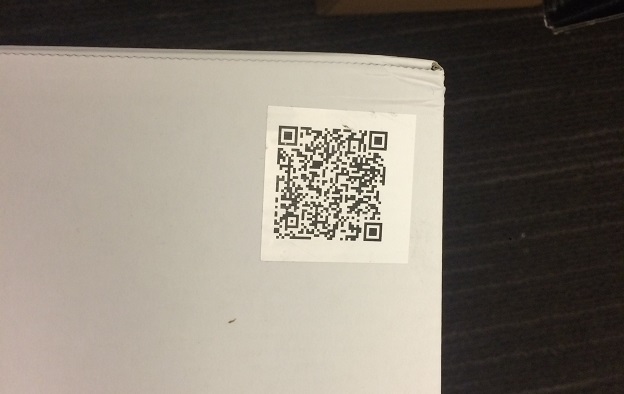
To use a QR code to associate an entitlement with a dev kit
Note You need the Publisher Management or Inventory Management permission to associate an entitlement using a QR code.
- Use a device that has a camera and a QR code reader app installed on that device.
For example, use a webcam attached to Windows together with a Windows-based QR code reader app, or use a camera in a smart phone with a QR code reader app installed. - Scan the QR code, which contains the URL of an XDP login page.
On your device, the QR code reader app opens a web browser and loads the XDP webpage from the URL stored in the QR code, or first shows a login page. Select your organization from the dropdown list and click Continue to Sign In.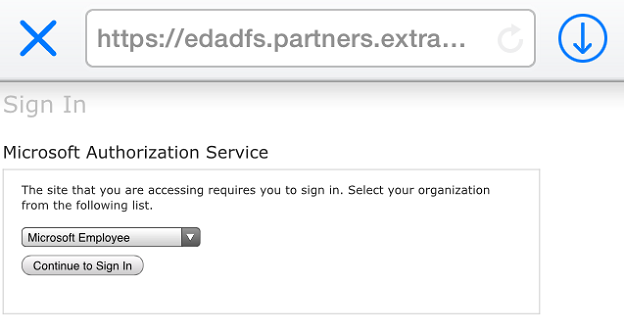
- Log into XDP.
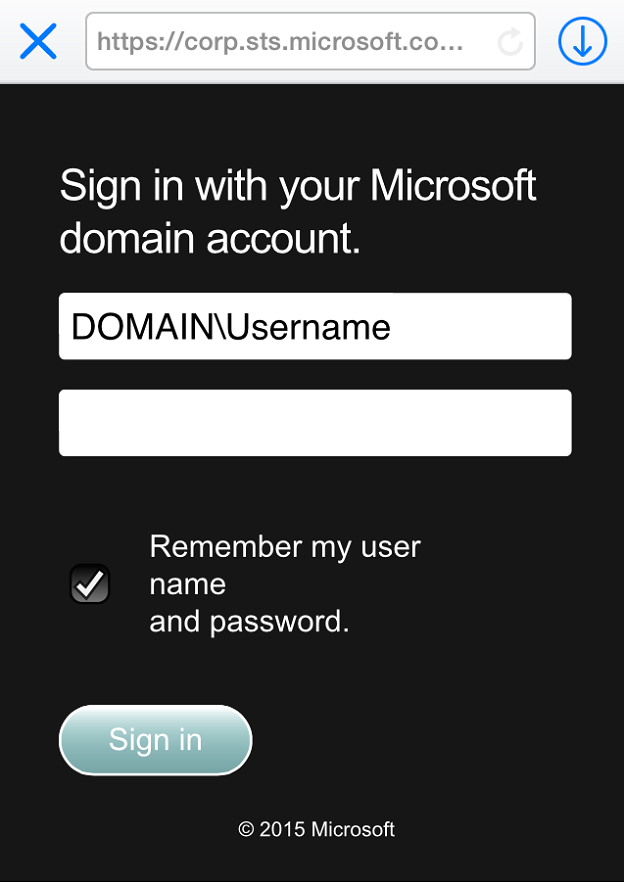 The device details page appears, similar to the following figure. Only the Name and Description fields can be changed.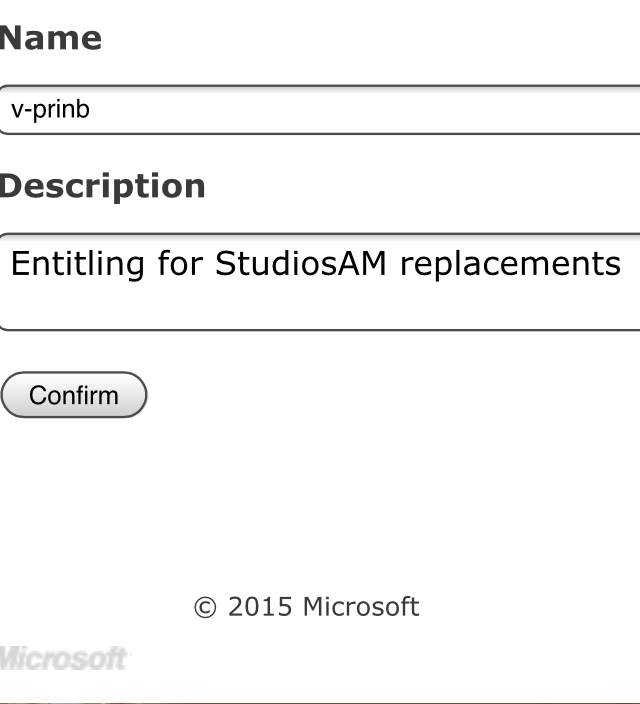
- Enter the name and description for the console.
- Click the Confirm button on the page. If your registration is successful, you will see a page like the one below:
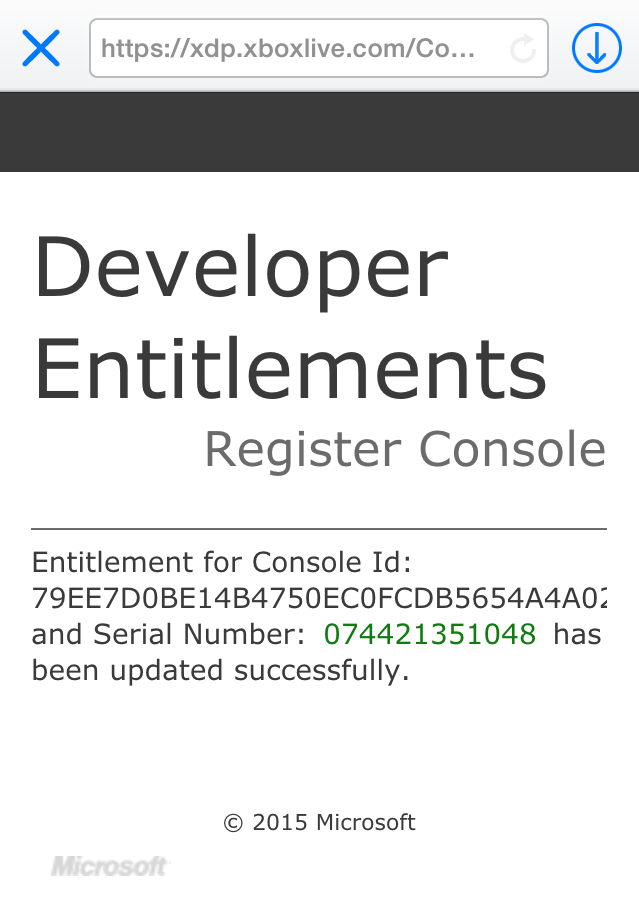
If you try to scan the QR code for a device that has already been registered, you will not be able to go through the above steps. In this case you will see an error message that the device is already registered. If the device is registered to you, you will be taken to the device details page.
Manually associating an entitlement with a development kit
If you cannot use the QR code, you can manually associate an enlistment with your dev kit. In order to do this, you need to have the Publisher Management or Inventory Management permission. If you do not have the appropriate permission, you will not see the Manage option; contact your XDP administrator and have him or her associate the entitlement with your dev kit.
At least one person in your company should be designated as your technical contact and be granted administration rights in XDP. If that person is not able to access XDP, please contact Microsoft for assistance: if you are developing a game title or hub app, contact XDP Help (xdphelp@microsoft.com), or if you are developing for media and other apps, contact Xbox App Partner Requests (xboxapps@microsoft.com).
To associate an entitlement with a dev kit
- Log in to the Xbox Developer Portal at https://xdp.xboxlive.com/.
Tip To access XDP, you need to be using the private mode in your browser. Otherwise, you will receive a 404 error. In Internet Explorer, this option is activated by clicking InPrivate Browsing on the Tools menu. - Click Manage to display the menu.
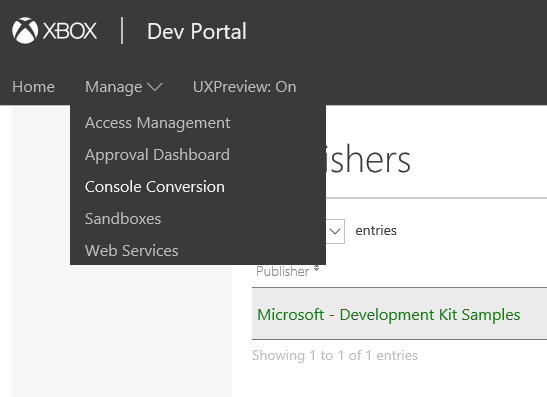
- Click Console Conversion.
This displays a screen similar to the following figure.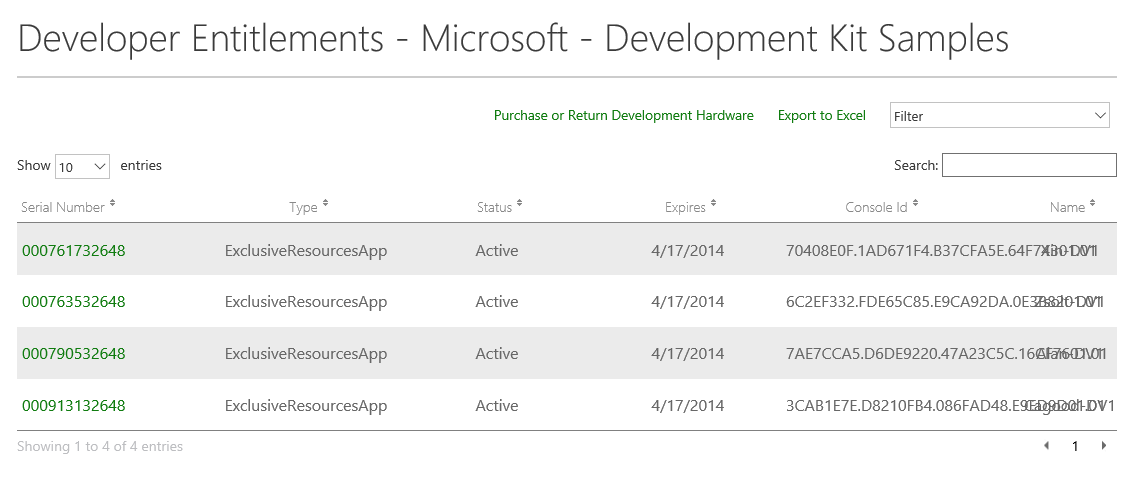
- Enter the serial number of your console in the search box on this screen. Search for that serial number.
- Pick the title displayed in the search results. If no results are shown, choose an available tile with None as the title.
This brings you to the entitlement page. - Enter the console ID for your dev kit.
You can find the console ID on the box for the dev kit and in the console settings.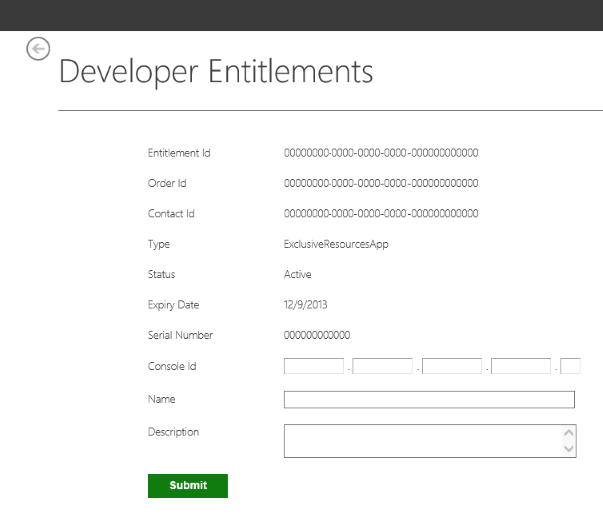
- Enter a name and description for this dev kit on the entitlement page.
- Click Submit.
After an entitlement has been associated with a dev kit, and the development environment is installed, the dev kit must be restarted. After restarting, the dev kit is ready for testing and development. For information about installing the development environment on your dev kit, see “Installing the XDK and Dev Kit Software” in the Xbox One XDK documentation.
Granting permissions to products
To test or work on a product, you need to have permission to use that product. This permission is controlled through security groups in XDP. Products can be restricted to certain users, to certain consoles, or to both. For more information about XDP and the concept of content isolation, see Content Isolation Protects your Product Instances.