Advanced Unattended Setup Scripting
Advanced Technology Group (ATG) and Xbox Platform Engineering
Published October 2nd, 2017
In this topic
Dovetailing with other scripts and executables
Deploying a script to multiple consoles
Introduction
Simple scripts are easy to author, but more complex automation problems require advanced techniques to solve. This white paper covers advanced unattended setup scripting techniques, and applies them to solutions to several real-world automation tasks. You should already be familiar with the basics of authoring unattended setup scripts. For an introduction to unattended setup scripting and reference material, search the index of the XDK Documentation for “Configuring Your Dev Kit with an Unattended Setup Script” and the topics beneath it.
Dovetailing with other scripts and executables
If you’re already familiar with the basics of unattended setup script authoring, you’ve probably used the in-browser script authoring tool to create scripts by combining multiple scripting actions. (Going forward, this paper will often refer to the unattended setup script authoring tool as the “in-browser” editor).
However, the in-browser editor doesn’t provide the full flexibility that you’d get by simply authoring scripts in a standard text editor. If you’re already proficient at writing batch files, this section will show you how to leverage your scripting skills to extend the capabilities of a script originally created in the unattended setup script editor.
If you export a script from the in-browser editor and then open it in a standard text editor, you’ll see that it’s really just an ordinary batch file; it just adds a few commenting conventions to enable reordering actions in the in-browser editor. For example, this excerpt shows the actual batch-file code generated for the Set the host name for the console action.
REM SCRIPTSTEP START HOSTNAME V1
ECHO %TIME%: Starting Action: Set the host name for the console
SET SettingName=Hostname
SET SettingValue="XB-%SerialNumber%"
SET CurrentSettingValue=
FOR /F "usebackq tokens=1-2*" %%A IN (`WdConfig.exe query %SettingName% 2^>nul`) DO (
    SET CurrentSettingValue=%%C
)
if /i "%CurrentSettingValue%" neq %SettingValue% (
    WdConfig.exe set %SettingName%=%SettingValue%
    SET NeedsReboot=true
) else (
    ECHO %SettingName% does not need to be changed.
)
REM SCRIPTSTEP STOP
Notice that the script block is delimited with specific comments: “REM SCRIPTSTEP START HOSTNAME V1” and “REM SCRIPTSTEP STOP”. There are also a few other conventions that you’ll have to preserve for the script to be valid in the in-browser editor. If you don’t follow these conventions, you may encounter errors when you try to import the script into the in-browser editor. For this reason, we strongly recommend that you don’t hand-edit your scripts extensively.
Here’s an example of a Do custom action script block.
REM SCRIPTSTEP START CUSTOM V1
ECHO %TIME%: Starting Action: Do custom action
REM NAME Test Custom Action
ECHO Running custom action Test Custom Action
@echo this is a test
REM SCRIPTSTEP STOP
The line: “@echo this is a test” is the text entered into the browser, whereas the rest was automatically generated by the editor. You can replace this line with your own batch file commands and the results should still be valid for importing into the in-browser editor. Note that the in-browser editor also lets you type several lines of input.
Run another script is the most flexible way to apply your batch scripting skills. You can simply put your custom batch file code into your own file and then call into it. For example, if you have a script called “SetupLogFiles.cmd” and you want to pass in arguments “Player.log” and “AI.log”, you’d fill in the details as shown.
Figure 1. Details for “Run another script” action.
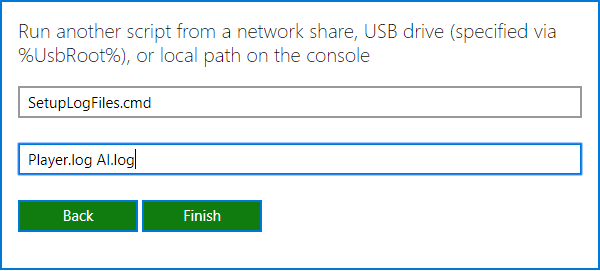
The dialog provides a hint about how you might deploy the auxiliary script (that is, by using a USB drive). But the deployment method you choose deserves some further explanation because it will affect the details for the Run another script action.
Possible options for deploying the auxiliary script are as follows:
- Copy the auxiliary script to a network share. This is the most powerful configuration, because it lets you leverage the auxiliary script on multiple consoles. This way, you can put the bulk of your custom scripting into auxiliary batch files on a network share and then call those scripts from your other unattended setup scripts. When you place your script on a network share, you need to refer to it using a UNC path:
\\<computer name>\<share name>
-
Place the auxiliary script on the same external drive as your unattended setup script. In this scenario, you are attaching an external drive before commencing the OOBE, or factory reset, on the devkit. After the setup is complete, the system will run the unattended setup script on the external storage device (as described previously).
-
When the system runs a script from an external drive, it passes the drive root as a command-line parameter to the script. Within the script, a variable called %UsbRoot% is defined by means of the same value. Further, the drive root is also added to the %PATH% variable and you’ll be able to reference your script by using a path relative to the root of the external drive.
-
Copy the script to a known location on the devkit. The system will add a folder, d:\boot, to the %PATH% variable before running the script. This means that you can place your scripts in d:\boot and then simply reference them by name. Alternatively, if they’re anywhere on the d: drive, you can specify a path relative to d:\boot. Another option is simply to use a fully qualified path, such as d:\boot\MyScript.cmd.
Traditionally, batch files are often used as the glue to combine together multiple tools that are implemented as stand-alone executables. Since unattended setup scripts are actually just batch files, we provided the Run an executable action. To use the Run an executable action, provide an executable name and zero or more optional arguments. The executable name is subject to the same guidelines as the path to the auxiliary script when you use Run another script.
To illustrate how to use Run an executable, here’s a concrete example that uses a tool named wduser.exe, which conveniently is already included in the %PATH% on the devkit. Because wduser.exe is already in the path, you simply provide the executable file name to use the tool.
Figure 2. Details for “Run an executable” action.
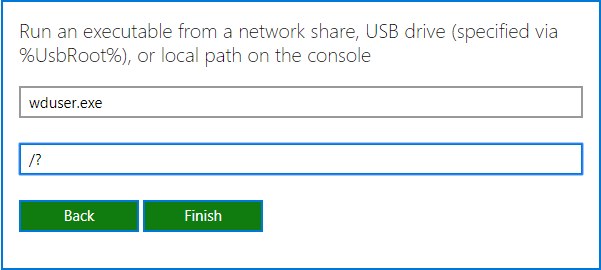
The example shows how to get the help information from wduser.exe by providing ‘/?’ as the argument. When you test this, you’ll see the command line help information in the output window of the in-browser editor:
Running script New Script
Filename: d:\boot\testscripts\testscript.cmd
14:54:03.52: Starting Action: Run an executable
Running "wduser.exe".
Available wdUser commands:
   signin         sign in a user
   signout        sign out a user
   delete         deletes a user
   autosignin     changes autosignin setting
   addsponsored   add a sponsored user
This works because wduser.exe can be reached by way of the %PATH% variable. (If you want to know the search path, simply add a Do custom action action and provide @echo %PATH%)
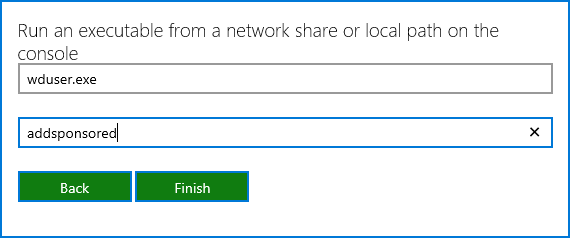
The following figure shows a complete example of a script that would sign in a gold member user account and then add a guest account using wduser addsponsored.
Figure 3. Example of a “Run an executable” action

Here are the specific details for the Run an executable action.
Figure 3. Action details.
Deploying a script to multiple consoles
In a lab setting, it quickly becomes onerous to deploy the same script to every devkit. This section discusses some strategies that you can use to automate script deployment. We’ll consider two types of script:
- A script intended to run immediately following the out-of-box experience (OOBE) or factory reset.
—or— - Other script types such as a startup/boot script or a quick-action script.
Unattended setup script for OOBE or factory reset
The out-of-box experience (OOBE) is that first thing that runs on a new devkit when you power it on after taking it out of the packaging. On a console that has already been set up previously, you can force a factory reset to run the same OOBE experience again. Regardless of how you invoke OOBE, after it finishes, the file system on the devkit is completely clean and there’s no reasonable way to have a custom script on the internal HDD. So for the OOBE or factory reset scenario, you are limited to using an external storage device.
During OOBE, the system downloads the recovery from the cloud. However, there’s also a method for performing an “offline system update”. To do this, on the USB drive, you must create a $systemupdate folder that contains the update files. Instructions can be found at Xbox One Offline System Update.
Regardless of whether you’re using an offline system update or a just relying on the OOBE behavior to get the update online, you can still provide a script to run after the update finishes, by deploying that script to the external storage device. Export the script from the in-browser editor, name it “oobe.cmd”, and then copy it to the root of the USB drive.
Boot script or quick-action script
Boot scripts and quick-action scripts typically reside on the internal hard drive of the devkit. (A boot script can also reside on an external storage device.) When developing a script, you can simply use the in-browser editor to deploy the script to a single console. If you want to deploy the same script to several devkits, you’ll likely want an automated approach. One solution is to write a batch file like this to deploy and run the script on all of the devkits.
@echo off
if '%1'=='' goto USAGE

set GroupName=%1

for /F "delims=" %%a in (consoles.%GroupName%.txt) do (
     xbcp.exe SetupDevkit.%GroupName%.xboxunattend xd:\boot\boot.cmd /x:%%a
     xbreboot.exe /x:%%a
)
goto END

:USAGE
ECHO *********************************************************************
ECHO   DeployAndReboot.cmd - Deploys and runs a startup script on a set of
ECHO                         devkits that are listed in a file.
ECHO   Usage: %0 ^<group name^>
ECHO.
ECHO   ^<group name^> Required. Name of the group of consoles that you
ECHO                  want to update. Note that you must have two files
ECHO                  1) SetupDevkit.%GroupName%.xboxunattend
ECHO                     Names the group-specific boot script to Deploy
ECHO                  2) consoles.%GroupName%.txt
ECHO                     List of devkit host names or IPs of the consoles
ECHO                     that you want to update.
ECHO.
ECHO   Example: %0 RougueDevkits.txt
ECHO   Example: %0 MyGroupName
ECHO *********************************************************************
:END
To make this work, you must provide:
- An unattended setup script called:
SetupDevkit.<group name>.xboxunattend
- A file containing a list of the devkits that you want to update. The file must be named:
consoles.<group name>.txt
Each line of the file will have either a host name or IP address for a devkit in the group. Then run the batch-file from the Xbox One command prompt. Here’s a concrete example:
> DeployAndReboot.cmd consoles.PlayTestLab.txt
The example assumes that the batch file is named DeployAndReboot.cmd and works on a hypothetical group called “PlayTestLab”. As described above, you’d need two files:
- consoles.PlayTestLab.txt
- SetupDevkit.PlayTestLab.xboxunattend
Discovering consoles
The DeployAndReboot.cmd batch file is a convenient way to deploy your boot script to a group of consoles, but only after you have created the list of host names or IPs. Creating the list in the first place could be a daunting task if you have a lab or studio filled with devkits that may not all be set up consistently. The xbConnect.exe utility supports a /discover option that allows you to list the running devkits on your local network. Here’s a batch file that runs xbConnect to enumerate your devkits.
@echo off

if '%1'=='' goto USAGE
set ResultFile=%1

if exist %ResultFile% del %ResultFile%

for /F "usebackq skip=2 tokens=1,2" %%i in (`xbconnect /discover`) do if %%i==XboxOne echo %%j>>%ResultFile%

goto END
:USAGE

ECHO ****************************************************************
ECHO   %0 - Creates a list of IPs for devkits with hostname = XboxOne
ECHO.
ECHO   Usage: %0 ^<result file^>
ECHO.
ECHO   ^<result^> Required. Specifies the file to receive the results
ECHO   ^<result^> Required. Specifies the file to receive the results
ECHO   Example: %0 AnonymousDevkits.txt
ECHO.
ECHO ****************************************************************

:END
The batch file is benign—it merely gathers information, and this is a deliberate design choice. Be sure to review the list of devkits that you obtain before performing a destructive change on all those consoles. Otherwise, you could end up causing a lot of disruption in your studio. As a best practice, use extreme caution when using the results of xbConnect /discover in a script.
It’s always a best practice to set an access key on your devkit. This prevents people who may have access to your network from also accessing your devkit. You can set the same access key for all the devkits that you want to manage as a group. You can find the Access Key setting in Dev Home. Alternatively, you can use xbConfig.exe to change the Access Key setting.
Figure 4. Access Key Setting in Dev Home.
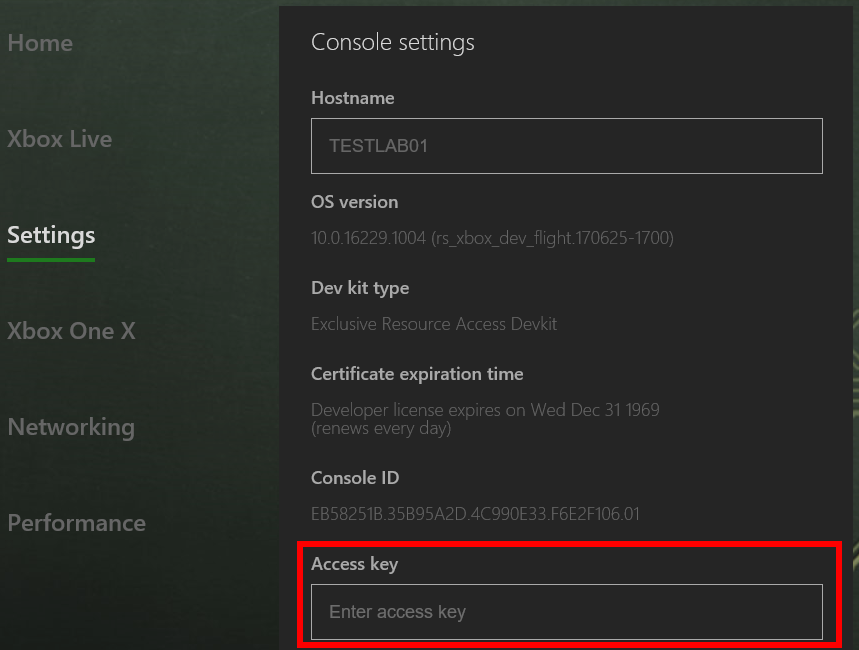
The access key restricts access by tools from the Xbox One command prompt, but doesn’t restrict access when connecting via Xbox Device Portal. To restrict access for Xbox Device Portal, configure the Remote Access settings in Dev Home. For more information, search the index of the XDK Documentation for “Xbox Device Portal”.
How to avoid deploying
The best way to deploy the same script to several devkits is not to do it at all. You can deploy a simple boot script just once to all your devkits, and that script then uses the Run another script action to call a script that resides on a network share. After that, you can concentrate most of your scripting actions in the remote script on the network share. Whenever you make changes to the remote script, those changes are automatically picked up when the boot script on any of your devkits runs the remote script.
Unique host names
Setting the host name on a group of devkits programmatically presents a challenge because you must use a different host name for each devkit. The default Set the host name for the console action uses a simple mechanism to accomplish this. Each time an unattended script runs, the following parameters are passed in.
%1 = serial number
%2 = console ID
%3 = Xbox Live device ID
Recall that the unattended action named Set the host name for the console has an optional check box that lets you automatically generate the host name in the form XB-<console serial number> (for example, XB-001234567890). The standard script block for the Set the host name… action composes %SerialNumber% with a string fragment to create the host name.
The default host-name scheme does indeed give you unique host names, but the names are not user friendly. Here’s a script that takes a different approach.
REM SCRIPTSTEP START CUSTOM V1
ECHO %TIME%: Starting Action: Do custom action
REM NAME Set unique host name for each console serial number
ECHO Set unique host name for each console serial number
SET SettingName="Hostname"
SET SettingValue=

if "%SerialNumber%"=="001234567891" (SET SettingValue="testxbox-01")
if "%SerialNumber%"=="001234567892" (SET SettingValue="testxbox-02")
if "%SerialNumber%"=="001234567893" (SET SettingValue="testxbox-03")

if "%SettingValue%"=="" (
    ECHO Unrecognized console, skipping setting host name
    goto SKIP_HOSTNAME
)

SET CurrentSettingValue=
FOR /F "usebackq tokens=1-2*" %%A IN (`WdConfig.exe query %SettingName% 2^>nul`) DO (
    SET CurrentSettingValue=%%C
)
if /i "%CurrentSettingValue%" neq %SettingValue% (
    WdConfig.exe set %SettingName%=%SettingValue%
    SET NeedsReboot=true
) else (
    ECHO %SettingName% does not need to be changed.
)
:SKIP_HOSTNAME
REM SCRIPTSTEP STOP
Rather than use the %SerialNumber% to generate the host name, this script just uses some logic to “look up” a friendlier host name that is associated with each serial number. You can use this script on multiple consoles, provided that you include the serial numbers for each within the script.
Unique test accounts
The trick in the unique host name example is to use the %SerialNumber% as a key to look up a value (for example, the host name) that is associated with that serial number. A test account is analogous to a host name, in that you want a unique test account signed in on each individual devkit.
You can use the same technique as with host names to sign in unique test accounts on several consoles. To do this, you add a custom action that looks like this.
    ECHO %TIME%: Starting Action: Do custom action
    REM NAME Log in unique user for each console serial number
    ECHO Running custom action Log in unique user for each console serial number

    if "%SerialNumber%"=="001234567891" (
    SET XblEmailAddress="testuser001@xboxtest.com"
    SET XblPassword="WGJveE9uZTE="
    ECHO Signing in !XblEmailAddress!.
    WdUser.exe signin !XblEmailAddress! !XblPassword!
    )
    if "%SerialNumber%"=="001234567892" (
    SET XblEmailAddress="testuser001@xboxtest.com"
    SET XblPassword="WGJveE9uZTE="
    ECHO Signing in !XblEmailAddress!.
    WdUser.exe signin !XblEmailAddress! !XblPassword!
    )
    if "%SerialNumber%"=="001234567893" (
    SET XblEmailAddress="testuser001@xboxtest.com"
    SET XblPassword="WGJveE9uZTE="
    ECHO Signing in !XblEmailAddress!.
    WdUser.exe signin !XblEmailAddress! !XblPassword!
    )
    REM SCRIPTSTEP STOP
Notice that the script uses !XblEmailAddress! instead of %XblEmailAddress%. The ‘!’ variable delimiter is valid only when you have “delayed expansion” enabled for batch files. To enable delayed expansion, add “SETLOCAL EnableDelayedExpansion” somewhere near the beginning of your script. Scripts that you create with the unattended setup script editor will always enable delayed expansion.
In this example, each of the test accounts has the same password, which is why the XblPassword value is the same in all cases. Also, the password is base64 encoded. Base64 encoding is used to support special characters in the password. The base64 encoding is used only as a convenient way to encode special characters and is not a secure way to store passwords.
To get a base64-encoded password value, you can use the script editor. First, supply user credentials as shown.
Figure 5. Sign-in details.
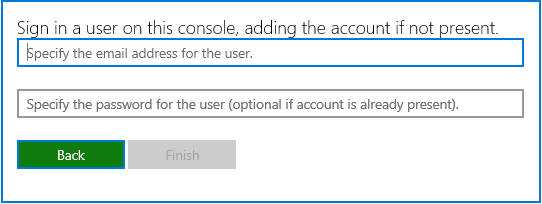
Next, export the script and open the resulting file in your favorite editor. Then look for the encoded password (search for “XblPassword”), which you can now substitute into your own custom script.
Recovery deployment
Follow these steps to stage and deploy a new Xbox One recovery update to a group of consoles:
- Download and unpack the .zip file for the Xbox One recovery update of your choice from https://developer.microsoft.com/en-us/games/xbox/partner/development-downloads-xdk-archives
- Place the unpacked payload on a network share. (For a brief example of how to set up a network share, search the index of the XDK Documentation for “Run from PC Deployment”.)
- Create an unattended script with at least the following two script actions:
- Add network credentials
- Update console OS recovery
- Deploy and run the unattended script on each console that you want to update with the new Xbox One recovery update.
In step 4, you can use the strategy described in How to avoid deploying if you need to run the recovery update on a group of consoles. Also, the script action Update console OS recovery does nothing at all in the case when the specified recovery is the same version as the recovery already installed on the devkit. This makes it easy to add the script action to a boot script, because you know that it will update the recovery only when you have a newer one posted to your network share.
Summary
Unattended setup scripting is at first glance a very basic automation feature that you can extend by using your batch file programming prowess. You can inject small pieces of functionality into your unattended script by using custom actions, or build up a sophisticated scripting infrastructure by calling out to your custom batch files.
Many studios need to manage a large number of devkits. We’ve seen how to construct a system for deploying scripts to multiple consoles. We’ve also discussed a scripting strategy that minimizes the need to deploy scripts frequently.
References
For more information about topics mentioned in this white paper, search the index of the XDK Documentation for:
- onfiguring Your Dev Kit with an Unattended Setup Script
- Unattended Setup Scripting Quick Start Guide
- Script Authoring Tool
- Unattended Setup Script Reference
- Xbox Device Portal
- Run from PC Deployment