Visual Gesture Builder Analysis Project
Describes the Analysis Project in Visual Gesture Builder.
Analysis Project Menu
To access the context menu for an analysis project, open an existing solution in VGB (File > Open Solution) and right-click on an analysis gesture project (.a) in the Explorer.
The Analysis Project menu displays options for adding clips and analyzing the gesture detector.
Figure 1. Analysis Project menu
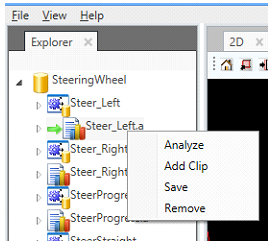
The following options are available for the analysis project.
| Menu Option | Description | ||
|---|---|---|---|
| Add Clip | Adds one or more clip files (.xef) to the project. This will create an associated .vgbclip file for tagging metadata, if no such file exists. | ||
| Analyze | Enables you to test a database (.gba or .gbd) against all of the clips in the project. Analyzes how well the detector results compare to the tags in the project. Analysis results will appear above the Timeline control. This option is disable when another analysis or build is in progress.
| ||
| Save | Saves all changes to the analysis project (a.vgbproj), including clip references. | ||
| Remove | Removes the analysis project from the solution. |
 Note
Note Analysis Project Settings
The analysis project settings are available in the Properties tab and enable you to modify analysis values, such as mirroring. Available settings depend on the machine learning technology used by the gesture project. For more information see Machine Learning Technologies.
Figure 2. Analysis Project Settings
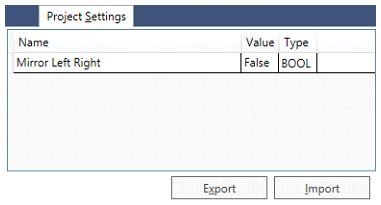
The following options are available in the Project Settings pane:
| Parameter | Description |
|---|---|
| Name | Name of the settings property. The names listed depend on the machine learning technology used by the project. |
| Value | Assigns the value to the settings parameter. |
| Type | Displays the type associated with the settings property. |
| Control | Description |
|---|---|
| Export | Export the project property values to a file. Use this control as follows:
|
| Import | Import the project property values from a file you select, such as "GolfSwing.a.fid". Use this control as follows:
|
Analysis Project Results
Analysis progress will be displayed in the Output pane. When analysis completes, the Project Analysis Results will be displayed above the Timeline control. Multiple analysis results can be loaded for side-by-side comparison.
If the analysis project (.a) has focus, then the collective results for all of the clips in the project will be displayed.
Figure 3. Project Analysis Results

The following options are available in the Project Analysis Results pane:
| Control | Description |
|---|---|
| Results | Shows the project analysis results. The results contain the number of frames compared, worst errors, average RMS, false positives, and false negatives. Applicable results will depend on the machine learning technology used by the gesture project. |
| Clear | Clears all the existing analysis results. |
| Export | Exports the selected analysis results to an .adf file, which can be loaded later for comparing results with another build. |
To view the Clip Analysis Results, expand the analysis project in the Explorer pane and select the clip. The Timeline will then update to show the individual clip analysis results overlaid by the tags for easy frame-by-frame comparison.
Figure 4. Clip Analysis Results
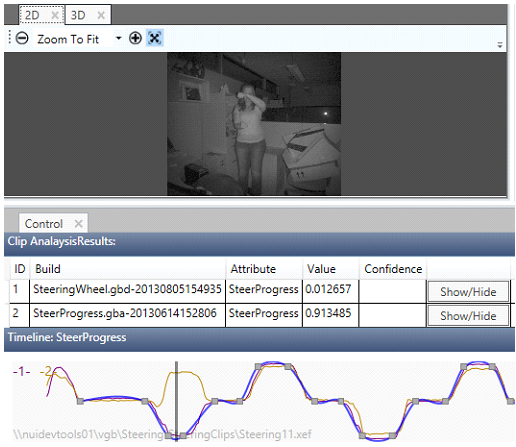
The following options are available in the Clip Analysis Results pane:
| Control | Description |
|---|---|
| Show/Hide | Shows or hides the selected clip analysis results within the timeline. Tagged data will still be displayed. |