Application Insights
Note This article only applies if you are using Stats 2013 or Achievements 2013.
Application Insights is an analytics and telemetry solution provided by Microsoft. More information is available at What is Application Insights?. The Xbox Live API integrates with Application Insights so you can see your events being sent in real-time. At this time, you can only see events for UWP applications in Application Insights
Configure Azure
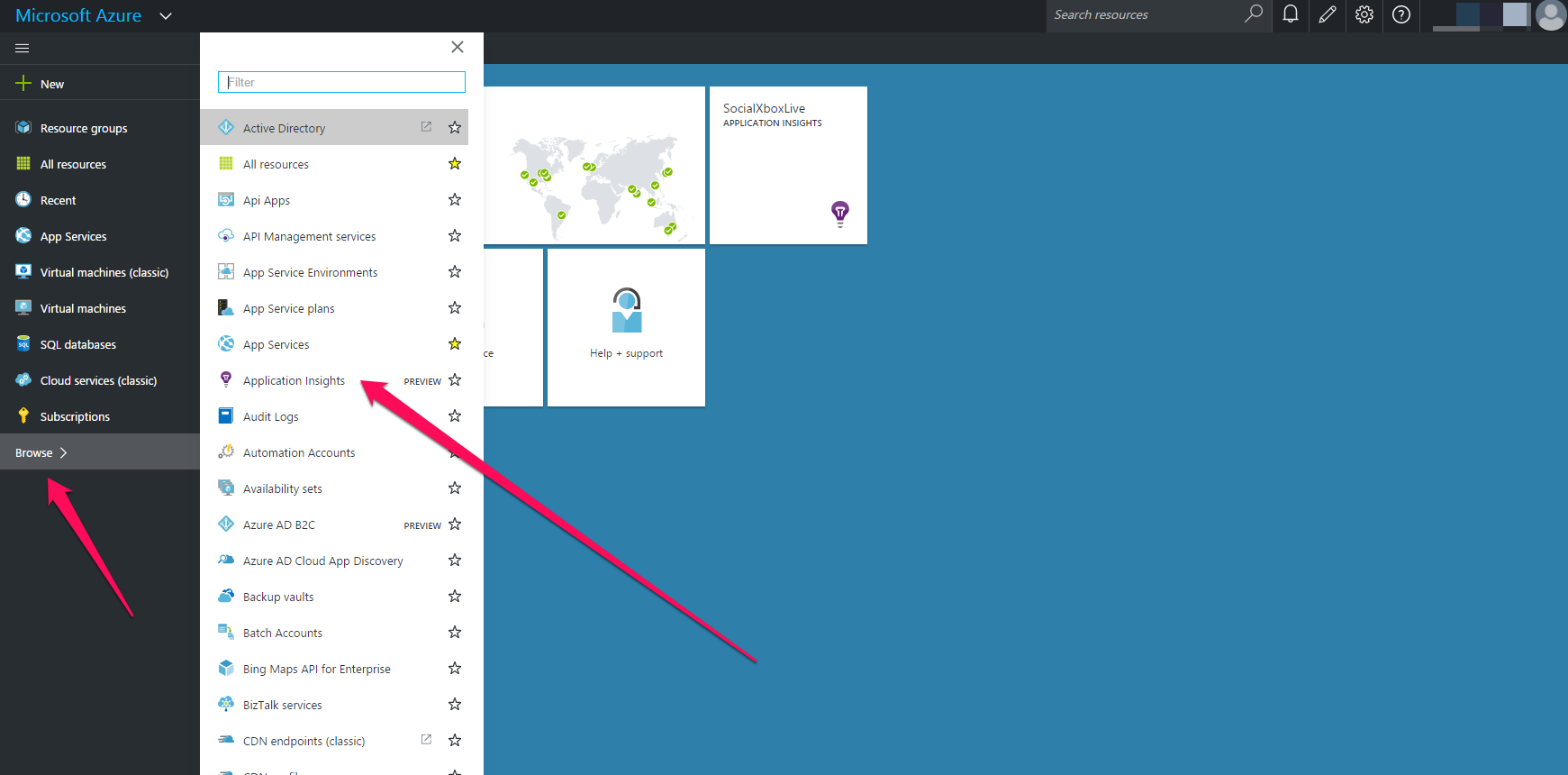
Click the “Free Trial” button at http://azure.microsoft.com. Once you have setup a free account, you will need to go to the Azure Portal at http://portal.azure.com. You should see something like the following window. You will want to click on the “Browse” button, and then “Application Insights”.
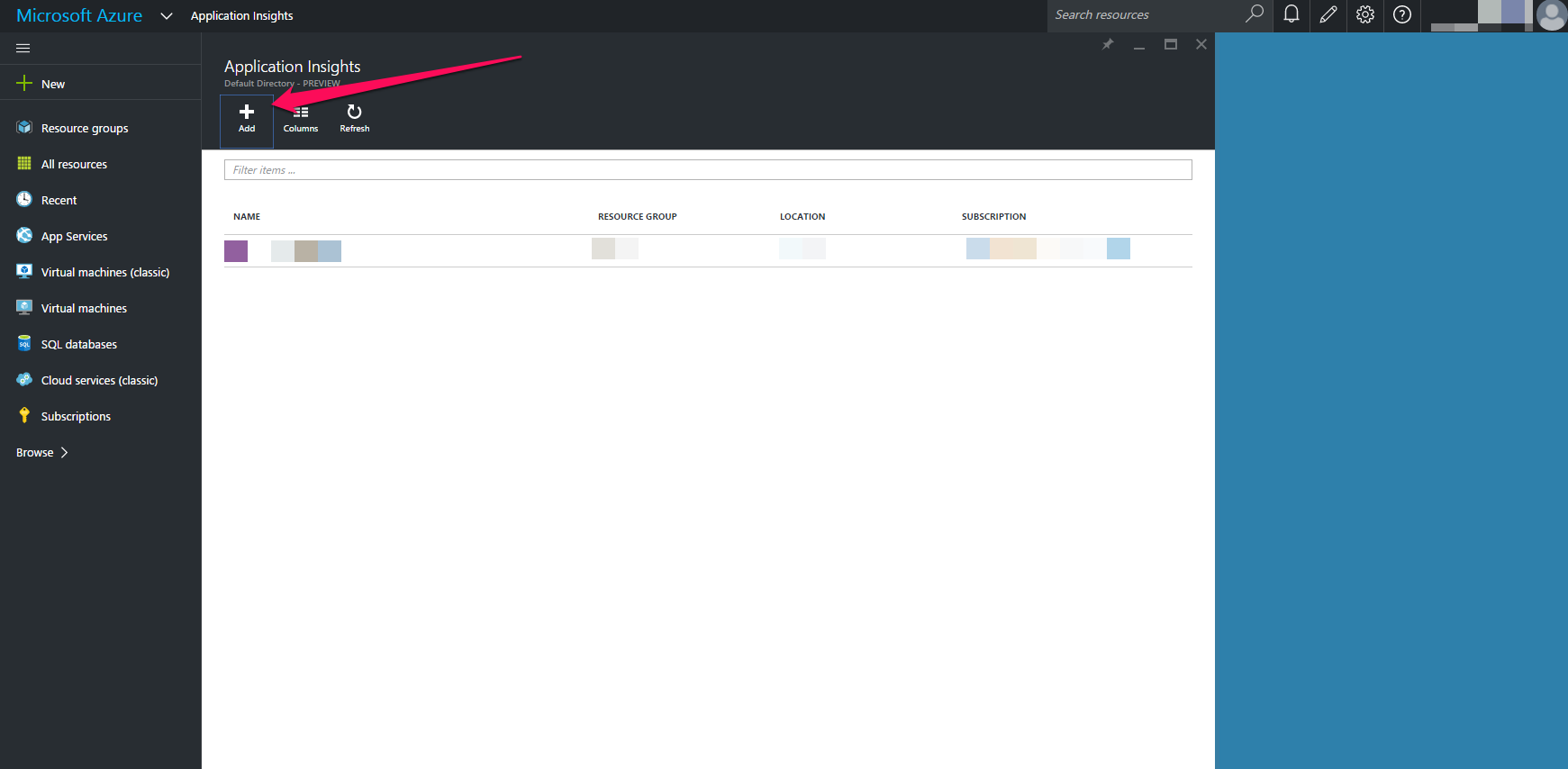
Afterwards, you will see this screen. Click the “Add” button.
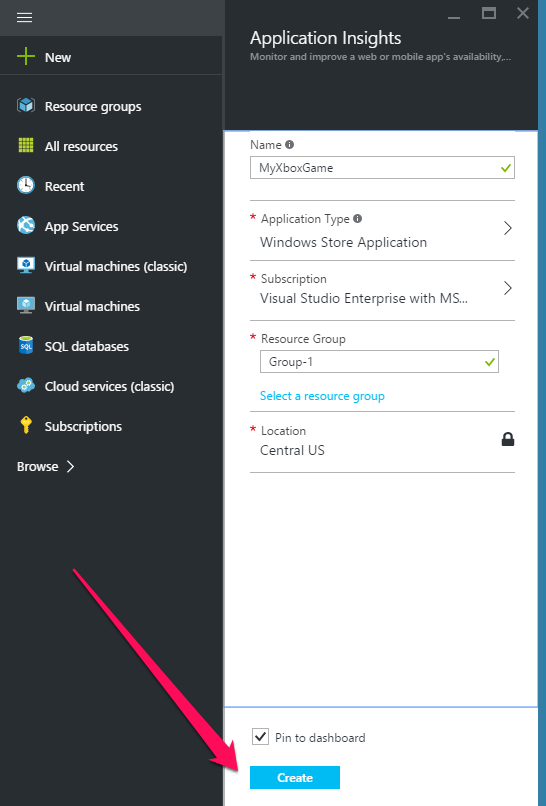
Fill out some information such as the name and type of App. These values aren’t important, and are just for you to easily identify the Application Insights instance. For example, you could have multiple Application Insights instances in the same Azure account.
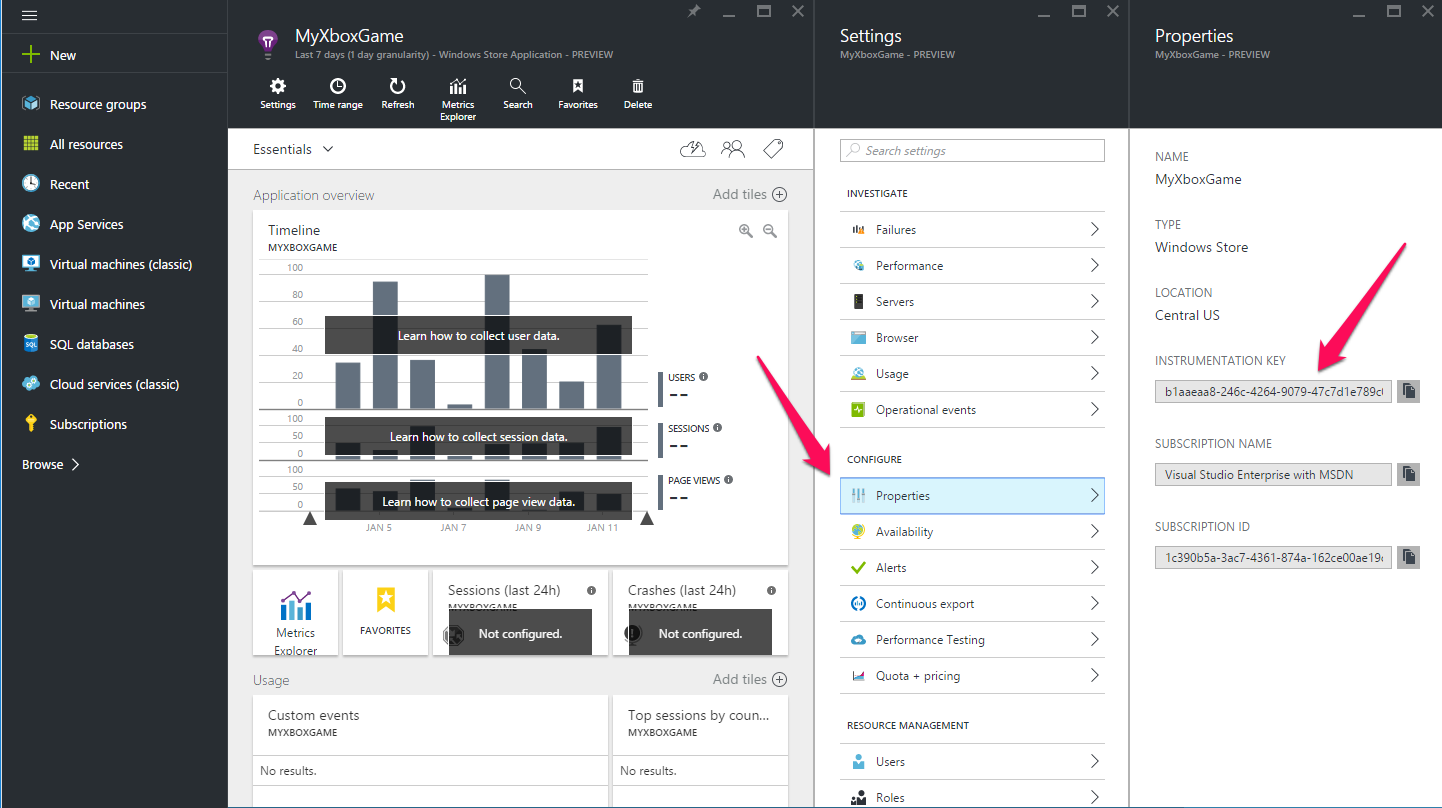
After a while for some processing to complete, you will be presented with the following window. If it’s not automatically shown, you can navigate to it from the main http://portal.azure.com page.
Click on “Properties” and then copy the Instrumentation Key somewhere accessible
Configure your Visual Studio project
Now that you have an Instrumentation Key, you are ready to setup your Visual Studio project to send your events to Application Insights.
Once your project is open in Visual Studio, go to Tools -> NuGet Package Manager -> Manage NuGet Packages for Solution…
Then in the search bar, type “ApplicationInsights” - make sure that “Include prerelease”. If your project is a C#/WinRT project, then select Microsoft.ApplicationInsights.Web. If it is a C++ project, then selection ApplicationInsights-CPP. Click “Install”.
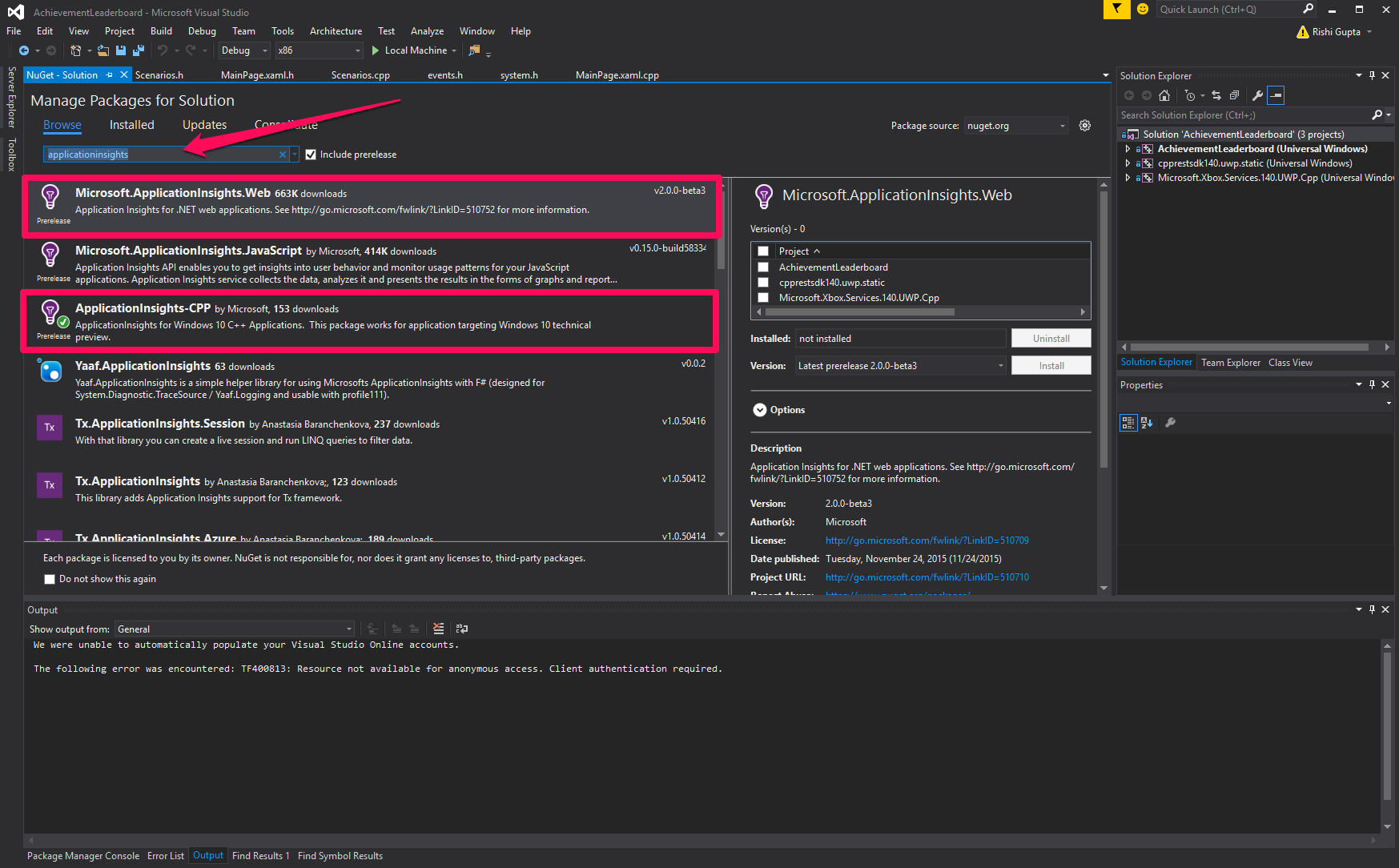
Once you have installed the version of Application Insights appropriate for your project, follow the instructions in the Read Me. For the C# version, there is minimum work. For the C++ version, you will need to manually update the header and library search paths, as specified in the instructions.
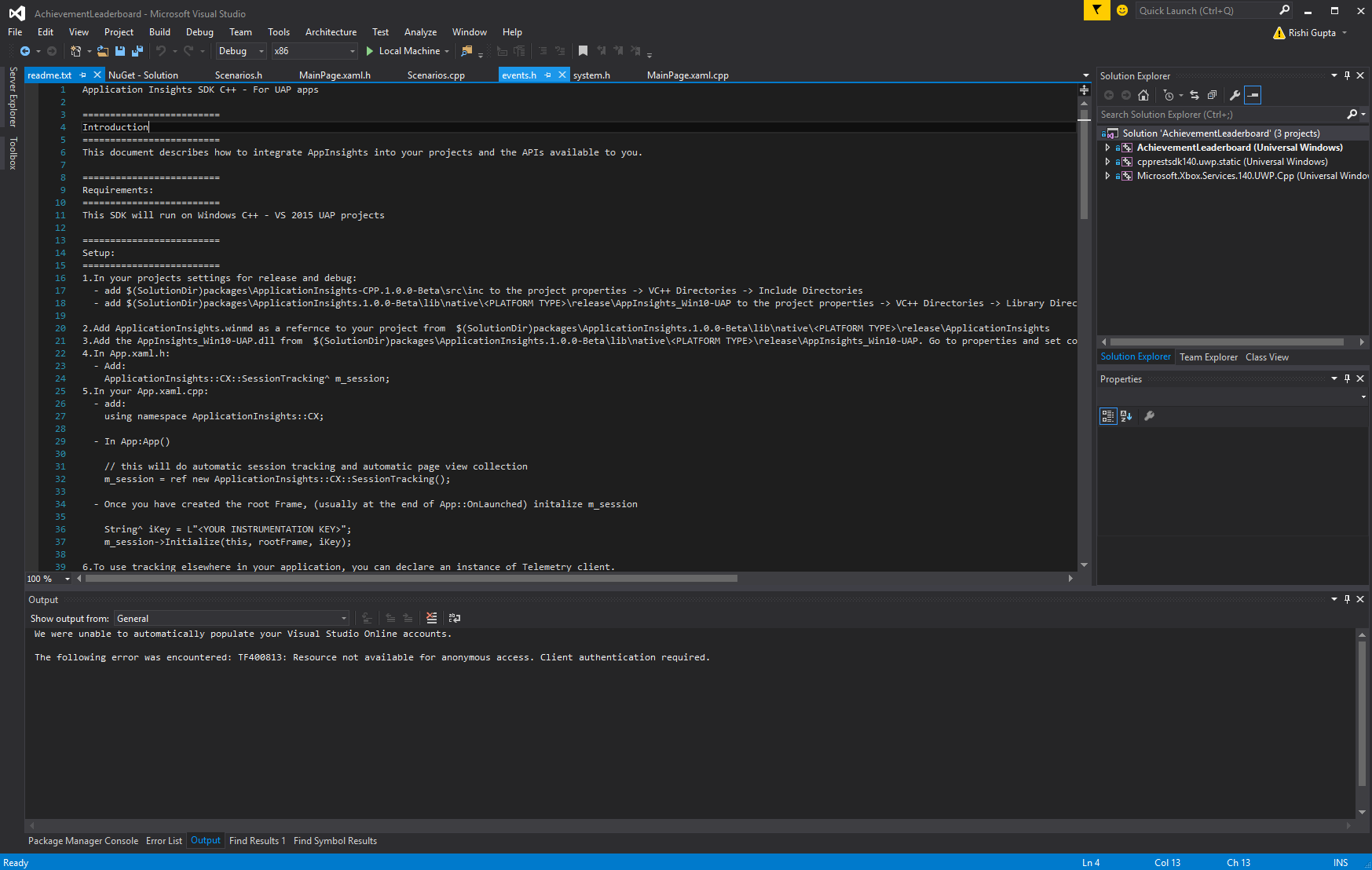
After Application Insights is successfully configured, open your xboxservices.config and enter your Instrumentation Key as AlternateAppInsightsInstrumentationKey as shown below
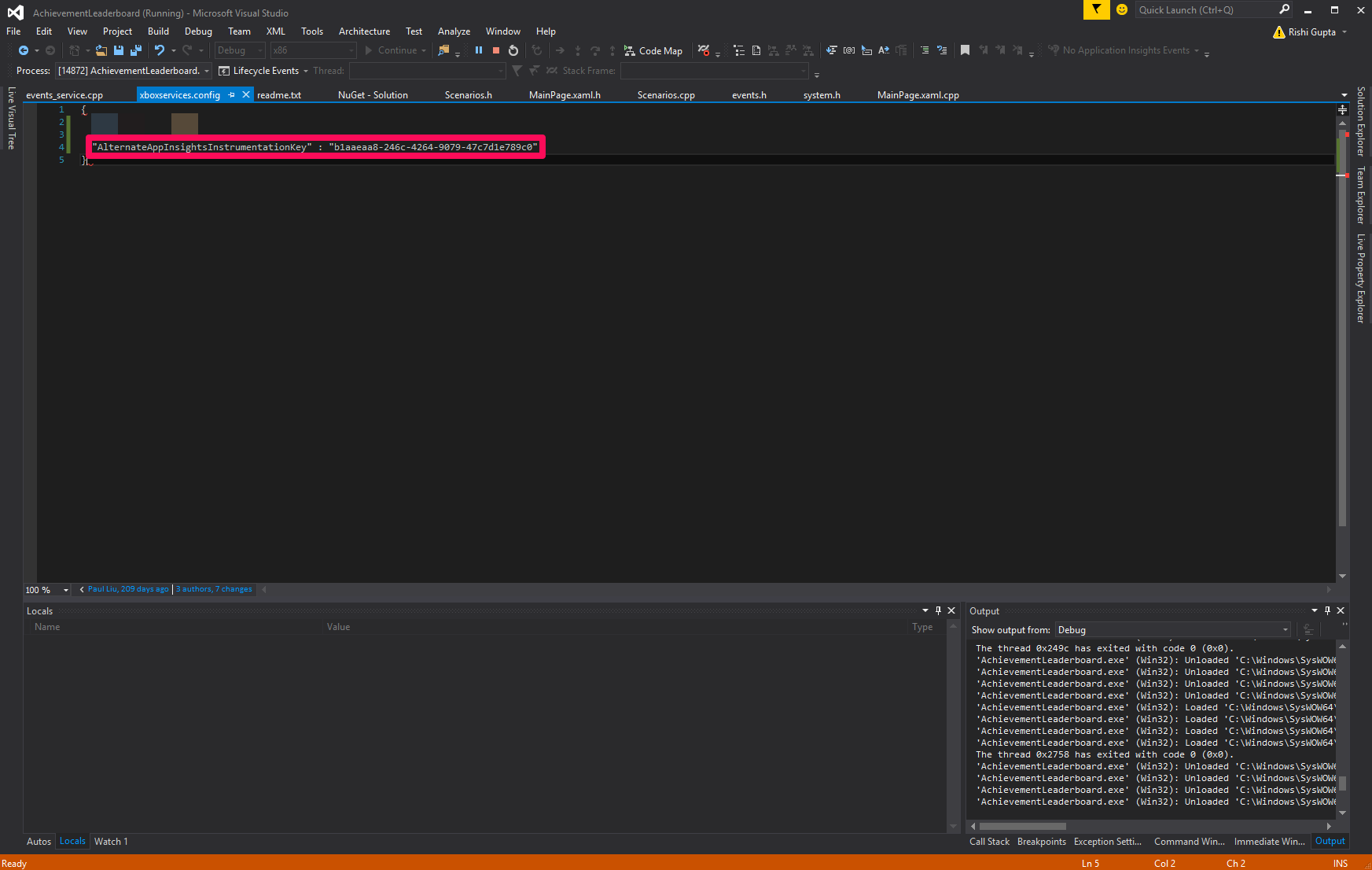
If you install the C# version of the package, then an applicationinsights.config may be created automatically for you, and you can put the Instrumentation Key in there instead.
Once Application Insights is setup, you will see events in the Azure portal at http://portal.azure.com.
Go to your Application Insights instance, and then you should see events as below. These events will show up within a few minutes of being sent.
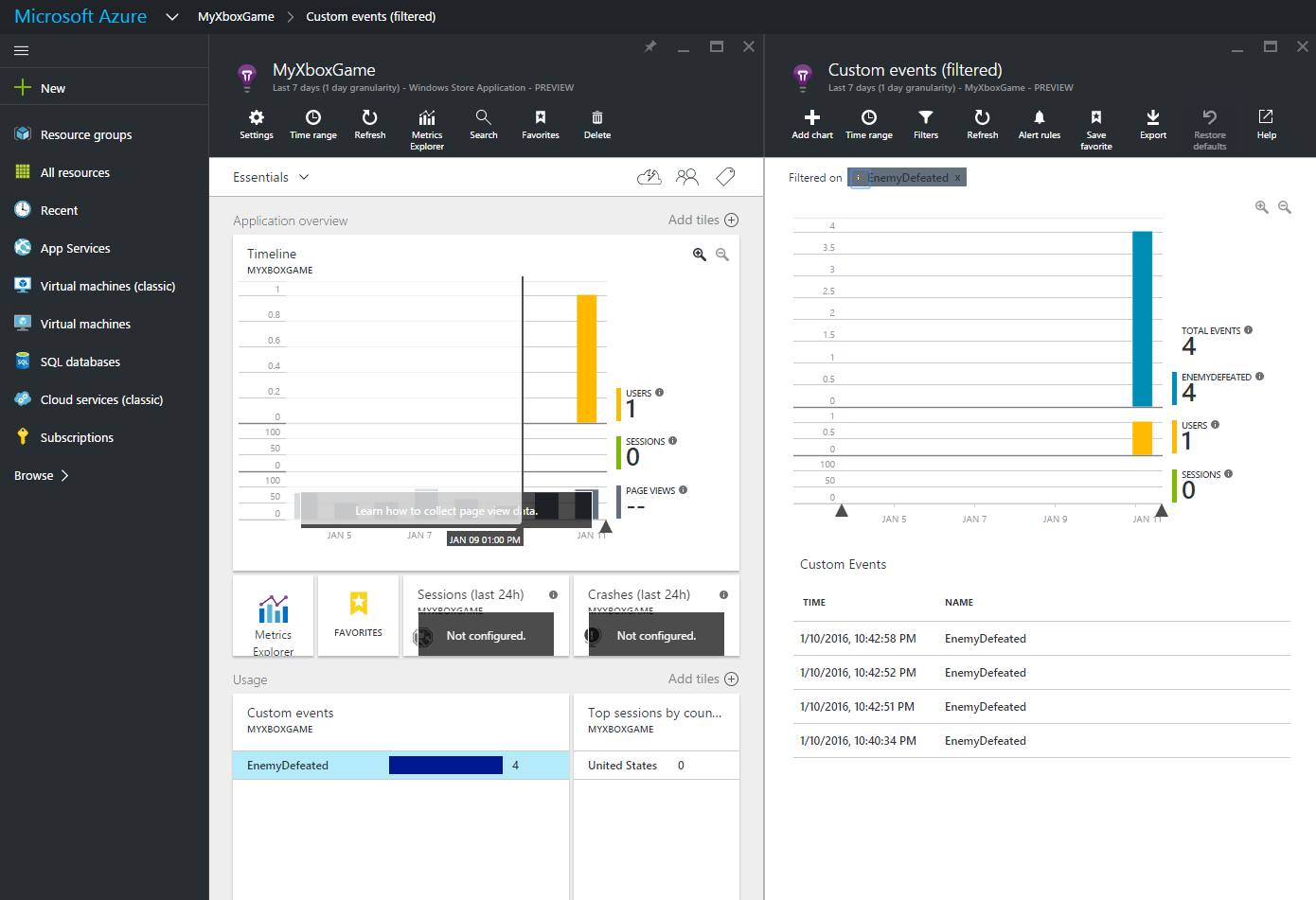
If you see events here, but are not getting achievements triggered or stats are not updating, double check your service configuration. Make sure your service config is published to the right sandbox.