Configure Capabilities
In the Xbox Developer Portal (XDP), you can configure the capabilities of your product. Capabilities indicate, for example, whether your product is Kinect-enabled, whether it collects any data for export from the console, and whether it supports multiplayer modes.
Add or change capabilities
Configure capabilities for a product by navigating to the main page for the product in XDP, and then navigating to the Capabilities page by clicking Capability Setup from either the navigation menu on the left or under the Catalog & Artwork heading. Then use the following procedures.
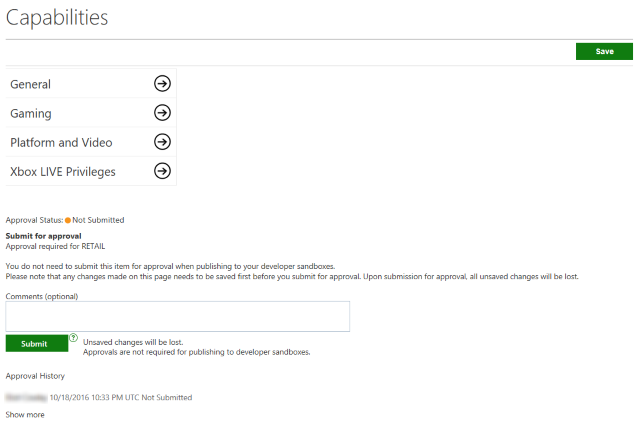
To configure general capabilities for a product
- On the left side of the page, click General.
On the right side of the page, XDP displays the settings available for general capabilities. - Under General, select Yes or No for each listed capability.
- Under Does the product make use of Impulse Triggers? select Yes if it does, and No otherwise. Impulse Triggers are what allow for the left and right triggers on the Xbox One gamepad to individually rumble.
- Under What peripherals are required? you can select Standard Controller and/or Other Peripherals, or you can leave these selections blank. If you select Other Peripherals, describe them in the text box.
- Under Is snap mode experience enabled? select whether your product can be snapped.
- Under Does this product require Kinect? select whether your product requires Kinect.
- Under Is any data captured from Kinect sent off of the console or planned to be sent off of the console? select Yes or No.
- Under Does this product require online connectivity? select Yes or No. If you select Yes, the product will not be tested for offline play requirements during certification. The product must also have a label on its physical packaging and Microsoft Store listing.
- When you are done specifying general capabilities for your product, click Save.
XDP returns you to the main page for the product.
To configure gaming capabilities for a product
- On the left side of the page, click Gaming.
On the right side of the page, XDP displays the settings available for gaming capabilities. - Under What is the maximum number of players local to the box, enter the number of players who can simultaneously play locally on the same console.
- For Do you have online play?, select Yes or No.
If you select Yes, enter the number of maximum online players in Max online players and the minimum number of online players in Min online players. - If the game offers cooperative play, under What level of cooperative support do you offer?, select one or both of Online and Local.
If you select Online, enter the number of maximum online players in Max online players and the minimum number of online players in Min online players. - When you are done specifying gaming capabilities for your product, click Save.
XDP returns you to the main page for the product.
To configure platform and video capabilities for a product
- On the left side of the page, click Platform and Video.
On the right side of the page, XDP displays the settings available for platform and video capabilities. - Select whether this product is an Xbox Play Anywhere title.
- Select whether this product supports Windows Mixed Reality (MR).
- Select whether this product supports cross-platform multiplayer across Xbox and Windows 10.
- Select whether this product supports cross-platform cooperative multiplayer across Xbox and Windows 10.
- Select whether this product supports shared- or split-screen multiplayer.
- Select whether this product supports native 4K resolution video output.
- Select whether this product supports High Dynamic Range (HDR) video output.
- Select whether this product supports variable refresh rate (VRR).
- Select whether this product is Xbox One X-enhanced (that is, whether it contain assets and code that take advantage of the unique capabilities of the Xbox One X console).
- When you are finished specifying platform and video capabilities for your product, click Save.
XDP returns you to the main page for the product.
To configure Xbox LIVE Privileges for a product
- On the left side of the page, click Xbox LIVE Privileges.
On the right side of the page, XDP displays the settings available for Xbox LIVE Privileges. - Under While using this product, all users (including non-Xbox LIVE Gold users) are granted access to the following privileges, there are 3 checkboxes: Multiplayer Play, Broadcast, and Participation in Connected Single-Player Experiences in Shared Environments.
- Check Multiplayer Play if wish to allow all users of your product to join online multiplayer sessions.
- Check Broadcast if you wish to allow all users of your product to broadcast gameplay. It is recommended that you don’t allow this in developer sandboxes to avoid accidental broadcasts of pre-release content.
- Check Participation in Connected Single-Player Experiences in Shared Environments if you wish to allow all users of your product to join connected multiplayer worlds, such as in MMOs (Massively Multiplayer Online games).
- Under While using this product, all users (including non-Xbox LIVE Gold users) are restricted from the following privileges, check Share Kinect Data if you wish to restrict all users of your product from uploading Kinect content to Xbox LIVE.
- When you are done specifying gaming capabilities for your product, click Save.
XDP returns you to the main page for the product.
Submit capabilities for review and approval
When you have configured capabilities for each of the categories, general and gaming, and you have saved each configuration, your capabilities are ready for submission for review.
After submitting your capabilities for review, you can wait for approval or rejection. You can also cancel your request and make additional changes; when changes are complete, you can submit your capabilities again.
Submit capabilities for review by navigating to the main page for the product in XDP, and then use the following procedure.
To submit capabilities for review
- On the left-hand navigation menu, click Capability Setup, or click Capability Setup under Catalog & Artwork on the page.
XDP displays the Capabilities page. - In Comments, type any comments that you want to make about this submission.
Adding comments is optional. - Click Submit.
After clicking Submit, the command on the button changes to Cancel.