Content Controls for Xbox One
Xbox One is committed to providing parents with the tools to monitor what their children do online and the ability to make choices about which content is appropriate for their family. Families that currently use the Xbox 360 console will transition seamlessly to Xbox One. For Xbox One, parents are offered three choices: unrestricted, restrict content, or restrict and hide listings in search, stores, and apps.
If you design your apps to use Microsoft’s content filtering APIs, the apps will provide seamless experiences for customers of all ages.
In this topic:
- Parental controls on Xbox One compared to Xbox 360
- How content controls work on Xbox One
- What are ratings?
- Setting up parental controls for your app
- Additional resources
Parental controls on Xbox One compared to Xbox 360
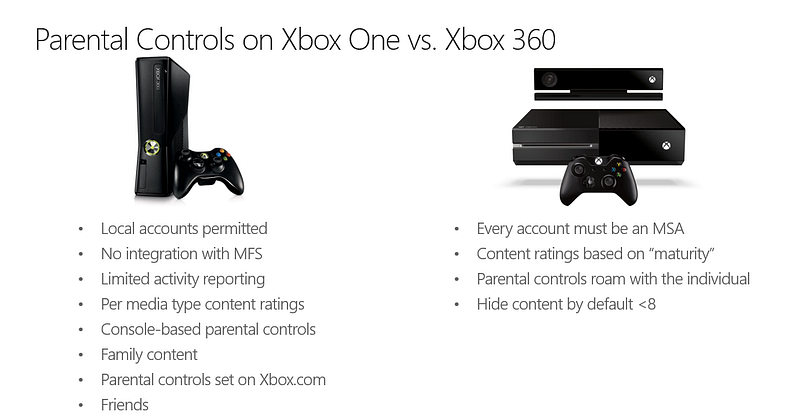
An individual’s content restrictions are now enforced by profile and roam with the user, instead of being controlled by each individual console. The following figure compares parental controls on the two systems:
Figure 1. Parental controls on Xbox One compared to Xbox 360
How content controls work on Xbox One
Xbox One offers families more flexibility to tailor the content and experience that Microsoft delivers based on each family’s unique preferences. Families can choose from three different types of content filtering: unrestricted, enforce content restrictions, and enforce content restrictions and hide listings in search, stores, and apps that may be inappropriate for the user.
To make setting up the enforcement of parental controls easier, Xbox One is moving to user-based content restrictions in the form of a “maturity level.” All ratings within the ratings systems that Xbox supports have been mapped to a maturity level. To restrict a user, set the user’s maturity level—essentially a number—to indicate which age-appropriate content the user can access. There is only one maturity level for a user, a value that applies across all supported media types.
A child whose maturity level is set to that of a 10-year-old may access content rated E10, PG, TV-PG, and below without needing permission. To do this, the parent needs to set only one value: access to content appropriate for a 10-year-old. The following table shows an example of how different maturity levels map to the US rating systems.
| Appropriate for | 7-year-olds | 10-year-olds | 16-year-olds |
|---|---|---|---|
| Games (ESRB) | E for Everyone | E10 | T for Teen |
| Movies (MPAA) | G | PG | PG-13 |
| TV (TVPG) | TV-Y7 | TV-PG | TV-14 |
| Music (RIAA) | Block Explicit | Block Explicit | Allow Explicit |
This concept is meant to simplify how parents specify what content is age-appropriate for their children. Furthermore, a user’s content restrictions roam with him or her from console to console.
Levels of content restrictions available on Xbox One
The Xbox One has three types of content restrictions:
Unrestricted
Xbox One permits the account to view and play any content, including unrated content.
Enforce content restrictions
Parents can choose an appropriate age level, usually corresponding to the child’s age. Xbox One then allows the child to play only content appropriate for that age, unless the parent provides explicit permission to allow other content to be viewed.
Enforce content restrictions and hide listings in search, stores, and apps
In addition to setting restrictions appropriate for the child’s age level, parents can specify that they do not want their child to see content rated above their restriction level. When this restriction is set, Xbox One hides any content that is not appropriate for that particular age level.
Unrestricted
Most users will be in the unrestricted category. An unrestricted account can view and play any content and is not affected by any content restrictions. This is the default setting for all accounts over the age of 8 years old.
Enforce content restrictions
To enforce content restrictions for a child’s account, a parent should set the child’s age level to the desired value. Once the parent chooses an age level, the console automatically enforces the associated content restrictions for any content that the user attempts to launch. As long as the restricted account is signed in, Microsoft enforces an individual’s restriction.
Unless a child’s account has been set to have certain content hidden, as detailed in the following section, accounts on Xbox Live may browse all content on the dashboard and within apps. If a child tries to engage with content beyond the age level set for that child, the console automatically prompts for parental permission before granting access. The “appropriate for age” level is automatically selected by default for the accounts of children who are 7 years old and younger.
Hide listings in search, stores, and apps
Hide listings in search, stores, and apps—or “hide”—is the most restrictive content filtering option on Xbox One. When an account is set to hide content, titles should remove anything from the UI that exceeds the user’s age-appropriate level. Hiding is the default setting for accounts on Xbox Live for children 7 years old and younger.
If filtering content from the UI is not possible, obfuscating images will meet the Xbox Requirement (XR). Make sure that obfuscated content tiles are not actionable. Series art, such as box art describing a genre or TV series, does not have to be obfuscated.
The following table shows the default state of Xbox One accounts:
| Adults: ≥ 18 | Teen: 13 – 17 | Children: 8 – 12 | Young Children: ≤ 7 | |
|---|---|---|---|---|
| Activity monitoring | N/A | On | On | On |
| Content restrictions | Off | Off | Off | On |
| Hide content above my restrictions | Off | Off | Off | On |
Console-based content restrictions (guest settings)
Xbox One console-based content restrictions prevent users from logging out to circumvent account restrictions. In the console’s Settings app, we have styled these restrictions as guest settings. Guest content restrictions apply only when there are no Xbox accounts signed in to the console.
For the purpose of explanation in this topic only, a guest is defined as a user-like entity who isn’t signed in to an account on Xbox Live. It is possible that the “entity” has an account he or she might sign in to, but hasn’t yet signed in. It is also possible that the user is a house guest who wishes to use the console without needing to create an actual account on Xbox Live. If your title requires an authenticated user, you may disregard this section.
Note What exactly makes a “guest” is more nuanced on Xbox One. The definition of guest used in this section is intended for this document only, to explain how console-based content restrictions are applied.
As with user-based restrictions, the guest settings use an age-appropriate level to specify what is and is not appropriate. Unlike Xbox 360, there is no device setting that can be set to prevent users from signing in to Xbox Live. Guest settings default to unrestricted. If a user is signed in, his or her restrictions—or lack thereof—trump the console’s own restrictions.
Xbox One’s enforcement policy
Though titles do not need to concern themselves with the console’s enforcement policy, it is worth a brief discussion for context.
- Restrictions are enforced whether or not there is a connection to Xbox Live.
- The console takes a “most restrictive” stance to whether parental permission is necessary. If any user is signed in whose content restrictions are exceeded, parental permission is necessary for the user to continue.
- If multiple users’ restrictions are exceeded, they all must get approval.
What are ratings?
Ratings are subjective classifications of content or apps and are based on factors such as:
- In-app content, such as violence, drug use, language, or sexuality.
- Functionality, such as social features, privacy, or interactions with other services.
- User-generated content—content created by other users.
Ratings are among the tools families can use to monitor or restrict apps or content to best fit their family’s maturity level. Without ratings, users and families lack basic information about content and apps to make informed decisions, and could potentially be exposed to content and apps that are unsafe or inappropriate.
Title ratings
A title rating is a “wrapper rating” for an entire app, giving families an understanding of the content and functionality within the app and providing information about which parental controls the app supports. When you submit a game, it must include its ratings certificates in its AppXManifest. Media apps must choose a store age rating when the AppXManifest is submitted. When you select a Store Age Rating for a media app, several factors must be considered:
- A title with only family-safe content would choose a less restrictive title rating.
- A title that has mature content but that has implemented parental controls to restrict mature content, when required, would choose a less restrictive title rating.
- A title with mature content, without implementing parental controls, would choose a more restrictive title rating.
Title ratings, set in the package.appxmanifest, are required for all titles to launch on Xbox One and are required at submission. Titles without official ratings certificates must have a Store Age Rating in place of the official rating.
Titles must have a rating from the appropriate ratings board(s). The package.appxmanifest file must contain an <mx:Ratings> tag associated with each app entry. This tag must specify the ratings category—“game” or “application”—along with all known ratings assigned to the title. The following examples show the tag in a submission for a game and a submission for an app:
Game example:
  <Applications>
    <Application>
      <mx:Ratings Category="game">
        <mx:Rating>PEGI:18</mx:Rating>
        <mx:Rating>ESRB:AO</mx:Rating>
        <mx:Rating>OLFC-NZ:PGR</mx:Rating>
        <mx:Rating>Microsoft:18</mx:Rating>
    ...
      </mx:Ratings>
    </Application>
  </Applications>
App example:
  <Applications>
    <Application>
      <mx:Ratings Category="application">
        <mx:Rating>Microsoft:18</mx:Rating>
      </mx:Ratings>
    </Application>
  </Applications>
To meet the title rating submission requirement, titles must have:
- Games: a supported ratings board certificate
- Media apps: a Store Age rating
Titles must have supported ratings board certificates for each region they are launching in, unless they cannot get an official rating. If they cannot get an official rating, they can self-rate with a Store Age Rating.
For more information, see Title Ratings for Xbox One, in this XDK documentation.
Content ratings
Content ratings are given to specific pieces of content and are required for media apps. They are included in the content catalog with each piece of submitted content.
Content ratings, given to media content such as TV shows and movies, help families understand what type of content they can expect when watching a TV show or movie. They often contribute to the overall title rating of an app and are typically produced by an official ratings board.
The Motion Picture Association of America’s (MPAA) rating system for movies is an example of a well-known content rating system. The MPAA classifies movies based on their content:
- G: General Audiences. All ages admitted.
- PG: Parental Guidance Suggested. Some material may not be suitable for children.
- PG-13: Parents Strongly Cautioned. Some material may be inappropriate for children under 13.
- R: Restricted. Under 17 requires accompanying parent or adult guardian.
- NC-17: No one 17 and under admitted.
This range of ratings allows users and families to evaluate what content may be in the movies available to them and make the right decision about what they want to watch.
Ratings monikers
For both title and content ratings, a standard set of monikers has been created to facilitate alignment. The general format is RatingSystemName:Rating. Xbox One is able to distill these ratings monikers into something that can be checked against the active content restrictions. The table below is an example of monikers for ratings used in the US.
| Age Group | Games | Movies | TV | Music | App/Generic Age Rating |
|---|---|---|---|---|---|
| Lowest | ESRB:EC | MPAA:G | TVPG:TV-YTVPG:TV-G | RIAA:Edited | Microsoft:3 |
| Young Children | ESRB:E | TVPG:TV-Y7TVPG:TV-Y7-FV | Microsoft:7 | ||
| Children | ESRB:E10 | MPAA:PG | TVPG:TV-PG | Microsoft:12 | |
| Teen | ESRB:T | MPAA:PG-13 | TVPG:TV-14 | Microsoft:16 | |
| Adult | ESRB:MESRB:AO | MPAA:RMPAA:NC-17 | TVPG:TV-MA | RIAA:Explicit | Microsoft:18 |
As a title developer, you need to use these monikers in the following situations:
- Rating your title. The rating for the title must be included in your title’s package.appxmanifest file.
- Communicating your content’s rating to the console. This is done either through a MediaTile construct or directly to the console’s restriction APIs.
Take care when passing these values. Malformed moniker strings will cause the console to treat the target title/content as “unrated”—very mature—and any restricted users will need permission to access it.
For a full list of content ratings and their monikers, see the Title Ratings for Xbox One white paper, in this XDK documentation.
Setting up parental controls for your app
Using the Xbox family safety APIs is required for certification. If you use the Xbox One media app template, the family safety APIs are already implemented for you. If your app’s design that does not leverage the Xbox One media app template, it must use the APIs directly, as described below. In either scenario, there are three steps to getting your app up and running with parental controls:
- Rate your content. Make sure all of the content within your app has content ratings for all applicable regions associated with them.
- Rate your title. Choose the title rating that suits the content, functionality, and parental control capabilities for your app. If your app already has a ratings certificate from a supported ratings board, the rating certificate fulfills this requirement. The Title Rating must be included in the package.appxmanifest file.
- Use Xbox family safety APIs. Use either MediaTile or the Xbox family safety APIs.
Overview: Which Path to Choose?
There are two options for using Xbox family safety APIs: use MediaTile or directly implement the APIs.
The majority of our partners may choose to use the media app template due to its convenience. Using the media app template and MediaTile helps ensure that your app is family-safe without requiring you to write a lot of code. The media app template has taken years of developer experience and family safety expertise to help make your app safe for audiences of all ages. In this section, we describe the template’s family safety features and take a look “under the covers” to demonstrate how the media app template helps apps be family-friendly.
However, the media app template may not suit your needs, either through functionality, flexibility or otherwise. Because each developer has highly specific needs, direct access to the console’s content restriction APIs that the MediaTile would call on behalf of consumers is allowed. Cross-platform developers may be pleased to learn that these APIs are the same exposed to Windows titles.
The following sections describe parental controls using each of these options.
Hiding restricted content
The most restrictive tier of users will be flagged to hide content above their restriction level. The promise made to users configured this way is that they will not see any restricted content unless they have otherwise chosen to bring it into their home.
You are encouraged to use the family safety APIs to get the access level and use server-side APIs to filter out media that should be hidden and never returned to the client. If your services do not support filtering via content rating, the second best option is to filter the data client-side in your data provider code, or in the underlying code for the page, after the data is returned and before it is rendered.
Hiding content with the media app template
If neither option described above is possible, the media app template provides default behavior for content that is meant to be hidden by setting the isLocked property. When the metadata property on MediaTile is set, the MediaTile calls the family safety APIs behind the scenes to determine if the content should be hidden. If so, it does not render box art, a lock icon or any other metadata. Instead, it renders a lock icon against a solid color backdrop.
Customizing the look of the locked visual
When the isLocked property of a MediaTile is true, the following class is added to the root element of the MediaTile:
.win-mediatile-familysafety-locked
If you create a rule for this class in your app’s Default.css file, you can override the CSS rules to change the visuals to what you require.
MediaTile.isLocked
The MediaTile property isLocked prevents metadata such as images, title or description from being shown to the user. The content is effectively hidden, and the user sees only a dark square with a lock icon:
Figure 2. The lock icon

The isLocked property is set based on the content rating set in the metadata property—for example, if code like the following appears in the media app template:
  if (!mediaTile.isLocked) {
    WinJS.Navigation.navigate('/pages/details/details.html', item);
  }
This code checks the isLocked property to determine if the user may proceed to the details page for the content. This corresponds to the “hide” access policy in the family safety APIs. Before navigating to a details page, check the isLocked property. Because the property is set before it is called, checking it does not have an effect on performance.
The MediaTile ensures that isLocked always reflects the appropriate value. It is refreshed when there is new metadata; after resuming from suspend; when the set of users changes; and other events you would otherwise have to listen for yourself to be compliant.
Apps that do not participate in content restrictions
Not all apps require the template’s support for family safety. If you do not set a contentRating, the media app template does not perform the parental controls checks on your behalf. Not specifying a contentRating is a way to opt-out of the media app template’s family safety features. An example would be an app that never exposes users to content that exceeds that app’s title rating.
Hiding content with content-restriction APIs
The content-restriction APIs can be called to determine when to hide or obfuscate content from users.
Determine the browse policy
For an app to determine what it can and cannot show, it must first query the current browse policy by making a call to GetBrowsePolicyAsync. The following queries filter or focus the browse experiences within your title:
The console’s ContentRestrictionsBrowsePolicy.GeographicRegion Property
This string informs the app which ratings monikers it must use in subsequent calls. If there is not a rating appropriate for that rating board, a “Microsoft” moniker may be used instead.
MaxBrowsableAgeRating
Used for filtering, this uint specifies the ratings ceiling for displaying content. If it returns null, there are no content filtering requirements; all content can be shown. This will be non-null when “hide content above my restriction level” is enabled for a user—or if there is no user, for guest settings. When this happens, content which is rated higher than this value must be hidden from view.
PreferredAgeRating
A title that wants to adjust listings to content age-appropriate for the current users can do so by targeting content to this maturity level. Content at or below this rating should not require parental permission to access. This uint indicates the maturity level at which parental permission is needed. There is no requirement to hide content above this age. If null is returned, the experience is unrestricted.
The call must be completed and the return value respected before the title may render content that exceeds its own content rating. However, given this data, an app can take all the necessary action needed to hide inappropriate content.
User state changes
If, while your app is active, you receive a user sign-in state change or a user restriction state change, you must react to it: reissue the GetBrowsePolicyAsync request and adjust the scene as needed.
Gating access to restricted content
The most common case in family safety is restricting a child’s access to mature content. There are many ways to access video playback in a media app. You can start playing explicit content from a details page, a deep link from search, or a browse experience, among other methods. Checking the family safety settings at each entry point is one strategy for gating access. However, this approach is fragile because there are entry points that can be forgotten. For instance, if your app’s UI changes, a new entry point into playback can be exposed, but the corresponding family safety check is not performed.
Gating with the media app template
The media app template takes an efficient and bug-free approach to ensure that restricted media cannot be consumed. The method setContentMetadata must be called before any new piece of content can begin playing. setContentMetadata is called whether the user entered playback through a deep link, browse page, or the show changed in a live TV stream because time has passed.
setContentMetadata calls the family safety APIs to check if the content is allowed and takes appropriate action if it is not. The following diagram shows this flow:
Figure 3. The setContentMetadata method calls the family safety APIs
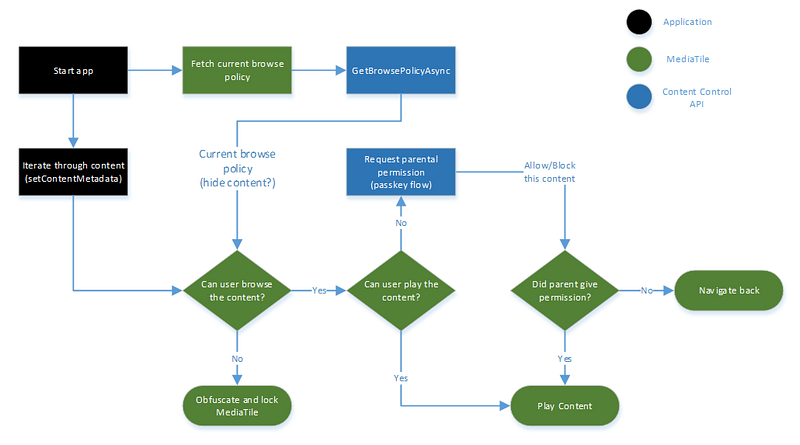
As shown in the diagram, the platform does the “heavy lifting” to ensure that you provide a safe experience for your users.
setContentMetadata uses the contentType passed as the first parameter. It also uses the contentRating property passed in the method’s second parameter.
Gating via direct use of content-restriction APIs
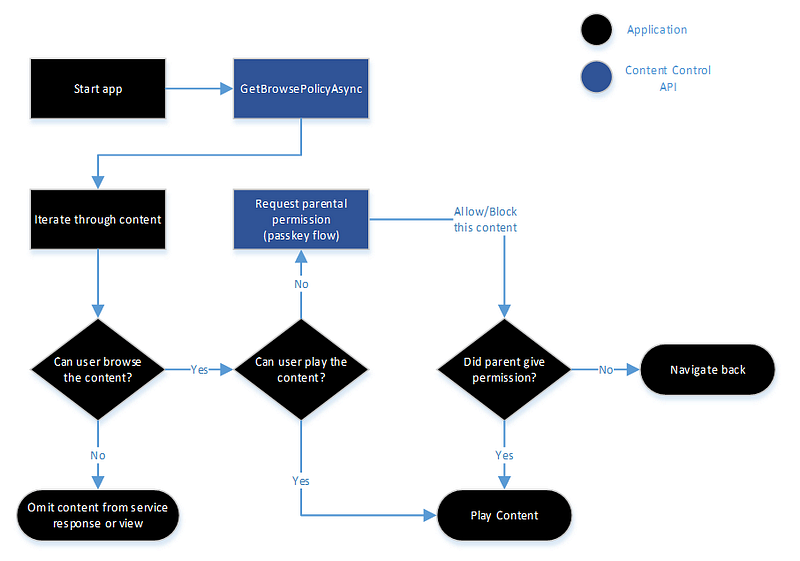
RequestContentAccessAsync is the most robust of the content restriction APIs. Before any app can allow content playback, it must call RequestContentAccessAsync to verify that playback is allowed. If the targeted content has a higher maturity rating than current restrictions allow, the API attempts to collect parental permission for all users whose restrictions are exceeded. If the API returns true, playback can begin immediately. However, if it returns false, the content is blocked. In this case, titles should not display any UI in response. The system will bring up UI if the content is blocked, letting the user know why and potentially offering a resolution, as shown in the following diagram:
Figure 4. The RequestContentAccessAsync API call
Titles that must enforce their own restrictions
Some apps must follow their own content restrictions. Once Xbox One is informed that the app has its own restriction, the system enforces the restriction and takes care of getting permission if users attempt to access content above that level. To indicate that you have a restriction that must be enforced, pass the required maturity level when you create an instance of RatedContentRestrictions, as shown in the following example:
var restrictions = new Windows.Xbox.ContentRestrictions.RatedContentRestictions(13);
In this example, any attempt to play content rated above a maturity level of 13 will call for parental permission. Using this API is optional; if an app-specific restriction is not desired, do not pass a value when creating RatedContentRestrictions.
Additional resources
For more information title ratings and content ratings on Xbox One, see the Title Ratings for Xbox One, in this XDK documentation.
For information about Xbox Parental Control APIs, see the Xbox One Development Kit (XDK). Use the appropriate link for your partner program:
XDK: https://developer.microsoft.com/en-us/games/xbox/partner/development-documentation