XDP Content: Storage and Access
Your Xbox One content and information is stored in containers that you create by using the Xbox Developer Portal (XDP).
Permission to view and work with the containers themselves, as well as with their associated content and information, is managed by granting or denying access to the access groups that your organization creates.
Sections in this topic:
Xbox One structure in XDP
In Xbox One, all of your Xbox content is securely stored and maintained in a single production environment, both during your product’s development and after its release. This change from earlier Xbox releases provides much greater predictability throughout the various stages of your product’s lifecycle.
In XDP, your content is organized in containers that you create when you need them, and over which you exercise complete access control.
After you are familiar with the XDP organizational structure, you can begin the process of adding one or more products.
Note The diagrams in this article are conceptual and do not reflect the XDP interface.
Instead, they provide a clear conceptual image of the logical relations between the various structural components in the XDP system.
First, a glance ahead
The following brief sections present an example of the type of organizational structure you’ll build when you add a new product in XDP.
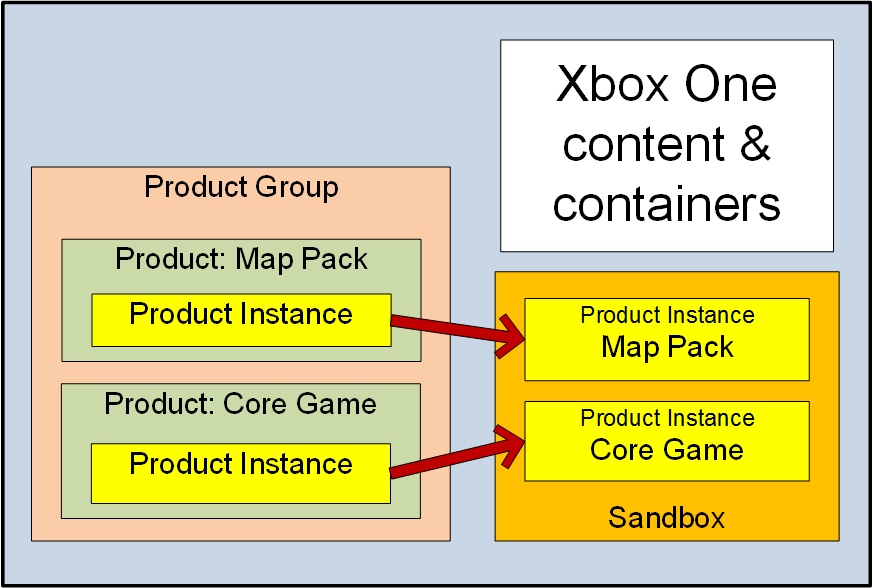
Begin by taking a look at this diagram, where all of the basic elements in that structure are represented.
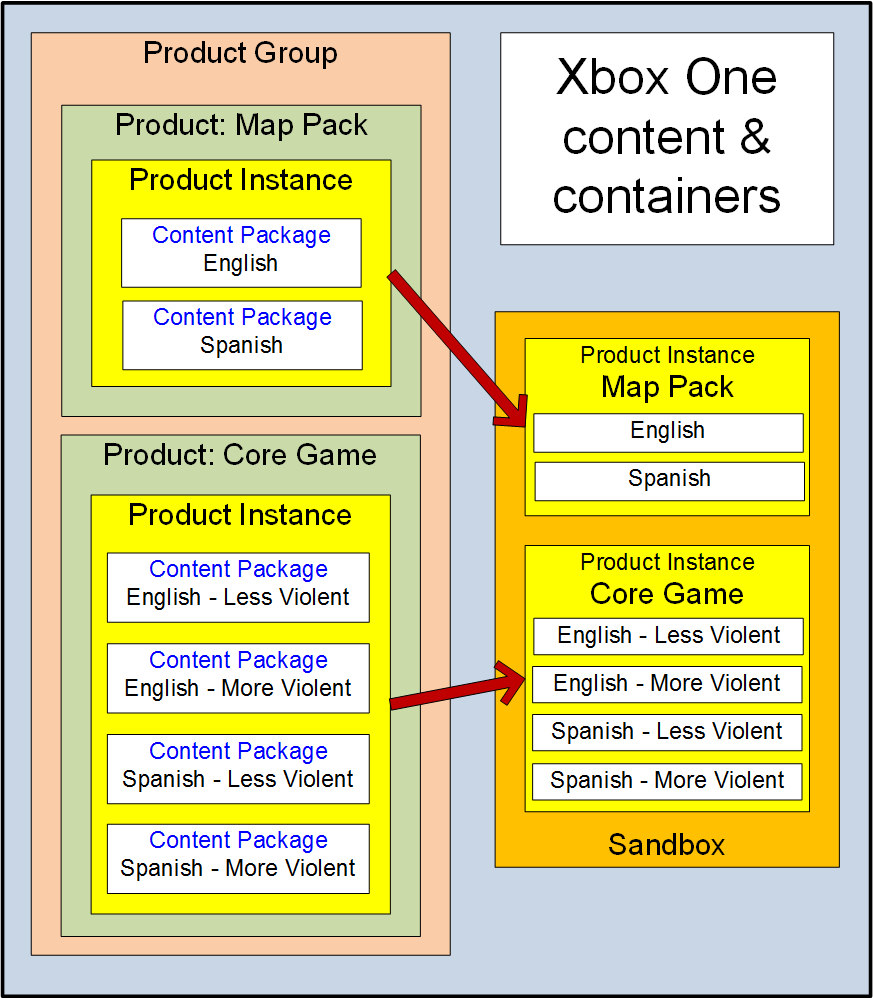
On the left side of the diagram, individual builds of your products are stored in content packages inside of product instance containers, which in turn are stored inside of product containers. The product containers themselves are stored inside of a product group container.
In the example pictured here, one of the products is the core game for a title, and the other is a map pack for the same title.
The containers to the left provide only design-time access to your products. Here you can upload the binaries and other files that make up your product builds; and here you can set up the service configuration and provide metadata and artwork for your products, including catalog, marketing, and financial materials and information.
What the containers to the left cannot provide is the run-time access that you and your coworkers will need to run, play, test, and review your products.
To make the product builds in a product instance available for run-time access, you place that product instance in an XDP sandbox, a special container where the builds can be accessed by users and consoles that have been granted the necessary permissions.
But let’s go back to the beginning, now, and watch this structure being created, step by step.
In the beginning
At this stage, your organization already has access to XDP, and may have users, user groups, devices, and device groups already created and set up in the system. But you do not yet have any products in XDP.
1. Create a product group
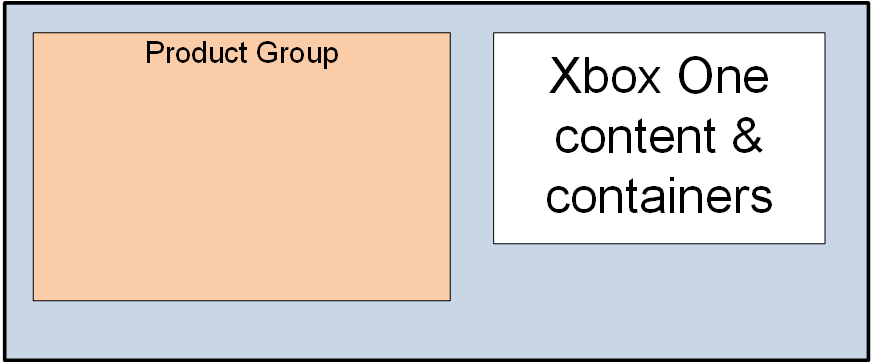
The first step in adding products and builds is to add a product group, which will contain all of the products that belong together in (for example) one title. Here, you see a newly created product group container for a title, which will eventually contain the core game for that title and also any downloadable content (DLC) or other products that run with, or are otherwise associated with, the core game.
The product group is currently the highest organizational level available for products.
2. Create products
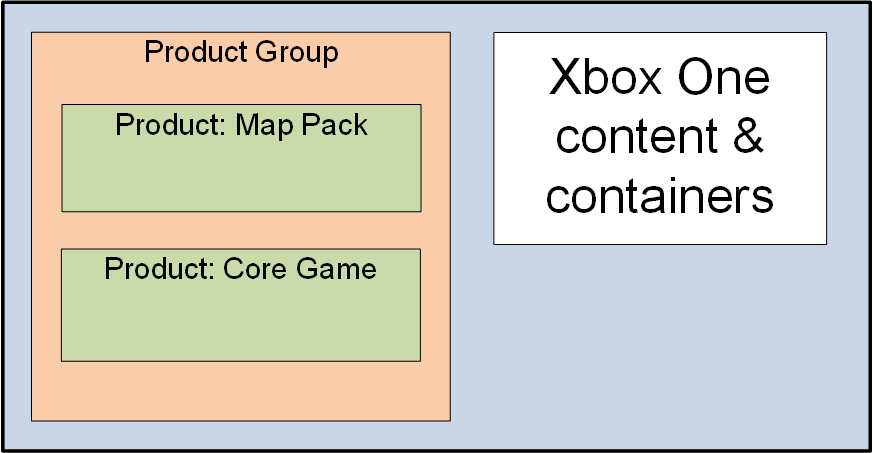
Once you have created a product group container, you can add product containers in that product group. Here, two product containers have been added, one for the core game and one for a map pack.
The product container is also where catalog information and art assets are added.
3. Create product instances
A product instance may contain only a single build of the product in a single content package, or it may contain multiple builds, each build in its own content package.
But why (you may be asking) would I want to include more than one build of a product in a single product instance?
The reason is that only one instance of any one product can be located in any one sandbox at the same time. So if for any reason you want two different builds of your core game to be located in the same sandbox at the same time, both builds will need to be included in the same product instance.
At this point, though, we’re still only adding design-time containers; and before you can upload the actual files for builds of your products, you must add one more set.
4. Create content packages
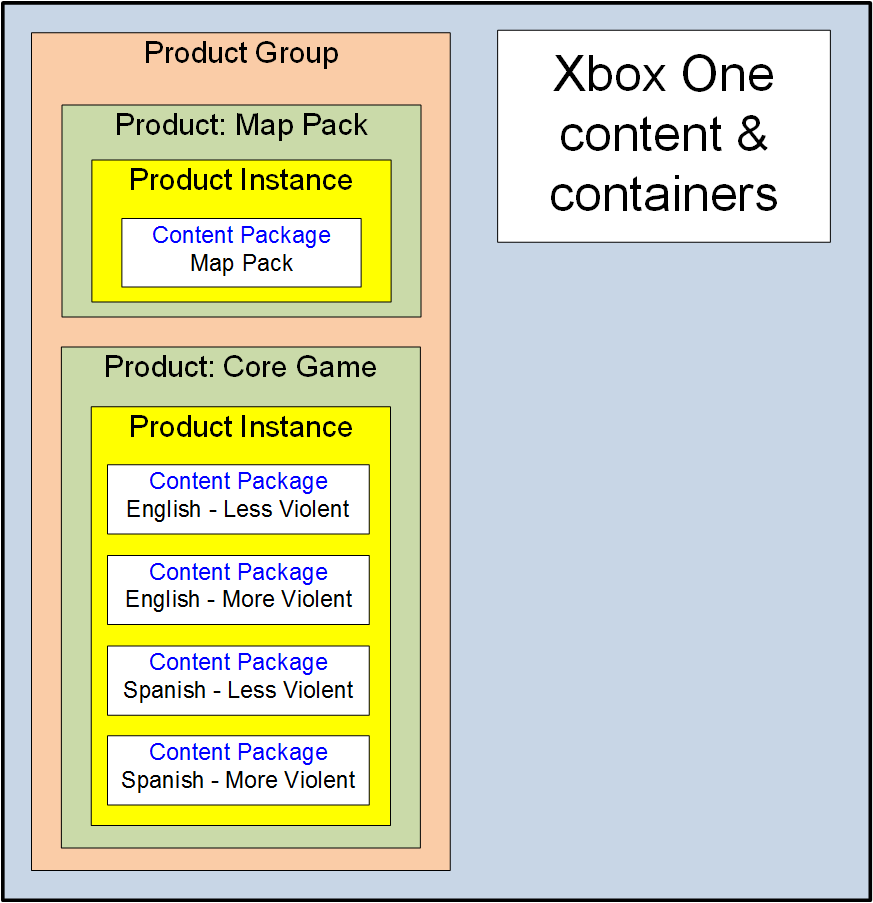
Each content package contains the files for only one build of a single product.
In the scenario we are illustrating, there is only one build of the map pack in the map pack product instance; but there are four varying builds of the core game in the core game product instance. Each of the four builds provides a different combination of language (English or Spanish) and degree of violence. This way, if the two product instances are placed together in the same sandbox, all four of the core game builds will be able to access the map pack.
So now you have all of the necessary storage containers built, and all of your product builds uploaded into their respective content package containers. But neither you nor anyone else can actually run, play, test, or review the product builds yet. To make that possible, you must first create a special container called a sandbox, and then place in that sandbox the product instances that contain the builds that you want your developers and testers to be able to access in run time.
5. Create a sandbox
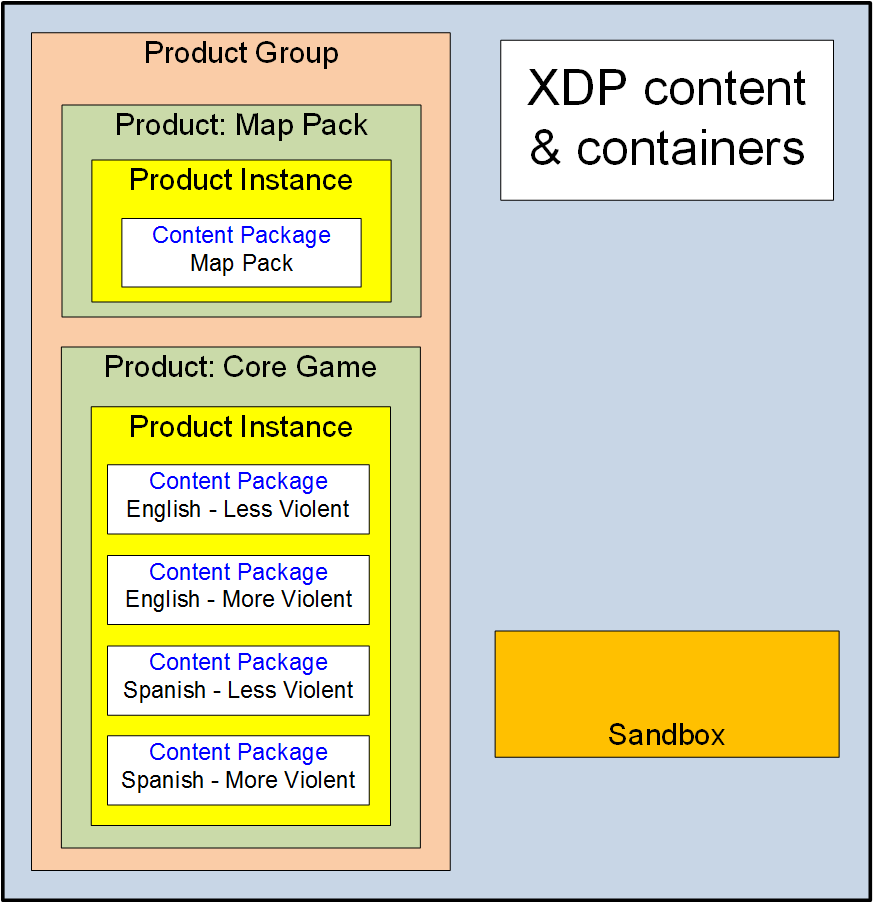
Here, the sandbox has been created, but no product builds have been placed in it yet.
Sandboxes are at the heart of the Xbox One system of content isolation. You have complete control over who has run-time access to a sandbox: only the user groups and device groups that you identify have access to the product builds contained in any one sandbox.
6. Place product instances in the sandbox
And now the two product instances have been placed in the sandbox.
In actual practice, each product instance is assigned to a sandbox when that product instance is created; but your builds are not actually available in runtime until they are uploaded to content packages and published to the sandbox.
When those steps have been completed, all members of user groups that have been granted access to this sandbox (and all users at consoles that belong to device groups that have that same access) can log on by using their developer accounts and then run any of the four builds of the core game, along with the map pack.
Only the beginning
The configuration illustrated here is an extremely simple one, intended only to introduce the basic XDP organizational structure.
- Many more products and types of products can be included in a single product group than are included here.
- Product instances from separate product groups can be set up in the same sandbox so that they can be accessed and run together.
- Also, entirely separate groupings of instances can be placed in a single sandbox. For example, instances of the core games from two separate product groups can be placed in a single sandbox, each with instances of other products with which it runs, and with no run-time interaction between the two groupings.
Streamlining the process
This overview has presented the creation of the various containers as being done “manually” and one at a time.
In practice, the process is simplified a little:
Each time that you create a new product group container, XDP automatically takes you into the creation of the first product in that group, and then also creates the first product instance container for you and associates it with the default sandbox that you have selected for the product group.
Access management in XDP
This section introduces the two types of access, the user groups and device groups to which you can grant access, and how access is inherited in XDP.
The two types of access
There are two distinct types of access to your content in Xbox One:
Design-time
Provides access from a PC via the XDP web application. XDP allows people working on your products to upload, organize, and work with content, configuration, and metadata, but it does not allow them to run or play your product builds.
Run-time
Provides access from an Xbox One console-allows your colleagues, developers, testers, and reviewers (and eventually your customers) to run and play your product builds. In order to be available for run-time access, a product build must be uploaded to a content package that is subsequently published to a sandbox.
User groups and device groups
Access to content, both design-time access and run-time access, is granted only to groups-user groups and/or device groups-and not to individual users or to individual devices. So before users or devices can be granted either type of access to any of your content or information, they must first be added to a group.
Groups simplify and clarify access management. Rather than having to grant access for specified content to many individual users or devices, you simply grant access to the groups whose members require it.
Inheritance of design-time access
Design-time access can be granted or denied at any of three levels:
- The whole XDP organization
- The specific product group
- The individual product within a product group
Each product, product instance, and content package automatically inherits its access configuration from its parent-that is, from the container inside of which it is created. For example, a core game product inherits its access configuration from the product group that it is created in, and each of that core game’s product instances inherits its access configuration from the core game product.
Inheritance does not function in the opposite direction, from child to parent. For example, access that is granted at the level of the core game product is automatically inherited by any product instances contained in that product, but not by the product group that contains the product.
Design-time access cannot be configured at the level of the product instance or the content package. For each product instance and content package, the access configuration is identical to the access configuration of the product in which they are created.