Creating Product Bundles on Xbox One
Updated October 28, 2015
Product bundles provide game developers more ways to generate revenue and keep players engaged through Season Passes and other value-based product offerings. This white paper reviews the bundling feature of Xbox One and how to configure a bundle for your title; it also describes some advanced scenarios for setting up pre-order and deluxe bundles for your title. This version contains updates in the Using bundles with your in-game store and the Inventory service section.
Introduction
A bundle is very similar to the Season Pass, a legacy product that was available at the launch of Xbox One. A bundle is purchased by a single transaction that provides satisfying entitlements to all included products. That means a user’s inventory will only show the bundle’s product ID and not the individual products included in it—but purchasing the bundle will prevent users from re-purchasing the individual products they already own or have access to.
A bundle can include the following product types:
- Games
- Durable downloadable content (DLC)
- Consumables
- Apps
- Season Pass bundles
For details about policy and restrictions regarding Season Pass bundles, see Advanced bundling with pre-orders and deluxe bundles, later in this paper.
Bundles are dynamic and can have more products added to them after they have been released. However, consumables and Season Pass bundles that are added to a bundle (or whose quantities are changed) after release are not retroactively granted to users who have already purchased the bundle. Therefore, adding products to a bundle after release is limited to games, apps, and durable DLC.
The Xbox Store UI also provides bundle-specific UI for a better user experience and upsell opportunities. The details page for a bundle shows all of the individual products included in the bundle, and the details pages for the included products identify the bundles that include each item. For items to appear with these bundle-specific UI elements, they need to be visible (not hidden) in the marketplace catalog.
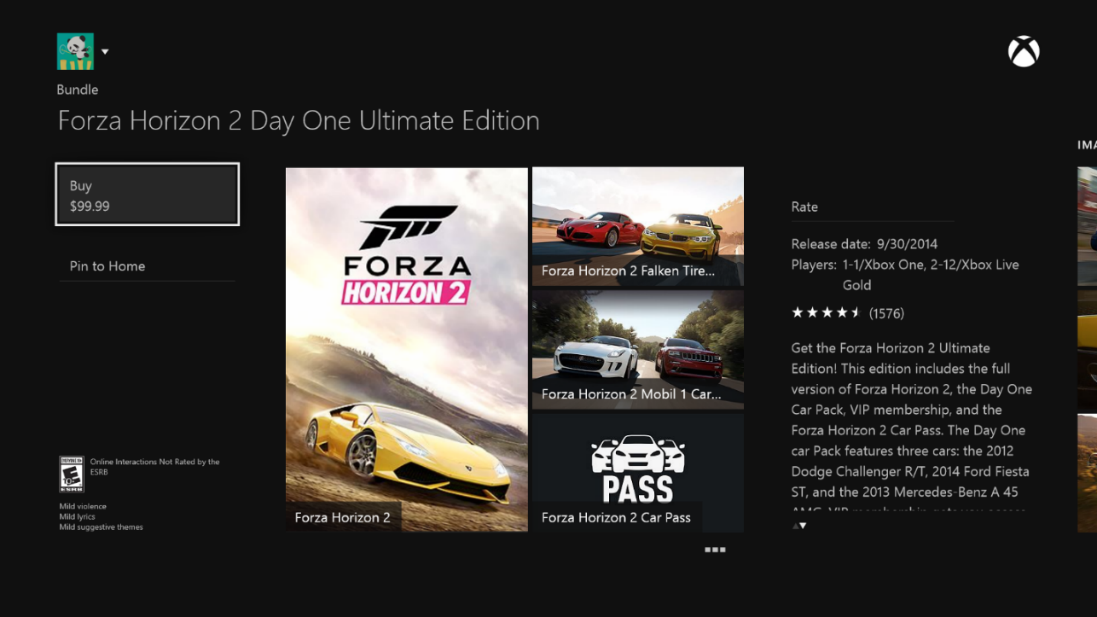
Another advantage to creating a bundle is that, after a user completes the purchase of a bundle, the system initiates downloading of the included items. However, included items that are hidden in the marketplace will not be automatically downloaded; therefore, downloading of any hidden items included in the bundle must be managed by the title.
In this topic:
- Configuration
- Season Pass bundles
- Advanced bundling with pre-orders and deluxe bundles
- Using bundles with your in-game store and the Inventory service
- Summary
Configuration
Bundles are created in the Xbox Developer Portal (XDP). Click Add New Product on the page for the product group to open Create Product.
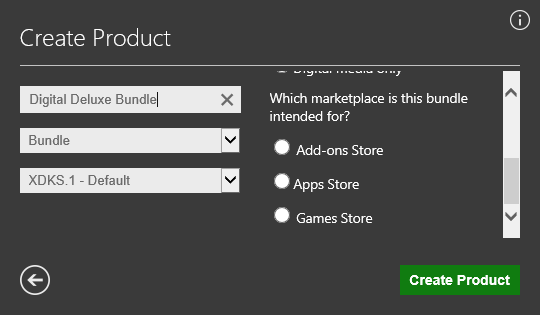
When creating the bundle, you specify the store category where you want the bundle advertised. Specifying the category, or marketplace, assigns the bundle to a product type so that it will be returned in browsing results for that product type. The following table describes the marketplaces and the results of each choice.
| Marketplace | Description |
|---|---|
| Add-ons Store | The bundle will be listed with DLC and can be found with a browse call that searches for the DDurable product type. |
| Apps Store | The bundle will be listed with media apps and can be found with a browse call that searches for the DApp product type. |
| Games Store | The bundle will be listed with games and can be found with a browse call that searches for the DGame product type. |
You configure the products to be included in the bundle through the Xbox One Catalog Availability Submission Form, which is available for download from Ingestion Workbooks on the Xbox Game Developer (XGD) site.
To configure products in a bundle
- On the Product Details tab of the Catalog Availability Submission Form, set the product type to Bundle.
- On the Included Products tab, list all of the individual products that are to be included in the bundle.
- For consumable products, enter the quantity of the consumable to add to the user’s inventory.
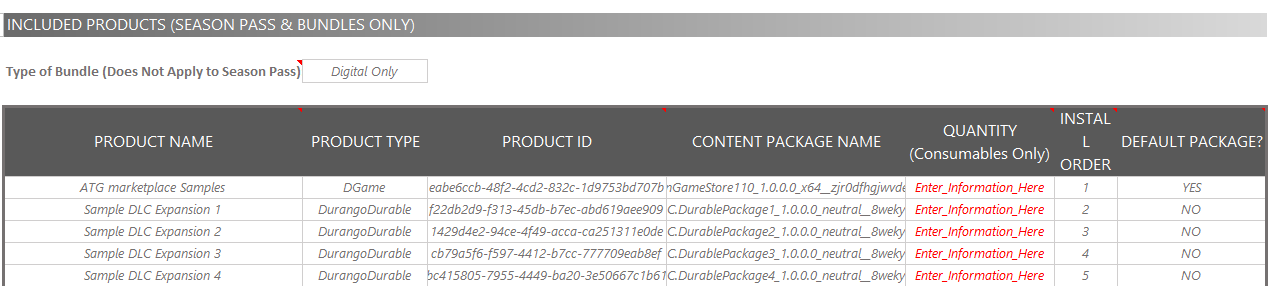
In the form, you can specify the default product. For a bundle that includes the game, the game would be the default product. The default product is the first product that will be downloaded after purchase. Also, in the listing of the bundle in the selected marketplace, the default product is highlighted by having a tile that is double the size of normal. So, for a Digital Deluxe bundle, you want to specify the main game as the default product; for a Season Pass bundle, you don’t need a default product, because no single product in a Season Pass bundle is a default product.
Season Pass bundles
The most common bundle used by titles is a Season Pass, which is a bundle that includes a collection of released and yet-to-be-released DLC for a title. Usually this includes all of the DLC planned for the title and some exclusive content only available through the purchase of a Season Pass at a discounted price.
Season Pass bundles can be offered and purchasable in the marketplace at the same time that the main game goes on sale or becomes available for pre-order. The Season Pass bundle can also be offered before any of the planned DLC has been released. However, there must be some content to provide value to the buyer at time of purchase. Most titles offer some exclusive content (such as a weapon, map, or consumable) that is only obtainable through the purchase of the Season Pass.
To set up this exclusive content, make sure that it is visible in the marketplace; doing so causes it to show up in the bundle’s included products and to be included in the automatic download upon purchase. At the same time, you want to prevent the product from being purchased independently in the marketplace. To do this, you leave the Sale Start Date and Sale End Date blank, or with the default value of Enter_Information_Here, in the exclusive content’s workbook, as shown in the following figure.

By leaving Sale Start Date empty on the Availabilities & Binaries tab in the Catalog Availabilities Form, the marketplace UI will replace the purchase button with “Available in bundle” and will list the bundles as clickable tiles to the right of the screen.
Advanced bundling with pre-orders and deluxe bundles
Bundles on Xbox One also enable more ways to package and offer your game to users in the form of Digital Deluxe and pre-order offerings.
A pre-order bundle includes the game and/or content for purchase through the Xbox Store before the game’s release date and includes some additional, exclusive content only available to pre-order customers.
Note The final release date of the game must be known and communicated to your Microsoft representative. This date cannot change after the pre-order configuration becomes available to customers. Products are not allowed to be available for pre-order until the initial version of the title has passed certification.
A Digital Deluxe bundle includes the game, a collection of the game’s DLC or a Season Pass bundle, and any additional content. These bundles could also be compared to Game of the Year or compilation discs, but you enable a Digital Deluxe bundle by creating a bundle in the digital marketplace without having to press a new disc for retail sale.
Before creating and configuring one of these types of bundles, notify and work with your Microsoft representative about your plans.
In the case of Digital Deluxe bundles and pre-order bundles, you may need to include a bundle product within another bundle product. This is possible for Xbox One, but your bundles must meet the following policy restrictions:
- For bundles that are not pre-order bundles, the child bundle must be the game’s Season Pass bundle (or its equivalent, if it has a different name).
- Content in the child bundle is limited to DLC, durable and consumable.
- The child bundle cannot have a child bundle included within itself, except for pre-order bundles which are required in some scenarios. (For an example, see the advanced scenario of a Digital Deluxe product that follows this list.)
- The definition of the parent bundle must identify each individual item in the child bundle on the Included Products tab of the Catalog Availability Submission Form.
The following example of an advanced scenario shows which products need to be listed on the Included Products tab for a Digital Deluxe product that includes the game and the Season Pass bundle.
Figure 1. Season Pass bundle included products: (DLC 1, DLC 2, 50 Coins)

Figure 2. Digital Deluxe bundle included products: (Game, Season Pass Bundle, DLC 1, DLC 2, 100 Coins)
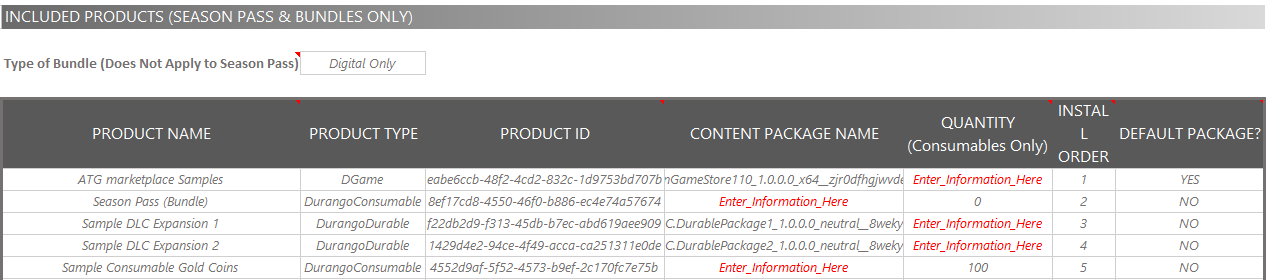
When adding the Season Pass bundle to the Digital Deluxe bundle in the configuration workbooks, you need to specify the product type of the child bundle as DurangoConsumable and with a quantity of zero. This sets up the parent bundle to mark the child bundle as owned in the user’s inventory, and that ownership will be reflected in the UI pages for the child bundle.
If you will offer your game for pre-order, you might consider adding additional content as an incentive for users to purchase the pre-order offering. The easiest way to do this is to set up a pre-order bundle. This bundle will only be visible on the marketplace before the official launch of the game; after release, it will be set to hidden and/or expired when your game’s full product is visible and purchasable without the pre-order incentive.
You can easily create a pre-order bundle for your title by completing the required configuration in the XDP and then specifying the game and the exclusive products of the pre-order bundle on the Included Products tab of the Catalog Availability Submission Form. On the Availabilities & Binaries tab, you must set the visibility, pre-order time period, and the retail release date.
Following is an example of a pre-order bundle that would become visible on September 30, 2014, and would be purchasable by users until midnight on October 14, 2014; after that time, the offer would not be visible or purchasable anymore.

To ensure that your main game’s product (not the pre-order bundle) is available for purchase at midnight on October 14, 2014, you would set up the dates on the Availabilities & Binaries tab as follows.

The end dates for visibility and sale are set to December 31, 2999, so that they stay available in the marketplace for the foreseeable future.
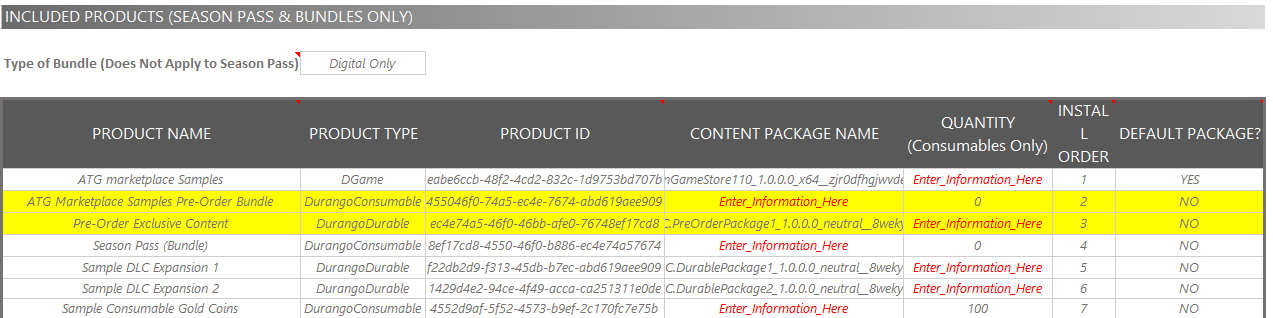
If you are offering a Digital Deluxe bundle as a pre-order bundle, you want to include the same products as those in the Digital Deluxe bundle that are available after release, but also include the standard pre-order bundle of the game. Doing so ensures that if a user purchases the pre-order version of the Digital Deluxe bundle, the marketplace indicates that the user already owns the normal pre-order bundle; this prevents the user from possibly purchasing the game again.
Following is an example of the values on the Included Products tab of the Catalog Availability Submission Form for a Digital Deluxe bundle offered as a pre-order bundle.
Using bundles with your in-game store and the Inventory service
By default, when checking the results of the user’s inventory, only the bundle’s product ID is returned, not the product IDs for each included product. However, as of the August 2015 XDK, there are now APIs to be able to see a user’s satisfying entitlements from a bundle’s included products through the inventory. Specifically, the addition of the ExpandSatisfyingEntitlements parameter to the GetInventoryItems* APIs and the inventory service URL will expand all of the user’s items that they are entitled to through bundles or Xbox 360 purchases migrated to Xbox One. For more information, see the documentation for the GetInventoryItems* APIs and read this blog announcement about the updated APIs: Xbox One Inventory Improvements and Xbox Service API Updates in August 2015 XDK.
Bundles can also provide a list of the products they contain, and products can also identify which bundles they are included in. In response to calls to the Catalog Browse service, the catalog items returned include the Microsoft.Xbox.Services.Marketplace.CatalogItem.IsBundle property (included in the October 2014 release of the Xbox Service API). If this field is true with a marketplace item, you can query which products are included in the bundle by doing one of the following:
- Directly calling the RESTful Catalog service:
/browse?id=ProductIDofBundle... &relationship=bundledProducts - Using the Xbox Service API: Call Microsoft.Xbox.Services.Marketplace.CatalogService.BrowseCatalogBundlesAsync using Microsoft.Xbox.Services.Marketplace.BundleRelationshipType::ProductsInBundle
Individual products will have the Microsoft.Xbox.Services.Marketplace.CatalogItem.IsPartOfAnyBundle property set to true if they are included in a bundle. To query which bundles include a specific product, do one of the following:
- Directly call the RESTful Catalog service:
/browse?id=ProductIDofContent... &relationship=bundledWith - Use the Xbox Service API: Call Microsoft.Xbox.Services.Marketplace.CatalogService.BrowseCatalogBundlesAsync using Microsoft.Xbox.Services.Marketplace.BundleRelationshipType::BundlesWithProduct
Be aware that this works only for bundles and for products that are visible (not hidden) in the Xbox Store.
Calling the Catalog Browse service to get a complete view of which products map to a bundle’s product ID in the inventory would require a significant increase in network calls to the service if the content is available in many bundles. If your title needs to know the mapping of what products are in a bundle to display in your own in-game UI, we recommend that you use the Title-Managed Storage service, or your own service, to map the relationships of products and bundles.
Inventory Expansion Map, a sample released with the October 2014 XDK, provides an example of using the Title-Managed Storage service to map products and bundles, as well as using the Browse Catalog service to expand inventory results to include all of a bundle’s included items. You can also use Inventory Expansion Map as a drop-in solution within your own title.
Summary
Creating a bundle for your title that adds additional content or features, compared to the base game, increases the incentive for purchase—especially if you offer something exclusive in the bundle.
By configuring bundles in the XDP and the Catalog Availability Submission Form, you automate the availability of offerings to start and end at specific times, and determine how those items appear in the marketplace. Items in a bundle are automatically downloaded, and users are prevented from accidentally purchasing products they’ve already acquired in a bundle.
To get inventory results that also include satisfying entitlements from bundles, make sure to use the GetInventoryItems* APIs with the ExpandSatisfyingEntitlements parameter. The Catalog Browse service can provide information to identify which bundles contain which products, but building and maintaining a map of products to bundles would require many network service calls. So, if your title is included in many bundles, you should use Title-Managed Storage, or your own service, to provide that information.