Depth Buffer
Use a pixel shader to calculate the z-depth of individual pixels
The following sections describe how to calculate pixel z-depth and display it onscreen using the Xbox One dev kit:
What is a depth buffer
A depth buffer stores the z-depth of every pixel. Z-depth is the distance between the screen and the object that the pixel represents. Depth buffers are useful for a variety of graphical effects, particularly shadow maps and depth-based culling. A pixel shader can be used to display the depth buffer values onscreen.
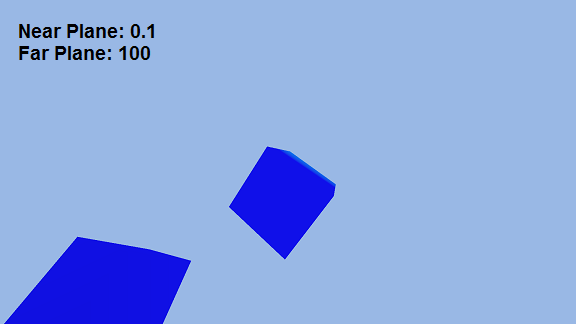
A cube rendered using color to represent depth values:

Calculate depth buffer values
Vertex shader stage
The only input your vertex shader needs are the World, View, and Projection matrices, and the position of the current vertex. The output to the pixel shader requires two copies of the vertex position, once as an SV_POSITION register, and once as a TEXTURE register.
Sample Vertex Shader output struct:
C++
struct VS_OUTPUT
{
  float4 Position : SV_POSITION;
  float4 depthPosition : TEXTURE0;
};
The vertex shader function is mostly standard: use the World, View, and Projection matrices to calculate the position of the vertex in screen coordinates.
Once the vertex position has been calculated, copy the vertex position from the SV_POSITION register to the TEXTURE register and send the output to the Pixel Shader.
C++
VS_OUTPUT main( float4 Pos : POSITION, float4 Color : COLOR )
{
  VS_OUTPUT output = (VS_OUTPUT)0;

  // Calculate onscreen vertex positions as normal
  output.Position = mul( Pos, World );
  output.Position = mul( output.Position, View );
  output.Position = mul( output.Position, Proj );

  // Store the position value again in a second variable for depth value calculations
  output.depthPosition = output.Position;

  return output;
}
Pixel shader stage
The Pixel Shader recieves the SV_POSITION and TEXTURE registers from the Vertex Shader. Calculate the z-depth value of the current pixel using the z and w values stored in the TEXTURE register. Divide z / w to calculate the z-depth ofthe current pixel.
At this point, you have the z-depth value, and you can use it however you see fit. In this sample, we use the depth to calculate a color value for the pixel. This way the depth of each pixel is easily displayed onscreen, near pixels are blue, and gradually fade to white as they get farther away.
C++
float4 main( VS_OUTPUT input ) : SV_Target
{
  float depthValue;
  float invDepthValue;
  float4 color;
  float red, green, blue;

  // Get the depth value of the pixel by dividing the Z pixel depth by the homogeneous W coordinate
  // depthValue approaches 1.0f as pixels get closer to the screen
  depthValue = input.depthPosition.z / input.depthPosition.w;

  // Using inverse depth value to derive pixel color.
  invDepthValue = 1.0f - depthValue;

  // Using scalars to cause color value to fade from white to blue
  red = 1.0f - ( 100 * invDepthValue );
  green = 1.0f - ( 50 * invDepthValue );
  blue = 1.0f - invDepthValue;

  color = float4( red, green, blue, 1.0f );

  return color;
}
Adjusting depth buffer range
The depth buffer values are floating point values between 0.0f and 1.0f. The depth buffer values are not in a linear distribution. Roughly 90% of the depth buffer values occur within the 10% of the view frustum that is closest to the screen. This is generally useful because we want to render objects close to the screen in higher detail. Adversely, this means that roughly 90% of the objects in the view frustum will have nearly indistinguishable depth values.
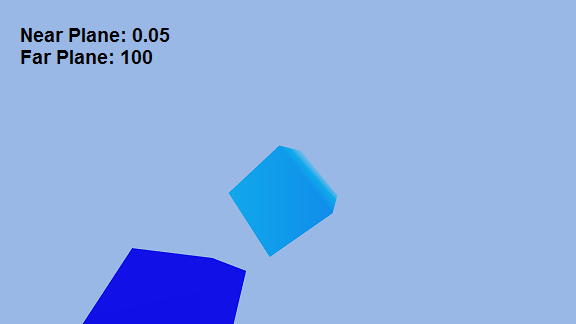
You can adjust the visible range of the depth buffer in many ways, one of the easiest methods is to change the near plane value of your view frustum. Smaller near plane values will cause the visible range to decrease, so that only closer objects are affected. Inversely, increasing the near plane value will result in a larger visible range.
Observe the three screenshots below: All three are images of the same scene, only the near plane value has been changed. Pixels with low z-depths (close to the near plane) are colored blue, and gradually fade to white as z-depth increases.