Designing Title Package Layouts for Updates: Best Practices and Guidelines
This topic describes in general terms how title updates are performed on Xbox One. It explains the interaction between the streaming-installation layout of a title and the update process. It also discusses some key scenarios to be wary of, so the paper will be of particular interest to engineers who manage the streaming-installation process. Readers will come away with a list of best practices for designing layout files that will deliver the best user experience.
Originally published in August 2013, the topic has been updated to introduce the file-based content update technology that was added in the July 2014 XDK. All developers of new titles should consider using file-based content updates, which produces smaller-sized downloads. The section on tools for testing content updates has also been revised to include information about using PackageUtil, a tool for comparing and retrieving information about packages.
Introduction
The Xbox One title-update system has two key design goals:
- It is designed to allow titles to be updated much more frequently than on Xbox 360.
- It allows titles to ship new content as part of the base title to their users. On Xbox 360, the only easy mechanism for doing this was through downloadable content (DLC).
There are some key advantages to this new update system, and one positive byproduct is that, because digital downloads incorporate updates automatically, players can get into the game sooner. However, the new update system also has certain limitations to be aware of when designing your title’s layout. Some of these limitations are the result of the interaction between security, the update mechanism, and the mechanism for laying out a streaming installation.
The nature of the new update system is such that you need to carefully consider how your title’s package layout will affect your ability to update the title. Because consumer access to broadband Internet varies considerably in different regions of the world, it is particularly important to minimize the amount of data that users have to download to update your title. Connectivity in some areas is slower than in others, some areas have bandwidth caps, and some areas charge more if those caps are exceeded. These limitations are important to consider, especially if you want to retain the goodwill and respect of your customer base.
In this topic:
- Xbox One title package layout system
- How updates work on Xbox One
- Avoiding unnecessary downloads and updates
- Xbox Requirements: policies
- Resources and guidance
- Summary
- Appendix A: How to perform a fix-up
- Appendix B: Glossary
Xbox One title package layout system
On Xbox One, files shipped by a title are packaged into a single package file or XVC (Xbox Virtual Container). This package contains individual pieces known as chunks, which contain whole files. This logical separation of files into chunks applies to initial title packages and title updates.
Within the layout package, the different chunks fall into one of two sets: the launch set and the post-launch set. All chunks in the package that are part of the launch set must be installed (or updated) before the title can be launched by the user. In contrast, chunks in the post-launch set are installed in the background while the user is playing the title.
By default, title chunks are installed from the beginning of the layout file to the end of the layout file, in sequence. However, if a title is running at the time of the update, it can modify the order in which chunks in the post-launch set are installed or updated to optimize the process based on users’ actions—or their predicted actions. Each chunk has an ID, exclusively for use by the title, to identify it when optimizing installation order.
How updates work on Xbox One
Title updates are performed at chunk-level granularity or file-level granularity, depending on the algorithm used at the time of package creation.
Chunk-level content update
When Xbox One launched, only chunk-level content updates were supported. Now that support for file-level updates has been added, MakePkg.exe can be instructed to use chunk-level updates, the old model, by using the command-line option /updcompat 1.
Under the chunk-level update scheme, when one or more files in an existing chunk are changed in an update to your layout image file, the entire chunk will be updated on the user’s system—not just the individual file. For this reason, it is imperative that your initial title layout be designed with the potential for future updates in mind, if you will use chunk-level udpates.
File-level content update
Starting with the July 2014 XDK, Xbox One allows creation of XVC packages that can update at the file level. Note that file-level packages are updated with the chunk-level algorithm on Xbox One system flashes released prior to September 2014. With the September 2014 flash update, file-level content updates are fully supported.
Under the file-level update scheme, if a file is modified, that entire file is updated on the user’s system. This is a vast improvement over the chunk-level scheme, but it does come with one potential drawback: when the file is updated, it will not necessarily be updated so that it is contiguous with other files in the same chunk. For titles that require highly optimized file throughput, you should test content updates to ensure that the resulting fragmentation still provides acceptable performance.
Update process
When you publish an update to the Xbox Developer Portal (XDP) by uploading a new package for your title image, the hashed and encrypted chunks are stored on the service.
Users can specify in their system settings how they want the system to handle title updates: either to automatically install updates in the background at night when the console is online or to require explicit user action to trigger the update. When an update to a title is triggered (according to the user’s system settings), the Xbox service compares the hashes of the chunks (for chunk-level updates) or files (for file-level updates) in the updated layout image against the version that the user has on his or her system. Files or chunks whose hashes do not match are then deleted from the user’s system, and the new versions are downloaded from the service.
If any of the updated content is part of the layout’s launch set, the user will be prevented from launching the title again until the updated content in the launch set has been downloaded and applied to the title image. If the updated content is part of the post-launch set, then the title will update the files or chunks in the background while the title runs. These updates do not prevent the user from launching the title or entering gameplay.
Another mechanism that triggers a content update is a hybrid installation. When a user inserts a disc with your title for the first time, it’s possible that Xbox Live already has a required update for your title that the user must apply as soon as the launch set is transferred from the disc to the hard drive. To accelerate that process, the system prompts the user to install the update. If the user accepts the update, the system downloads altered chunks or files (depending on whether the package uses chunk-level or file-level updating) from the Internet while transferring un-updated content in parallel from the optical media.
In essence, you submit a brand-new image of your title, and we figure out which files or chunks need to be sent to the user. It’s the same process whether you’re patching your title, adding entirely new content, or both.
Conceptual operations that can be applied to files or chunks
Strictly speaking, only two operations exist for title updates: add and delete. All other operations are built from these pieces with only minor variations.
Logically, however, you can think about updates in terms of a variety of operations: modification (of an existing file or chunk), addition of new content, deletion of existing content, and contentfix-up. Note that in naming these operations, we’re trying to avoid using terms that might be overloaded in this context. For example, any type of change performed in an update might be considered a change or an update, so we are not using those words.
File-level update operations
File-level updates apply to Content Update V2 packages, created by MakePkg with the command-line option /updcompat 2. Starting with the February 2015 XDK, MakePkg uses file-level updates by default, when no /updcompat option is specified in the command line.
Modification of a file
A part of a file has changed and needs to be updated on the user’s system.
In this case, the file will be downloaded again in its entirety. Thus, it’s important to consider whether to change files that are very large,or to consider other options, such as adding new files that contain the necessary content.
Addition of a file
With this type of operation, an entirely new file is added.
If the new file is likely to be updated in the future, try to keep its size below 200 MB so that users are not forced to wait for an additional large update.
Deletion of a file
This operation involves the complete removal of a file from the image.
Chunk-level update operations
Chunk-level updates apply to Content Update V1 packages, created by MakePkg with the command-line option /updcompat 1. When using XDKs released prior to February 2015, chunk-level updating is the default behavior of MakePkg. Starting with the February 2015 XDK, MakePkg uses file-level updates by default, when no /updcompat option is specified in the command line.
Modification of a chunk
A part of a chunk has changed and needs to be updated on the user’s system.
The nature of the change might be that one or more files in the chunk were added, deleted, or reordered, or that the contents of a file have been modified in part or in their entirety.
You should try to ensure that no chunks larger than 200 MB are updated, to minimize the amount of time users spend downloading updated data at launch. If you need to update a chunk that is larger than 200 MB, consider using a fix-up.
Addition of a chunk
With this type of operation, an entirely new chunk has been added to the layout image.
If the new chunk is likely to be updated in the future, you should try to keep its size below 200 MB so that users are not forced to wait for an additional large update.
Deletion of a chunk
This operation involves the complete removal of a chunk from the image.
Fix-up
This is a special case in chunk-level updates that you should use when a file needs to be modified, but requiring the entire chunk to be downloaded again would result in a poor user experience due to the chunk’s size.
The basic solution here is to create a new chunk that contains the updated asset, and add the new chunk to the end of your layout. The old version of the asset isn’t deleted or removed from the image; it’s simply ignored and not used.
This solution allows you to update chunks that weren’t originally designed to be updated, especially when updating those chunks would require downloading multiple gigabytes.
For a more detailed discussion of a fix-up, see Appendix A.
Tools for testing Xbox One content updates
The Xbox One XDK provides several tools to assist in testing and measuring the effect of content updates.
Xbapp install / xbapp update
Packaged titles can be deployed using xbapp install and then updated using xbapp update. The packages must be created using the default test-signing mode of MakePkg.exe. Also, they must be created using the same content ID, which you specify by using the command-line option /contentid.
Xbapp update can also simulate a hybrid installation, which is an installation from a disc with a simultaneous content update. A hybrid installation is what many retail customers experience when installing content from disc. The system downloads altered files or chunks from a web server while transferring the unchanged content in parallel from the optical disc.
PackageUtil compare
PackageUtil compare is a command that compares two XVC packages and reports the differences between them that will affect content updates to end users. It also reports the size of update that end users would receive when updating from one XVC to another. It’s very useful to check this report before submitting a package to Microsoft for certification and publication so you can verify that the size of update downloaded by end users is as small as possible. PackageUtil compare is available starting with the August 2014 XDK. For titles built against an XDK released prior to August 2014, you can install the August 2014 release of the Xbox One Application Development Kit (ADK) to get access to the tool.
PackageUtil compare requires that both XVCs be test-signed; it also requires them both to be created with the same content ID specified on the MakePkg command line. (MakePkg performs test-signing by default and also when run with the command-line option /lt.)
PackageUtil compare produces a report of the chunks in a package and the differences between them. The report contains a list of the chunks that are automatically created by MakePkg, as well as the chunks that were created as a result of the layout file passed to MakePkg at authoring time. The report shows details for each chunk, indicating whether each chunk is unaltered, modified, added, or removed between the two packages. For packages created with support for file-level updates, it also reports which files within chunks have changed. Finally, PackageUtil compare reports the total size of the update, which indicates how much data end users would have to download to update from the base XVC to the update XVC.
Key considerations for Xbox One title updates
If you’re updating your title, you will want to consider the business impact and the effect on customer goodwill of pushing a huge update over a potentially slow network connection. As much as possible, you want to minimize the size of your updates.
Where feasible within the design of your title, avoid making large updates to content that could otherwise be optional. Instead, you should put the optional content into a DLC package so that the user can choose whether to download the content.
Conceptually, there are two different kinds of updates:
- A bug-fix or patch.
- A new-content update, which adds functionality.
There is no actual difference between patching a title and adding new content to a title in terms of the process or mechanism by which those updates are applied. The difference is solely intent and semantics, but it’s worthwhile to consider the differences between the two in terms of both user experiences and user expectations.
New-content updates
This kind of update adds functionality or content to titles. The following examples are representative of typical content updates:
- In a racing game, the update might consist of new cars that are released after the title has shipped and are needed for online multiplayer sessions. Without the update, the title’s user base would be fragmented into those who have downloaded the car pack and those who haven’t.
- In an MMO, the purpose of the update could be to add new areas of the world, kit, props, and so on. As with the preceding example, you would want to ensure that all users had the updated content so that everyone who is playing can interact with each other. Even if a user has not unlocked that content, he or she would be playing against others who have.
From a user-experience standpoint, new-content updates provide users something of tangible value. Although large content updates should be avoided wherever possible for the same over-arching reason—that is, bandwidth isn’t yet ubiquitous or free—the fact that the user is getting something in return helps to take the sting out of the experience.
Typically, new-content updates will only modify a couple of existing files (such as the main executable and asset indices) but will add a number of new chunks to the image. The new chunks will contain the new content.
Best practice Wherever possible, if content is optional, provide it as a separate downloadable content (DLC) package instead of including it in a title update. That way your users aren’t forced to take the update at all if they’re not interested in it, and they won’t incur the download cost.
Bug-fixes and patch updates
From a user perspective, bug-fix and patch updates are unavoidable, yet they provide no immediately obvious tangible value to the user. This is true even if the update is a security patch that will prevent cheaters from destroying the fun of networked gameplay sessions. For users, this type of title update is little more than an obstacle keeping them from getting into the game quickly.
The need for bug-fixes and patches can arise for any number of reasons, including;
- Fixing bugs in title code.
- Replacing assets that were localized incorrectly.
- Migrating to new server versions.
- Patching security holes.
Typically, however, these updates are targeted and, above all else, small. They generally affect only a couple of files in the image—usually the executable files.
Because these updates provide no easily discernible value to the user, it’s paramount that you make these updates as small as possible so that users can download them quickly. In this way, you can minimize the effect that the update will have on users’ ability to continue playing.
Avoiding unnecessary downloads and updates
This section describes strategies to help you avoid creating unnecessary downloads and title updates.
For new titles: use file-level content update
By using MakePkg.exe /updcompat 2, you can create a content update that uses the file-level mechanism. An existing title that was published by using chunk-level content updates should not be updated to use file-level updates, because the differences in encryption between the implementations would result in the title being downloaded again in its entirety.
For chunk-level updates: put everything you might update into its own chunk
The reasoning behind placing content you plan to update into its own chunk is simple: for chunk-level updates, entire chunks are downloaded. Items that might be updated should be put in their own chunk so that when the chunk is updated, users do not wait for extraneous data to be downloaded.
Chunks are rounded up in size to the nearest 4 KB, and each chunk has approximately 16 KB of additional metadata associated with it. From a size perspective, chunks are not free.
From a performance and design perspective, using thousands of chunks in your layout can incur some performance penalties. It can also make it more difficult to manage chunks for custom load orders. For this reason, in some cases it might make sense to put frequently updated files together in the same chunk.
Ultimately, you will need to determine the appropriate balance based on your title’s needs.
A related maxim is to put everything that might need to be updated in its own file.
If you are building your layout file with these practices in mind, you should find that your title’s launch set contains multiple chunks rather than just one. Similarly, your title’s post-launch set should also contain multiple chunks.
For file-level updates: be careful about what you put in PAK files
Although it’s easier to create efficient content updates with file-level updates than it is with chunk-level updates, it’s still important to think about the size of your large files and the likelihood that you will update them. For example, if you’re planning to alter models or textures, placing them in a 4 GB file filled with other content will result in large updates later—and a poor end-user experience.
File-level update best practices
Chunk-level update best practices
Explicitly list all of the files in your layout
Chunk-level updates are generated on a per-chunk level of granularity; this makes it important to be able to control exactly what goes into a chunk from version to version. This ability is also important in file-level updates, because moving files between chunks counts as both a file removal and a file addition.
Using wildcards in your layout files is convenient during development, but it doesn’t give you the ability to compare your layout or explicitly control it. As a result, depending on your cooking and build process, you might inadvertently:
- Change a file that you didn’t mean to change.
- Add a file that you didn’t intend to include.
- Move a file to another chunk.
- Remove a file from a chunk.
- Modify a file.
- Re-order a file in the chunk.
Because it massively increases the robustness of updates, by making the process reliable, controllable and above all else, inspectable, we consider this to be a best practice for final submission.
Xbox Requirements: policies
To get users into their game experiences as quickly as possible, whether they are downloading the content over the network or installing it from optical media, we require that your title use a maximum of 5 GB for its launch set.
Resources and guidance
This section lists some white papers, documentation, and presentations that describe how to implement streaming installation for your title.
Samples
The following code samples are available for download from Sampleson the Xbox Game Developer (XGD) site.
- Content Update
This code sample, which was included in the October 2014 XDK release, covers:
- Creating content packages for both the base version and update versions of an exclusive app.
- Different installation modes, such as hybrid installation.
- Tools for understanding and visualizing your packages (cudiff.exe and cudiffui.exe).
- Working with file-based content updates.
- Streaming Install
This code sample, which was included in the November 2014 XDK QFE 2 release, demonstrates how to:
- Create a package file.
- Write a simple layout file.
- Perform a streaming installation (over the network) to your Xbox One development console (dev kit).
- Display progress bars that monitor installation progress.
You can use the sample code as a starting point for implementing your own streaming installation.
Xfest presentations
When viewing conference presentations, keep in mind that they might contain information about features that were still under development at the time of the conference, and that information might now be stale. Therefore, you should consider the published XDK documentation as having the most up-to-date information.
- Xfest 2012 – Title Packaging and Installation (Brian Hudson)
The design of your streaming-installation system from a technology and implementation standpoint, including best practices and guidelines for a solid user experience. - Xfest 2013 – Streaming Install, IO, and U (Simon Cooke)
Bandwidth realities for Xbox One, a technology update, and a focus on how one might implement streaming installation for a variety of different game types and scenarios.
Xbox One documentation
You may want to familiarize yourself with the following topics—useful jumping-off points in the Xbox One XDK Documentation:
- Streaming Installation and Intelligent Delivery: Overview
- Dynamic Chunk Reordering
- Streaming Installation: Status
- Deployment Package Schema
- Make Package (makepkg.exe)
Summary
For the most part, the best practices discussed in this document are not surprising. They can be summed up as follows:
- Use file-level content update for new titles.
- Don’t use monolithic files for all of the assets in your title.
- For file-level content udpates, put assets that are likely to be updated in their own files.
- For chunk-level content updates:
- Place any file that is likely to be updated in its own chunk.
- Place executable files and asset indices in their own chunks.
- Put assets that are likely to be updated in their own files. Explicitly list each file in your image in your layout file. Do not use wildcards for final layout generation.
- Wherever possible, if content is optional, provide it as a separate downloadable content (DLC) package.
- If you add content to a title in an update, consider including a user announcement to highlight the new functionality.
- If your update doesn’t provide obvious benefits to users by expanding their game experience, try to make the update as small as possible.
- Where it makes sense to do so, batch together bug-fix updates with new-content updates.
- Prefer using fewer chunks when possible.
- Always archive a copy of your layout file along with your test-signed packages, XML file comparison results, and the final packages that you submit through the Xbox Developer Portal (XDP) for use when performing future updates.
- So that you can compare them to other versions later, consider archiving timestamp, file size, and hash information for the files in your package.
Appendix A: How to perform a fix-up
In this example of a fix-up, assume that the layout image has two chunks: Chunk A and Chunk B.
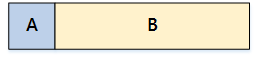
Chunk A, which is about 20 MB, contains the executable data, asset tables, and other miscellaneous files. Chunk B contains a single WAD file with all of the assets for a given level, and it is approximately 1 GB in size. Because of the per-chunk granularity of the update system, to update Chunk B would require that users download a full 1 GB of data.
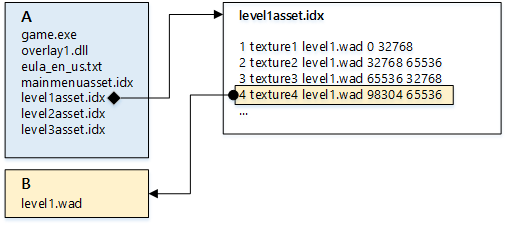
Although Chunk B is a single file, you can think of it as being split into regions, with different assets in each region.
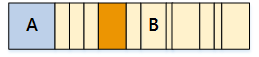
The highlighted region in the preceding diagram represents a texture asset that needs to be updated. However, because of the chunking mechanism, you wouldn’t be able to replace only part of Chunk B. You must either replace the chunk in its entirety or not replace it at all.
The naïve solution would be to simply update the whole file in Chunk B, but that would force users to download 1 GB of data to receive the update—certainly, a less-than-optimal user experience.
However, you could create a much better user experience by updating your asset table (or executable) so that it doesn’t look in Chunk B for the texture but instead looks somewhere else: a new chunk (Chunk C) that you add to the end of your image. In the following diagram, the chunks denoted with an asterisk are the only chunks that you’ll update.

The old texture is still located in Chunk B as before—level1.wad has not been modified—but the asset table no longer references it. Instead, the updated file, level1asset.idx, now refers to a single texture in a small file contained in Chunk C, fixed1.wad. As a result of this fix-up, you would incur a download of only 20 MB to update Chunk A and 64 Kb for the new texture in Chunk C.
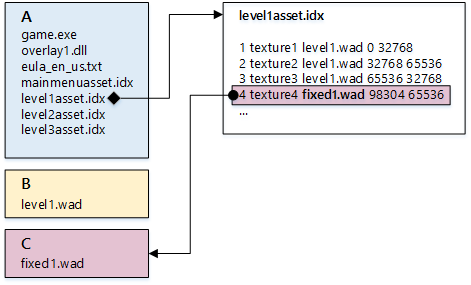
This is not the only way to perform a fix-up. For example, one alternative in this case could be to recompile the EXE with special-case code for only that single texture lookup. What these methods have in common is that they both avoid replacing one large monolithic chunk by creating a new chunk to contain the replacement data, adding it to the end of the image, and modifying an existing chunk to point to the new location for the data.
Appendix B: Glossary
Package file (also: XVC file, image file)
The flat binary file that contains the file data for the title. This file is encrypted and signed. It is conceptually similar to an ISO file on NTFS.
Streaming installation
The mechanism by which titles are installed to the user’s HDD from optical media or over the network while the title is being played.
Layout file (also: map file)
The XML file that dictates how the title’s files are grouped into chunks and the order in which those chunks are included in the title’s image. By default, chunks are installed in order from the start of the file to the end of the file, although titles can modify this from code while running.
Chunk
A group of files. Each chunk has an ID that is reserved for title use.
Launch set
The set of chunks that have to be copied to internal storage or updated over the network before a title can be launched by a user. While the launch set is being installed or updated, the Xbox Dashboard displays a progress bar over the title’s icon, and the user must wait while the launch set is installed before being able to enter gameplay.
Launch marker
A flag on a chunk, the purpose of which is to indicate that any chunks after the flagged chunk in the layout file are not part of the launch set. The chunk with the launch marker, and all chunks before it in the file, are part of the launch set and must be installed or updated before the user can launch the title.
Post-launch set
Chunks in the layout file after the chunk with the launch marker. If these chunks are missing from the image on internal storage, the user will not be prevented from launching the title.