Creating a new test account in Dev Home or Xbox Device Portal
The test accounts sections in Dev Home and Xbox Device Portal allow you to create new test accounts for use on the console.
- Setup
- To create a new test account in Dev Home
- To create a new test account in Xbox Device Portal using the Xbox Live test accounts tool
- To create a new test account as an action in a script
Setup
In order to create test accounts on your console, you need to make sure your console has the proper setup on Dev Center and the sandbox the console is using has the proper permissions.
Dev Center
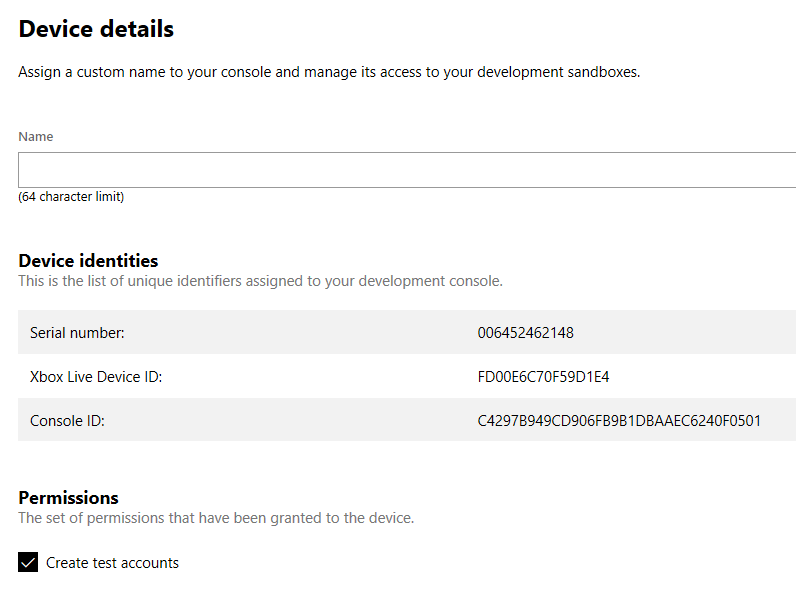
The console needs to be registered on Dev Center and the Create test accounts check-box needs to be checked.
Sandbox Permissions
The sandbox that the console is in needs to have permissions set up so that accounts can be created. XDKS.1 already has these permissions, but publisher sandboxes might not have permissions by default.
Test accounts created by Xbox Device Portal and Dev Home do not automatically have sandbox permissions for security reasons. The console either needs permission to access the sandbox with all accounts, or you need to go to Dev Center to give the newly created account permission to access the sandbox.
To create a new test account in Dev Home
- Navigate to Dev Home on your devkit
- Select the Home tab
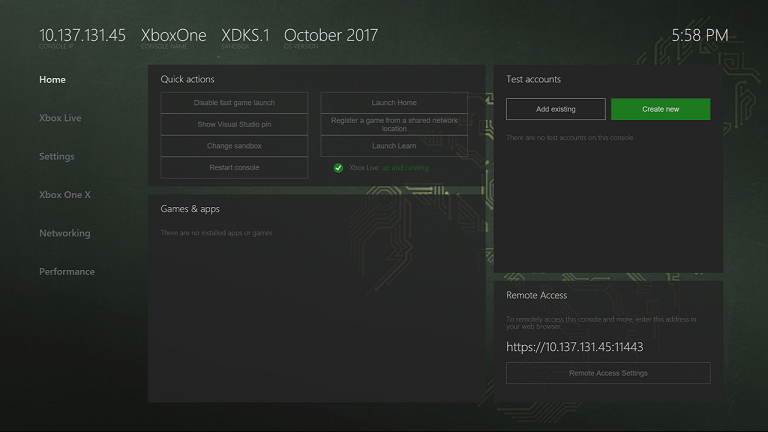
- Click Create new in the Test accounts section.
- On the New test account screen, enter an email address and password for the new account.
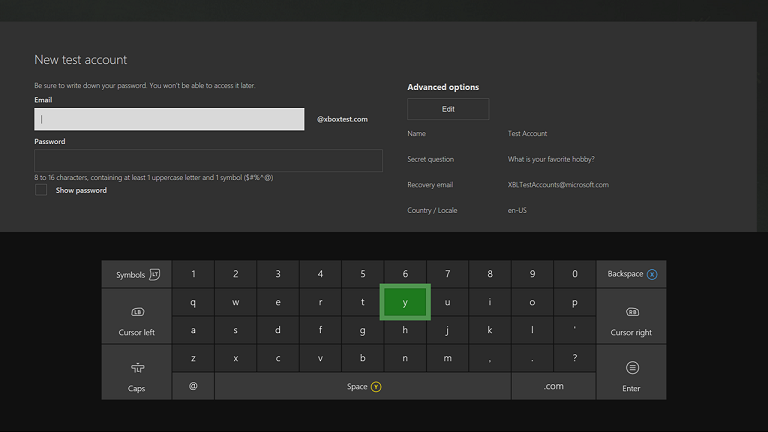
- Optionally click Edit under Advanced options to edit other account values for advanced scenarios.
- Click Create & sign in
To create a new test account in Xbox Device Portal using the Xbox Live test accounts tool
- Navigate to https://YourConsoleIPAddress:11443 in your web browser.
- Select the Home tab.
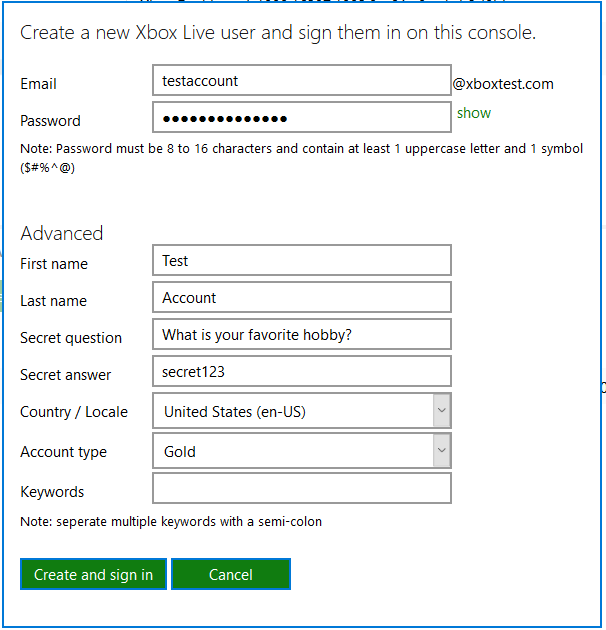
- Click Create new user
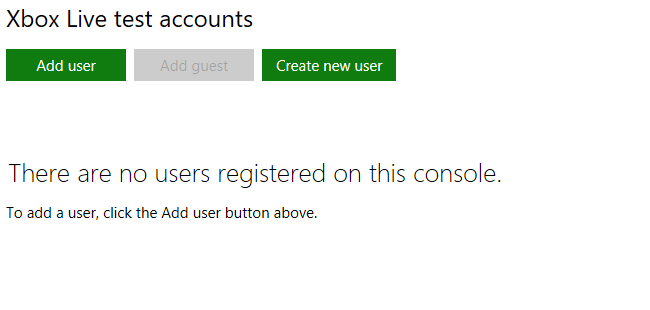
- Enter a email address and password for the new user.
- Optionally edit any information under the Advanced section that are required for your scenario. Only do this if you have an advanced scenario that require a value other than the defaults.
- Click Create and sign in.
To create a new test account as an action in a script
- Navigate to https://YourConsoleIPAddress:11443 in your web browser.
- Select the Automation tab.
- Create or load a script by selection New script, Import, or Retrieve from console.
- Click the New action button.
- In the New action window, select User and then select Create and sign in a new Xbox Live account.
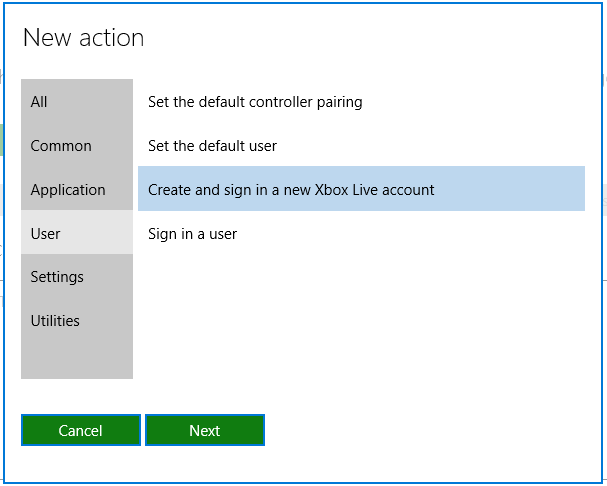
- Click Next
- In the window that appears, enter the account email or select Automatically generate a random account name from the console serial number to generate a new account email address each time the script runs.
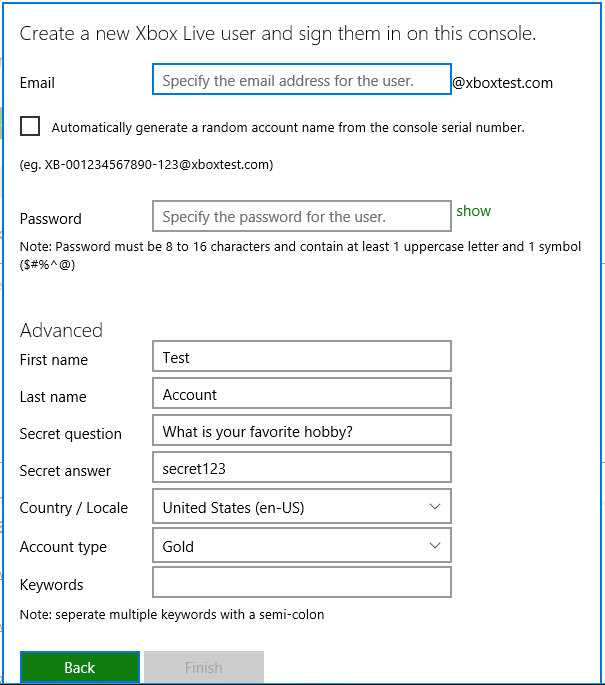
- Enter a password for the new account.
- Optionally change any information under the Advanced section that is required for your scenario. Only do this if you have an advanced scenario that require a value other than the defaults.
- Click Finish.
- Click one of the following
- Export - to save your script on your development computer.
- Apply as boot script - to have your script run at console boot
- Add for front panel buttons - to make your script available as an action for the front panel buttons.