Enabling Xbox Device Portal (Windows Device Portal on Xbox)
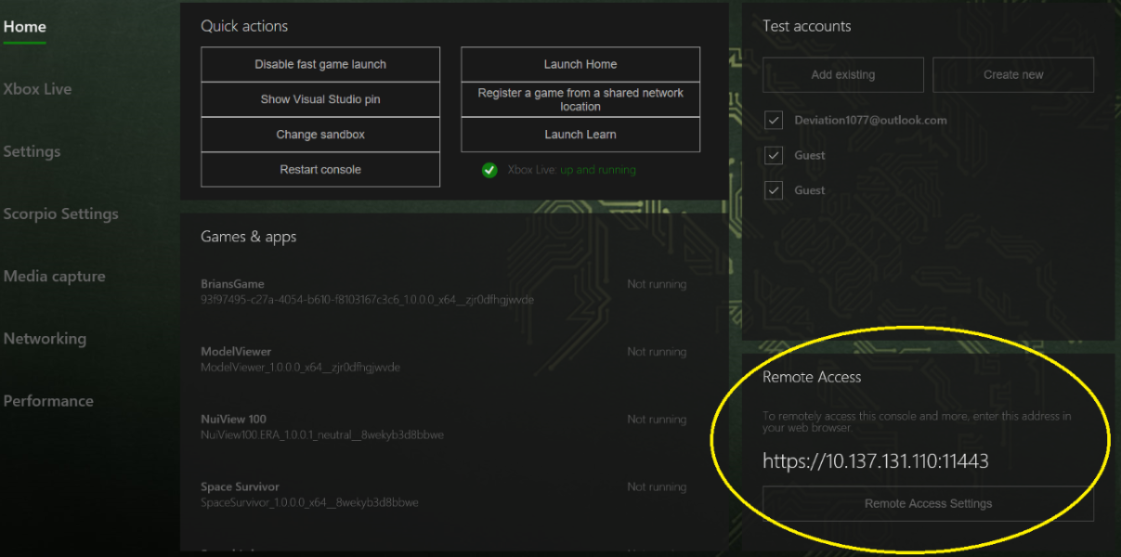
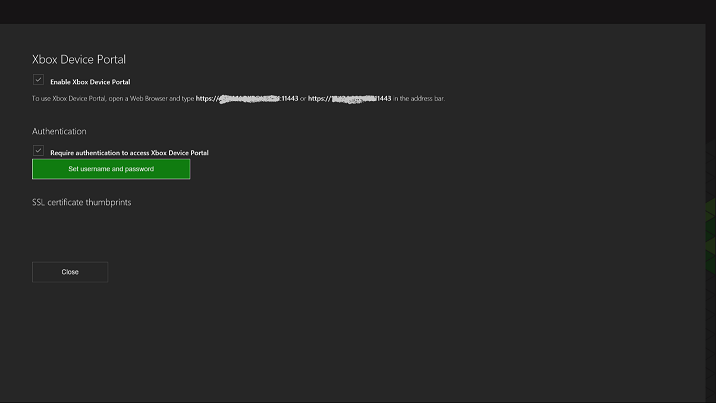
To enable or disable Xbox Device Portal on your Xbox One console select the Remote Access Settings button in the Remote Access tab on the Home screen in Dev Home.
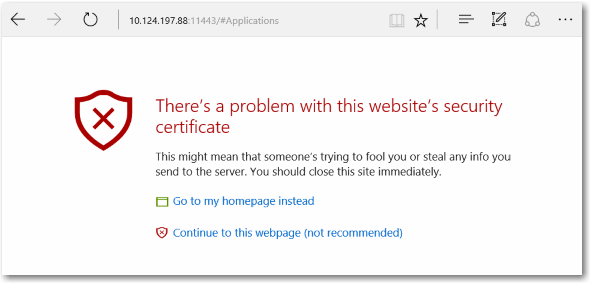
When you connect to Xbox Device Portal in your browser, you will receive a warning about the certificate that was provided, similar to the following screenshot, because the security certificate signed by your Xbox devkit is not considered a well-known trusted publisher. Click Continue to this website to access the Device Portal:
Use a custom SSL certificate
To prevent getting the above warning every time you connect to the Xbox Device Portal, you need to tell your browser to trust your dev kit by providing your own root certificate authority (root CA) and SSL certificate. Think of the root CA as a “magic pen” that signs the certificate to create a trusted connection. Each dev kit needs a unique certificate, signed by the root CA. You can use one root CA with multiple certificates to connect the same PC to multiple dev kits, and you can use the same root CA on multiple PCs to connect to the same dev kits using the same certificates.
Follow the steps below to provision Xbox Device Portal with your own certificate:
- If you or your organization already has a root CA, you can simply use that to create certificates for each dev kit. If not, you’ll need to create your own root CA. You can find instructions on how to do this, and install it to your PC’s Trusted Root Certification Authority, at Provision Device Portal with a custom SSL certificate.
- Create a signed certificate with the root CA for the dev kit. See the above link for information about how to do this.
- Add the certificate to the Xbox Device Portal using the Add Xbox Device Portal custom certificate action in an unattended setup script. See Unattended Setup Script Reference for more information.