Game DVR Experience: Creating and Storing Clips
Overview
Game DVR in Xbox One enables users to record clips of games and share them with other players. Many developers have already begun to work with this technology and have started to implement developer-created game clips for their titles. The following sections provide additional explanation about how both developers and users create game clips, and how storage of those clips work over time.
Creating clips
Clips can be created only in apps that run in the exclusive partition of the Xbox One. Anything that is rendered in the shared partition will never be recorded through this system.
Clips the developer creates
These types of clips are created by the developers themselves. For more information about how to create game clips, see How to: Create Developer-Created Game Clips, in the Game DVR Tasks section of this XDK documentation.
Clips users create
Users can choose between two methods to create clips.
Method 1: Using voice to start a clip recording
- When the game is running, a user can say “Xbox, record that.”
- This will create a video of the last 30 seconds of gameplay.
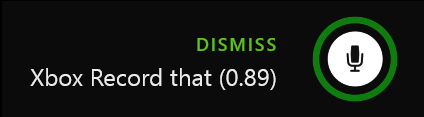
- The orb turns green to notify the user that the recording was successful.
Figure 1. Green orb shows successful recording.
Method 2: Using the Game DVR app to record
There are two ways to record clips using the Game DVR.
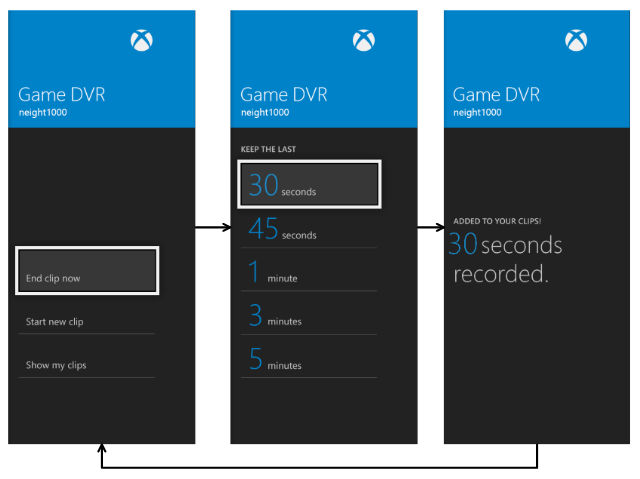
- Reaching backward in time.
- In this model, the user is recording gameplay that has already occurred.
- These videos will never cross over to other apps running on the exclusive partition. When a new exclusive app is launched, all video data from the previous game title is removed from the buffer.
Figure 2. Game DVR recording gameplay that has already occurred.
- Reaching forward in time.
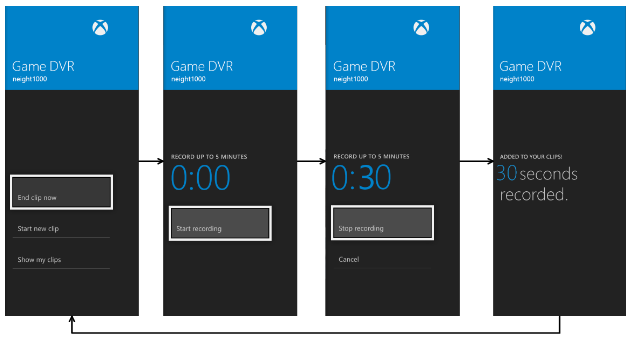
- This type of recording uses a video camera as a metaphor.
- The user clicks to start a recording and must return to the app in order to end the recording.
- Again, this isn’t allowed to cross exclusive apps and will cause an error if a user attempts to record from two exclusive apps simultaneously.
Figure 3. Game DVR recording future gameplay.
Clip recordings and local storage
After a clip is successfully recorded with any of the methods discussed earlier in this paper, the user sees the following notification.
Figure 4. A notification for successful recording of a game clip.

By holding down the Nexus button while the notification is displayed, a user can either play or edit the recorded clip.
Whenever a clip gets created, it’s first written to local storage. Local storage and cloud storage are not kept consistent. A clip will stay locally until the local storage cap has been reached. This cap is shared among all users who use that console.
Sharing clips
When a clip is created, it’s automatically uploaded in the background to Xbox Live as long as the user who recorded it has an Xbox Live Gold membership. Depending on how privacy settings are set, users can see clips from both storage locations. For adults, the See your game clips setting is set to Everybody by default. For teens, it’s set to Friends. For children it’s set to Blocked. To change this default setting, users can go to their profile and select the privacy settings option, which allows users to customize privacy settings. This is shown in the following screen grab.
Figure 5. Customizing privacy settings
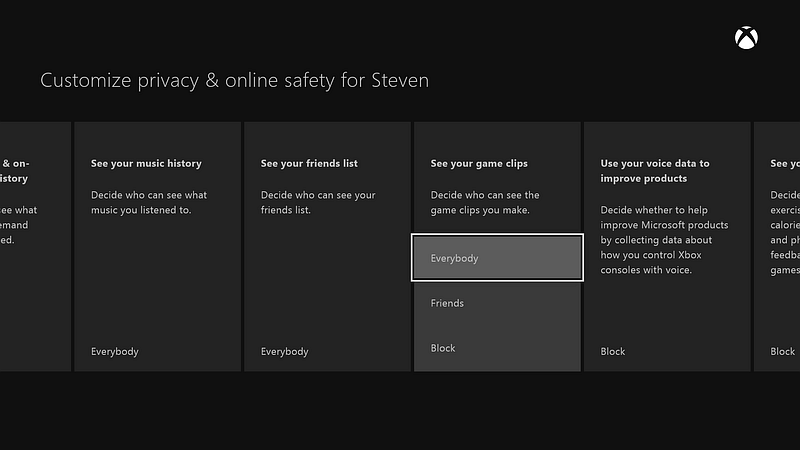
If users don’t want clips ever to be uploaded to Xbox Live, they can follow the same UI steps and instead find the See your game clips setting and set it to Blocked, as shown in the following figure. If a user’s Share game clips setting is set to Blocked, their clips will never be uploaded to the Xbox Live cloud regardless of that user’s Gold membership.
Figure 6. Setting Share game clips
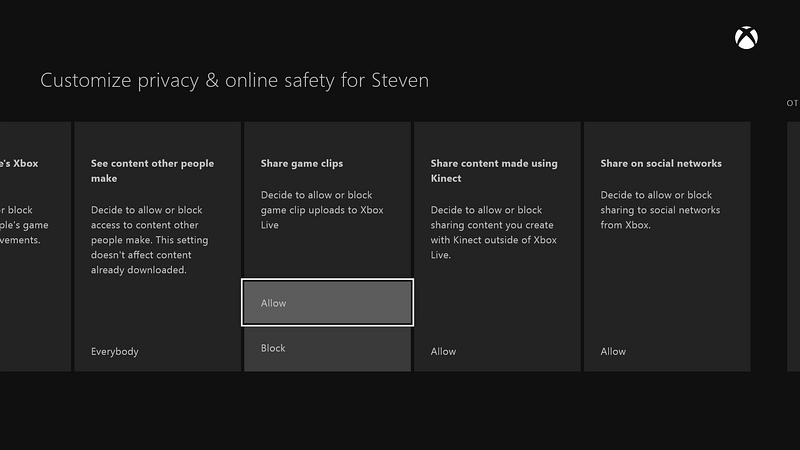
If a clip gets created while this setting is set to Blocked, or if the user doesn’t have an Xbox Live Gold membership, the user will need to use the Upload Studio editor after they’ve changed this setting (and if they have a valid Xbox Live Gold membership) to upload the clip to the cloud manually.
Storage of clips in the Xbox Live cloud
Your title’s users will need space to store clips they begin to record. For this reason, two storage options with different rules are offered. The first is temporary storage, which is where all clips go when they are created. Clips stay here until either the user moves them to saved storage or deletes them to make room for new clips. Temporary storage is a fixed-size storage guaranteed for users with Xbox Live Gold membership.
Here are a few basic images that show how storage works.
Figure 7. When a clip is recorded, it gets stored in temporary storage.

As more clips are recorded, they are stored in temporary storage as long as there is available space. If the maximum is reached, clips will be removed based on when they were created to make more space in the temporary storage. To make sure this removal doesn’t happen, the user needs to move clips to saved storage. Clips can be in only one storage queue, and can move only from temporary storage to saved storage. They can never be moved from saved storage into temporary storage.
Figure 8. Temporary and saved storage on Xbox One
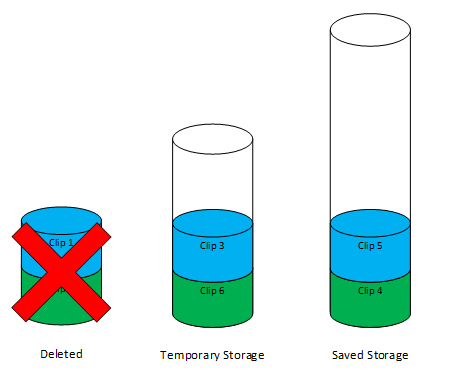
A developer is provided with this same setup. Now that you have room, it is perfectly reasonable to create multiple versions of the same developer-created clips with the same name. The clips stack up in temporary storage until they’re deleted or are moved to saved storage.
Keep in mind that while you have lots of room to save clips in both temporary and saved storage, you don’t have endless space. When your saved storage is full, you’ll need to delete clips to save more clips.
Editing
As part of the Game DVR experience at launch, users will be allowed to use the Upload Studio app in order to edit their clips. Edited clips are automatically put into saved storage and do not affect temporary storage.