Upload Game Trailers
Trailers are used to promote your product in the store. Through the Xbox Developer Portal (XDP) UI, you can upload game trailers for your product.
Requirements
The following items are required for each trailer that you upload:
- Trailer image (1920 x 1080, PNG): A still from the trailer or game artwork.
- 3 versions of the trailer: ESRB, PEGI, and unrated. Rated trailers must include the appropriate age rating displays for their respective regions.
- Default trailer title for all regions (localized titles are optional).
- Concludes with the 3-second Xbox One mnemonic (see the image below). The mnemonic is available in both PC and Mac formats on Microsoft RAD (Retail Asset Distribution). If you are unable to access RAD or the following links take you to a blank page, please contact XBDigiArt@microsoft.com for support.
- Xbox One 3-second ProRes and Cineform: http://aka.ms/xbox-one-mnemonic-3sec
Encoding Specs
The Xbox One Store only supports streaming trailers. Please use one of the following encoding specs. Once uploaded, your submitted native files are encoded by XDP to maximize SmoothStreaming.
| MOV | MP4 |
|---|---|
|
|
Frame rates
Frame rates should match the source material. For example, content shot at 24 FPS should be encoded and uploaded at 24 FPS. Content shot at 720p60 should be uploaded at 720p60. Content shot at 1080i60 should be deinterlaced, going from 60 interlaced fields per second to 30 progressive frames per second before uploading.
Upload and submit game trailers
This section explains how to upload game trailers to XDP.
- Navigate to your product page, either by clicking the product’s name on its product group page or by searching for it in the top-right search box.
- Navigate to the Game Trailer page by clicking Game Trailer from either the left navigation menu or under Catalog & Artwork.
 Note Trailers can only be uploaded on the base product page. All trailers for the product, including those for DLC and add-ons, should be uploaded here.
 - Click Add new trailer. XDP will display a form with steps 1-4.
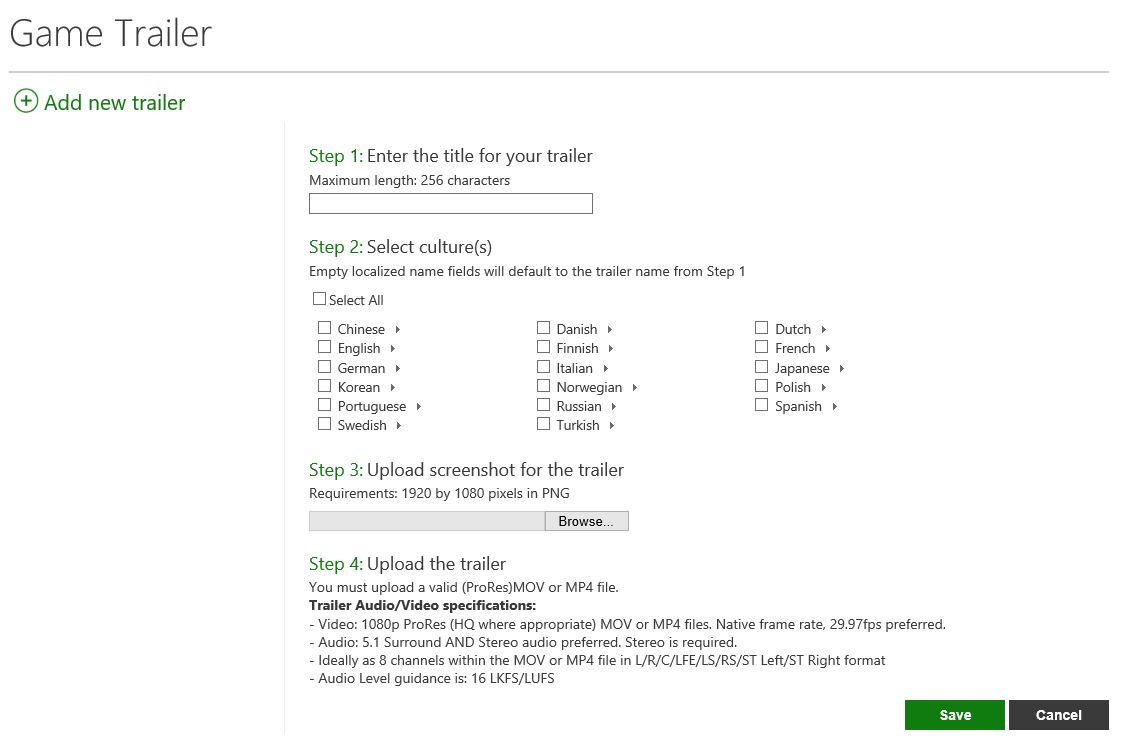
- Enter the default title for your trailer under Step 1.
Note The maximum length for the title is 256 characters. - Select the cultures that this trailer is intended for under Step 2. You can select all cultures by checking Select All, and deselect all by unchecking it. You can select all cultures under a certain language by checking the language, or you can select specific cultures by clicking the arrow next to a language to expand it, and selecting cultures listed underneath. For each culture that you select, you can enter a localized title in the respective text field. If you leave a field blank, the title will default to what you entered in Step 1. You must select at least 1 culture.
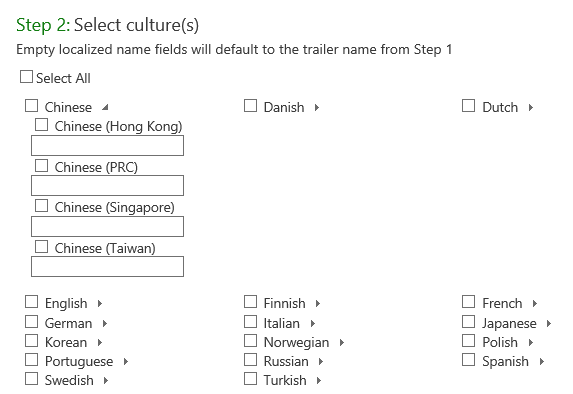 Note Only ESRB cultures should be selected for ESRB-rated trailers, PEGI cultures for PEGI-rated trailers, and unrated cultures for unrated trailers.
 - Select your trailer image in Step 3 by clicking Browse and browsing to the file on your computer. The image must have a resolution of 1920 x 1080 and be in PNG format.
- Select your trailer in Step 4 by clicking Browse and browsing to the file on your computer. The file must have the specifications listed on the page and in the Requirements section. Click Upload to upload the selected trailer file. Once upload completes, click Save.
- XDP will initiate the encoding process, validating dimensions and video specs. Encoding can take up to 2 hours. Once encoding has completed, the preview player will appear.
- Your internet browser will prompt with a message once the preview is ready. Click Yes, then play the preview to confirm a successful encoding. If you are happy with the playback, you may continue to the next step.
Note If you receive an error indicating issues processing your trailer file, click Retry. If retrying continues to fail after 3 or more attempts, please contact xdphelp@microsoft.com for support.
- To publish the trailer to the Game Detail Page (GDP), it will first have to go through ARTCert review. Click Submit when you are ready to submit your trailer for approval. Approved trailers will go to RETAIL (the Xbox One Store) the next time your catalog is published.
Note If your product is under Retail Embargo, do not submit your trailer until the embargo period is over. This will help ensure that your trailer does not get published early.
Edit game trailers
You can edit the title(s), culture(s), and image of a trailer when it is in a Not Submitted or Rejected state. Trailer files, however, cannot be changed or edited once saved. To update a trailer file, submit it as a new trailer, and delete the outdated trailer.
Make sure to click Save to save your changes.
Delete game trailers
If you would like to delete a trailer or remove it from the Xbox One Store, click the trash icon next to the title of the trailer on the Game Trailer page. No confirmation is presented after clicking the icon, however your trailer will be permanently deleted. There can also be a delay when deleting. Please allow the page to refresh to ensure that the trailer has been deleted.
Submit publish requests
Game trailer changes (new, edited, or deleted) will not appear in the Xbox One Store until your catalog is published to RETAIL. You don’t publish this yourself, however you can submit a publish request so that your catalog can be published on your behalf. To do this, submit a Catalog & Availability workbook to the Xbox One Work-On-Behalf-Of (WOBO) Request Portal. This is only required the first time you publish the catalog to RETAIL; subsequent republishes do not require resubmitting the Catalog & Availability workbook. Workbooks and complete instructions can be found on the Ingestion Workbooks page on the Xbox Game Developer (XGD) site.