Getting the Most Out of the Xbox One Linker
The linking phase takes a significant portion of a title’s overall build time for most large projects. This document describes best practices that enable you to get the most out of the Xbox One linker during development and when you produce a final release build.
There are two primary scenarios to consider when looking at linker performance: the developer iteration scenario and the final build scenario. They have different requirements and therefore require different linker configurations. In the iteration scenario, the goal is to link as quickly as possible, even at the expense of code quality and size. The key to a quick iteration time is incremental linking. The linker can be configured to link incrementally via command-line switches.
Even with a correct configuration, there are circumstances that cause the linker to fall back to a full link. These circumstances include turning on various optimizations, linking in libraries, and deleting the output of the previous build. The primary focus of the final build is the quality and size of the final binary, at the expense of the time it takes to perform the link. Incremental linking should be turned off for a final build, and linker optimizations, including link-time code generation, should be enabled.
The Linker and Developer Iteration
The key to optimal linker performance in developer iteration is to link the title incrementally. With incremental linking, the linker directly updates the binaries produced on the previous link, rather than building them from scratch. This approach is much faster because the linker updates only the part of the existing binary affected by code changes, rather than recreating the binary from its constituent objects and libraries. In addition to updating the binary incrementally, the linker incrementally updates the corresponding PDB as well.
To enable the ability to add code to an existing binary on subsequent links, the linker inserts extra padding into a binary as it is built. As a result, a binary built with incremental linking enabled will be larger than a binary built without it. In the developer iteration scenario, the additional size is generally accepted as a fair tradeoff for faster link times. However, larger binaries will take longer to deploy to the console, so you’ll want to verify whether this tradeoff is acceptable.
Even if the linker is properly configured to link incrementally, there are several factors that will force the linker to fall back and do a full link. The remainder of this section describes the set of switches you’ll use to turn on incremental linking and provides guidelines to maximize the chance that incremental linking will succeed.
Recommended Linker Settings
Incremental linking is turned on via the /INCREMENTAL switch on the linker command line. If you’re building from within Visual Studio, /INCREMENTAL can be turned on using the Enable Incremental Linking property:
Figure 1. Property page showing a sample Linker configuration
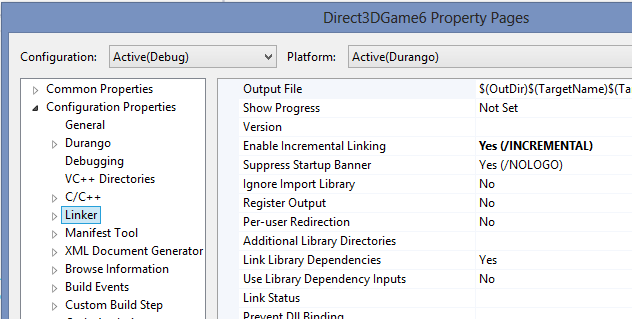
The /INCREMENTAL switch is on by default in the Debug configuration for Xbox One projects created using Visual Studio. It is off by default for the Release and Profile configurations. Note that /INCREMENTAL is implied if you have specified /DEBUG.
There are two switches you can use to get diagnostic information about the incremental linking process. The /verbose:incr switch prints various diagnostic messages you can use to determine when the linker had to abandon incremental linking and fall back to a full link. For example, one of the conditions that cause the linker to fall back to a full link is the modification of a library that the binary being linked depends on—see Linking .libs below. If /verbose:incr is turned on and a library has been changed, the following message is displayed:
LINK : library changed; performing full link
If an incremental link is successful, /verbose:incr produces no output.
The other diagnostic switch is /time. Among other things, /time displays information about each phase of the link. If you see IncrPass in the link output when /time is specified, the title has been linked incrementally. The absence of the phrase in the output means the linker performed a full link. Here’s an example of the full output from using /time on an incremental link:
  Linker: IncrPass2: Interval #1, time = 0.04710s [C:\temp\IncrLink\Durango\Debug\IncrLink.exe]
  Linker:  Wait PDB close Total time = 0.02389s PB: 9494528 [C:\temp\IncrLink\Durango\Debug\IncrLink.exe]
  Linker: IncrPass2: Interval #2, time = 0.11271s [C:\temp\IncrLink\Durango\Debug\IncrLink.exe]
  Linker: Final Total time = 0.15984s < 632942532369 - 632942948644 > PB: 5312512 [C:\temp\IncrLink\Durango\Debug\IncrLink.exe]
To summarize, the three recommended linker switches to use when you’re linking incrementally are:
- /INCREMENTAL
- /verbose:incr
- /time
There may be cases in which you can eliminate the /DEBUG option, which causes the linker to generate a .pdb file. The time the linker spends producing the .pdb file is a significant portion of overall link time. If you have scenarios in which this debug information will not be used, excluding the /DEBUG linker switch will reduce your link time by skipping the .pdb generation.
Factors that Disable Incremental Linking
Even with all the recommended switches defined, there are still several factors that could cause the linker to do a full link instead of an incremental link. This section describes how to prevent them from occurring.
Toolset Choice
The Xbox One XDK ships with a 32–bit linker and a 64–bit linker. The 64–bit linker should be used if at all possible. Incremental linking is more likely to succeed with the 64–bit linker primarily because of the increased address space.
The larger address space is important for two reasons. First, the 64–bit linker can map many more objects and libraries into memory than the 32–bit linker can. Running out of address space is one reason incremental linking fails more often with the 32–bit linker.
The second reason the increased address space is important for incremental linking pertains to the loading of linker data structures. When you link incrementally, the linker saves some of its internal data structures to an .ilk file. On subsequent links, the linker tries to load the contents of that file into the same memory location it used in the previous run. If the file can’t be loaded at the same location, the incremental link fails. The 64–bit address space makes it far more likely that the linker can load the contents of the .ilk at the desired address.
The 64–bit linker is used by default for all Xbox One projects. Unless you’ve explicitly overridden the default behavior, you’re using the 64–bit linker. To verify that the 64–bit linker is being used, add /Bv to the compiler (not linker) command line. The following line in your build output confirms that the 64–bit linker is being used:
C:\Program Files (x86)\Microsoft Durango XDK\xdk\vc\bin\amd64\link.exe: Version 11.00.65501.17015
Note The version number in the above line may change between versions of the XDK.
Linker Optimizations
The linker provides various switches that enable optimizations at link time. Using any of these switches disables incremental linking. Specifically, avoid using /opt:ref, /opt:icf, /order, and /LTCG —link-time code generation—in the developer iteration scenario. If you use one of these switches while /INCREMENTAL is on, you’ll see output like the following when you build:
LINK : warning LNK4075: ignoring '/INCREMENTAL' due to '/OPT:REF' specification
/opt:ref and /opt:icf
The /opt:icf and /opt:ref linker optimizations remove identical and unreferenced COMDATs. A compiler can optimize away data or a function only if the compiler can prove that the data or function will never be referenced. Unless /LTCG is enabled, the compiler’s visibility is limited to a single module (.obj file). For data and functions that have global scope, the compiler will never know if other modules will be using them. As a result, the compiler can never optimize them away.
In contrast, the linker has a good view of all the modules that will be linked together. It is in a good position to optimize away unused global data and unreferenced functions. However, the linker manipulates the binary on a section level. If the unreferenced data and functions are mixed with other data or functions in a section, the linker won’t be able to extract and remove the unreferenced data or functions. To equip the linker to remove unused global data and functions, each global data member or function is placed in a separate section. These sections are called COMDATs. These optimizations require the linker to collect and analyze reference information across all input modules, which makes the optimizations impractical when linking incrementally.
/order
The /order switch can be used to specify an order in which to lay out certain COMDATs. The additional complexity introduced by this switch causes incremental linking to be disabled. For example, when the list of symbols specified in the order file changes, the linker may need to swap in or out contributions for .obj files that didn’t change in the previous linking. The linker determines whether an .obj file has changed based on the timestamp. To support incremental linking with /order, the linker needs a new mechanism for determining if an .obj file has changed.
/LTCG
This is the link-time code generation switch, which causes the linker to do whole program optimization. For example, an optimization enabled by /LTCG is the inlining of functions across modules. As with many linker optimizations, incremental linking is disabled when /LTCG is turned on, because the linker must analyze references across multiple input files. Turning off the link-time code generation requires changes to both the linker and the complier command lines. Specifically, /LTCG must be removed from the linker command line and /GL must be removed from the compiler command line.
Linking .lib files
The linker’s ability to link incrementally is significantly impeded if your title links in .lib files—libraries. The greatest impact of using libraries is that any change made to any library causes the linker to abandon incremental linking and do a full link.
The reason that a change to a library disables incremental linking is the way in which the linker resolves the symbols referenced by a binary. When an .obj file is linked in, all symbols in the .obj file are copied into the binary. But when a .lib file is linked in, only the symbols that the binary references from the library are linked.
If a library is changed, it’s possible that a previously resolved symbol may now come from another library. Since the linker always tries to resolve symbols starting with the library that referenced the symbol, other references may also need to move if a reference moves from one lib to another. When it is faced with the possibility that so much might change, the linker cancels the incremental link.
It is also possible that a change to a library may not affect the symbol lookup at all. Even though technically the linker can do extensive analysis to determine what has changed and what the impact is, there is a tradeoff between the time spent determining if the incremental link can be preserved or starting over with a full link.
Use Library Dependency Inputs
Visual Studio provides the Use Library Dependency Inputs property which can re-enable incremental linking when using libraries. However, it may not be useful in all scenarios.
When Use Library Dependency Inputs is set to Yes—the property is under Configuration Properties/General/Linker—the linker will link all of the .obj files in the library directly into the final binary, rather than link in the library itself. As a result, changing one of the .objs in the library is the same as changing an .obj that is part of the binary.
Consider these three factors when you’re determining whether Use Library Dependency Inputs is appropriate in your scenario:
- When you link in an .obj file, the linker includes the entire contents of the file in the final binary. But when you link in a library, only the data and functions actually referenced are included in the binary. By turning on Use Library Dependency Inputs, you’re likely to pull in much more code and data than are actually needed, which increases the size of your final binary.
- If one of the .obj files in the library you are linking in has a dependency that is not already on the list of link dependencies in the binary, a new dependency needs to be added. Significant changes to your build system may be needed if the number of extra dependencies is large.
- The Use Library Dependency Inputs property is available only when you’re building in Visual Studio or using msbuild from the command line. This option is not available in other build systems.
Changing Link Options
Changing the options passed to the linker always causes a full link, even if the new set of switches is fully compatible with incremental linking.
Adding or Removing .obj and .lib Files
Changing the set of objects and libraries that are linked together to form the binary always causes a full link. If you have /verbose:incr on, you’ll see the following message when you change the set of link inputs:
LINK : object file added; performing full link
Presence of Previous Build Output
To link incrementally, the linker requires several artifacts from the previous build. In particular, you must preserve:
- The binary resulting from the previous link
- The .pdb file corresponding to that binary
- The linker’s .ilk file from the previous link
The binary and the .pdb from the previous build are required. Without them, there is nothing for the linker to update incrementally.
The .ilk file contains the state the linker saved from the previous build. When it links incrementally, the linker writes a copy of some of its internal data structures to the .ilk file, which you’ll find in your build output. The .ilk file contains the state the linker must access to do the next incremental link. When a link begins, the linker opens the .ilk file and attempts to load it at the same address used during the previous link. If the .ilk file can’t be found, or if it can’t be loaded at the required address, the linker falls back to a full link. If this occurs, /verbose:incr prints the following text:
LINK : unable to load ILK file; performing full link
The /verbose:incr switch can also detect cases in which a full link was done because one of the outputs of the previous build could not be found. For example, if the .pdb file is deleted, you’ll see the following in the build output:
LINK : program database C:\temp\abc.pdb missing; performing full link
Linking a Final Build
When you build a binary for release, the focus shifts from trying to minimize link time to producing the highest quality binary possible. The linker settings already discussed are aimed at linking incrementally and at diagnosing cases in which a full link was performed.
When you run a final build, enable all of the linker optimizations that were disabled to allow incremental linking. These options will produce a faster and smaller binary, at the cost of increased link time.
Specifically, the /opt:ref and /opt:icf switches should be turned on. In addition, incremental linking should be explicitly disabled by specifying /INCREMENTAL:NO on the linker command line or by setting the Enable Incremental Linking property to No when building from within Visual Studio.
Final builds should also be performed using the /LTCG option, that instructs the linker to call the compiler and perform Whole-Program Optimization (WPO). WPO allows the compiler’s optimizer to analyze all source files together and perform inter-procedural and cross module optimizations. For example, when it performs WPO, the compiler puts inline functions from one source file into callers defined in another source file. Turning on /LTCG also requires you to specify /GL on the compiler command line.