HDR on Xbox One
Claude Marais, Xbox Advanced Technology Group
Updated February 14th 2018
In this topic
Rendering values to the HDR swap chain
Presenting an HDR and SDR swap chain
Determining the maximum brightness of a TV
Introduction
Most titles today render a high dynamic range (HDR) scene to a 10-bit or 16-bit back buffer with values representing brighter values than white (for example: explosions, sunlight, or specular reflections). Since standard dynamic range (SDR) TVs are not capable of representing these bright values, titles use a tone mapping pass to reduce the HDR scene values to the range of [0..1]; that is, simulating bright values. HDR TVs are capable of representing the rendered HDR scene values as HDR to the consumer, greatly enhancing the title’s visual quality. Enabling HDR on Xbox One is very simple; it enables developers to very easily experiment with HDR and to very quickly have a first iteration of their games that use HDR.
Setting the TV to HDR mode
When a title is launched, it has to determine if the attached TV is HDR-capable, and if so, it sets the TV to HDR mode. The following API will do just that, given that the TV specifically supports ST.2084 and Rec.2020.
Windows::Xbox::Graphics::Display::DisplayConfiguration::TrySetHdrModeAsync()
Note: Because this is a Windows Runtime (WinRT) API, the C++ compiler option Consume Windows Runtime Extension needs to be set to Yes (/ZW).
This is an asynchronous API because it might take several seconds for a TV to switch to HDR mode. During the time that the TV switches to HDR mode, no video output will be displayed and audio will be muted. There is also no API to switch the TV between HDR and SDR modes. We therefore recommend that you call the API as soon as the title is launched; that is, early during initialization. The following code shows an example of how the API could be used.
m_hdrEnabled = false;

// Determine if TV is HDR capable, then set it to HDR mode
auto determineHDRAction = DisplayConfiguration::TrySetHdrModeAsync();
auto determineHDRTask = Concurrency::create_task(determineHDRAction);

// Meanwhile, do other title initialization
Initialize();

// Block until we know if display is in HDR mode
try
{
    // .get() will automatically .wait() until the async operation is done
    auto results = determineHDRTask.get();
    m_hdrEnabled = results->HdrEnabled;
}
catch (Platform::Exception^ e)
{
    OutputDebugStringW(e->Message->Data());
    throw;
}
Creating an HDR swap chain
For SDR TVs, a title presents a swap chain buffer that uses the Rec.709/sRGB color primaries, and is encoded by using the gamma curve (such as using the 8-bit format DXGI_FORMAT_B8G8R8A8_UNORM_SRGB). For HDR-capable TVs, a title is required to present a swap chain buffer that uses the Rec.2020 color primaries and is encoded by using the ST.2084 curve. The HDR swap chain buffer has to be created using the 10-bit format DXGI_FORMAT_R10G10B10A2_UNORM, together with the creation flag DXGIX_SWAP_CHAIN_FLAG_COLORIMETRY_RGB_BT2020_ST2084.
Rendering values to the HDR swap chain
A title will have to apply a shader to convert rendered linear HDR scene values to ST.2084 encoded values right before the HDR swap chain buffer is presented. Because very few content creation tools today support Rec.2020, the simplest way to start experimenting with HDR is to keep using Rec.709/sRGB color primaries and just focus on HDR at first. HDR scene values need to be normalized before applying the ST.2084 curve; therefore, a title will need to establish what the value of 1.0f means in its HDR scene (that is, how bright is the value of 1.0f when a pure white heads up display (HUD)/UI element is rendered into the HDR scene). According to SDR specs, paper white is defined as 80 nits, but that is for a cinema with a controlled dark environment, and is perceived as grey on a display in an office. This value should be adjusted according to the brightness that the consumer perceives as paper white in his living room (for example, 150 nits). As reference, PC monitors are normally in the range of 200-250 nits and a smartphone, 500 nits. Because the maximum brightness of ST.2084 is defined as 10,000 nits, the title’s defined value for paper white can be used to normalize the HDR scene values before applying the ST.2084 curve.
The following shows a code snippet of how the shader code can be implemented. See also the Simple HDR sample on the GDN Samples page.
// Calculates normalized non-linear ST.2084 value from normalized linear value
float3 LinearToST2084(float3 normalizedLinearValue)
{
float3 ST2084 = pow((0.8359375f + 18.8515625f * pow(abs(normalizedLinearValue), 0.1593017578f)) / (1.0f + 18.6875f * pow(abs(normalizedLinearValue), 0.1593017578f)), 78.84375f);
    return ST2084;
}
// Color rotation matrix to rotate Rec.709 color primaries into Rec.2020
static const float3x3 from709to2020 =
{
    { 0.6274040f, 0.3292820f, 0.0433136f },
    { 0.0690970f, 0.9195400f, 0.0113612f },
    { 0.0163916f, 0.0880132f, 0.8955950f }
};

// Convert HDR scene values to HDR10, as ST.2084 with Rec.2020 color primaries
float4 ConvertToHDR10(float4 color)
{
    // Rotate from Rec.709 into Rec.2020 primaries
    color.rgb = mul(from709to2020, color.rgb);

    // Normalize HDR scene values using the title’s definition of paper white
    color.rgb *= g_PaperWhiteNits / g_MaxNitsFor2084;

    // Apply ST.2084 curve
    color.rgb = LinearToST2084(color.rgb);

    return color;
}
Presenting an HDR and SDR swap chain
HDR games on Xbox One are required to output two swap chains: one with 10-bit HDR10 values presented to the HDR TV, and the other with an SDR image that can be used for Game DVR, screenshots, streaming, and broadcasting. This SDR image can be rendered by the game itself, or be automatically rendered by the Direct3D (D3D) driver when auto tone mapping is enabled.
For HDR output, use the DXGIXPresentArray API to present the two swap chain buffers simultaneously, with the HDR swap chain listed first in the present array. This means that when a title supports HDR, it can’t use the second display plane for other purposes, such as rendering UI at a different resolution or frame rate than the scene.
The following sections describe three different methods by which the SDR image can be produced and describes the associated advantages and disadvantages.
The title renders the SDR image
IDXGISwapChain1* ppSwapChains[2] = { GetHDRSwapChain(), GetSDRSwapChain() };
DXGIX_PRESENTARRAY_PARAMETERS presentParameterSets[2] = { 0 };

...

DXGIXPresentArray(1, 0, 0, 2, ppSwapChains, presentParameterSets);
This is the recommended method, because titles can produce a pristine SDR image that looks exactly the same as when the game is played on an SDR TV. You can also reduce the extra GPU cost by combining draw calls, or even render the image by using async compute. However, this does add extra complexity to your title’s render pipeline. That might be undesirable in terms of extra engineering hours and maintaining the render pipeline, especially for cross-platform titles.
Default auto tone mapping by the D3D driver
Alternatively, if you don’t want to process an SDR image manually, you can enable auto tone mapping (available since June 2017 XDK QFE2) by using the DXGIX_SWAP_CHAIN_FLAG_AUTOMATIC_GAMEDVR_TONEMAP flag when creating the HDR swap chain. This automatically allocates internal swap chain buffers from title memory, and while DXGIXPresentArray executes, the D3D driver injects a compute shader that performs auto tone mapping by using the title’s GPU budget. The memory cost of the internal swap chain buffers is the same as the cost of HDR swap chain buffers—that is, the same number of swap chain buffers at the same resolution are allocated. In this scenario, your title must still call the DXGIXPresentArray API, but with only one swap chain buffer as shown here.
IDXGISwapChain1* ppSwapChains[1] = { GetHDRSwapChain() };
DXGIX_PRESENTARRAY_PARAMETERS presentParameterSets[1] = { 0 };

...

DXGIXPresentArray(1, 0, 0, 1, ppSwapChains, presentParameterSets);
With this method, your title has no involvement with the SDR image. The D3D driver automatically does all the extra work, resulting in no extra complexity to the title’s render pipeline. However, even though this method produces a good SDR image, the image will most likely not have the same look as the game’s pristine SDR image. Also, because it’s a separate draw call, the extra GPU cost cannot be reduced by combining it with previous draw calls.
Be aware that, because auto tone mapping is applied to the final HDR image, all UI and HUD elements are tone mapped. To compensate for this, we recommend that titles render UI and HUD elements with a higher paper-white nits value than the HDR scene—for example, use paper white of 200 nits for the scene, but 400 nits for HUD and UI elements.
Auto tone mapping by using the title’s own tone mapper
This method is similar to the previous method (default mapping), but your title can control the look of the SDR image by providing its own tone mapper as a 3D lookup table (LUT). To do this, use the SetHDRToneMapper API (available since the February 2018 XDK). During auto tone mapping, the D3D driver uses the title’s own tone mapper to produce the SDR image. This has the advantage of not adding any extra complexity to your title’s render pipeline, but still enables the title to produce an SDR image that looks very similar to its pristine SDR image. See the documentation for SetHDRToneMapper to find out how to create a 3D LUT with your title’s own tone mapper encoded.
For more information, see the HDRAutoToneMapping sample.
Here’s a summary of the three ways to create an SDR image.
Table 1: Comparing the advantages and disadvantages of the three methods to produce the SDR image for Game DVR, screenshots, broadcasting, and streaming.
| Method | Image quality | Implementation | Extra GPU cost at 4K on Xbox One X |
|---|---|---|---|
| The title renders the SDR image | Highest quality; this is the title’s pristine SDR image | Extra complexity to the render pipeline | 0.24ms |
| Default auto tone mapping | Good quality, but not the same as the title’s SDR image | No extra complexity to the render pipeline | 0.38ms |
| Auto tone mapping by using the title’s own tone mapper | Very high quality; similar to the title’s pristine SDR image | No extra complexity to the render pipeline; uses the SetHDRToneMapper API. | 0.3ms |
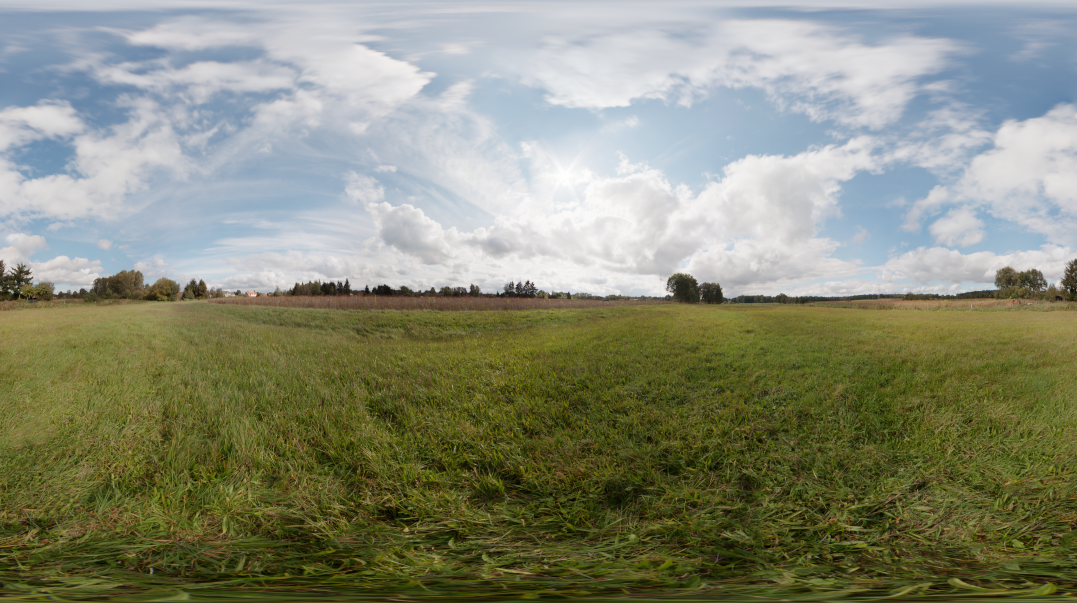
The following example images compare the results of each of the three methods to the pristine SDR image (Figure 1) as played on an SDR TV.
Figure 1: The SDR image when the game is played on an SDR TV.
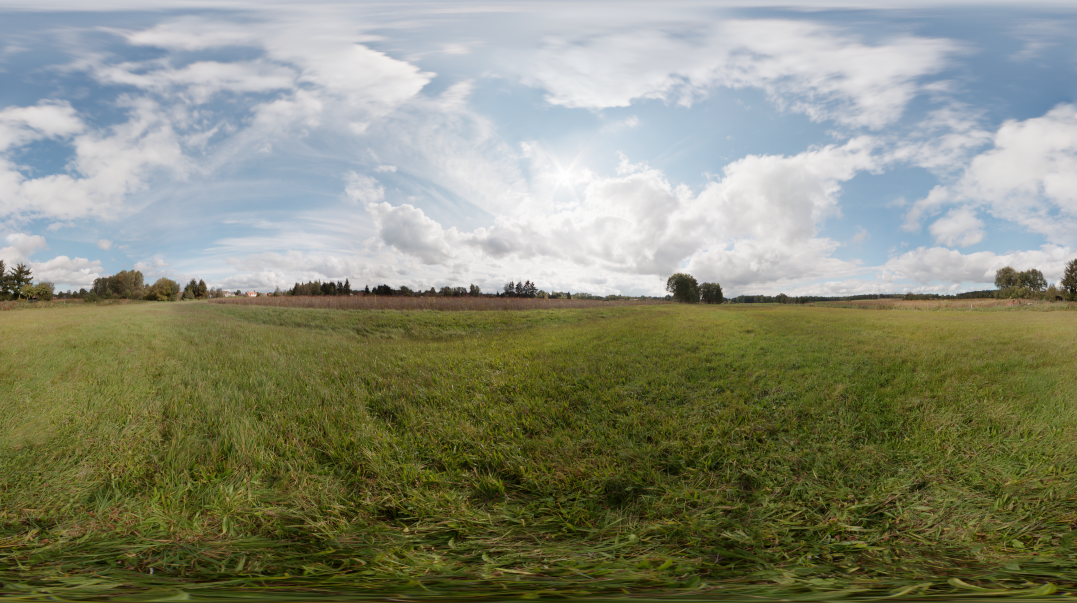
Figure 2: The SDR image rendered by the title when the game is played on an HDR TV.
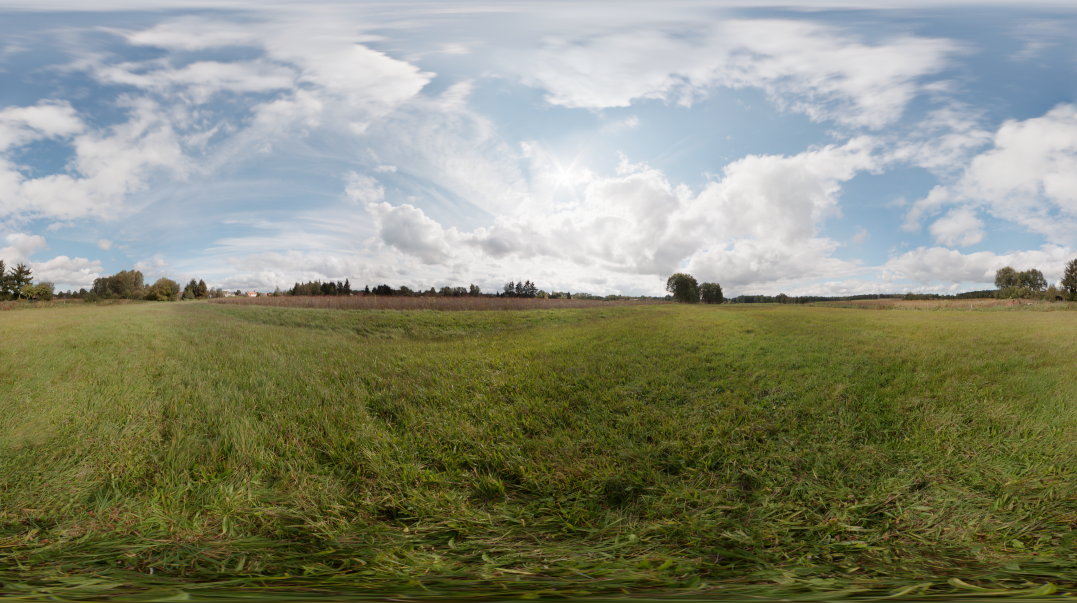
Figure 3: The SDR image produced by the D3D driver’s default auto tone mapper when the game is played on an HDR TV.
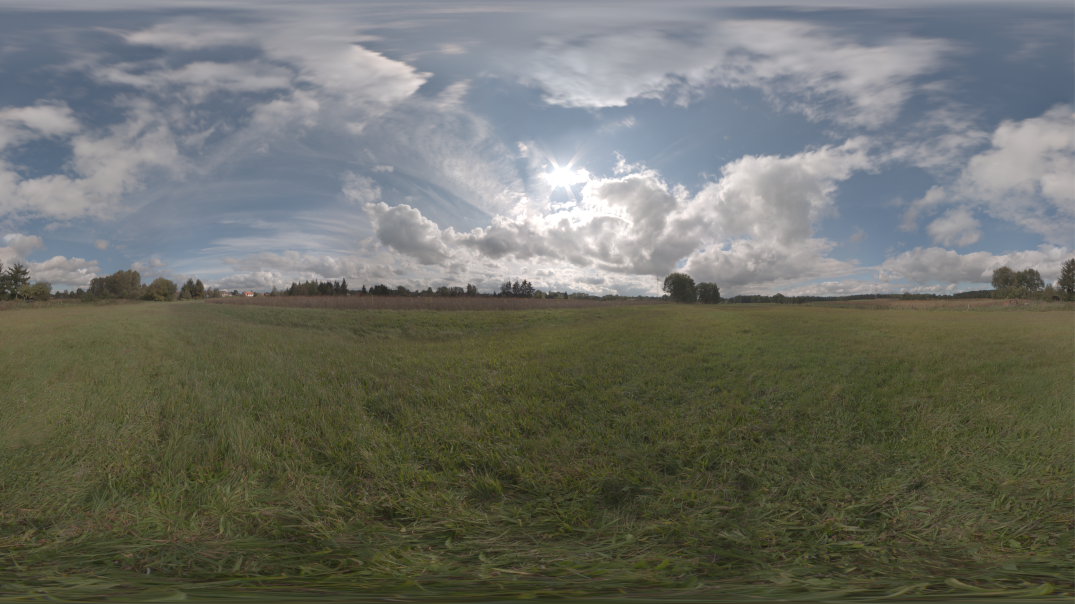
Figure 4: The SDR image produced by the D3D driver by using the title’s own tone mapper as a 3D LUT during auto tone mapping.
Note Developers should always validate the SDR image. A new Xbox Requirement—XR-131 “Display Mode Support for GameDVR and Screenshots”—was added to ensure that Game DVR, screenshots, and broadcasting work properly across display modes and types. Validation can be done by launching the game as HDR and then, while the game is running, switching the console to SDR mode by using xbconfig AllowHDR=FALSE. This switches the TV to SDR mode and the OS will display the SDR swap chain buffer. After validation, remember to switch the console back to HDR mode by using xbconfig AllowHDR=TRUE.
Determining the maximum brightness of a TV
Different HDR TVs will have different maximum brightness levels (for example, one TV could be 600 nits and another could be 2000 nits). For a title to look similar on different TVs, the title could apply a soft shoulder to the ST.2084 curve or use a reduced tone mapping by using the maximum brightness of a TV. Unfortunately, TV manufacturers are not required to provide this information via HDMI; that is, it’s optional. Therefore, we cannot rely on a TV to return its maximum brightness when queried for it. If the TV does communicate its maximum brightness, the value will be returned in the HDRModeInfo.MaximumLuminance member; otherwise, the value will be zero. In this case, a title will have to determine the maximum brightness by using some form of calibration image. Refer to theHDR Calibration sample on the GDN Samples page.
Performance considerations
The shader instructions to apply the ST.2084 curve to the HDR scene values are very simple, but at 1080p, the instructions have to be applied to ~2 million pixels. In addition, another ~2 million pixels have to be prepared for the SDR signal. The following list provides a few different suggestions for how a title could prepare the HDR swap chain buffer for Rec.2020 with ST.2084.
- Apply the shader as instructions. For example, ~300 µs in ALU instructions, at 1080p on Xbox One S.
- Apply a look-up table. For example, ~150 µs in texture fetches, at 1080p on Xbox One S.
- Combine the conversion with the last post-processing pass.
- Prepare the SDR swap chain at 30 Hz.
Summary
HDR on Ultra High Definition (UHD) TVs provides the opportunity for games to greatly enhance visual quality. Implementing HDR on Xbox One is very simple. The platform provides one API and one swap chain creation flag, allowing developers to have a first iteration of HDR in their titles very quickly. Enhanced visual quality does come at an extra performance cost; therefore, it is important to take into consideration the extra memory and GPU costs.
References
- Simple HDR sample (.zip)
- HDR Auto Tone Mapping sample (.zip)
- HDR Calibration sample (.zip)
- An Introduction to HDR and Wide Color Gamut on UHD Displays (Xfest 2016) .pptx
- HDR Tips And Tricks From The Trenches (Xfest 2017)—http://aka.ms/XF17022
- Recommendations For Wide Color Gamut And HDR (Xfest 2017)—http://aka.ms/XF17019
- Recommendation BT.2020 Specification
- ST 2084:2014 Specification: High Dynamic Range Electro-Optical Transfer Function of Mastering Reference Displays