Intelligent Delivery for Xbox One – Language and Device Aware Streaming Install
Brian Hudson, Xbox Platform Team
Updated October 12th 2017
In this topic
Designing new titles to take advantage of Intelligent Delivery and Streaming Install
Using Intelligent Delivery to publish fewer SKUs (optional)
Approaches to handling growing content size
Intelligent Delivery Overview
Note: This document assumes general familiarity with Xbox packaging, which can be found in the XDK documentation in the System > Overviews > Streaming Installation and Intelligent Delivery section, and in the Title Packaging and Streaming Installation white paper.
Intelligent Delivery is a set of features which allow content in a title XVC package to be tagged so that portions of the content can be selectively delivered to consoles based on the particular device type of the console as well as the language setting of the console.
When creating XVC packages, the developer annotates chunks in their layout file with specifiers. Specifiers fall into 4 categories:
- Device specifiers,
- Languages specifiers,
- ContentTypes specifiers, and
- Custom tag specifiers
Example:
<Chunk Id="2002" Devices=”Xbox-Scorpio” Languages=”fr”> … </Chunk>
Devices specifiers declare which device-types the content in a specific chunk applies to.
When shipping new titles for devices across the entire Xbox One family the developer can place specifiers for content which is only needed on Xbox One devices as well as specifiers for Scorpio content. Any content without a device specifier will be installed to all consoles.
Using device specifiers, developers can target higher capability devices to offer the highest fidelity experiences possible, without causing unnecessary downloads for users of lower power Xbox devices – who will never use that data.
If a title is updated to support higher resolution or higher fidelity rendering on Xbox One X, it can add new chunks with the supporting assets, marked with the “Xbox-Scorpio” device specifier so that this specific content will be delivered to Xbox One X consoles, but not to Xbox One or Xbox One S consoles.
Note: Chunks that are marked with the “Xbox-Durango” specifier will be delivered to Xbox One and Xbox One S consoles, but not Xbox One X consoles.
Languages specifiers declare which language the content in a chunk applies to.
A title can mark a chunk with one or more language-specifiers, indicating that it contains files localized for a specific region.
At install time, the console will determine the best match (including fall-back) between the language needed by the user versus the languages in the package, and then download only the chunks which have been marked for that language, or that are language-neutral (unmarked).
ContentTypes specifiers tell the system and users more information about the purpose of the content in a chunk as it pertains to gameplay types. If a title uses a Content type specifier, the game is explicitly stating that this content is removable if a user doesn’t want it installed any longer, and the game must function for all other modes, even if that content is not installed. The Xbox Shell will expose options for managing the install and uninstall of data tagged with ContentType specifiers within a title. If the user uses one of these options to uninstall data, the title will first be shut down before data changes are made to ensure there are no open files during the update process.
For example, the SinglePlayer content type indicates that the data in the chunk supports only SinglePlayer gameplay. A game which has a single player campaign can mark all content which supports the single player experience with this specifier, and users could then uninstall the single player gameplay mode manually. The title could also prompt the user after completing the campaign, to see if they want to free up the space, and then use the RemoveChunkSpeciferAsync API to accomplish this.
Note: Any content which is common to MultiPlayer and SinglePlayer or other game modes must not be marked with a ContentTypes, because this allows a user to remove the content, which would then remove content used by those other game modes, leading to crashes or instability.
As of the publication time of this whitepaper, the supported values for ContentTypes are SinglePlayer and MultiPlayer.
Custom tag specifiers serve a few purposes:
First, they allow developers to mark groups of chunks as being related, which simplifies checking if the chunks needed to run a title are all present on the user’s system.
Very Important Note: Because custom tag specifiers can be used as part of install calculations, this data is not encrypted within the XVC. Sensitive data should not be used for specifier names, as it could be gleaned from a package file stored on a CDN even during pre-release timeframes.
For example, rather than knowing that Level 1’s assets are contained in chunks 1000, 1001, and 1002, and using the AreChunksInstalled API call to determine whether Level 1 is fully installed and ready to be played, the developer can tag all three chunks with a custom tag of “Level 1” and make an API call to get the installation status of that set of data easily.
The second purpose of tag specifiers is that they allow the developer to control how content is to be subsetted for publishing on optical media.
Tag specifiers allow the developer to designate that some content should not be part of the on-disk package. For example, optional content such as 20GB of behind-the-scenes videos for a game which takes up 65GB of space – too large for a single BD50 Blu-Ray.
For multi-disk publishing, tag specifiers allow the developer to designate which disk the content should end up on. For example, one might place all multiplayer content on disk 2 of a compilation disk. Alternatively, when producing multiple disk SKUs for different regions, this feature allows a title to place EFIGS on one Blu-Ray SKU, and Japanese on another Blu-Ray SKU for mastering and duplication, by only uploading and managing a single XVC image.
Finally, Intelligent Delivery allows developers to designate content that should not install by default from a package. Developers can specify that a chunk is an OnDemand chunk, which will only be installed if the title requests it. To easily download these OnDemand chunks at runtime, these optional chunks are also marked with a Custom tag specifier in the layout file. The title can then call the AddChunkSpecifiersAsync to request the download, providing the Custom tag to identify which chunks should be installed at runtime.
Important Note: The specifier features above are available to all titles which update to a Tools XDK which supports Intelligent Delivery, even titles on older XDKs. This enables conditional installation assets at install time, with no in-title specifier switching API support. So, for example, a title would have a single language installed at install time, and the title wouldn’t be able to change this at runtime.
The new Intelligent Delivery runtime APIs are only supported for titles which update to a 1703 or later XDK which supports Intelligent Delivery.
Titles wishing to add higher fidelity Scorpio rendering to an existing title must migrate to a new 1703 XDK or later in order to gain access to the runtime APIs which support these features.
The following diagram shows a source XVC which contains Scorpio-specific assets, language specific assets, and an OnDemand chunk which supports a MapEditor feature within the title which only installs if the user requests it or responds to a title prompt asking the user to install it.
The diagram shows how Intelligent Delivery allows the correct subset of assets to be downloaded to different devices based on their hardware configuration, the spoken language the console is set to in the settings area, and user interaction.
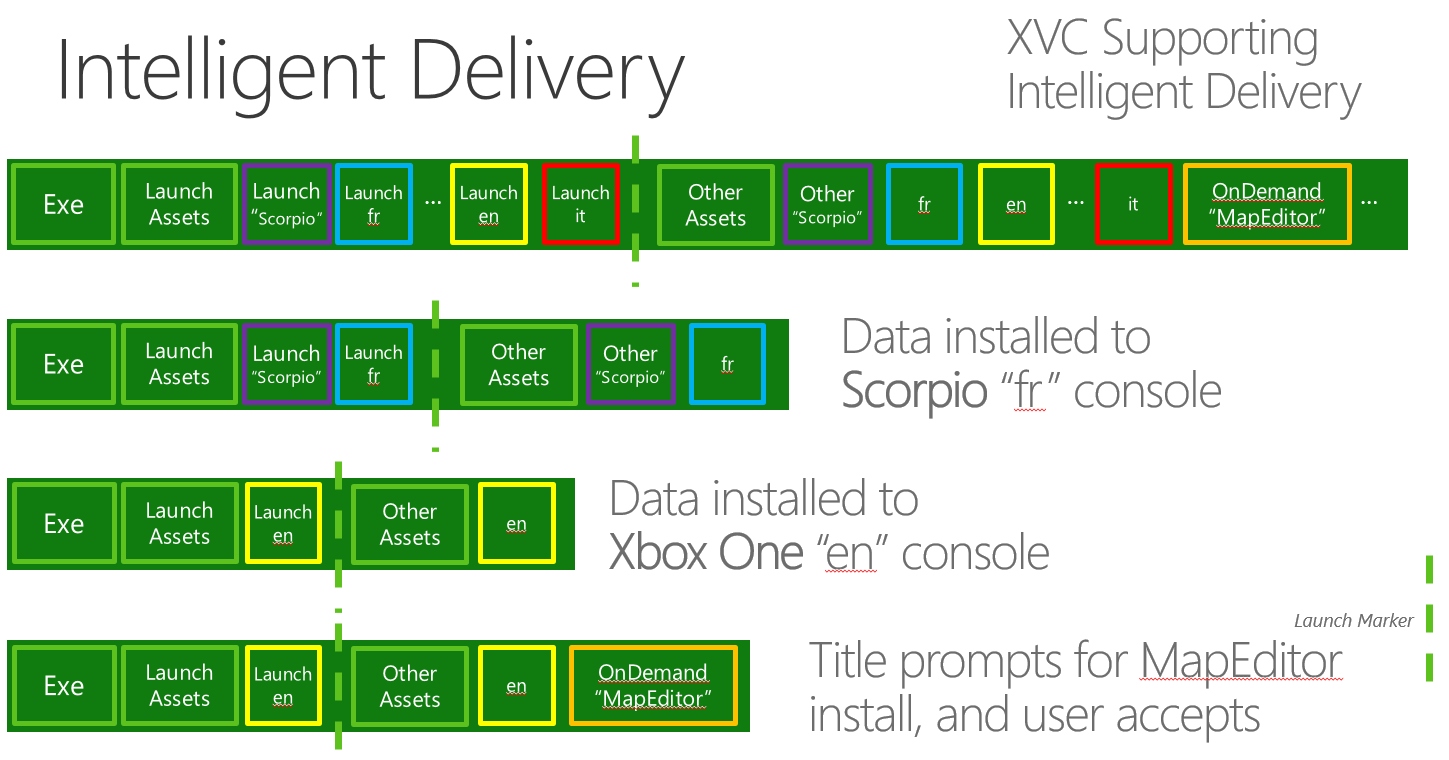
Publishing a content update to add Xbox One X functionality to an existing title shipped for Xbox One
To add support for Scorpio to an existing title, the first step is identifying which XDK the title will use, and whether that is a migration from what it first shipped with. Titles are strongly recommended to update to the March 2017 XDK or later when using Intelligent Delivery to get support for the associated runtime API features.
Important Note: If your title updates to a newer XDK as part of an update, you should verify that the asset formats in the new XDK don’t result in a large content update.
Textures: For titles created with the August 2015 XDK or older, one of the most common texture formats is no longer compatible with newer XDKs or Scorpio. Please follow up with an ATG graphics expert to assess your options for re-processing these textures for compatibility at load time versus updating your texture format, which would result in a larger consumer download for your update.
Shaders: Pre-compiled shader formats from XDKs prior to the March 2016 XDK have changed and will be recompiled at runtime. To avoid this, they must be recompiled and packaged in your update. If your title’s shaders are embedded in larger “pak” style files with your layout, this could cause a very large consumer download for your update. You should consider whether your goals can be accomplished by staying on your current XDK version, or consider a “fix-up” update where updated assets with a different format are placed into new chunks in your package, and the index files / data which reference them can be updated without altering the content of large pak files.
This technique requires splitting directory information for asset library files into their own files which can be updated separately. See the Designing Title Package Layouts for Updates whitepaper for more information on this technique.
While the on-disk footprint of your title will be larger because of this, the download size savings may be worth the tradeoff.
Device specifiers in your layout xml file
To add new 4K assets or other content specifically for Xbox One X to your title, you should identify the assets which are only applicable to Xbox One X. This isolates them into new chunks in your layout xml file, and apply the “Xbox-Scorpio” device specifier to them.
<Chunk Id="2002" Devices=”Xbox-Scorpio”>
   <FileGroup DestinationPath="\Data\Maps\Scorpio\HiResLightMaps" 			SourcePath="Y:\Maps\Level1\Scorpio\HiResLightMaps" Include="*.dat"/>
<Chunk>
When you publish a content update that includes chunks tagged this way, this new data will not be downloaded to existing or new installs to Xbox One devices, but users installing your title to Xbox One X consoles will get this data. This includes customers with existing disk-based versions of your title. During the install process, the update which includes this new content will be processed by the console, and Xbox One X assets will be brought down over the network as part of the install.
Runtime asset access
To determine which content your title should render, it will need to know which device it is running on.
One approach is to use the GetConsoleType API available in the June 2016 XDK or later. This API has the benefit of being callable prior to graphics device creation.
Alternately, new structs/enums have been added to the following APIs to expose the device type at runtime after graphics device creation:
- D3dDeviceX_GetGpuHardwareConfiguration
- D3d12Device_GetGpuHardwareConfigurationX
Example usage:
D3D11X_GPU_HARDWARE_CONFIGURATION config = {};
m_pd3dDeviceX->GetGpuHardwareConfiguration( &config );
if (config.HardwareVersion == D3D11X_HARDWARE_VERSION_SCORPIO)
{
    //Render using Scorpio-specific assets + base assets as appropriate
}
else
{
       //Render using Durango base assets
}
Important Note: In scenarios where a title is installed to an external hard drive and that hard drive is brought to a different console, an initial update will be enforced by the system, downloading any device-specific data needed to run on that device which is missing from the launch set of chunks.
Once the title is running, the remaining updated content will stream down using existing streaming install semantics. Moving an external drive between consoles will not automatically cause a new language to be installed – the title will run in the same initial language it was installed for. The Xbox shell will provide functionality to enable users to add an additional language to the installation to match a console language if they want, or titles can use the AddChunkSpecifiersAsync API to do this within the title.
Runtime chunk install status
There is a compile-time breaking change in the March 2017 XDK to account for the fact that Chunk install status can no longer represented by true or false.
Instead of using IsChunkInstalled, titles should now use GetInstallationState:
Vector<UINT32>^ v = ref new Vector<UINT32>();
v->Append(ChunkID);
bool IsAlreadyInstalled = (Windows::Xbox::Management::Deployment::PackageTransferManager::Current->GetInstallationState(v) == InstallationState.Installed);
Note regarding pack files
Intelligent Delivery still relies on the chunked installation system that was introduced with Streaming Installation on Xbox One. Chunks are used to group files together for installation, and with the addition of specifiers, they acquire further control over which files are installed on an end-user’s system – and which ones aren’t.
Titles sometimes package up related assets in pack files (.wad, .pak, et cetera – all forms of asset libraries, typically LZ compressed). Titles adding additional content for Xbox One X should be very careful to ensure that these new assets are packaged into independent files rather than re-packaged into the same set of pack files that were in the Xbox One package version.
If the same files are rebuilt inserting Xbox One X assets, then marking them as “Xbox-Scorpio” will not be possible, and the entire changed file will be re-downloaded, because individual files are the smallest unit of content update supported for XVC images. If some of the assets that need to be updated exist within a pack file, it may be necessary to perform a fix-up. Please see the Designing Title Package Layouts for Updates whitepaper for how to perform a fix-up and how to avoid re-downloads of content where possible.
Validating your update size
When adding assets specifically for Xbox One X, it’s very important that you ensure that the update size for Xbox One customers will be as small and efficient as possible. To validate this, you can use the packageutil compare /device=Durango command with your existing package and your new update package to verify that the update size is relatively small. You can also use packageutil compare /device=Scorpio to confirm that the update size between your current app and the new Xbox One X updated version is what you expect – the size for the “/device=Scorpio” update scenario should be larger, primarily due to added assets exclusive to that device.
Designing new titles to take advantage of Intelligent Delivery and Streaming Install
New titles which will ship simultaneously for Xbox One, Xbox One S, and Xbox One X can use Intelligent Delivery to target devices with specific content, and to enable language-specific installs.
Targeting specific devices
There are two general strategies for targeting assets to Xbox One / Xbox One S, and Xbox One X. One strategy is to tune specific content to each device class. The other strategy is to have additional assets which install only on Xbox One X.
Both strategies will have some content that is common to both consoles, for example, audio assets may be identical regardless of which device the title is running on.
In the device-tuned scenario, the title should package device specific assets into their own chunks, targeting the specific device. For example:
<Chunk Id="2001" Devices=”Xbox-Durango”>
<FileGroup DestinationPath="\Data\Maps\XboxOneOnly\LightMaps" 			SourcePath="Y:\Maps\Level1\XboxOneOnly\ResLightMaps" Include="*.map"/>
<Chunk>
<Chunk Id="2002" Devices=”Xbox-Scorpio”>
   <FileGroup DestinationPath="\Data\Maps\Scorpio\HiResLightMaps" 			SourcePath="Y:\Maps\Level1\Scorpio\HiResLightMaps" Include="*.map"/>
<Chunk>
For the example above, at install time, the console would either install Chunk 2001 or Chunk 2002 depending on the hardware device type.
At runtime, the title should use the D3dDeviceX_GetGpuHardwareConfiguration or D3d12Device_GetGpuHardwareConfigurationX APIs to determine which device the title is running on, and which set of assets should be used.
In the scenario with additional content for Xbox One X, all assets which are common to both consoles would go in chunks without device specifiers, and “Xbox-Scorpio” assets would go into their own chunk, as shown for chunk 2002 above.
Titles concerned about incurring extra seeks (for example, those which load all texture mips at once, rather than loading high-detail mips on-demand) should consider duplicating data between chunks.
Filenames cannot be duplicated across different chunks, even if only one of the chunks containing the duplicates is installed at any time. We recommend that you either select your files based on folder name (for example, grouping all assets in a “Scorpio” folder), or modify the filenames in a way which makes sense for your title to disambiguate them – for example, by adding _sco to the end of the filename, before the period and suffix.
Language-aware install
Similar to device-specific assets, Intelligent Delivery allows content to be tagged so that only a subset of all the localized assets in a package will be installed on any given console. This offers a bandwidth savings for customers installing digitally, as well as a hard drive space savings for all customers.
To specify content specific to one or more languages, put a language specifier into your chunk xml element.
<Chunk Id="1001" Languages=”fr”>
   <FileGroup DestinationPath="\Data\Maps\X1\fr"       			SourcePath="Y:\Maps\Level1\X1\fr" Include="*.map"/>
<Chunk>
This data would be installed on a console where “fr” is determined to be the best language match for what language the console is running in. In this example, users whose consoles are set to French language with a Canadian locale (fr-CA) and with a French locale (fr-FR) will both see the “fr” chunks installed. More specific specifiers can be used, so Languages=”fr-fr” would only install for French language with French locale. Combinations are supported also, so that a chunk labeled “pt-br;en-us” would be installed both for Brazilian Portuguese and US English.
Any chunks which have no language specifier will be installed on all consoles (unless excluded via other specifiers, such as device type).
Note: You should not place any localized data referenced by your AppXManifest.xml into chunks with language specifiers. This is to ensure all localized assets are immediately available to the Xbox Shell in case the user switches their console language.
Determining the user’s choice of language
The existing GetUserDefaultLocaleName API has been updated to account for the language aware install functionality of Intelligent Delivery. The API will return a language which is installed, according to the data in the layout xml file for your package and the console/user’s language setting. Please see the National Language Support API and Localization XDK sample for more information about localization and AppXManifest.xml language settings.
Note: You must ensure that all languages referenced within your layout.xml are present in your AppXManifest.xml as well. If a language is used in the layout xml file but not present in your AppXManifest.xml, that language will never be returned to your title as the recommended language to render in. Submission Validator will check for this scenario and produce a warning if this situation is found.
Offering additional languages to users within your title
Some titles offer users the ability to choose their language as part of first time gameplay, or via a menu regardless of the language their console is set to. Intelligent Delivery supports this functionality.
Only one language is installed for a given package at install time, based on a matching algorithm that takes the language setting of the console and the languages specified in the layout xml file as inputs. The title should render in this language by default, unless and until a different language is chosen by the user.
The Xbox Shell allows additional languages to be installed, in addition to the first language. You can also expose this choice to users from within your title using your own UI.
Titles can determine the set of languages which are available to be installed by using the AvailableSpecifiers property on the PackageTransferManager class. This contains an IVector of Languages available to be installed. Note that depending on the language selected and the install source, the install could come from a disk, or be downloaded.
If a user selects a language, the title can then check whether the chunks tagged with that language are already installed, in the process of installing, available to be installed, or not available to be installed (for example, if the language is not present in the version of the title on the disk, and the console is offline). This information can be retrieved from the GetInstallationState(ChunkSpecifiers^ specifiers) API which returns a InstallationState object with the following values.
| State | Description |
|---|---|
| Installed | The regions are fully streamed. |
| Pending | The regions will be streamed but some of them are not done yet. |
| Available | The regions will not currently be streamed but they could be by calling RequestUpdateAsync with specifiers that include them. |
| Unavailable | The regions will not currently be streamed, nor can they be because the source media doesn’t have them either. |
If a user chooses to install a language which isn’t currently installed – the title can then use the AddChunkSpecifiersAsync API, passing a ChunkSpecifier object which contains the string specifying the desired language to install. This will present system-rendered UI to the user to accept the additional install / download. A PackageTransferWatcher object is returned which also allows the title to monitor the install / download progress of the new data, or determine that the user has declined the additional install.
Titles may also remove a language, using the RemoveChunkSpecifiersAsync API, although this call will be silently ignored if there is only one language installed.
Using Intelligent Delivery to publish fewer SKUs (optional)
Because Intelligent Delivery allows a subset of an XVC package to be installed, it’s possible to publish fewer or even just one XVC for a given product’s digital availability. This single XVC can address multiple geographies and reduce the number of cert appointments and complexities associated with packaging and testing multiple content updates for various XVCs in parallel. It can also reduce the time and effort required to upload XVCs both for initial publishing and content updates.
As a tradeoff, this approach requires sufficient title testing of the multi-language facilities offered by Intelligent Delivery.
While for digital-only titles, this single large XVC approach is achievable without any major process changes, titles which publish disks will most likely run into a challenge. The entire large XVC is unlikely to fit on a single 50GiB Blu-ray disc. At the time of publishing this whitepaper (early 2017), the maximum allowed XVC size for publishing to Xbox One is 49,900,000,000 bytes.
Disc Subsetting
To work around this limitation, Intelligent Delivery XVCs offer the ability to designate subsets of content that will be used to produce disc images. This process is facilitated with a separate disc layout file, which allows you to specify disc image names, and the set of chunks and/or specifiers to include when building that disc image.
When publishing the title this disc layout file is uploaded in addition to the existing XVC and EKB files. When the disc ordering phase is reached, the named disc subsets from this file are listed as options in XDP or Dev Center.
This means that from a single XVC upload, you could create disc layouts for a variety of physical SKUs that can be manufactured.
Note: These disk layouts must be burned and validated prior to final publishing, because a disc layout which erroneously omits important files could result in a title which does not work when installed from disc.
Use the new SplitPkg XDK utility to create these subset disc image files, and follow the instructions under Test, Automation, and Publishing->Debugging and Testing->Creating Test Compilation Discs to test that offline installation of these discs works and all in-game scenarios function as expected.
Approaches to handling growing content sizes
Omitting certain content from disc images
Developers can mark chunks within an XVC so that they are excluded from disc images at publishing time. When users install updates to the title, this additional content will be downloaded automatically. This is facilitated using the same Disc Layout file functionality that was described in the previous section. To mark content for omission, you should:
Mark the content with a unique tags specifier, such as “OmitFromDisc”:
Layout.xml
<Chunk Id=“99001" Tags=”OmitFromDisc”>
   <FileGroup DestinationPath="\NonDiscContent“
   SourcePath="Y:\NonDiscStuff" Include="*.dat"/>
<Chunk>
Mark the content as not shipping on a disc in the disc layout xml file by referencing the unique tag specifier in an Exclude element:
DiscLayout.xml
<Package Name=”RTM_Disc”>
  <Exclude Tags="OmitFromDiscLayout"/>
</Package>
Important Note: Titles should not use this functionality to omit core gameplay supporting data from their disc images. For example, it’s not appropriate or customer-friendly to omit higher resolution textures which support Scorpio devices so that they have to be downloaded before the game can be played. In this sort of situation, where core game components don’t fit onto a single disc at RTM, titles should leverage multi-disc functionality.
Multi-disc functionality
Multi-disc on Xbox One allows one or more XVC packages to be shipped on a set of discs which acts as a single playable license for end users. Multi-disc packaging support exists in the March 2017 Tools XDK, but full shell support for multi-disc is targeted to be delivered in the 1704 XDK, as of the publication time of this whitepaper.
The platform supports up to 15 discs in a single disc set. As of the publication date of this whitepaper, the physical manufacturing and packaging logistics only supports publishing 2 discs per retail package. If you need more discs than this, please work with your account manager.
Within a set of N discs, disc #1 acts as the gameplay disc, and will include the licenses for all XVCs in the set of discs.
End users start the install / play process by inserting disc #1. The Xbox Shell will prompt users when it is time to insert subsequent discs. As long as the game is actively installing from disc, the game will not be shut down when the user ejects a disc, so long as another disc from the same set is inserted within a short period of time. The specific delay will be on the order of minutes, but is a platform reserved detail, subject to change, and not to be relied on by titles.
There are no title APIs to trigger disc swapping, but if titles re-order the install order of the chunks within the actively running title’s XVC package, the multi-disc install system will prompt the user as appropriate to service title data requests.
Once a title has completed installation and stops playing the title, subsequent title launches will always require disc #1 to be in the console.
To lay out a package for multi-disc support, the DiscLayout.xml file is updated like the following example:
<Packages>
  <Package Name="GameDisc" MaxDiscs="2">
  </Package>
</Packages>
This will instruct the packaging and mastering process to allow the creation of two XVC files, one which is placed on each of two discs.
Note: Do not submit the output XVCs from splitpkg into the XDP publishing system. You will submit your master XVC along with your layout.xml file, and splitpkg is run as part of the publishing and disc mastering process.
More complex layout instructions are supported, which for example, could indicate that all assets with a certain specifier should be placed on a specific disc.
This example below directs that all assets specific to an Xbox One X console will be laid out on disc two. This same approach could be used with certain languages, or to group content for custom developer specifiers on disc 2 through N.
<Packages>
  <Package Name="GameDisc" MaxDiscs="2">
    <Include Devices="Xbox-Scorpio" Disc=”2”/>
  </Package>
</Packages>
Important note: Any chunks in the title’s layout.xml chunk prior to the chunk with the Marker=”launch” attribute (Chunks in the title’s launch set) will always be included on disc 1 if possible, so Scorpio specific assets which are in the launch set will not be placed on disc 2.
It’s very important that titles are verified for functionality prior to submission for publication when disc layouts like these are used, to avoid errors in publishing which will cause delays and necessitate test disc re-ordering.
Use the SplitPkg command along with the XVC generated by MakePkg and your DiscLayout.xml file to generate your test disc XVC files. It is strongly recommended you burn test discs to validate your install experience. Please refer to the Creating Compilation Discs reference page in the XDK documentation for the folder layout and meta-data requirements for creating test discs.
The individual files produced by split package can be sideloaded using the xbapp install or Xbox One Manager utilities. Assuming the example layout above was used, the following command will install “Disc 1”:
Xbapp install PackageName_1.0.0.0_x64__8wekyb3d8bbwe.GameDisc.1
Once content from Disc 1 is complete, the Xbox Shell will notify the user to insert Disc 2, which can be accomplished similarly:
Xbapp install PackageName_1.0.0.0_x64__8wekyb3d8bbwe.GameDisc.2
OnDemand Chunks
OnDemand chunks allow titles to designate content which is not installed by default, but can be installed at the user’s request or via title prompting by using the AddChunkSpecifiersAsync API. Users also have the option to uninstall this content later from the Xbox Shell, or from within the title if the title exposes the option and calls the RemoveChunkSpecifiersAsync API.
To specify a chunk as OnDemand, use the following syntax in your Chunk element:
<Chunk Id="5" Tags=”LevelEditor” OnDemand=”true”>
The OnDemand attribute can only be used with Chunks that also include Tags specifiers.
Updating existing pre-March 2017 titles
There are advanced use cases where an existing title may want to add Intelligent Delivery meta-data to their package so that customers can reap the benefits of smaller install sizes.
If the title is updating to the March 2017 XDK, then this is supported for any specifiers the title wishes to use.
If the title will remain on a pre-March 2017 XDK, the only valid specifier that can be used in this way is Languages. The title must not expose language switching functionality within the title either, because the title will have no way to query whether certain language assets are installed or trigger the system to install additional languages.
Important Note: If a title wishes to use Languages specifiers on a pre-March 2017 XDK, the title must use the GetUserDefaultLocaleName API to determine what language to render in, and nothing else. If the title takes user input to determine what language to render in, separate from the Xbox System OS Language setting, the title could end up in a situation where supporting language data isn’t actually installed and crash when trying to access it.
Appendix
Table of specifier names and values
| Specifier name | Values | Notes |
|---|---|---|
| Devices | Xbox-Scorpio Xbox-Durango |
Content which should be installed on both devices should not use a devices specifier |
| Languages | Semicolon delimited list of language and/or language/locale names:IE: “en;fr” or “en-us;fr-ca” | Language-only matching is supported: “en” will qualify for installation on a device with language set to en-us or en-gb. |
| ContentTypes | SinglePlayer MultiPlayer |
Do not mark common data with these tags. Chunks marked with these tags are subject to uninstall at user discretion from the shell (title will be shut down first) |
| OnDemand | OnDemand=”true” | Data which will not be installed by default. Chunk XML must also contain a Tags=”value” with value defined by developer, for use with the AddChunkSpecifiersAsync API. |
| Tags | Semicolon delimited list. IE: “MapEditor” IE: “Level1;Level2” |
Can be used with the GetInstallationState API to make multiple chunk install queries easier. Note: These never modify default system install behavior for your title. |
APIs by Usage and Scenario
| What do you want to do? | API to use |
|---|---|
| Find out which languages are available | PackageTransferManager::AvailableSpecifiers |
| Poll data install state and progress | PackageTransferManager::GetInstallationState |
| Request installation of additional languages or on-demand content | PackageTransferManager::AddChunkSpecifiersAsync |
| Uninstall a language or on-demand content | PackageTransferManager::RemoveChunkSpecifiersAsync |
| See what device title is running on | GetConsoleType D3dDeviceX_GetGpuHardwareConfiguration D3d12Device_GetGpuHardwareConfigurationX |
| See which chunks are installed | PackageTransferManager::AreChunksInstalled (PackageTransferManager::IsChunkInstalled deprecated) |
| See the best-fit language for the user’s settings which is installed | GetUserDefaultLocaleName |