Visual Gesture Builder Interface
Describes the Visual Gesture Builder (VGB) Integrated Development Environment (IDE), the Menu Bar and the Explorer Pane.
Integrated Development Environment
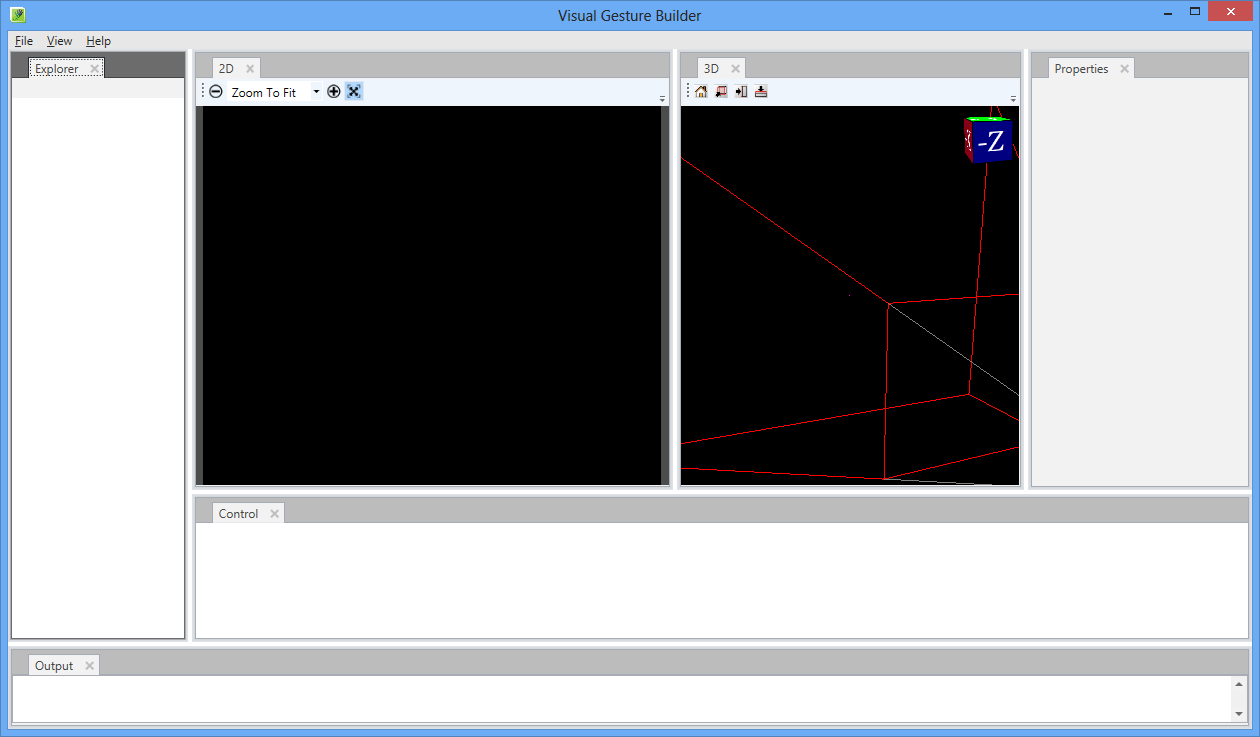
The VGB IDE contains an intuitive and easy-to-use interface with a menu bar and various panes used to produce a gesture detection database.
Figure 1. Integrated Development Environment
Menu Bar
The menu bar contains items that enable you to perform tasks such as opening, closing files and viewing data.
File Menu
Click the File menu item to perform the tasks described next.
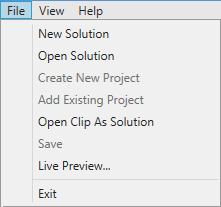
| Menu Item | Description | Short Cut |
|---|---|---|
| New Solution | Open a file where you can create a new solution. | CTRL+Shift+N |
| Open Solution | Open a previously created and saved solution. | CTRL+Shift+O |
| Create New Project | Create a new gesture project for the solution. | N/A |
| Add Existing Project | Add an existing gesture project to the solution. | N/A |
| Open Clip as Solution | Open a file from another source that you have saved as a clip. | CTRL+Shift+C |
| Save | Save the selection solution or clip. | CTRL+S |
| Live Preview . . . | Displays the Live Preview results of a gesture database. | N/A |
| Exit | Close the VGB tool. | Alt+F4 |
Explorer Pane
You use the Explorer Pane to navigate projects and clips. To add a project, save the solution, or build the gesture database, right-click on the solution name to open the context menu that supports those actions.
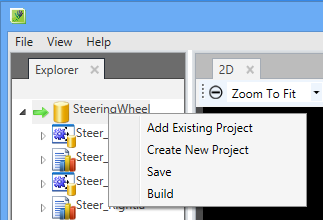
You can choose different types of projects based on the machine learning technology. You can select AdaBoostTrigger Machine Learning or RFRProgress Machine Learning technology.
For each project, you can create a training version and an analysis version.
When you create a project, the VGB tool generates XML files for each clip and adds them to the project. These XML files store tagging information associated with the clip files, which remain unmodified.
View Pane
The view pane displays a view of the sensor data. Use the tabs, 2D or 3D to render either 2D or 3D data.
2D View
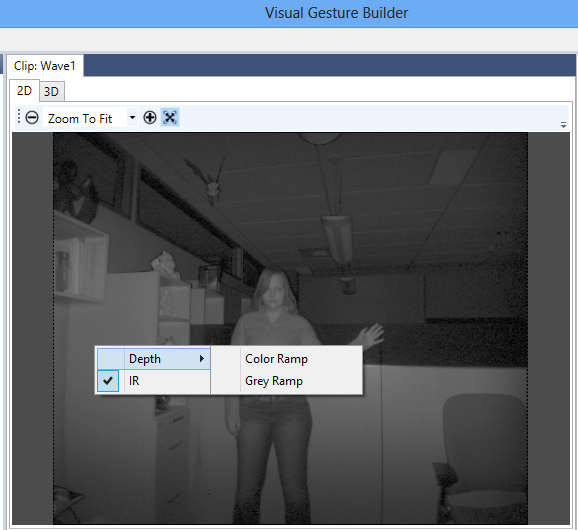
Right click in the 2D view to get a contextual menu with the following options:
| Menu Item | Description |
|---|---|
| Depth | Displays the depth stream in color or a grey ramp. |
| IR | Displays the IR stream. This is the default. |
3D View
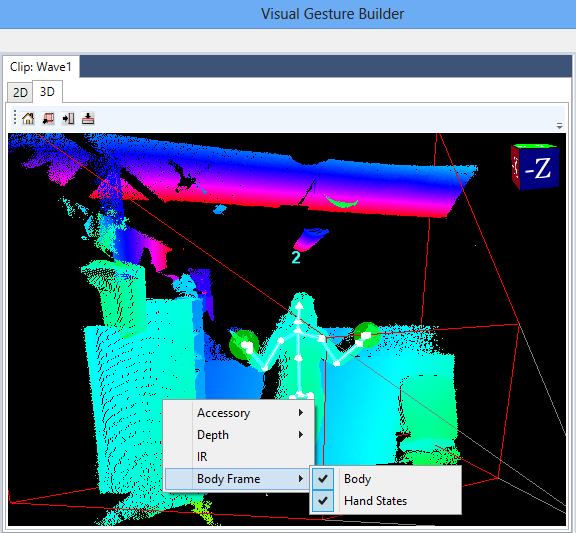
Right click in the 3D view to get a contextual menu with the following options:
| Menu Item | Description |
|---|---|
| Accessory | Show/hide any or all of the view, view frustum, orientation cube, and floor plane. |
| Depth | Displays the depth stream as either a texturable surface, surface with normal, color point cloud or a grey point cloud. |
| IR | Displays the IR stream instead of the depth stream. |
| Body Frame | Show/hide either the body, body with joint orientation, or hand states. |