Product Setup
Some of the information that makes up a product’s details is entered into XDP when the product is first created, and some is automatically generated. These details can include the type of product, the targeted platform, the title and application IDs, dates of creation and modification, and the name of the last user who modified the product.
You can view this product information, and make changes to certain aspects of the product, by following the steps in this topic.
Setting up your product
Navigate to the Product Setup page by clicking Product Setup from either the navigation menu or under the Product Configuration heading on the product page. From this page you can view and edit information about your product by clicking each of the tabs. The following sections describe these tabs in detail.
Product Details
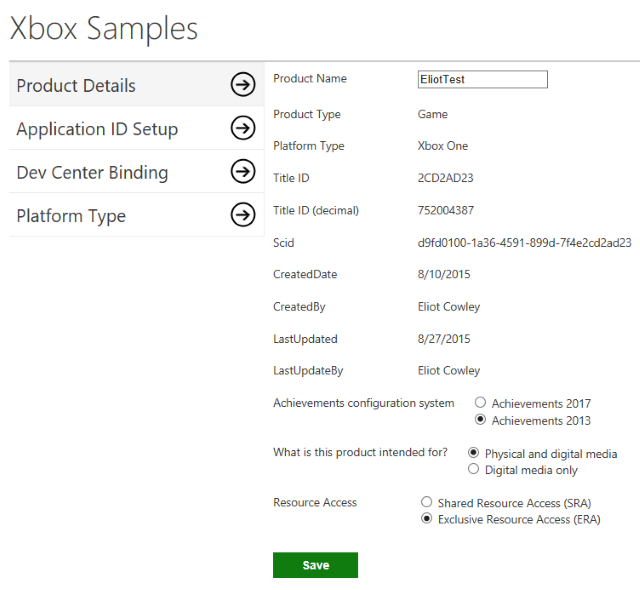
In the Product Details tab, you can view details such as the Product Name, Product Type, and Platform Type. Most of these fields are uneditable, but you can edit the Product Name, Achievements configuration system, What is this product intended for, and Resource Access fields.
Achievements configuration system is the type of achievements that you want to use in your product. Achievements 2017, or Simplified Achievements, is the recommended setting. For more information about Simplified Achievements, see the documentation on the Windows Dev Center. (If you don’t have permission to view that link, see the Simplified Achievements topic in the Xbox Live SDK documentation.)
If you wish to set up Retail Disc Royalty Tiers and order physical discs, be sure to select Physical and digital media next to What is this product intended for?
When you are finished, save your changes by clicking Save.
Application ID Setup
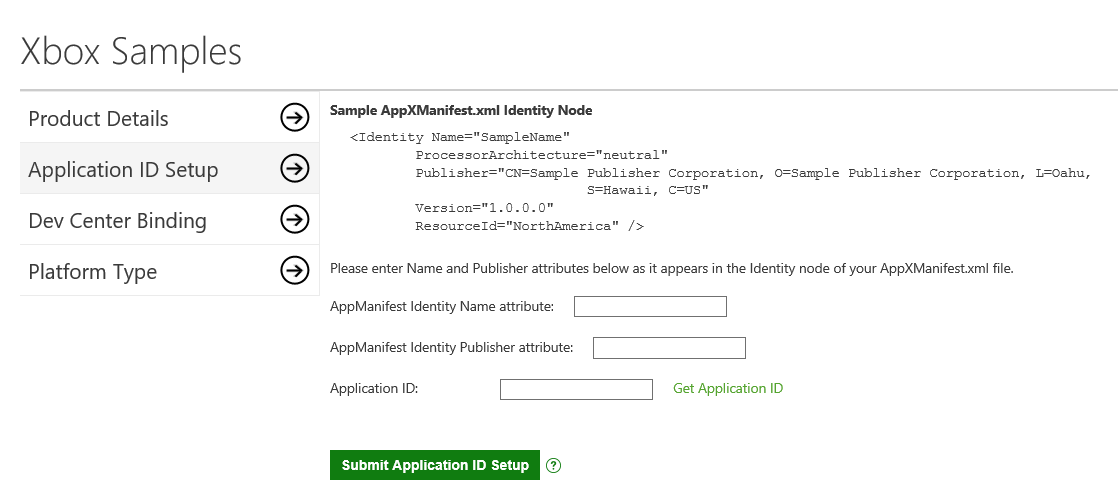
Here you can set up your Application ID. The Name and Publisher attributes can be found in the Identity node of your AppXManifest.xml file.
Once you have done this, you can click Get Application ID, and your Application ID will appear in the corresponding field.
When you are finished, you can submit your configuration by clicking Submit Application ID Setup.
Note This is intended only for Windows 10 apps, and only if you have been provided an Application ID. Apps intended only for Xbox One should continue to provision their own Application ID.
Dev Center Binding
If your product shares Xbox Live Configuration with a Universal Windows Platform (UWP) title on Windows Dev Center, you can bind your title to XDP by entering the PFN for the Dev Center title as it appears in the UI.
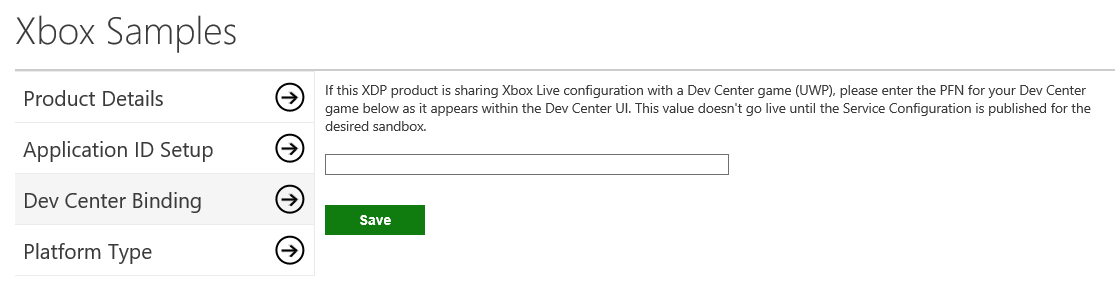
Once you have entered your PFN, save your changes by clicking Save.
Platform Type
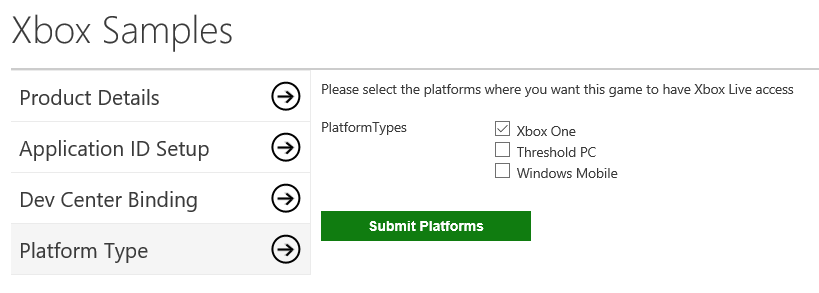
Here you can select the platforms where you want your product to have Xbox Live Access. Next to PlatformTypes, you can select Xbox One, Threshold PC (Windows 10 on PC), and/or Windows Mobile.
When you are satisfied with your selections, you can submit them by clicking Submit Platforms.
To look up product ID without using the publisher admin role
- Select a product group.
- Select the product you want the ID for. The URL will show the product ID for that product at the end of the URL.