Using the Xbox One X Dev Kit 2nd NIC
This topic describes how to enable and use tools with the Xbox One X debug NIC.
Enabling the Debug NIC
To use the Debug NIC to test your title in “Disconnected Network” scenarios, first ensure that you have connected cables to both NICs.
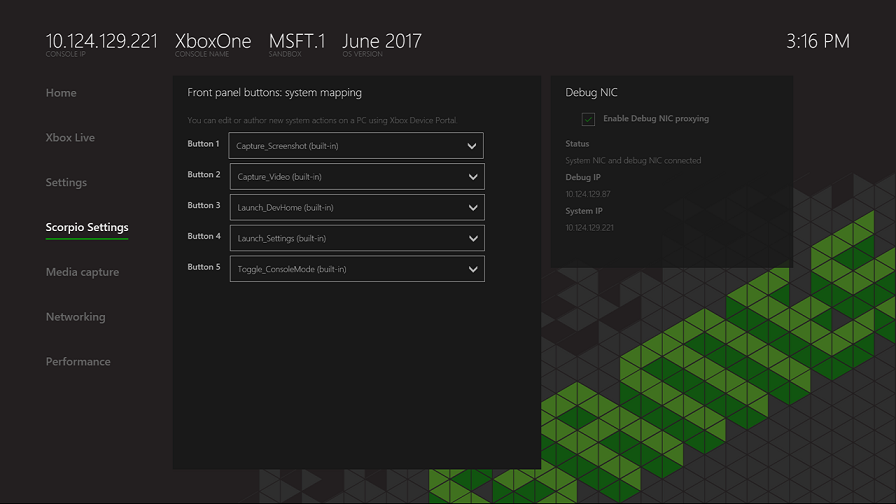
In DevHome, go to the Scorpio Settings workspace and check that the Debug NIC tool shows the debug NIC as connected, and note the IP address listed under Debug IP. You use the “Debug IP” as the IP address you use in tools. For example, if your Debug IP address is 100.125.31.117 you would “xbconnect 100.125.31.117”. This is the IP address to use other tools such as Visual Studio or PIX. This will allow supported tools to continue to communicate with the kit even when the System NIC is disconnected.
Check the box labelled Enable Debug NIC proxying. This will enable port proxying from the Debug NIC for the supported tools, and allow you to debug your title while it is disconnected from the network. You will need to reboot your console when you change this setting.
You can then unplug the System NIC to validate title behavior and debug issues as needed.
You can also use the xbconfig or Xbox Device Portal or Xbox One Manager to enable/disable the Debug NIC.
Tools that work with the Debug NIC IP
The following tools work with the Debug NIC IP:
- VS 2015 and VS 2017
- xb* tools including deployment
- SMB network shares (\DebugNIC IP>\TitleScratch, \DebugNIC IP\SystemScratch, etc.)
- Xbox Device Portal
- Xbox One Manager
- PIX