Screen Areas
This section describes the safe areas that should be used when designing the UI of an app.
Screen safe areas
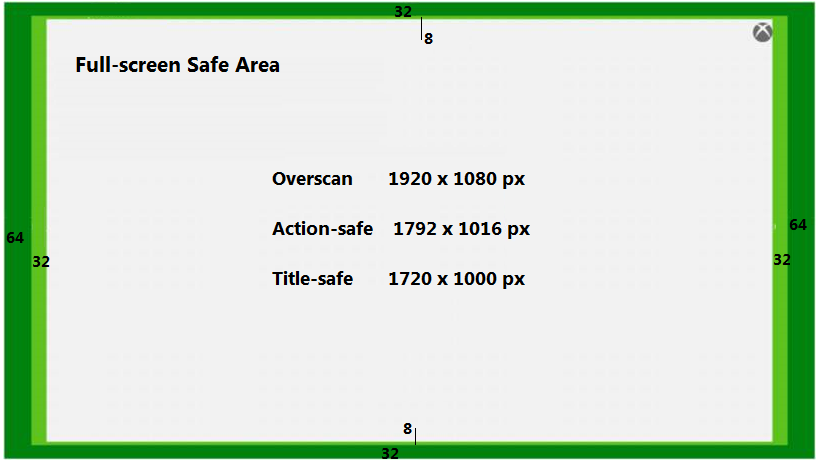
This section describes the safe areas used when designing title UI for use on a range of monitors and TVs. Some TVs have a physical bezel or a configuration setting which obscures the outermost edges of the screen. In addition to this, portions of the edges of the output screen may contain system UI.
The overscan border area is the outermost edges of the screen that should contain no important graphic or UI elements, because it may be obscured.
The action-safe area is the area of display that could potentially be obscured by older TVs (or certain configuration settings on modern TVs), but is safe to have some action or graphics rendered.
The title-safe area is the area within which game UI elements (menus, titles, and so on), as well as other content that is core to gameplay or storytelling, should be rendered.
4k
When rendering at 4k, the action-safe area is the inner 95% of the rendered screen area, and the title-safe area is the inner 90% of the rendered screen area.
On a 3840 x 2160 screen (4k), the action-safe area is 3648 x 2052 pixels, and the title-safe area is 3456 x 1944 pixels.
1080p
On a 1920 x 1080 screen (1080p), the action-safe area is 1792 x 1016 pixels, and the title-safe area is 1720 x 1000 pixels.
Within the action-safe area, the right and left 32 pixels, and the top and bottom 8 pixels might contain persistent system UI elements, so this area should not be used for title UI elements. The title-safe area is 1720 x 1000 pixels on a 1920 x 1080 screen. Another way of defining the title-safe area is that the outermost boundaries of it are 96 pixels in from the left and right edges of the screen, and 40 pixels deep from the top and bottom of the screen. All important content, text and UI elements should be rendered into the title-safe area.
In 1080p mode, apps are always rendered at 1080p, and, if needed, the final output scaler will take that output and scale it to 720p or 480p. 480p will have top and bottom horizontal black bars.
Figure 1. Xbox One 1080p screen areas.
Snap mode (deprecated)
Previously, Xbox One had Snap and Fill modes. This feature has been removed as of the April 2017 Xbox One Creators Update.
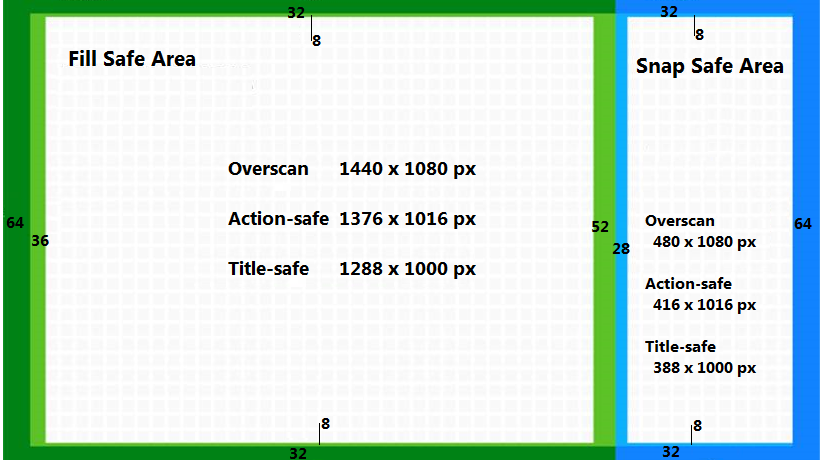
A title that has been snapped has a snap area with a 4:9 aspect ratio - taking up the right quarter of the screen, and a fill area with a 4:3 aspect ratio taking up the left three-quarters of the screen.
The fill area, including the overscan region, is 1440 x 1080 pixels. The action-safe area within this is 1379 x 1016 pixels. The action-safe area has an identical left, and top and bottom outer boundaries to the full screen area (64 pixels in from the left, 32 pixels deep top and bottom). The right boundary of the action-safe area borders the snap area, 480 pixels in from the right edge of the screen.
The title-safe area of the fill area is 1288 x 1000 pixels, being 36 pixels in from the left, 52 pixels in from the right, and 8 pixels in from the top and bottom, of the action-safe area.
The snap area covers 480 x 1080 pixels of the screen. The action-safe area of the snap area is 416 x 1016 pixels, being 64 pixels in from the right, 32 pixels in from the top and bottom edges, and 28 pixels in from the left boundary.
The title-safe area of the snap area is 388 x 1000 pixels. Note that the right border of the title-safe area borders the overscan area, there is no reserved area down the right hand side of the snap area.
Figure 2. Xbox One snap and fill areas.
User control
While apps are shown side by side in Fill and Snap view modes, a user can switch focus between them at any time by doing one of the following.
- Double-tapping the Xbox button on the gamepad.
- Speaking the voice command “Xbox, switch.”
- Switching to the Home screen by tapping the Xbox button once and selecting the other app tile from the Home screen.
The Snap view in only available to shared (System OS) apps, not to game titles. The full screen view, and fill view are available to both Game OS titles and System OS apps.
Related APIs
Title code can register for the CoreWindow::VisibilityChanged, CoreWindow::SizeChanged, and CoreWindow::Activated events so that the title will be notified about changes to the title’s visibility, view, and focus states, respectively. In cases when a title’s view and focus states change at the same time, these events could be raised by the system in any order or even simultaneously. Alternately, title code can use the CoreWindow::Visible and CoreWindow::Bounds properties to poll the visibility and view states of the app at any time. Note that there is no API for querying the focus state of the title, and using the CoreWindow::Activated event is the only method available to title code.
The Xbox One XDK does not include an API to enable titles to change their focus, visibility, or view states programmatically. The application window states are only meant to be set by the system based on how the user is interacting with the system.
Media Apps
When a Media App is in Fill mode, it will render at 1440x1080. The Xbox One will not automatically scale down and letterbox 1920x1080 UI into a 1440x1080 space in Fill mode. Note the distortion to the cube in the following image.
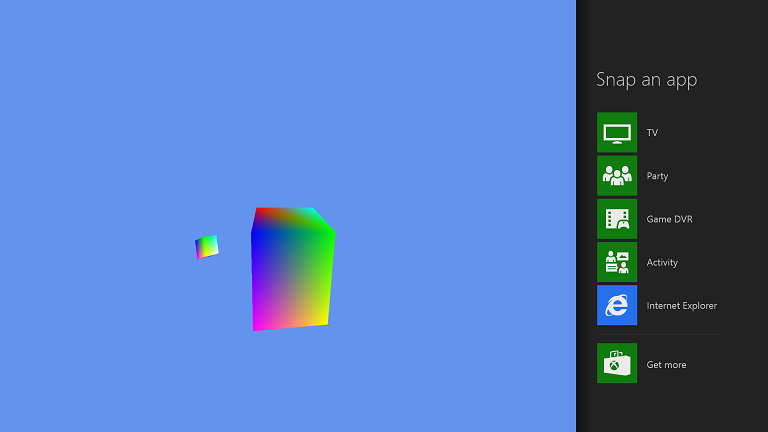
Media Apps can choose to render as 1440x1080 or scale the Full mode 1920x1080 UI to render in the 1440x1080 fill mode with letterboxing. A key consideration when scaling your app UI down for Fill mode is to ensure that minimum sizes for fonts, button hit targets, and so on, remain above the minimum size requirements in the Xbox One Design Guide.
Scaling can be achieved via a couple of different approaches including the WinJS ViewBox control or a CSS ScaleTransform.
The ViewBox control can be used at or near the root of the HTML element tree and functions as a scaling control that maintains aspect ratios. To scale the UI, wrap the UI in a ViewBox control. Elements that do not scale, such as text, are not affected by the transforms used for the ViewBox. More information on the ViewBox can be found at WinJS.UI.ViewBox object.
The second option for scaling the content is slightly less flexible, that is to use a CSS scale transform in conjunction with appropriate media queries for your app’s View States. This may require you adding CSS elements similar the one shown below. Both the ViewBox and CSS scale transforms may need to be placed at or near the root of the applications HTML element tree.
#someElement {
        Transform: scale(.75);
        Transform-origin: 25% 50%
}
Resources
Refer also to the white paper: