Configure Contextual Search (Service Configuration)
This topic provides an overview of contextual search and how to configure it for your game.
For an overall introduction to the various elements of service configuration, see Introducing Service Configuration.
Sections in this topic:
What is contextual search?
Contextual search is a new Xbox Live Service that enables truly next-gen scenarios for gaming media content. With contextual search, Xbox Live automatically tags broadcasts and game clips from your game with real-time stats of your choosing. For example, you could choose to tag a game clip with the level the user is on, the weapon they are carrying, or perhaps their current kill/death (K/D) ratio. Xbox Live also exposes a search interface off this data, enabling users of titles to discover and surface the perfect content. For example, leveraging contextual search, a user could find all the Halo 2 game clips where the creator is playing Slayer on Lockout or Blood Gulch and have the results sorted by the players’ ranks, ensuring the best content bubbles to the top.
Contextual search takes advantage of your game’s data and the capabilities of Xbox Live to unlock a number of powerful scenarios. This includes:
- Contextual game help
- Showcasing top content creators
- Surfacing new DLC in action
- Contextually delivering creator commentary
Simply by configuring in Xbox Developer Portal (XDP) or the Universal Dev Center (Fall 2015), contextual search will automatically light up in broadcasting applications, the Xbox Shell (2016) and Cortana (2016). Additionally, titles can leverage the search APIs directly in-game, enabling differentiated experiences for users without leaving the game. Regardless of the level of integration, you’ll generate a tremendous amount of value and exposure for your title.
Configuration info
Designing your data
When configuring your title for contextual search, it’s important to think about the things that make your title unique. If a user is looking for video content, what would be top of mind to search for? How granular does the data need to be?
Contextual search supports the ability to both filter and sort content, so your metadata should reflect these search constructs to ensure great coverage. A good rule of thumb is to think of your game’s data in two categories:
- Game State: e.g. Level, Character, Weapon, Map, Role, Checkpoint/Story Point, DLC
- User Skill: e.g. K/D Ratio, Prestige, Rank, Speed Run Time
The first category is great for filtering content, the second is great for sorting. Additionally, depending on the type of content being surfaced, varying levels of stat granularity are important. For broadcasts, assuming there is a limited number of active broadcasts at any given time, lower granularity data will ensure a higher likelihood of a successful search. For game clips, the number continually increases, so finer granularity data will ensure more accurate results.
It’s quite likely that you already have this data created for Xbox Live features like rich presence or hero stats, so this is a great opportunity to leverage already completed work.
If you are using stats to filter content, be aware that all contextual search stats are available to query at any time. You should design your eventing accordingly to support this. For example, if you are using stats like SinglePlayerMap and MultiplayerMap to filter content, the player is only going to be in one of them at once. However, both values will be available to query from the service at any time. It’s important that as you set one, you clear out the other. For string-based stats, an empty string is great (make sure not to include that in your UI configuration as an option).
Configuring a title for contextual search
Configuring your title for contextual search is easy once you’ve set up the events and stats that power the tagging. See other existing XDP documentation on setting this up if you’re not already familiar.
To configure your title for contextual search, follow these steps:
- Navigate to the product instance, either by clicking its name in the left-hand navigation menu or in the table under Product Instances on the product main page.
- Click Contextual Search in the left-hand navigation menu.
 Note Even if this is the first time you’ve visited this page, it’s possible that you will see stats already configured for contextual search. This is because all your hero stats are automatically set up for contextual search. You’re not required to keep these hero stats in your configuration, but they are generally excellent for sorting (and already done for you).
On this page, each of the stats is represented in the following manner:
Priority - Display Name (Stat Instance Name)
Each of these will be explained in more detail in the next section. - Click the green plus icon labeled New to add new a new stat for contextual search, or click the pencil icon next to an existing stat to edit it.
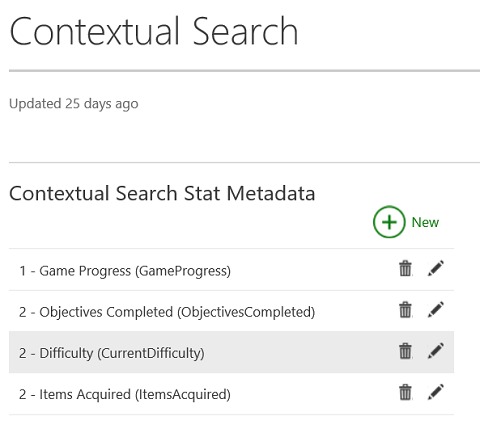
The image above is an example of the contextual search page.
Note Presently, the maximum number of stat instances you can configure for contextual search is 10. - Choose your stat instance. Click Select an Instance if you are adding contextual search metadata, or click the pencil icon next to the stat instance if you are editing contextual search metadata.
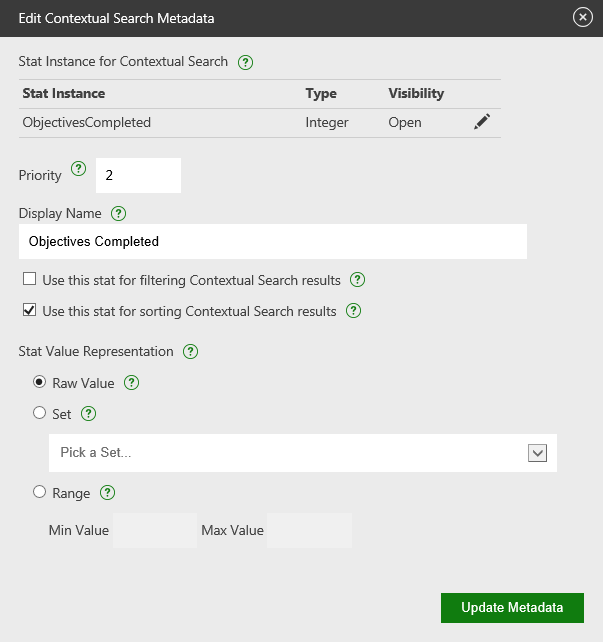
The above image is the screen that will appear if you choose to edit an existing contextual search stat.
The Add Stat Instance or Edit Stat Instance dialog box will pop up. Then select a stat rule from the drop-down menu and click the green button (labeled Add Stat Instance or Edit Stat Instance, respectively).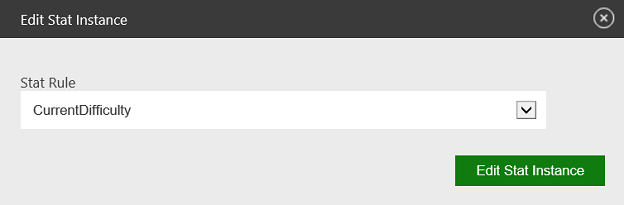
Note Only stat instances are supported - stat templates are not accepted. You should also be aware of the visibility you’ve set for the stat instance (configured in the Events & Stat Rules portion of XDP). Only stats that are marked as Open will appear in third party experiences. - Choose your stat Priority. This is a way to delineate the importance of this stat relative to others for search experiences/algorithms. The acceptable values are 1-10 (1 being the highest). Leave as 0 or blank for this to be ignored.
- Add your Display Name. This is a localizable string that is exposed to the end user.
- Check whether you will use this stat to Filter or Sort the results. You can check both in certain instances (if the value of the stat is a number - preferably in a defined Range).
- Choose how your stat value is represented. In this case you have 3 options:
- Raw Value - The stat is represented as is and has no range requirements. This is best used for sorting.
- Set - The values are mapped to individual localizable strings. This is best used for filtering. For more on sets and how to configure them, see Configure Sets (Service Configuration).
- Range - The values fall within a min and max range. This type is great if you want to filter and sort from this data.
- Click the green button at the bottom labeled Add Metadata if you are adding contextual search metadata or Update Metadata if you are editing. XDP will save your metadata and if there are any errors they will show up in red.
Updating your contextual search page
At present, you can easily change the stats on your contextual search page as we are only support broadcasting at the moment (which is volatile data). Once we begin to support game clip tagging (September 2015), if you decide to add or remove stats, you will be impacting clips that have already been indexed. If you add a new stat, only game clips and broadcasts created after the change goes into effect will be tagged and surfaced in queries using the new stat. Old game clips will not be queryable from this stat. If you remove a stat from the contextual search page, the old stat attached to the game clip will be useless and will not be returned.