Configure Stats (Service Configuration)
This topic provides procedures for adding and changing stat rules in the service configuration for a title.
For an overall introduction to the various elements of the service configuration, see Introducing Service Configuration.
Sections in this topic:
What is a stat rule?
User statistics are developer-defined data points that are calculated by the Xbox data platform and stored as name-value pairs on a per-user basis. Some examples of user statistics include:
- Total number of zombies killed with a shotgun in hard difficulty
- Highest number of enemies defeated in a match
- Fastest time for completing a race
- Name of the car driven most recently
Statistics rules are triggered when an event of a particular name is received by the Xbox data platform service. Statistics rules produce instances of statistics.
Individual statistic rules can be configured to produce one of the following:
- A single instance of a statistic
- Multiple instances of a statistic based on a statistical template
For more info about statistics, see “User Statistics” under “Xbox Live and Online Services” in the Xbox One XDK documentation.
User stats are calculated in the Xbox data platform service based on events logged by the title and stat rules defined by the developer via the XDP Service Configuration Tool.
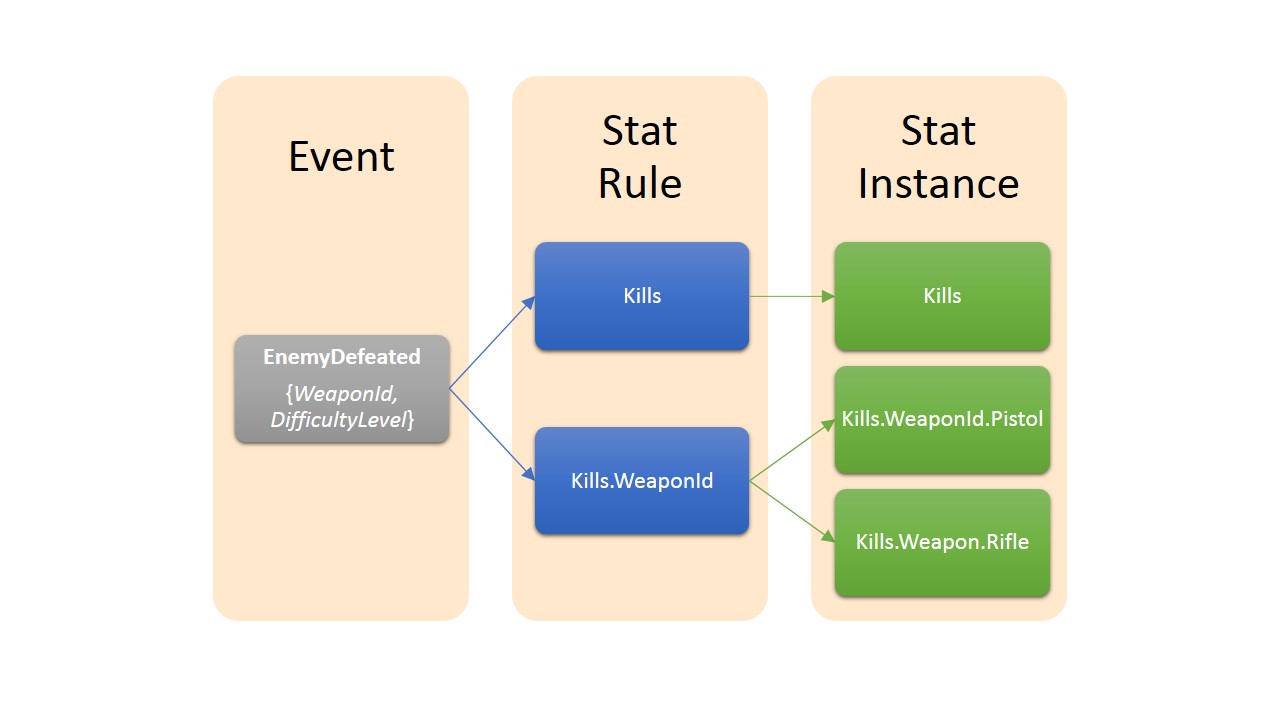
Every event has an event name and a set of fields. Stat rules are triggered when an event of a particular name is received by the Xbox data platform service. Stat rules produce stat instances.
Create a stat rule
To create a new statistic rule
- On the Service Configuration Tasks page, click Events & Stat Rules.
- On the Events & Stat Rules page, under Events, click the event for which you want to create a new statistic rule.
 Important Ensure that the event that you clicked is selected (highlighted) before you continue.
- Under Stat Rules, click New.
- In the Add Stat Rule dialog box, specify the values that you want for the fields described in the following list.
- Stat Rule Name - Enter a name that characterizes the statistic rule, and that you will easily remember and recognize.
Names of statistic rules are composed of a root name; optionally followed by one or more fields separated by the dot character. For the naming requirements of statistic rule names, see the “Configuring User Statistics Rules” topic under “Xbox Live and Online Services” in the Xbox One XDK documentation. - Open read access to any title - Check this box to make the statistic rule public and available to web clients such as SmartGlass.
- Fields added to the stat rule name - Click the first field for this event in the drop-down list, then click Add Event Field to add it to the list. This is optional.
To add more fields, again click a field in the list and then click Add Event Field.
You can delete a field by clicking on the trash can icon next to its name, and move a field up or down by clicking on the up and down arrows. - Operator - Select one of the following operators:
- Sum - Increment the statistic-instance value by the value entered in the Parameter field here.
- Min - Of the statistic-instance value and the value entered in the Parameter field here, use the lower.
- Max - Of the statistic-instance value and the value entered in the Parameter field here, use the higher.
- Replace - Replace the statistic-instance value with the value entered in the Parameter field here.
Note We recommend that you do not use the Replace operator for statistics driving achievements, because events are not processed in order. This fact might cause the achievement to never unlock, so use the SUM operator instead. - Sum - Increment the statistic-instance value by the value entered in the Parameter field here.
- Parameter - Specify the value to be used in the operator selected in the Operator field.
You can use either an integer (+1) or data from the inside of the event payload. For example, use the “FinalScore” field as the value of the stat.
- Stat Rule Name - Enter a name that characterizes the statistic rule, and that you will easily remember and recognize.
- When you have all of the fields and values for your new statistic rule the way that you want them, click Add Stat Rule to create the statistic rule and close the dialog box.
Your new statistic rule is now listed on the Events & Stat Rules page whenever its event is selected.
Change a stat rule
To make changes to an existing stat rule:
- On the Events & Stat Rules page for the product instance, under Events, click the event for which you want to change a stat rule.
Important Ensure that the event that you clicked is selected (highlighted) before you continue.
- Under Stat Rules, click the Edit icon for the stat rule that you want to make changes to.
- In the Edit Stat Rule dialog box for that event, make the changes that you want.
Note It is possible to delete custom event fields, but not to delete the default event fields that were provided automatically when the event was created.
- When all of the options are the way that you want them, click Save Stat Rule, and then click the Close button in the upper-right corner of the dialog box.
Delete a stat rule
To delete an existing stat rule:
- On the Events & Stat Rules page for the product instance, under Events, click the event for which you want to delete a stat rule.
Important Ensure that the event that you clicked is selected (highlighted) before you continue.
- Under Stat Rules, click the Delete icon for the stat rule that you want to delete.
- In the Delete Stat Rule dialog box for that event, confirm the deletion by clicking Delete Stat Rule.
Important Deletion of a stat rule is a permanent action and cannot be undone or reversed.
An event can have chained dependencies. When you delete an event with chained dependencies, a dialog appears that indicates all the dependencies for that event that will be deleted along with the event itself before you confirm the delete.
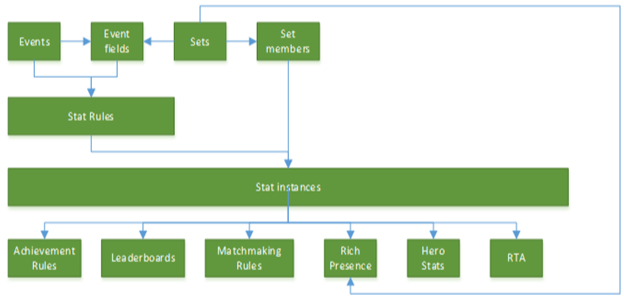
Editing a stat rule
Editing a stat rule is when a stat rule’s name or an event field has been removed, added, or re-ordered.
This operation will be treated as delete and the UI prompt is shown to the user. All stat instances will be deleted as part of editing according to the preceding definition.