Visual Gesture Builder Solutions
Describes the Solution Menu and Global Settings tab available in Visual Gesture Builder (VGB).
Solution Menu
To access the context menu for a solution, open the solution in VGB (File > New Solution or File > Open Solution) and right-click on the solution in the Explorer.
The Solution menu displays options for adding new or existing gesture projects to the collection.
Figure 1. Solution Menu
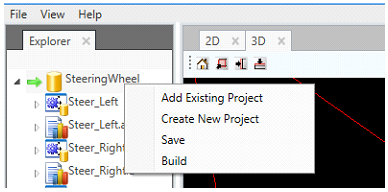
| Menu Option | Description |
|---|---|
| Add Existing Project | Select a new gesture project to add to the collection. |
| Create New Project | Opens the Create Gesture Project dialog to create a new gesture project for the collection. |
| Save | Saves all changes made to the solution, including changes to the global settings. |
| Build | Builds all gesture projects in the collection. Creates a database file (.gbd) that can be used for runtime gesture detection. |
Global Settings Tab
When the solution has focus in the Explorer, the Global Settings tab will appear in the Property pane. Use global settings to override specific settings for all projects contained in the solution. The settings are case sensitive and must match the specific names and types used in the project. For more information on project settings, see Machine Learning Technologies.
Figure 2. Global Settings Tab
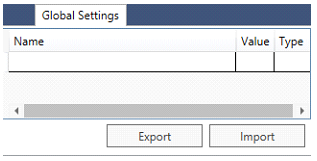
| Parameter | Description |
|---|---|
| Name | Any allowed name for the settings property. The name to choose depends on the property that you want to override from the selected machine learning technology. |
| Value | Assign the value to the settings property. |
| Type | Select the type associated with the settings property. The type to choose depends on the type of the property that you want to override from the selected machine learning technology. |
| Button | Description |
|---|---|
| Import | Imports all global settings from an existing settings file (.fid). |
| Export | Exports all global settings to a new settings file (.fid). |
Note that the output pane will display a message whenever a global setting is used during training:
Figure 3. Output pane
