Supplementary Files
Supplementary Files are files containing information that you may need to provide for certification tests. They include the achievement guide, hidden/gated feature list, DLC list, etc. The full list is available on the Submission Materials tab of the Xbox One Certification Submission Form provided to you by Microsoft. This information helps to ensure that your product is certified correctly.
Previously, publishers had to upload Supplementary Files through a tool called Signiant. However, now this functionality is possible through the Xbox Developer Portal (XDP) UI.
To access the Supplementary Files page, select it from the navigation menu on the left, or under Product Configuration on the product page.
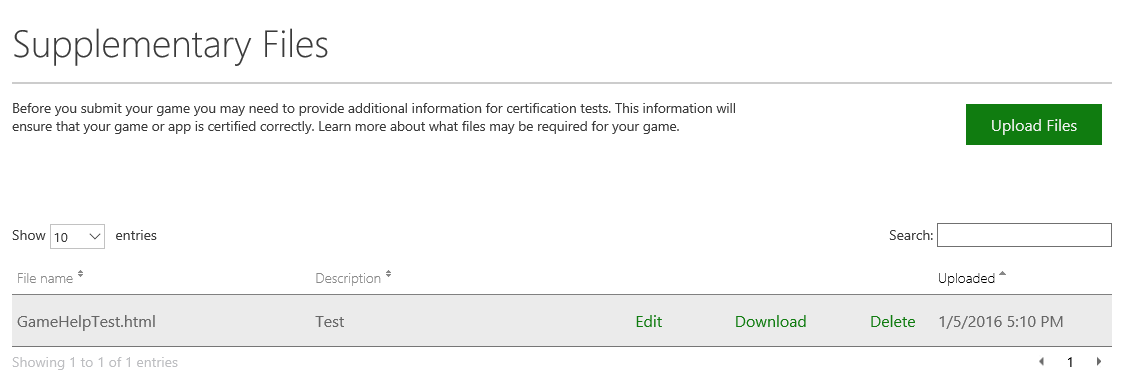
On the Supplementary Files page, you can see a table of the files you have uploaded. You can search this table for a specific entry by typing in the Search field-XDP will automatically filter the table based on your search query. You can sort files by File name, Description, and Uploaded date by clicking the headers of the respective columns.
You can edit the description of a file by clicking Edit in its row. Make your changes, then click Save to save the new description, or Cancel to revert the changes.
You can also download files by clicking the Download button in the row for the file. Finally, you can remove files by clicking the Delete button.
Note The Uploaded date is in GMT.
Uploading files
While you can upload a file of any type, it is highly recommended that you upload all of your files together in a complete .zip archive, regardless of whether any or all of them have been submitted previously. When submitting updated content/binaries, or if a submission fails Final Game Certification, a new, complete .zip archive must be uploaded.
It is important to organize your submission into the proper folder hierarchy to ensure quick and accurate processing. Please use the following template when organizing your files for submission. Items in <brackets> should be replaced with the specific information for your product.
- <Title_Submission_YYYY-MM-DD> (Ex: MyGame_BaseGame_2016-01-10)
- Appx_SubVal
- The AppxManifest.xml and SubVal.xml output-essentially, the byproducts of makepkg.exe aside from the XVC/EKB files.
- The AppxManifest.xml and SubVal.xml output-essentially, the byproducts of makepkg.exe aside from the XVC/EKB files.
- Cert_Submission_Form
- Submission_Docs
- A list of submission documents that should be included in this folder is on the Submission Materials tab of the Certification Submission Form.
- A list of submission documents that should be included in this folder is on the Submission Materials tab of the Certification Submission Form.
- Appx_SubVal
To upload supplementary files
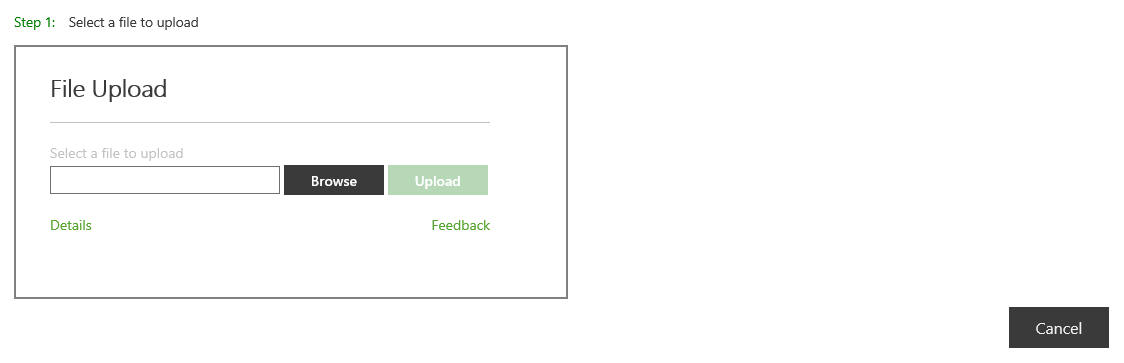
- To upload new files, click Upload Files in the upper right. This will bring up the upload box.
- In Step 1, click the Browse button and browse for the file you want to upload.
Once you have selected a file, click the Upload button to upload it. - In Step 2, provide a short description of the file you are uploading.
- Click the Save button to upload the file, or click Cancel.