System-provided user-controller pairing
One of the defining properties of controllers is that each one can be paired with a user. Furthermore, each user can be paired with multiple controllers of any type. For instance, if you’re sitting on your couch playing Halo, you are paired to your body as well as the gamepad that you’re holding. Xbox One works on your title’s behalf to pair users to controllers consistently throughout the system.
Pairing is facilitated in four major ways:
- Biometric identity and automatic controller pairing
- SmartGlass pairing
- Account Picker
- User-Controller Pairing
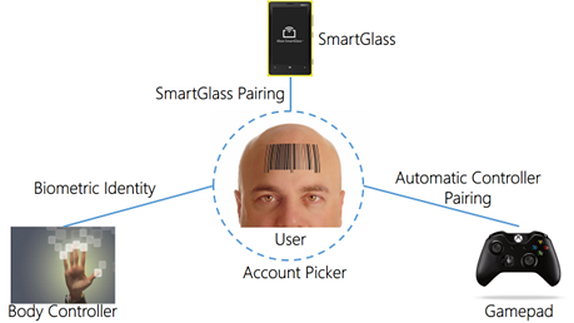
Biometric identity and automatic controller pairing
Xbox One uses biometric recognition to sign in users and pair them to their human bodies, which are tracked by Kinect. Rather than serving up randomly recommended game modes, biometric identity allows your title to recommend content based on the identities of the people within view of the Kinect sensor.
The system automatically attempts to identify, biometrically, every human body tracked by Kinect. When an identified human body engages by picking up a gamepad, holding out a hand toward the Kinect sensor, saying “Xbox”, or being in the Kinect sensor’s field of view when the console is turned on, the identified user is signed in and paired to the body controller. Thereafter, whenever that human body is re-identified, its body controller is automatically paired again to the identified user. The BodyController.BiometricUserId property is also set based on the user with whom the human body has been biometrically identified.
For demonstrations of these concepts, see the samples Simple NUI Identity and NUI Identity Game, available from the Xbox Game Developer’s Samples page.
By tracking integrated hardware on Xbox One gamepads (and other supported accessories), the system also pairs these controllers to the appropriate users. This pairing feature enables your title to implement scenarios such as awarding “assist” achievements, automatic button remapping (for example, inverted Y-axis), and auto-split screen when a user picks up a controller.
The system automatically pairs a gamepad or other supported accessory to a user when a body paired to a user is detected to be holding that gamepad or other controller. The controller remains paired to the user until it is handed off to another body already paired to a user, the controller is removed from the system, or the user signs out. A body controller can be associated with up to 8 gamepads or other supported accessories.
The collection of controllers that are associated with a body controller can be accessed through the BodyController.AssociatedControllerIds. For more information about AssociatedControllerIds, see Frequently Asked Questions, later in this topic.
| Bodies | Gamepads and accessories | |
|---|---|---|
| Event | Controller.ControllerPairingChanged Event BiometricUserChanged | ControllerPairingChanged AssociatedControllerAdded AssociatedControllerRemoved |
| Pairing trigger | Biometric identification | A body controller paired to a user picking up a controller |
| Pairing persistence | Pairing remains until:
| Pairing remains until:
|
| Correcting pairing | User-initiated through the Account Picker:
| User-initiated through the Account Picker:
|
| Limit | Up to 6 body controllers | Up to 8 wireless/wired controllers that are connected directly to the console |
SmartGlass pairing
SmartGlass enables users to navigate Xbox One with their phones, tablets, and other supported devices. As with a gamepad or body controller, a SmartGlass device can be paired to a user to associate interaction with a specific user profile. Users must sign in on their SmartGlass devices before using them to interact with a console, and there are some important considerations to keep in mind while designing your title.
A user signs in to a SmartGlass device independently of signing in on a console and in fact must be signed in to the device before it can be connected to a console. After a user has signed in to a SmartGlass device and connected it to a console, a navigation controller is added that represents the device. If the user who is signed in to the SmartGlass device also signs in on the console, the SmartGlass device’s corresponding navigation controller is paired to that user. If the SmartGlass user is not signed in on the console, the SmartGlass device remains an unknown navigation controller and never pairs with the user.
This topic covers the generic remote aspect of SmartGlass input as a navigation controller.
Note If the title needs to associate a SmartGlass device’s navigation controller with another type of controller, like a human body or gamepad, it should prompt the user to sign in on the console through the Account Picker with the same identity being used on the SmartGlass device, or vice versa.
Account Picker
The Account Picker is a title-callable UI that signs in users, selects or confirms user context for a title, and selects or confirms user-controller pairing. The Windows.Xbox.UI.SystemUI namespace contains the SystemUI.ShowAccountPickerAsync Method, one of whose parameters is a controller.
The Account Picker lists all users who have previously signed in on the console and has an Add new button for signing in new accounts. Any of these user accounts may be selected, regardless of the user’s true identity. The system supports users’ choosing to play as others in this way. The Account Picker also enables a user to play as a guest, allowing for the creation of sponsored users.
The main use cases for the Account Picker are:
- Signing in a user If your title requires the user context of a controller that hasn’t been paired automatically, you can use the Account Picker to prompt the user to select an account. This causes the selected user to be signed in.
- Establishing user-controller pairing
If your title needs to pair a controller to a user, it can pass the controller as input to ShowAccountPickerAsync. When a user is chosen, the specified controller is paired to the selected user. - Switching active users
There will be certain points in your title when you’ll want to offer users a way to switch the active user in the experience. By offering an entry point to the Account Picker, your title can enable switching users in a way that is consistent across the platform.
User-Controller Pairing
User-Controller Pairing, an Xbox Requirement (XR), specifies that titles must use system APIs and events for tracking user-controller pairings. Your title cannot use NUI technologies on its own to discover the controller location and pair it to the user. Use the Account Picker to pair controllers to users.
Note that this XR does not mean your title must always react to user-controller pairing changes by switching the active user. Instead, the intent is for the title to use information about user-controller pairing to react more effectively to player engagement—for example, by re-mapping the buttons or assigning “assist” achievements, and other behaviors recommended in this topic.