Texture Projection
The following sections describe how to perform texture projection on the Xbox One dev kit:
- What is texture projection?
- Create a secondary viewport and projection matrix
- Create a texture
- Map projected texture coordinates onto vertices
- Render projected textures using the pixel shader
What is texture projection?
Texture projection works like a real-world projector broadcasting an image onto a wall. A viewpoint is used to project a texture onto world geometry. The projected texture coordinates are mapped onto world vertices that fall within the projection’s view frustum. When those vertices are drawn in the main scene, the projected texture will be rendered on top of them.
Note This technique is useful for a variety of lighting techniques, especially shadow mapping.
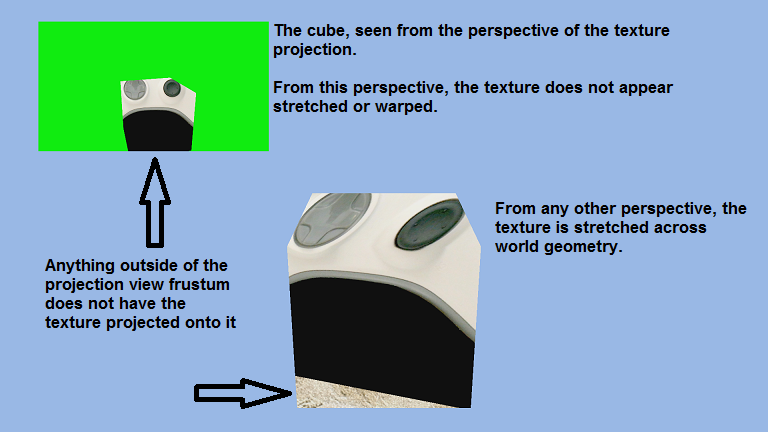
Create a secondary viewport and projection matrix
Your projected texture will need a unique viewport matrix. The projected texture also requires a projection matrix. The projection matrix used to render the main scene can also be used for your projected texture. However, it is generally beneficial to create a unique projection matrix for each projected texture that contains the specific projection data for that texture.
Use DirectX::XMMatrixLookAtLH() to initialize the view matrix. The ‘Eye’ input value represents the point that the texture will be projected from. The ‘At’ parameter refers to the point that the texture is being projected towards, the ‘Up’ parameter determines which direction the top of the texture will face.
C++
// Derive the location of the viewport matrix using values from the relevant world matrix
XMVECTOR Eye = XMVectorSet( m_CameraWorldMtx.r[3].m128_f32[0], m_CameraWorldMtx.r[3].m128_f32[1], m_CameraWorldMtx.r[3].m128_f32[2], 0.0f );
XMVECTOR At = XMVectorSet( 0.0f, 1.0f, 0.0f, 0.0f );
XMVECTOR Up = XMVectorSet( 0.0f, 1.0f, 0.0f, 0.0f );
m_HUDViewMtx = XMMatrixLookAtLH( Eye, At, Up );
Call DirectX::XMMatrixPerspectiveFovLH() to initialize the projection matrix. This function allows you to set the Field of View, aspect ratio, and distance to near/far planes. All of this data will affect how the texture is projected onto the environment.
C++
// Initialize projection matrix
m_ProjectionMtx = XMMatrixPerspectiveFovLH( XM_PIDIV4, 1920 / (FLOAT)1080, 0.01f, 100.0f );
Create a texture
Creating a projection texture follows the exact same process as creating any other texture. Store the texture in an ID3D11ShaderResourceView object. Use a D3D11_SAMPLER_DESC struct to initialize the description details, and call ID3D11Device::CreateSamplerState() to store the texture details.
C++
DX::ThrowIfFailed(CreateDDSTextureFromFile( m_d3dDevice.Get(), m_d3dContext.Get(), L"gamepad.dds", nullptr, m_GamepadTexRV.GetAddressOf() ));

//Create the sample state
D3D11_SAMPLER_DESC sampDesc;
ZeroMemory( &sampDesc, sizeof(sampDesc) );
sampDesc.Filter = D3D11_FILTER_MIN_MAG_MIP_LINEAR;
sampDesc.AddressU = D3D11_TEXTURE_ADDRESS_WRAP;
sampDesc.AddressV = D3D11_TEXTURE_ADDRESS_WRAP;
sampDesc.AddressW = D3D11_TEXTURE_ADDRESS_WRAP;
sampDesc.ComparisonFunc = D3D11_COMPARISON_NEVER;
sampDesc.MinLOD = 0;
sampDesc.MaxLOD = D3D11_FLOAT32_MAX;
DX::ThrowIfFailed( m_d3dDevice->CreateSamplerState( &sampDesc, m_SamplerLinear.GetAddressOf() ) );
Map projected texture coordinates onto vertices
Now that all texture data has been initialized, we need to determine where the texture is being projected. We need to map texture coordinates from the projected texture onto any vertices that fall within the projected texture view frustum. This task is performed by the vertex and pixel shaders.
The constant buffers for your vertex shader will need to store an additional view matrix and projection matrix for each projected texture. Your vertex shader output struct must contain additional texture coordinates for each projected texture.
Sample output struct for Vertex Shader containing additional coordinates for a projected texture:
C++
// Output Vertex
struct PS_INPUT
{
  float4 Pos : SV_POSITION;
  float2 Tex : TEXCOORD0;

  // Texture coordinates for projected texture
  float4 ProjTex : TEXCOORD1;
};
The vertex shader will now calculate multiple position values for each vertex. Determine the position of the vertex relative to the main scene, as well as the position relative to any projected textures.
A sample vertex shader that calculates the position of a vertex relative to the main scene, and once again relative to a single projected texture:
C++
PS_INPUT WorldVS( VS_INPUT input )
{
  PS_INPUT output = (PS_INPUT)0;

  output.Pos = mul( input.Pos, World );
  output.Pos = mul( output.Pos, View );
  output.Pos = mul( output.Pos, Projection );

  // Store the position of the vertex as viewed by the point of projection in a separate variable
  output.ProjTex = mul( input.Pos, World );
  output.ProjTex = mul( output.ProjTex, PIPView );
  output.ProjTex = mul( output.ProjTex, PIPProjection );

  output.Tex = input.Tex;

  return output;
}
Render projected textures using the pixel shader
The vertex shader calculates the position of a vertex relative to any projected textures. The pixel shader will then determine which pixels fall within the view frustum of a projected texture, and caclulate a texture coordinate for that pixel to map the projected texture onto.
Each projected texture needs a unique texture register in the pixel shader:
C++
Texture2D txProjected : register( t1 );
A sample pixel shader that calculates texture coordinates for each pixel:
C++
// Pixel Shader
float4 WorldPS( PS_INPUT input ) : SV_Target
{
  float4 color = txDiffuse.Sample( samLinear, input.Tex );
  float2 projectTexCoord;
  float4 projectionColor;

  // Calculate the projected texture coordinates
  // Values range between -0.5f and 0.5f. Adding 0.5f to the result changes the range to 0.0f - 1.0f.
  projectTexCoord.x = input.viewPos.x / input.viewPos.w / 2.0f + 0.5f;
  projectTexCoord.y = -input.viewPos.y / input.viewPos.w / 2.0f + 0.5f;

  // If the projected coordinates are in the 0 to 1 range, then this pixel is inside the projected view port.
  if( ( saturate( projectTexCoord.x ) == projectTexCoord.x ) && ( saturate( projectTexCoord.y ) == projectTexCoord.y ) )
  {
    // Sample the color value from the projection texture using the sampler at the projected texture coordinate location
    projectionColor = txProjected.Sample( samLinear, projectTexCoord );

    // Set the output color of this pixel to the projection texture overriding the regular color value
    color = projectionColor;
  }

  return color;
}