Troubleshooting Common Issues in the Xbox One XDK
Troubleshooting Assistance
Read the following information for help with troubleshooting issues:
- Some troubleshooting information is available on the console itself. Start the help system either by saying “Xbox help”, or by clicking the Start button on the Xbox controller, and selecting Help from the menu.
- Other issues are discussed on the Xbox Developer Forums, where you can ask questions about and comment on Xbox One.
After logging in to the forum, ensure that Filter is set to Xbox One, as shown in Figure 1. Questions and comments about Xbox One should be posted only to this forum, and not to any others.
Note that Internet Explorer is the only browser officially supported by the forums.
Figure 1. Set Filter to Xbox One.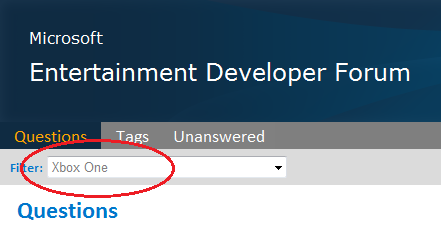
Resolutions
Use the following solutions to resolve your issues:
Problems Debugging with Windows 7
To enable Visual Studio debugging on a development computer that is running Windows 7, install Windows hotfix 2588507. You do not need to install this update if your development computer is running Windows 8 or later as the Xbox One XDK installs this hotfix automatically if it is not already installed on your development computer.
Files Written to Game Drive not Immediately Available
When you write files to the game drive and then terminate the game, it can sometimes take several minutes for those files to be available through the \myconsole\packagepath file share, where:
- myconsole is the hostname or IP address of your console
- packagepath is the packagefullname
For example: \10.123.123.123\crashapp1_1.0.0.0_x64__zjr0dfhgjwvde
This appears to be a known Windows client issue. The solution is to set DirectoryCacheLifetime to zero on your development computer, then restart your development computer. For details on how to set DirectoryCacheLifetime, see SMB2 Client Redirector Caches Explained.
There is also a recent hotfix for Windows 7 that should address this issue: http://support.microsoft.com/kb/2769790/en-us, “File that a user adds to a remote folder is not displayed in Windows Explorer on a computer that is running Windows 7 or Windows Server 2008 R2”.
As an alternative to setting DirectoryCacheLifetime to zero, you can work around this issue by writing a temporary file to the file share and then deleting the temporary file from the file share.
For example:
echo hi! > \myconsole\packagepath\temp.txt del \myconsole\packagepath\temp.txt where myconsole and packagepath are defined as above.
Xbox One X dev kit can’t connect to a wired network
If your Xbox One X dev kit fails to connect to the wired network and falls back to the wireless network, try the following:
- Turn off the dev kit.
- Make sure that the cable for your wired network is plugged into the non-debug Ethernet port.
- Hold both the disc eject button and the controller binding button until the dev kit boots to the flash menu.
- Select Factory Reset. The factory reset will take some time; when it is done you should be at the developer desktop.