Visual Studio 2015 Support Notes
This topic describes XDK support for Visual Studio 2015
Note If you install a new edition of Visual Studio 2015 after installing the XDK, you need to uninstall and then re-install the XDK (repairing the XDK is not sufficient) in order for the XDK to integrate with the newly installed edition of Visual Studio 2015.
Visual Studio 2015 Support Notes
The XDK does not ship with a separate copy of the compiler and linker for VS2015 like it did for VS 2012. Instead, Visual Studio 2015 projects point directly to the tools installed with Visual Studio 2015. On a typical installation these are in: C:\Program Files (x86)\Microsoft Visual Studio 14.0\VC\bin\AMD64
For tips on changes to the C++ language and how to update a title’s source code, see the talk titled Visual C++ for Xbox One on the XFest page of XGD and the What’s New for Visual C++ in Visual Studio 2015 page on MSDN.
The Debug Installed App Package feature requires Visual Studio 2015 Update 3.
Common Tools for Visual C++ Requirement
To enable support for building Xbox projects in Visual Studio 2015, you need to set the type of installation to Custom, and explicitly select the Common Tools for Visual C++ 2015 option when installing VS 2015.
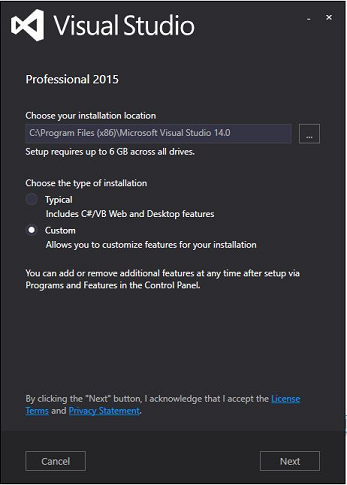
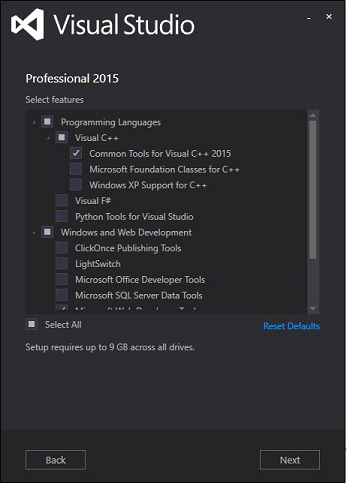
Migrating existing Visual Studio 2012 projects to Visual Studio 2015
In most cases, the upgrade wizard provided with Visual Studio can migrate your project to Visual Studio 2015 without any other changes. When you open a Visual Studio 2012 project in Visual Studio 2015 you’ll see the following dialog prompting you to upgrade:
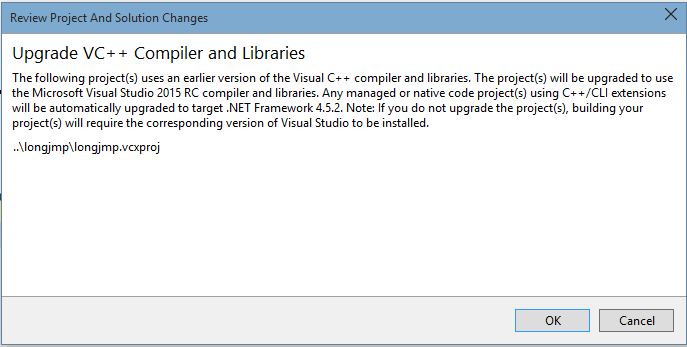
Selecting OK will cause the project to be upgraded.
Manually upgrading projects to Visual Studio 2015
If you want to upgrade your project by directly editing your project files (.vcxproj) you’ll need to make the following changes:
- Change the tools version at the start of the project file from 4.0 to 14.0. For example:
<Project DefaultTargets="Build" ToolsVersion="4.0" xmlns="http://schemas.microsoft.com/developer/msbuild/2003"> <Project DefaultTargets="Build" ToolsVersion="14.0" xmlns="http://schemas.microsoft.com/developer/msbuild/2003"> - Change all instances of PlatformToolset from v110 to v140. For example:
<PlatformToolset>v110</PlatformToolset> <PlatformToolset>v140</PlatformToolset> - Rebuild the project