Flashing the OS Recovery onto Your Dev Kit
The Xbox One dev kit comes with a preinstalled version of the Xbox One operating system (OS), but this OS should be updated with the latest releases as they appear. Beginning with the August 2016 XDK you can enroll your devkit in a flight group to receive auto-updates, or you can continue to manually apply new updates as they are released for download on Dev Center.
Note The recovery version on your devkit must be greater than or equal to the XDK tools version you are using which in turn must be greater than or equal to the XDK version (headers, libs, era.xvd) you are using.
Enrolling your Dev Kit Console in Automatic Updates
This option is available for consoles running the August 2016 or later recovery.
- On your development console, open Dev Home.
- Navigate to the Settings tab.
- Under OS recovery update settings, three options will be available.
- I install OS recovery updates manually (default)
- Auto-install latest production OS recovery
- Auto-install latest developer preview OS recovery
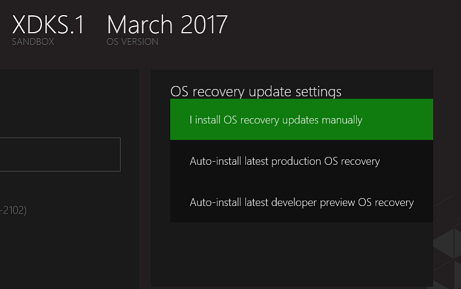
If you choose one of the auto-install options, the console will take OS updates from Xbox Live, just like a retail console. The preview recovery closely aligns with the consumer preview program — though updates may not be published on exactly the same schedule.
Manually Apply Updates to your Dev Kit Console
On your development computer, open Xbox One XDK Software Downloads
- Download the XboxOneUpdate.zip or XboxOneUpdateNoRest.zip file containing the latest version of the OS image.
Note XboxOneUpdate.bat removes any installed apps as a part of the recovery process.
XboxOneUpdateNoReset.bat preserves installed apps. - Extract the files in the downloaded zip file into a folder.
- Use the steps in Xbox One Manager to flash the OS recovery onto your dev kit.
As an option, rather than using Xbox One Manager, you can perform the following steps at the command prompt:
1. Open an Xbox One XDK command prompt, and run Connect (xbconnect.exe) to ensure that the correct IP address of the dev kit is selected as the default. - On your development computer, either go to the folder where you extracted the OS image, and run XboxOneUpdate.bat or XboxOneUpdateNoReset.bat, or go to the folder in the Xbox One XDK command prompt and run XboxOneUpdate.bat or XboxOneUpdateNoReset.bat from there. This will take 5 to 10 minutes to complete.
In addition to installing a recovery using the XboxOneUpdate script, you can now install the latest recovery using a USB stick – refer to Offline System Update Diagnostic Tool for more details.
For information on updating the OS image on multiple consoles at once, refer to Recovering Multiple Xbox One Development Consoles.