Xbox One Manager
Xbox One Manager is a GUI tool which offers functionality to manage and configure consoles and to deploy and manage applications.
We are very interested in your feedback on Xbox One Manager and the workflow scenarios you are most interested in seeing it support. Please provide your comments through the Send Feedback button just to the left of the window minimize button, by sending email to xbomfeedback@microsoft.com, or by contacting your Microsoft Representative.
User Interface
The Xbox One Manager user interface is divided into the following areas:
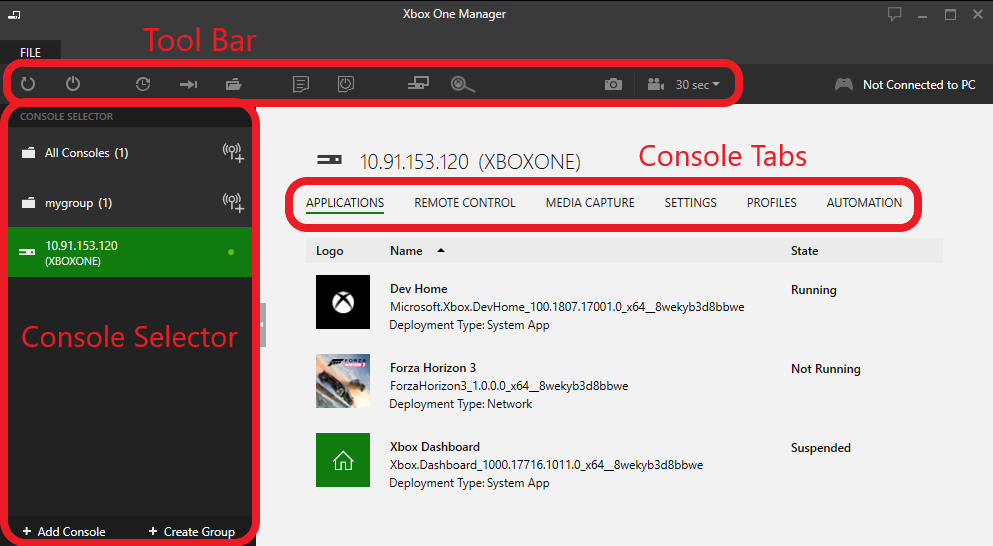
Toolbar
The toolbar offers the following buttons for common operations:
| Operation | Description | |
|---|---|---|
 |
Reboot Console | Reboots the console. |
 |
Shutdown Console/Wake Up Console | Performs a power-aware shutdown if the console is awake. If the console’s power policy is set to Instant On, it will put it into connected standby. If the console’s power policy is Energy Saving, it will turn it off. If Xbox One Manager detects that a console is in connected standby, the button will attempt to wake the console. In addition the context menu for the console will show a Wake Up Console command instead of a Shutdown Console command. If a console group is selected the Shutdown/Wake Up button and context menu command will affect all consoles in the group. |
 |
Update Console OS | Updates the system software on a console. See Updating a Console. |
 |
Deploy or Install Application | Deploys an app to the console. Note that Xbox One Manager also supports drag and drop of an application’s Loose folder or an application’s .xvc file. See Managing Applications and Files. |
 |
Browse Console Files | Opens a file manager displaying the console file system. See Managing Applications and Files. |
 |
Run Unattended Script | Launches an unattended script on the console. |
 |
Apply Boot Script | Applies a boot script to the console. |
 |
Record Video | Records a video of gameplay on the console. See Media Capture. Note The video capture feature in Xbox One Manager is only supported for exclusive resource apps, video capture will not work with shared resource apps. Note The video capture feature in Xbox One Manager is only supported for exclusive resource apps, video capture will not work with shared resource apps. |
 |
Capture Screenshot | Captures a screenshot of the console. See Media Capture. |
 |
Launch Device Portal | Launches Device Portal for the console in the development PC’s default web browser. This button is active if Device Portal is enabled on the console. If Device Portal is configured to require credentials, you must also enter credentials for the console in Xbox One Manager for the button to be active. |
 |
Launch xbWatson | Launches xbWatson for the currently selected conosle. |
Note Most operations in the toolbar are also available through a context menu by right-clicking on a console or console group in the console selector pane.
Console Selector
The console selector occupies the left side of the main window and displays consoles and console groups. See Managing Consoles and Groups.
Console Tabs
When a console is selected in the console selector, the right side of the Xbox One Manager consists of a set of tabs for displaying information or performing actions on consoles.
| Tab | Description |
|---|---|
| Applications | The Applications tab shows the applications installed on the currently selected console. You can launch, redeploy or uninstall an installed app from this window. See Managing Applications and Files. |
| Remote Control | The Remote Control tab allows you to send input to the console and see what is currently being displayed on the console. See Remote Control. |
| Media Capture | The Media Capture tab allows you to view screenshots and videos previously captured using the Capture Screenshot and Record Video buttons. See Media Capture. |
| Settings | The Settings tab shows the settings for the currently selected console and allows you to edit those settings. See Managing Console Settings. Note If you have enabled Xbox Device Portal on your console, the 1706 Dev Preview 1 or newer build of Xbox One Manager will recognize that and replace the Settings tab with an entirely new version that is served up by Xbox Device Portal on the console. In addition, Xbox One Manager will add an Automation tab that hosts the Xbox Device Portal UI for unattended scripts (and for Xbox One X devkits, front panel scripts). If you have set a username and password for Xbox Device Portal on your console, Xbox One Manager will prompt you for credentials when you connect to the console. |
| Profiles | The Profiles tab allows you to manage user profiles on a console. See Managing Profiles. |
| Automation | Hosts the Xbox Device Portal UI for unattended scripts (and for Xbox One X devkits, front panel scripts). The automation tab is only available when Xbox Device Portal is enabled on your console. See Managing Console Automation. |
Group Tabs
When a console group is selected in the console selector, the right side of the Xbox One Manager consists of a set of tabs for displaying information or performing actions on groups of consoles.
| Tab | Description |
|---|---|
| Group Details | The Group Details tab allows you to add and remove consoles from a group. See Managing Consoles and Groups. |
| Remote Control | The Remote Control tab allows you to send input to the console group and see what is currently being displayed on each console in the group. See Remote Control. |
Using Xbox One Manager
Xbox One Manager is installed on your developer PC as part of the installation of the Xbox One XDK. You can start Xbox One Manager using the icon on your Start menu or screen.
Managing Consoles and Groups
The console selector allows you to manage consoles and console groups.
Updating a Console
You can use Xbox One Manager to update the system software on a console.
Managing Console Settings
The settings tab in Xbox One Manager allows you view and change the values of settings for the currently selected console.
Managing Applications and Files
The Xbox One Manager allows you to install and launch apps, and browse the console file system.
Remote Control
Xbox One Manager allows you to send gamepad input to a connected console, record gamepad macros, and view what is currently displayed on the console.
Media Capture
The Media Capture tab allows you to view screenshots and videos previously captured using the Capture Screenshot and Record Video buttons.
Managing Profiles
Xbox One Manager can sign in users and add guests on individual consoles.
Managing Console Automation
The automation tab in Xbox One Manager hosts the Xbox Device Portal UI for unattended scripts (and for Xbox One X devkits, front panel scripts). The automation tab is only available when Xbox Device Portal is enabled on your console.
Reporting a Problem
Starting in the November 2017 XDK, Xbox One developers will be able to report problems with developer tools or with their consoles from within Xbox One Manager. The information provided will only be accessible to the Microsoft ATG team, select Xbox Platform developers and your Microsoft Representative.

To report a problem
From the Xbox One Manager interface click on the Feedback button (just to the right of minimize) and then choose Report-a-Problem.
- Select Console(s) and Report Type The first step is to choose a console or group of consoles that are involved with the problem. You can choose a single console, a group of consoles, or you can just choose the local PC if no console was involved.
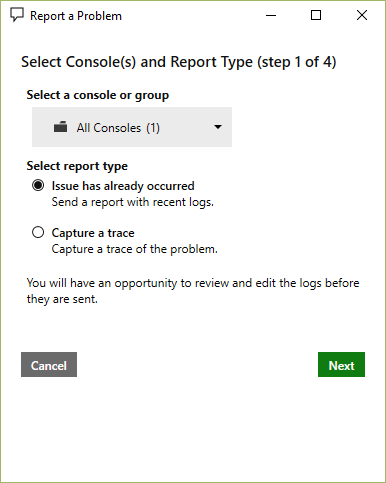 After choosing the console, you will choose the report type. The Xbox One console has a small buffer of auto-loggers which is always running, so if the problem recently occurred there are probably some details still in the logging memory. If you have a specific problem or you want to be sure it has been captured you can do a trace which will allow you to stop the capture once you have reproduced the error.
Note: The Capture Trace dialog will be shown only if you choose the Trace report type. You can close this window to perform the repro, returning to Report-a-Problem will come back to this step for you to complete the trace.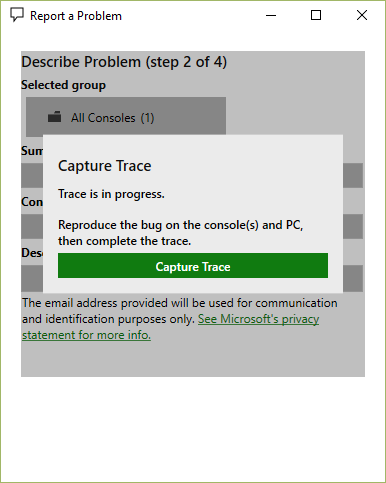
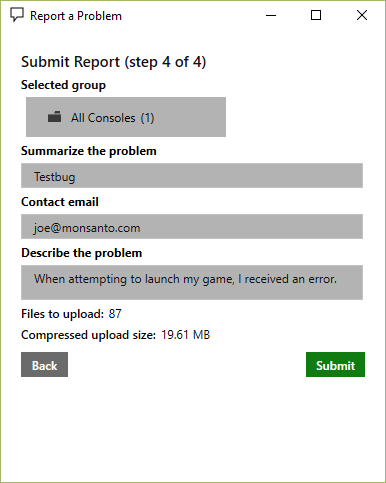
- Describe the Problem Once the log files have been captured you will be asked to fill in a summary, your email address, and a description of the problem. Please be as specific as possible because this will help the Microsoft Engineers to track down your issue. You email address is used for communication purposes and to determine what accounts you may be associated with and which Microsoft Representative may be assisting you. So that we may help you faster, please use your work email address associated with your publisher account.
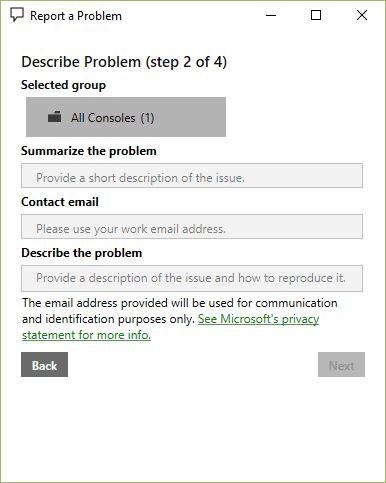
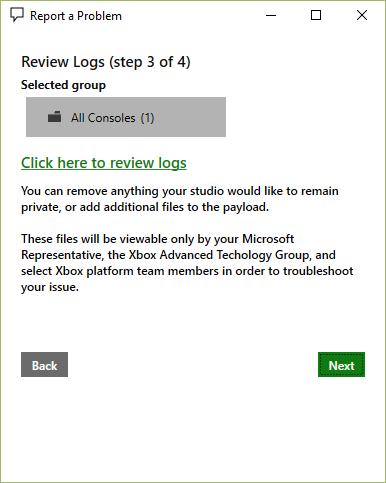
- Review Logs Once you have entered details about the problem you will be given an opportunity to review the log files. You can add or remove anything from this folder – it will be zipped up and transmitted to Microsoft during the next step.
- Submit Report You will be shown a summary of your report, with the number of files and size of the upload. Clicking the submit button will begin the transmission to Microsoft. Once the transmission is received you will receive an email to the address you used in Step 2 with a Bug ID. You will normally receive a response within one business day, or you can provide this ID to your Microsoft Representative for assistance.
Note When you submit a problem report, an email receipt will be sent to you from xcev@microsoft.com.
See also
Installing the XDK and Dev Kit Software
Application Management (xbapp.exe)
Screen Capture (xbcapture.exe)