Media Capture
The Media Capture tab allows you to view screenshots and videos previously captured using the Capture Screenshot and Record Video buttons.
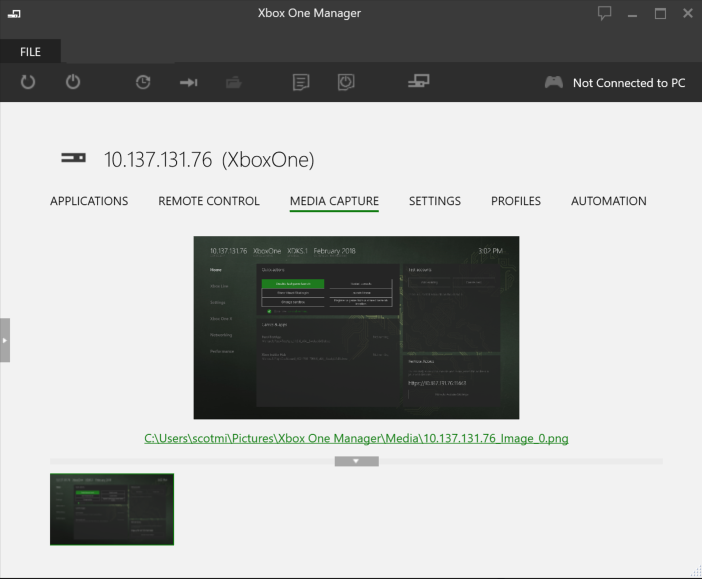
Capturing Screenshots
To capture a screenshot
- Run Xbox One Manager from the start menu shortcut created by XDK setup.
- Select the console you want to capture from using the list on the left side of the window.
- Use the console controller to set up the screen as you wish to capture it.
- Click the Screenshot button in the Xbox One Manager window.

- After the screenshot is taken, you can review the image in the Media Capture tab.
Xbox One Manager will save the screenshot in%USERPROFILE%\Pictures\Xbox One Manager\Media. The filename will have the following format:
<console IP | hostname>_screenshot_#.png
Capturing Video
To capture a video
- Run Xbox One Manager from the start menu shortcut created by XDK setup.
- Select the console you want to capture from using the list on the left side of the window.
- Select the length of the recording using the list next to the Record Video button.

 Note Video is recorded using the Game DVR, and the time indicates the amount of previous gameplay to capture counting backwards from the time the Record Video button is pressed.
 - Setup the scene you want to record.
- Click the Record Video button in the Xbox One Manager window.

- After the recording is taken, you can review the video in the Media Capture tab.
Xbox One Manager will save the video in%USERPROFILE%\Pictures\Xbox One Manager\Media. The filename will have the following format:
<console IP | hostname>_video_#.png
Capture failed. Title is not running on target console. (0x8C11040D)
Start the title and re-try the command.