Managing Applications and Files
Note: Generally the Tools SKU enables you to upgrade the Tools from the XDK without having to upgrade other XDK components (e.g., headers, libraries, game OS). The Overlay Folders feature is an exception in that it depends on support from the game OS, which is released as part of the XDK but not the Tools SDK. As a result support for Overlay Folders functionality in XDK tools is only available when you use May 2018 XDK or later (ideally, June 2018 XDK or later).
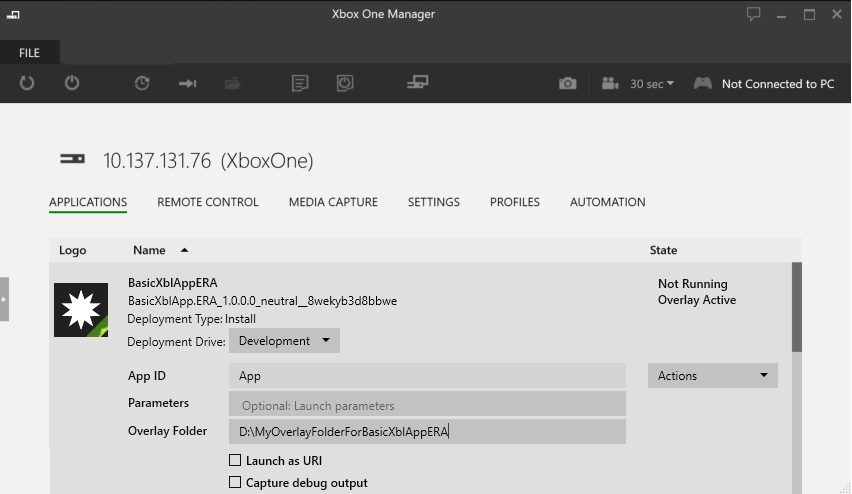
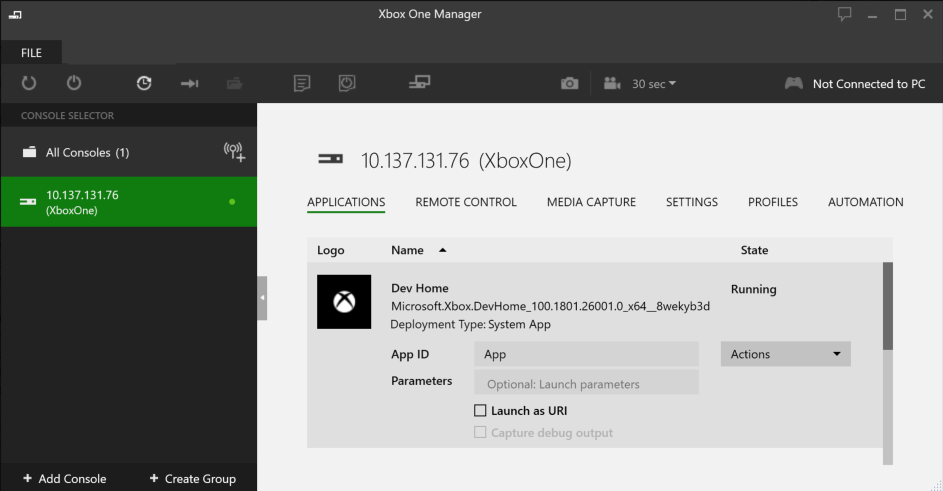
The Applications tab shows the applications installed on the currently selected console. You can launch, redeploy or uninstall an installed app from this window. When launching an app you can specify launch parameters using the Parameters box (see Passing Arguments to an App or Game. You can also manage the Overlay Folder configured for the application (see Overlay Folders). The Capture debug output checkbox controls whether Xbox One Manager should capture debug output while the application is running. The Launch as URI checkbox causes the app to be launched using deep linking (see Deep Linking in Xbox One).
- Deploying Applications
- Launching Applications
- Uninstalling All Developer Installed Applications
- Browsing Console Files
Deploying Applications
- Deploying an App Using the Deploy or Install Application Interface
- Deploying an App Using Drag and Drop
Deploying an App Using the Deploy or Install Application Interface
- Run Xbox One Manager from the start menu shortcut created by XDK setup.
- Select the console to which you want to deploy your app from the list on the left side of the windows.
- Click the Deploy or Install Application button or choose Deploy or Install Application… in the context menu for a console.
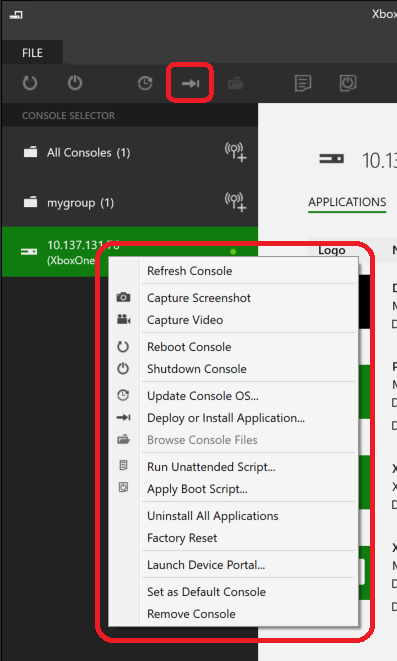
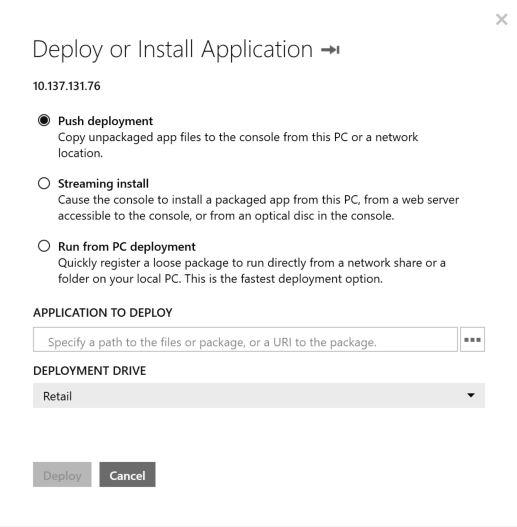
- Select the deployment type you want to use:
- Push deployment - Uses push deployment and copies unpackaged app files to the console from the PC or a network location. When using this option you must specify the location of Loose directory containing the app files. The Loose directory and is found under your Visual Studio project directory. For example, if your project were in C:\Projects\Triangle2D, then you would deploy the C:\Projects\Triangle2D\Triangle2D\Durango\Layout\Image\Loose directory.
- Streaming install - Uses streaming install and installs a packaged app from the PC, a web server accessible to the console, or from an optical disc in the console. When using this option you must specify the location of the app package and optionally specify the location of the mapping file.
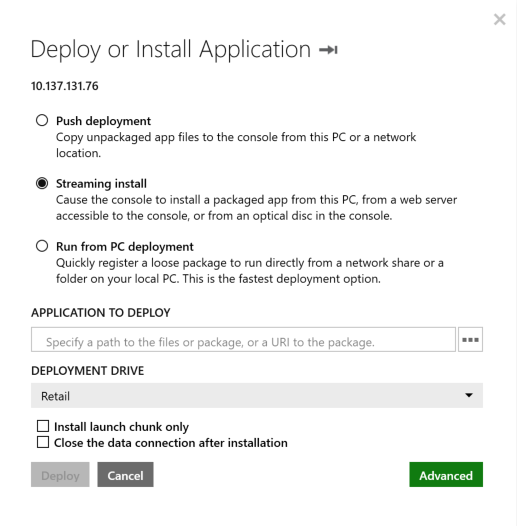
The Advanced button provides options to set content types, device types, languages, and tags to support testing Intelligent Delivery scenarios. In addition, it provides the ability to simulate an ODD install and to specify an Xbox Instant Play streaming plan file. - Run from PC Deployment - Uses run from PC deployment and registers a loose package to run directly from a network share or a folder on your local PC. This is the fastest deployment option. See Run from PC Deployment for more information.
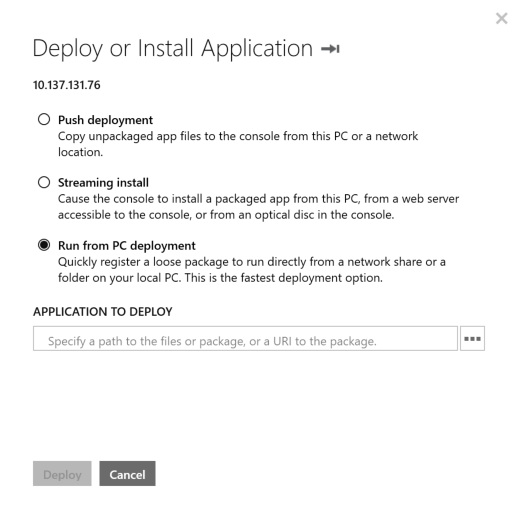
- Push deployment - Uses push deployment and copies unpackaged app files to the console from the PC or a network location. When using this option you must specify the location of Loose directory containing the app files. The Loose directory and is found under your Visual Studio project directory. For example, if your project were in C:\Projects\Triangle2D, then you would deploy the C:\Projects\Triangle2D\Triangle2D\Durango\Layout\Image\Loose directory.
- Click the Deploy button when you have chosen the location, and the installation progress is displayed at the top of the screen.
Note If a console has multiple deployment drives (for example, an Xbox One X dev kit has a development drive and a retail drive, plus any console hardware type could have an external USB hard drive plugged in), the Deploy or Install Application dialog will have a drop-down named Deployment Drive that will allow you to choose which drive the app gets deployed to. The default value will be taken from the console’s default storage device setting. - When deployment has completed successfully, click the Applications tab to view your app, deployed to the console. You can launch and perform other actions with the app from this screen.
Deploying an App Using Drag and Drop
To deploy an app using drag and drop, drag the application’s Loose folder onto Xbox One Manager to initiate push deployment or drag and drop the application’s .xvc file to initiate streaming installation.
Launching Applications
You can use Xbox One Manager to remotely launch applications on a console and set the current running state of applications.
To launch an application
- Run Xbox One Manager from the start menu shortcut created by XDK setup.
- Select the console you want to launch the application on.
- Select the APPLICATIONS tab.
- Select the application you want to launch.
- Optionally specify any launch parameters in the Parameters text box.
- Optionally configure an Overlay Folder path using the Overlay Folder text box.
- Optionally select the Launch as URI and Capture debug output checkboxes.
- Click the Actions dropdown.
- Click Launch in the dropdown.
- Once the application has started, clicking the Actions dropdown again will let you change the application state by selecting Constrain, Suspend, Terminate, Unconstrain, or Resume. Note that suspending your title is not supported when Fast Iteration Mode is enabled. You need to turn off Fast Iteration Mode using the Enable fast game launch setting before Xbox One Manager can be used to suspend your title.
Uninstalling All Developer Installed Applications
You can use Xbox One Manager to uninstall all developer install applications from a console or console group using the Uninstall All Application command.
To uninstall all applications from a console or console group
- Run Xbox One Manager from the start menu shortcut created by XDK setup.
- Select the console or group you want to remove application from in the list on the left side of the windows.
- Choose Uninstall All Applications in the context menu for a console.
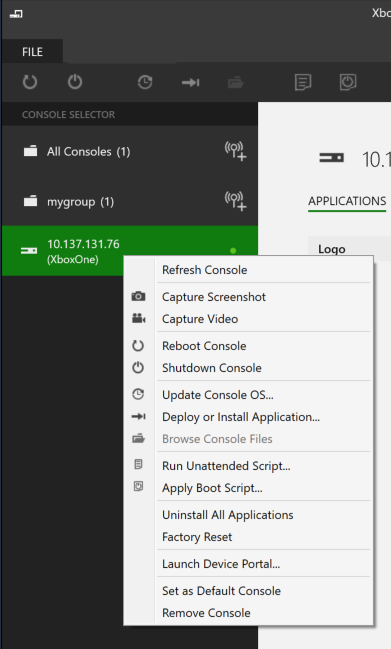
This process is equivalent to running xbcleanup.exe /U.
Browsing Console Files
Xbox One Manager makes it easy for you to view file shares for the current console.
To browse console files
- Run Xbox One Manager from the start menu shortcut created by XDK setup.
- Select the console whose files you wish to browse from the list on the left side of the windows.
- Click the Browse Console Files button in the Xbox One Manager window or select Browse Console Files in the context menu for the console.
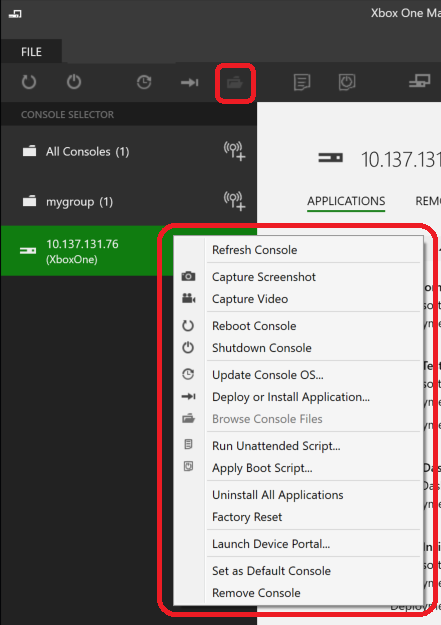 Xbox One Manager will open a Windows Explorer window displaying the console file system.
Troubleshooting
If the Browse Console Files button is grayed out, that means the PC is unable to access file shares for the current console. See the Known Issues section of the Xbox One Neighborhood topic for troubleshooting suggestions.