Xbox One Neighborhood: Accessing the Console File System from Your PC
You can connect to the console file system as a set of network shares, for example \\mydevconsole\TitleScratch. This works both from File Explorer and the Windows Command Prompt. You can “net use” to the drives on the console. This means that you can use File Explorer or standard Windows commands such as “dir” or “robocopy” to access the files and file system on the console. To edit a file on the console, for example, you would use notepad \\mydevconsole\TitleScratch\MyGame.log.
You connect using either the System IP address or the console Host Name, not the Tools IP address. For example you could connect using \\myconsole\TitleScratch or \\192.124.132.10\TitleScratch.
The following network shares are accessible on the console:
- TitleScratch - the Title Scratch drive (the “d:" drive when the game is running), for example
\\myconsole\TitleScratch - SystemScratch - for example
\\myconsole\SystemScratch - One share for each game or app you have deployed to the console. The name of this folder is the package full name of the game or app, for example
\\myconsole\VgbView.ERA_1.0.0.0_neutral__8wekyb3d8bbwe
You can access these network shares using any standard Windows file utility including the File Explorer and the Windows Command prompt. For example you can “net view” the console:
C:\Scratch\D\XDK\SigninUser\temp>net view \\myconsole
Shared resources at \\myconsole

Share name                                  Type  Used as  Comment
-------------------------------------------------------------------------------
NuiView.ERA_1.0.0.0_neutral__8wekyb3d8bbwe  Disk
SystemScratch                               Disk
SystemTemp                                  Disk
TitleScratch                                Disk  (UNC)
VgbView.ERA_1.0.0.0_neutral__8wekyb3d8bbwe  Disk
Xbox.Pixie_1.0.0.0_x64__8wekyb3d8bbwe       Disk
The command completed successfully.
You can “net use” a share:
C:\Scratch\D\XDK\SigninUser\temp>net use \\myconsole\TitleScratch x:
The command completed successfully.
Accessing the Title Drives when a Title is Running
Accessing the Title Drives from Windows File Explorer
When a game (exclusive app) is running you can access the Game, Scratch, and Temp drives from Windows File Explorer using the RunningTitle share. For example:
\\myconsole\RunningTitle\Drives\Game
Note
- The RunningTitle share is only available from Windows File Explorer and is not available from the command line.
- The RunningTitle share is only available when you have the XDK installed.
- The RunningTitle share is read-only. You can browse and copy from the console to the PC but not from the PC to the console.
- If you access the Console using an IP address (“\123.34.123.45”) rather than a HostName (“\myconsole”) when you access the RunningTitle network share you will see a security warning dialog. This is because, by default, IP addresses are treated as part of the Internet security zone, not the Local Intranet security zone.
- Typically if you have the right XDK installed you should see “Drives” not “Drives.{117DD891-ED13-44C0-93BE-CBEB69B9D495}”, however if you uncheck the Hide protected operating system files option in File Explorer you will always see “Drives.{117DD891-ED13-44C0-93BE-CBEB69B9D495}”.
- The RunningTitle share does not work if your console has an access key. Remove the access key to use the RunningTitle share.
Accessing the Title Drives from the Command-line
To access the Game, Scratch, and Temp drives from the command-line while an exclusive resource title is running, you will have to use the xb* file commands instead of the RunningTitle share. For example:
xbdir /x/title xg:\
From scripts, you can use xbconnect with the /QG switch to determine whether a title is running or not. The /QG switch sets the ERRORLEVEL to 0 if the title is running and sets it to 1 if it is not. By using xbconnect /QG you can write a script that uses standard windows commands such as copy when the title is not running and the xb* equivalent when the title is running.
Known Issues
Delay in availability of files on Game drive
When you write files to the Game drive and then terminate the game, it can sometimes take several minutes for those files to be available through the \\myconsole\packagepath file share, where:
- myconsole is the hostname or IP address of your console.
- packagepath is the packagefullname.
For example: \\10.123.123.123\crashapp1_1.0.0.0_x64__zjr0dfhgjwvde
This appears to be a known Windows Client issue. The solution is to set DirectoryCacheLifetime to zero on your Dev PC, then reboot your Dev PC. For details on how to set DirectoryCacheLifetime, see SMB2 Client Redirector Caches Explained.
There is also a recent hotfix for Windows 7 that should address this issue: http://support.microsoft.com/kb/2769790/en-us, “File that a user adds to a remote folder is not displayed in Windows Explorer on a computer that is running Windows 7 or Windows Server 2008 R2”.
As an alternative to setting DirectoryCacheLifetime to zero, you can work around this issue by writing a temporary file to the file share and then deleting the temporary file from the file share. For example:
echo hi! > \\myconsole\packagepath\temp.txt
del \\myconsole\packagepath\temp.txt
where myconsole and packagepath are defined as above.
Accessing a console’s SMB shares will fail when using the Windows 10 Fall Creators Update
A security-related change in the Enterprise edition of the Windows 10 Fall Creators Update prevents you from connecting to SMB shares on a remote device that has Guest account access enabled. The Xbox One console has Guest account access enabled by default. Attempts to access SMB shares on your console will result in errors similar to:
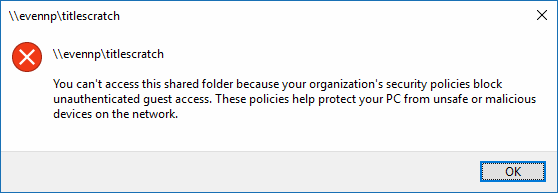
To work around this, you’ll need to turn off Guest access on the console, then configure alternate credentials for SMB access on the PC. There are two general approaches you can take to turn off Guest access and obtain the required credentials.
Starting in the June 2017 QFE 4, XDK tools include features that automate many of the steps required to enable SMB access. If you are unable to upgrade to the new tools, you’ll still be able to enable SMB access but several manual steps will be required.
Enabling SMB access using the June 2017 QFE 4 XDK tools
The following steps are required to turn off Guest access and configure the credentials required for SMB access using the QFE 4 XDK tools:
- Upgrade to the latest version of the October 2017 Developer Preview Recovery.
- Use Xbox One Manager or xbConfig.exe to disable access to your console’s shares from the Guest account. In Xbox One Manager, make sure the Force Guest account access to file shares checkbox is not checked.
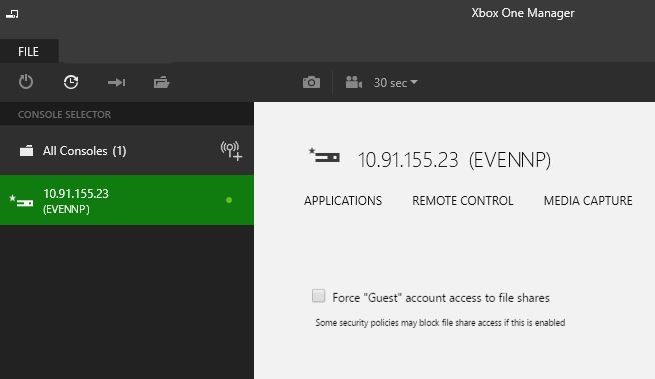
If you’re using xbConfig.exe, set the disableforceguest value to true.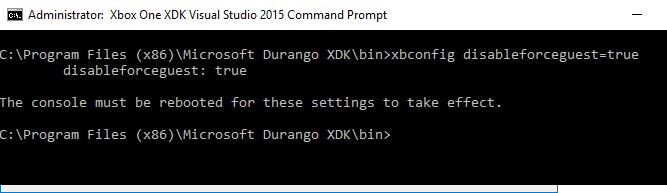
- After disabling Guest access and restarting the console, run xbConnect to reconnect to your console, or connect to your console using Xbox One Manager. Note that you may have to close and re-open Xbox One Manager if it was connected before you starting seeing issues accessing SMB shares. Connecting with either xbConnect or Xbox One Manager will obtain the credentials needed to access SMB shares on your console and store them on your PC.
Enabling SMB access manually
The following steps are required to turn off Guest access and configure the credentials required for SMB access manually:
- Upgrade to the latest version of the October 2017 Developer Preview Recovery.
- Use xbRun to set a reg key called DisableForceGuest and then restart the console:
xbrun /x/system /o reg add HKLM\Xbox\XConfig\SmbDevSettings /ve /f xbrun /x/system /o reg add HKLM\Xbox\XConfig\SmbDevSettings /v DisableForceGuest /t REG_DWORD /d 00000001 /f xbreboot - Query the console for the username and password required to access console shares and add the credentials to the credential cache on your PC. Obtain the credentials by running:
xbrun /x/system /o devtoolslauncher GetNetworkCredentials trueThat command will return a value that looks like:
{"Server":"Localhost","UserName":"DevToolsUser","Password":"T@.;=3k[,#d;5X"}Take the returned password and pass it to cmdkey.exe from a command prompt on your PC.
cmdkey.exe /add:10.91.153.13 /user:10.91.153.13\DevToolsUser /pass:T@.;=3k[,#d;5X
CMDKEY: Credential added successfully.
Note that you’ll want to run cmdkey with the IP address of the System OS on your console and with any hostnames you’ve configured. You can obtain the IP address of the System OS by running xbConnect or viewing your console in Xbox One Manager.