Run from PC Deployment
Run from PC deployment significantly improves productivity during title development by removing the time required to deploy a title from the development PC to the development kit. With this feature, you register your game with the development kit via XBOM, WDP, or the command line, and then simply launch the title on the console with no deployment or setup time required. Changes made to the files are immediately visible to the title.
This works by the files on the development PC being presented to the GameOS as a local G:\ drive, allowing the title to run on the console immediately after registration. Additionally, changes made to files on the network share will be immediately reflected on the console allowing for dynamic update of resources if files are not locked by the title.
Using Run from PC over XBTP Deployment
In the 1804 and later XDK tools and recovery, we have a new version of Run From PC deployment that does not require an SMB network share (or credentials
on the console) and can also take advantage of the XTD to reduce TCP/IP network bandwidth usage/increase speed. A new executable, xrfssvc.exe is
included in the XDK tools to support this functionality. The executable launches in the context of the logged in user and accesses files on behalf of the console.
Since xrfssvc.exe launches in the user context, no SMB network share credentials are required by the console. The console accesses
files accessible to the user via xrfssvc.exe.
Setup for Run from PC over XBTP
Often, you do not need any setup to use this new Run from PC mode. Simply pass a local path on the development PC as the source, either in VS, XBOM or WDP Run from PC deployment options or via xbapp registernetworkshare.
The Run from PC tools will start the necessary exe (xbtplinksvc.exe and xrfssvc.exe) to serve the data, set it to start automatically on login (so that you do not need
to re-launch after a PC reboot or login) and add the path you pass to an allow list so that the console can request data from that location.
Note In the case of Visual Studio, a local path on the development PC is not required, it will default to the current project output location.
Example passing local path to Run from PC registernetworkshare:
C:\>xbapp registernetworkshare d:\share\run_from_games\cube
Package Full Name: Xbox.Samples.ERA_1.0.0.0_neutral__8wekyb3d8bbwe
Aumids returned:
  Xbox.Samples.ERA_8wekyb3d8bbwe!Cube.ERA.Application

The operation completed successfully.
xbapp list /d can be used to verify a Run from PC over XBTP registration. The xbtp: URI indicates usage of XBTP for transfers.
C:\>xbapp list /d /nosystem

Registered Applications by Package Full Name:

   Xbox.Samples.ERA_1.0.0.0_neutral__8wekyb3d8bbwe
        Network: xbtp:\\devpc\d:\share\run_from_games\cube
        ContentId: {2374C02D-899C-AA8F-AC19-60213F75E07D}
        Xbox.Samples.ERA_8wekyb3d8bbwe!Cube.ERA.Application
Firewall Setup
You may encounter firewall notifications for xbtplinksvc.exe accepting incoming connections on TCP port 4201 from consoles. Allowing xbtplinksvc.exe to accept incoming connections will provide a
much better experience. If network policy restricts incoming connections to xbtplinksvc.exe, xbconnect /data will need to be executed often for each console to ensure a
PC initiated connection has been made to the console. Allowing these incoming connections will enable consoles to initiate on-demand connections to the PC.
A suitable firewall rule named “Xbox Transport Link Service (inbound)” can be added to the Windows Firewall using the following command from an elevated command prompt:
netsh advfirewall firewall add rule name="Xbox Transport Link Service (inbound)" dir=in action=allow protocol=tcp localport=4201
Advanced Run from PC over XBTP setup
When a local folder is specified in xbapp registernetworkshare, it is assumed you intend to setup the folder for Run from PC over XBTP.
However, under certain circumstances, the automatic behavior may not be ideal. If you wish to target another PC (for example, in a lab scenario),
you can specify the specific target of using the xbpt: URI. The URI format is:
xbtp:\\TARGETPC\PATH_ON_PC
The TARGETPC is assumed to be the local PC when specifying local paths. Below is an illustration using the URI syntax. Notice the allowed path list on the remote PC needed to be
updated to allow access to the files. For additional information on the access list, see the “xrfssvc.exe Settings” section.
C:\>xbapp registernetworkshare xbtp:\\remotepc\d:\share\run_from_games\cube
The package is invalid, or contains invalid features. Please check that the package is a valid Xbox One package.

[Running command on remotepc]
C:\>xrfssvc.exe /paths:add=d:\share\run_from_games

[Running command on remotepc]
C:\>xrfssvc.exe /paths:list
Configured Paths for File Sharing:
  d:\share\run_from_games\

C:\>xbapp registernetworkshare xbtp:\\remotepc\d:\share\run_from_games\cube
Package Full Name: Xbox.Samples.ERA_1.0.0.0_neutral__8wekyb3d8bbwe
Aumids returned:
  Xbox.Samples.ERA_8wekyb3d8bbwe!Cube.ERA.Application

The operation completed successfully.

C:\>xbapp list /d /nosystem

Registered Applications by Package Full Name:

   Xbox.Samples.ERA_1.0.0.0_neutral__8wekyb3d8bbwe
        Network: xbtp:\\remotepc\d:\share\run_from_games\cube
        ContentId: {2374C02D-899C-AA8F-AC19-60213F75E07D}
        Xbox.Samples.ERA_8wekyb3d8bbwe!Cube.ERA.Application

The operation completed successfully.
xrfssvc.exe Settings
xrfssvc.exe maintains a list of allowed paths for file access control. For a file to be allowed, it must be a child of one of the allowed paths. Typical usage using xbapp registernetworkshare [LOCAL_PATH]
will add paths automatically to the allow list. Allow list management is maintained using xrfssvc.exe. The relevant commands from xrfssvc.exe /? are:
C:\>xrfssvc.exe /?
  /paths:
    paths:add=PATH    Adds the path to the allow path list.
    paths:del=PATH    Removes the path from the allow path list.
    paths:clear       Clears the entire allow path list.
    paths:list        Lists the currently allowed paths.

C:\>xrfssvc.exe /paths:list
Configured Paths for File Sharing:

C:\>xrfssvc.exe /paths:add=d:\share\run_from_games

C:\>xrfssvc.exe /paths:list
Configured Paths for File Sharing:
  d:\share\run_from_games\
NOTE: If a path is being added with /paths:add=PATH, the path is first processed against existing rules. If the existing rules allow the path, the path is not added.
There is a limited amount of path space available for storing the allowed paths. The current path space limit is 32K wide characters. This setting is stored in the registry value
HKEY_CURRENT_USER\Software\Microsoft\Durango\XrfsSvc\AllowedPaths.
Common xbtplinksvc.exe Settings
xbtplinksvc.exe can be configured to autostart on login. This setting offers the best experience when using Run from PC. If not configured, xbconnect /data should be run after login.
xbtplinksvc.exe settings can be queried using xbtplinksvc.exe /query. Help is available using xbtplinksvc.exe /?. Most options are intended for advanced troubleshooting
and will not be required during typical usage.
C:\>xbtplinksvc.exe /?
XbtpLinkSvc.exe
  Commands:
    /register         - Copies the executable to the path provided and
                        updates the XbtpLinkSvc.exe registry location entry.
      /f              - Forces installation of the service, even if the
                        currently registered service is newer than this
                        version.
    /unregister       - Unregisters the current location.
    /query            - Displays the current registration options.
    /status           - Displays current connection information.
    /log              - Display packet logging information.
      /bin:FILE       - Saves binary logging format to FILE.
      /txt:FILE       - Saves text logging format to FILE.
      /time:N         - Logs for N seconds and then exits.
      /decode:FILE    - Decodes the binary logging data in FILE.
    /routing          - Launches the registered service for routing.

  Service Options:
    /enable:service   - Default, enables the service.
    /disable:service  - Disables the service from launching.
    /enable:XTD       - Default, enables the use of the Xbox Transfer Device.
    /disable:XTD      - Disables the use of the Xbox Transfer Device.
    /enable:timeout   - Default, enables connection ping timeout.
    /disable:timeout  - Disables connection ping timeout.
    /enable:autorun   - Configure XbtpLinkSvc.exe to launch on user login.
    /disable:autorun  - Default, do not launch service on user login.

Error: Unrecognized option provided.
Failed on parameter: /?

C:\>xbtplinksvc.exe /query
RegisteredPath=C:\Program Files (x86)\Microsoft Durango XDK\\bin\xbtplinksvc.exe
RegisteredVersion=4037.17134.0.10
CurrentPath=C:\Program Files (x86)\Microsoft Durango XDK\bin\XbtpLinkSvc.exe
CurrentVersion=4037.17134.0.10
SuggestUpdate=FALSE
xrfssvc.exe Access List
For more data on the xbtplinksvc and xrfssvc executables and their options, including how to list currently allowed paths, turn off auto start, etc. use the following commands from an XDK command prompt:
xbtplinksvc.exe /?
xrfssvc.exe /?
Using Legacy (SMB Share based) Run from PC
We are continuing to support the “legacy” Run from PC via SMB share, for backward compatibility for your tools/scripts and for use against shares hosted on machines that do not have the XDK installed (Build shares, Network SAN, etc.). To use it simply pass a network path instead of a local path to the Tools or command line and they will automatically fall back to the pre-1804 credential based RfPC implementation.
For reference we have included the documentation for Legacy Run from PC:
- Choose an account to be used to ACL the network share, either by creating a low privilege, non-interactive local account on the PC you intend to host the title share (i.e. your development PC), or alternatively, use an existing low privilege shared service account that may be appropriate for this purpose. You can create a user from the command line using the following steps:
- Create the user with the
net usercommand.net user xbuser * /ADD /ACTIVE:YES /COMMENT:"Xbox One deployment share account" /EXPIRES:NEVER /PASSWORDCHG:NO /LOGONPASSWORDCHG:NOA prompt will come up to ask for the password, after entering the password, the user <MachineName>\xbuser will be created.
For example:C:\Windows\system32>net user xbuser * /ADD /ACTIVE:YES /COMMENT:"Xbox One deployment share account" /EXPIRES:NEVER /PASSWORDCHG:NO /LOGONPASSWORDCHG:NO Type a password for the user: Retype the password to confirm: The command completed successfully. - Optionally remove the created user from any password expiration policy.
- Run
net user xbuserto show the information for the newly created user. If your organization enforces password expiration, it’s likely that you’ll see a password expiration date on the output. - Run lusrmgr.msc from the same command prompt.
- On the window that appears, right-click on Users -> xbuser
- Select Properties
- Check the box Password never expires
- Run
You can create a share by running the following command from administrator command prompt:
net share XB1RunFromPC=<SharePath> /GRANT:xbuser,READ /UNLIMITED /REMARK:"Xbox One Run from PC share"For example:
C:\xb1share>net share XB1RunFromPC=c:\xb1share /GRANT:xbuser,READ /UNLIMITED /REMARK:"Xbox One Run from PC share"
XB1RunFromPC was shared successfully.
This will create the share \<MachineName>\XB1RunFromPC. This share will only be accessible to <MachineName>\xbuser.
To grant additional users permission, the /GRANT switch can be specified multiple times when creating the share. For example:net share XB1RunFromPC=c:\xb1share /GRANT:xbuser,READ /GRANT:domain\username,READ /UNLIMITED /REMARK:"Xbox One Run from PC share" - Create the user with the
- Add network credentials using the following steps:
- On a console with the July 2015 or later recovery, start the Developer Home on the Console (DevHome) application.
- Press the Menu (hamburger) button to open the menu.
- Select Manage network credentials.
- Enter the network path to your share, the username, and password to access the share.
- Register a network share using one of the following methods:
- From Quick actions in DevHome, select Register a game from a shared network location and follow the prompts to register the title. See Developer Home on the Console (Dev Home) for more information.
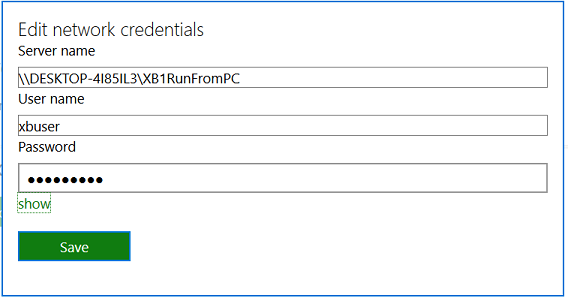
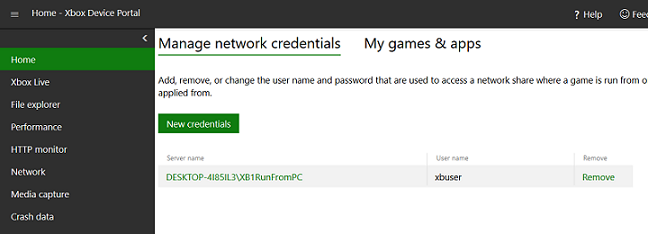
- From the XDK command prompt on your dev PC use the command:
Xbapp registernetworkshare <sharename>For example:
C:\Program Files (x86)\Microsoft Durango XDK\Bin>xbapp registernetworkshare \\DESKTOP-4I85IL3\XB1RunFromPC xbuser XXXXXXXX
Note When registering a game you are providing the path to the appxmanifest associated with the game you wish to register. The appxmanifest can be in a subfolder of the share you created in step 1. This allows you to register multiple games (or multiple versions of the same game) in multiple subfolders of that share by repeating this step and specifying a path to a different appxmanifest each time.
Note If you are using xbStress to simulate a broken network connection while using Run From PC deployment, you must use the IP address of your PC instead of the hostname when registering your network share and your username. For example, \192.168.1.100\GameShare and \192.168.1.100\xboxshareuser. - From Quick actions in DevHome, select Register a game from a shared network location and follow the prompts to register the title. See Developer Home on the Console (Dev Home) for more information.
- You should then see a tile for the app appear on the console as normal, and the title will be listed in the Xbox One Manager “installed applications” list. You can launch the title immediately.
Due to the ability to connect multiple consoles to the same share, amongst other reasons, we enforce the G:\ drive presented to the title as Read-Only to prevent write collisions and other unpredictable behavior. This means that your title should behave in the same way as retail, and any logs should be written to the console scratch drives. If there are scenarios that are blocked by this behavior, please provide feedback via your development account manager as usual.
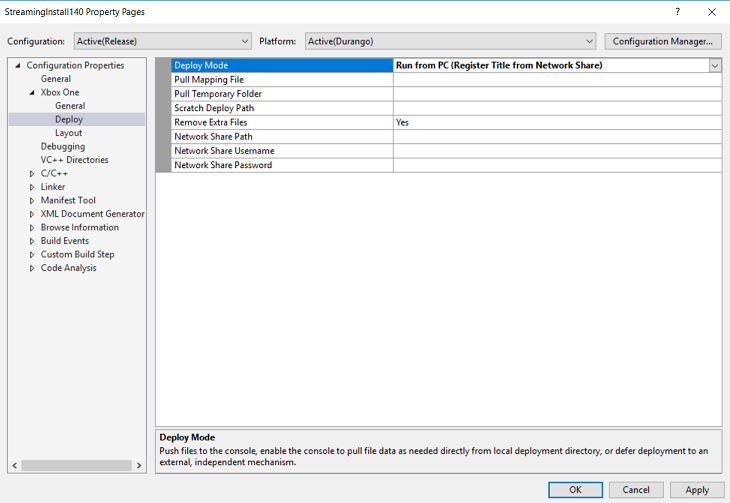
If you are using Visual Studio to make your changes, set the deploy mode property to Run from PC (Register Title from Network Share) on the Deploy property page of your Xbox One project. Provide the network share path, optional values for network share username and Network share password as appropriate in the Deploy property page.
Support for Symbolic Links
Starting in the June 2015 XDK support for symbolic links has been added to the Run from PC feature.
To allow use of remote resources and other files by titles deployed via Run from PC deployment, we have added the ability for Run from PC deployment to traverse symbolic links.
Creating the appropriate link type to allow remote traversal by the console is essential. For content that is locally available on the same PC as the link, a junction from the title folder to the content folder that you wish to include should be created:
mklink /J mydata_junction c:\gamedata\data
This allows mapping of different local folders, similar to a mapping file for Pull deployment.
For content that is stored on a different server than the game share (a remote file server, build machine or resource server, for example) a symbolic link should be used:
mklink /D remote_data \\resourceserver\remoteresourcecache
To enable this traversal you must add additional credentials to the console, via the ability of the Developer Home on the Console (DevHome) application to edit credentials on the console as described above, for each additional network location. See Developer Home on the Console (Dev Home) Preview for more information.
See also
Run from PC White Paper (Developer Education Materials > All NDA Whitepapers)