Developer Home on the Console (Dev Home)
Dev Home is a tools experience on the Xbox One development kit designed to aid developer productivity. Dev Home offers functionality to manage and configure your development kit, manage users, launch installed titles and perform captures and traces. In future releases we will continue to expand the functionality to enable additional features based on your feedback, and also to enable extensibility and the addition of your own tools.
We are very interested in your feedback on Dev Home and the scenarios you are most interested in seeing it support. Please provide your comments through the methods described under Provide feedback in the main menu of the app (press the Menu button on the controller) or through your Developer Account Manager (DAM).
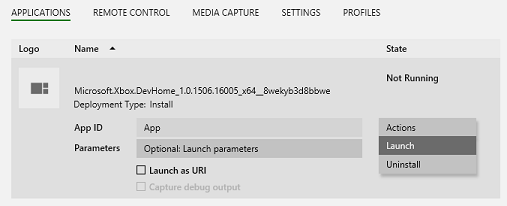
You can launch Dev Home from the application list in the Xbox One Manager.
User Interface
The header of the Dev Home user interface contains the following important “at a glance” info about the development console:
- Console IP: The current IP address of the console.
- Console name: The current hostname of the console. For more information about the hostname, see Setting a Hostname for the Console IP Address.
- Sandbox: The name of the sandbox that the console is in. For more information about sandboxes, see Setting Up Sandboxes for Xbox Live Development.
- OS version: The current recovery version that is running on the console. For more information about Xbox One operating system versions, see Flashing the OS Recovery onto Your Dev Kit.
- Current system time
The rest of the Dev Home UI is divided into the following pages. For more information about the tools on these pages, see their individual topics.
Main Menu
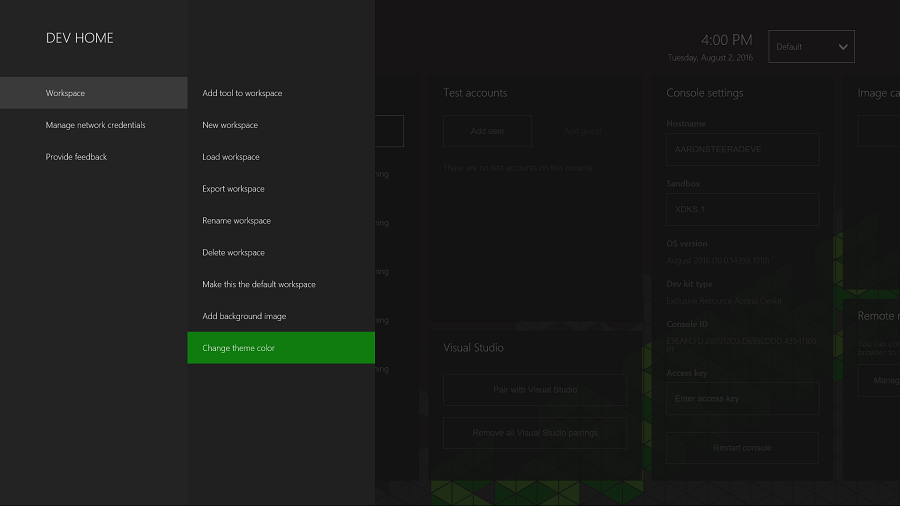
By pressing the Menu button on your controller, you can access the main menu that allows configuration of the app workspace, the ability to manage credentials for accessing network locations, and information on providing feedback on the app.
Customizing Dev Home
Dev Home has been designed to be customizable and personal. You can configure the app to suit your workflow, and then save that as a workspace. This workspace can be exported and imported, allowing you to copy the layout to other consoles as needed. These options are found in the main menu under Workspace. The exported file will be located on the system scratch drive (or SystemScratch) in the Dev Home\Workspaces directory. You can browse the console’s files on your PC using the Xbox One Manager.
Resizing and Reordering Tools
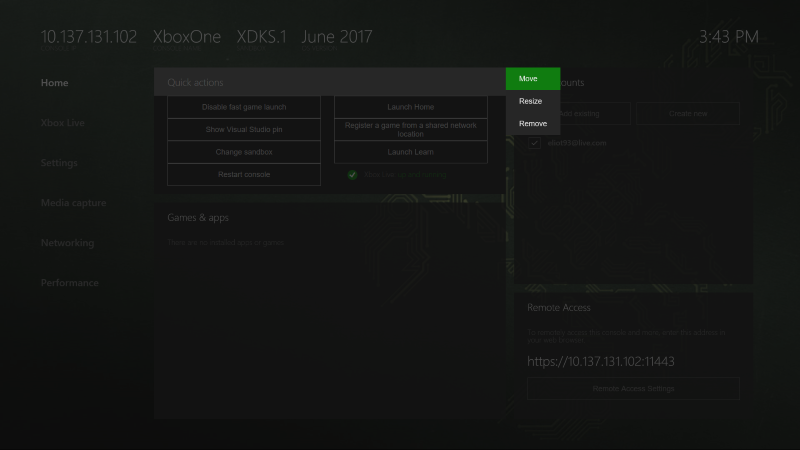
To change the size or position of a panel, use the View button on your controller while the title has focus. From the context menu, select Move or Resize, and customize the position and size of the panel.
Changing theme color and background image
From the main menu, you can select Workspace and then Change theme color. Select a new color and select Save to update the theme color used for focus highlighting.
Setting the default application for a package
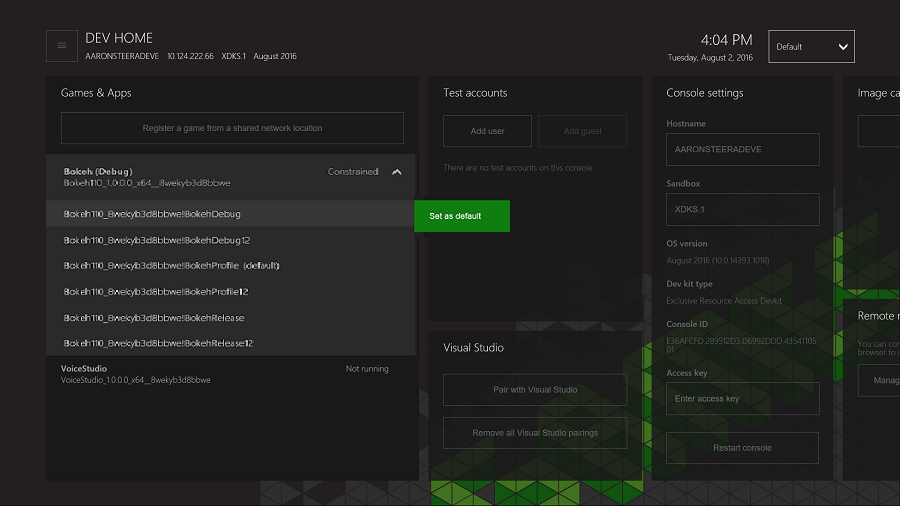
If a package contains multiple applications, Dev Home will allow you to set the default application to be launched. Highlight the package in the Games & apps section and press the A button to open the list of available applications. Highlight the one you wish to set as the default and press the View button, and then choose Set as default from the context menu.
Using Dev Home to register and launch titles from a network share
From the Quick actions, you can select the option Register a game from a shared network location to run a loose file version of a title remotely.
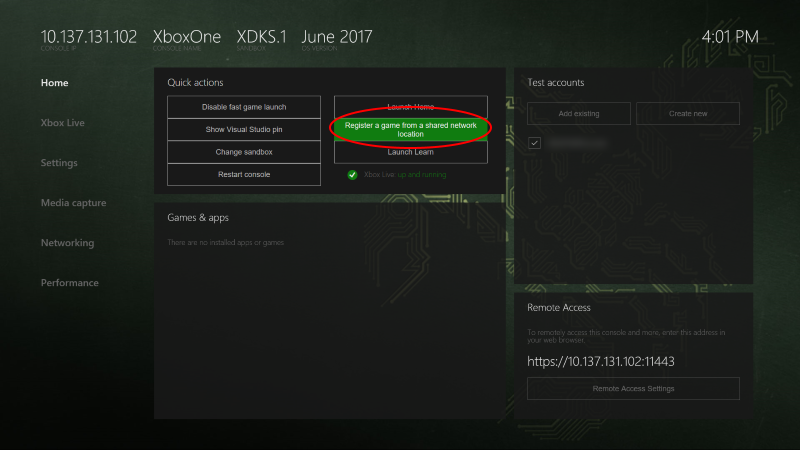
You can then enter the network path to the AppxManifest.xml file for the title you wish to register. Dev Home will attempt to register the title using any existing credentials for that share, and if needed will prompt for new network credentials. If you need to access additional shares (for example, to access symbolically linked resources on a separate server) then you will need to add those via the option below.
You can manage these stored credentials (and add additional ones) on the console via the main menu’s Manage network credentials option.
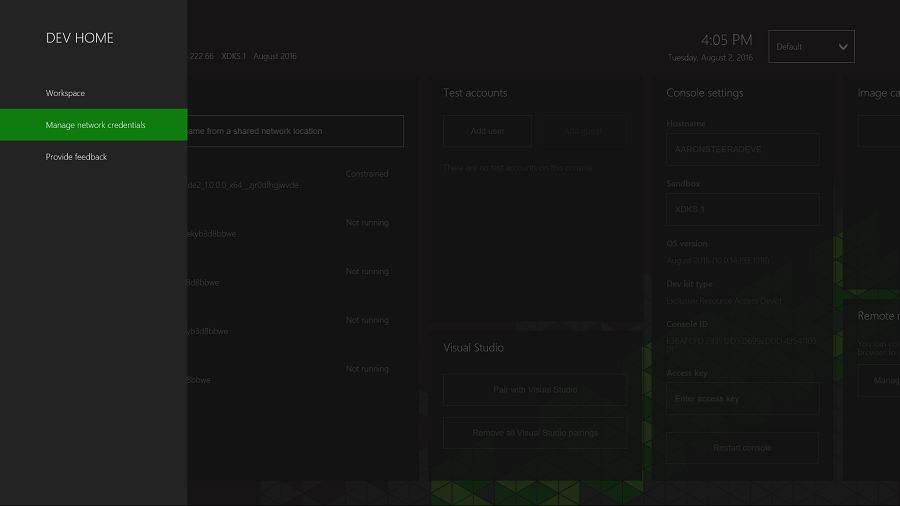
You can view the credentials currently on the console, edit credentials by selecting the path of the credential and pressing the A button, and remove a credential by selecting the remove link and pressing the A button.
In this section
Home Page (Dev Home)
Provides quick access to the tasks that are routinely performed on a development console.
Xbox Live Page (Dev Home)
Captures multiplayer information and displays the current status of the Xbox Live service.
Settings Page (Dev Home)
Provides access to various settings for the development console.
Media Capture Page (Dev Home)
Captures video of the title that is currently running on the console.
Networking Page (Dev Home)
Simulates various networking conditions for troubleshooting purposes.
Performance Page (Dev Home)
Simulates various disk activity and CPU usage conditions for troubleshooting purposes.