Settings Page (Dev Home)
The Settings page of Dev Home provides access to various settings for the development console.
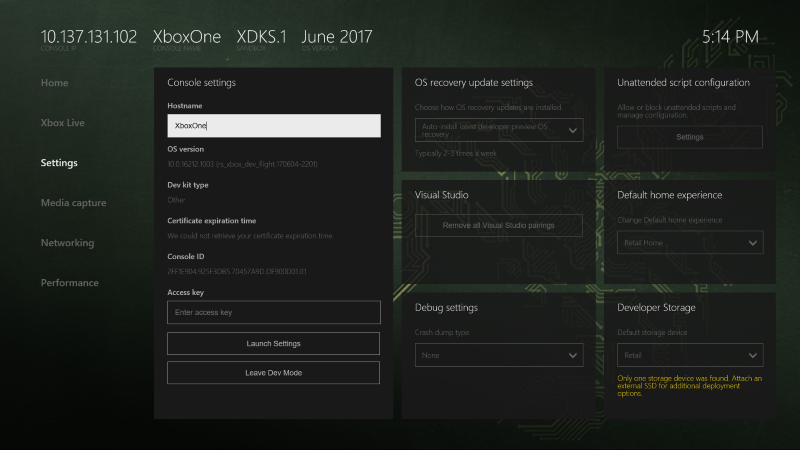
The Settings page contains the following panes:
- Console settings
- OS recovery update settings
- Visual Studio
- Debug settings
- Unattended script configuration
- Default home experience
- Developer Storage
Console settings
The Console settings pane provides an “at a glance” view of console settings and information. You can use these tools to view and edit the console’s hostname, access key, and other settings. You can also switch back to retail mode by selecting Leave Dev Mode.
OS recovery update settings
The OS recovery update settings pane configures the console’s auto update settings. For more information about auto update settings, see Automatic Recovery Update Settings. Note that changes to these settings typically take up to 15 minutes to take effect.
Visual Studio
The Visual Studio pane is used to pair the console with Visual Studio. You can also remove all paired Visual Studio instances.
Debug settings
The Debug settings pane is used to view and toggle common debug settings.
Unattended script configuration
The Unattended script configuration pane manages setup scripts for Xbox One consoles. For more information about setup scripts, see Configuring Your Dev Kit with an Unattended Setup Script.
Default home experience
The Default home experience pane determines whether the retail Home screen or the Developer Home on the Console (Dev Home) screen is displayed when the console starts up.
Developer Storage
The Developer Storage pane lets you select the default drive to deploy to.