Configuring Your Dev Kit with an Unattended Setup Script
Dev kits may be configured automatically by using an unattended setup script.
Note Your asset manager must complete the steps in the Activating Your Dev Kit topic before you will be allowed to enable Developer Mode and configure a dev kit with an unattended script.
Follow these steps to use the unattended setup script feature:
- Prepare an unattended setup script
- Export the script to a USB memory key
- Set up and turn on your new console
Configuration will happen automatically, no input will be required unless it is required to setup Wi-Fi, or an error occurs when trying to activate the devkit. Your dev kit may be required to take a system update to the latest recovery version. After a few minutes the kit will boot to Dev Home and finish configuration using your unattended setup script.
Congratulations, you have configured your device in Developer Mode!
Prepare an unattended setup script
To prepare an unattended setup script, it is recommended that you use the Xbox unattended setup tool. The tool is integrated into Device Portal, and can be accessed from a web browser. The Xbox must be running the March 2017 recovery or later, and have Device Portal enabled.
- From a browser, connect to the Xbox’s device portal over https. Enter the URL you see from the Home page in Dev Home.
- From the menu at the left of the Xbox Device Portal, click Automation.
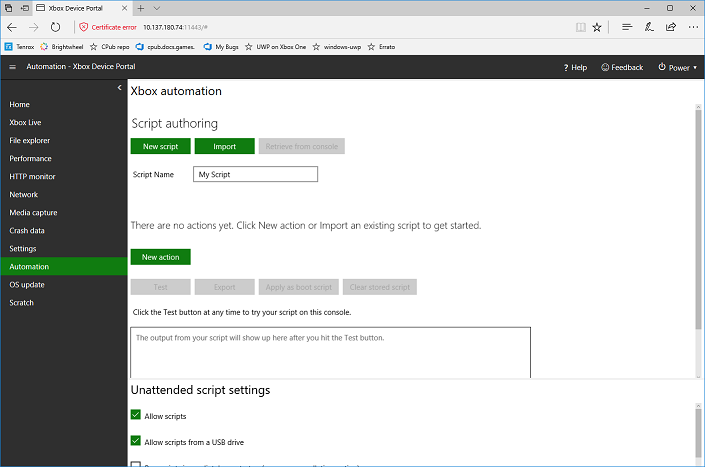
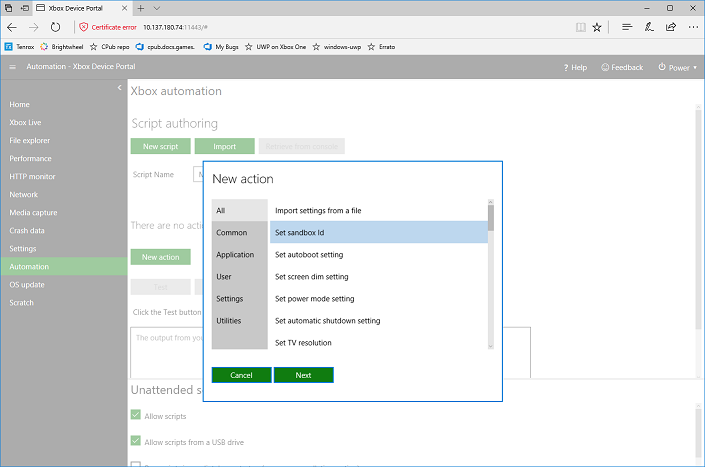
- Create a new script by adding actions. Actions include the following:
- Common actions — Setting the sandbox id, adding network credentials, updating the console recovery, signing in a user, etc.
- Application actions — Registering an application, Launching an application
- Settings — Nearly all configurable Xbox settings
- Utilities — Running other scripts, executables, showing Xbox notifications, custom actions, etc.
- You can validate the script by executing on the console that you are connected to with the test button. The output from the script will be shown in log at the bottom of the workspace.
Export the script to a USB memory key
Once you have tested your script you can export and save the file to an NTFS formatted USB drive. This script can be used to apply these settings or take these actions during initial out-of-box or factory reset setup of a devkit. Save the file as follows:
- Oobe.cmd — use this filename if you want the console to use this script during initial setup or after a factory reset.
- Boot.cmd — use this filename if you want to save this script to the console to be applied after every boot.
- .xboxunattend — use this file extension if you want to use this script to be applied after every boot ONLY while the USB is plugged in, and this file is present. Note that only one script will be run on boot.
Set up and turn on your new console
At a minimum, a console must have power and Ethernet to successfully use an unattended script during setup. Plug in the USB device you created in the steps above. Your kit may be forced to take a system update if the build it is running has expired. After a few minutes the kit will boot to Dev Home and finish configuration with the unattended script. A system notification will be displayed on the console when the script has completed.
In this section
Unattended Setup Scripting Quick Start Guide
Demonstrates how to use the Script Authoring Tool to quickly create a new unattended setup script and deploy it to your Xbox One dev kit.
Unattended Setup Script Reference
Reference list of actions available to unattended setup scripts.