Unattended Setup Scripting Quick Start Guide
In this quick start guide, we will use the Script Authoring Tool to quickly create a new unattended setup script and deploy it to your Xbox One dev kit. This tool contains a wide selection of predefined actions that you can use as building blocks for your script.
This quick start guide consists of the following steps:
- Open the Script Authoring Tool
- Create a simple “Hello World” script
- Test your script
- Deploy the script
1. Open the Script Authoring Tool
The first step is to open the Script Authoring Tool by doing the following:
- Open Xbox Device Portal in a browser window. For more information about how to do this, see Xbox Device Portal (Windows Device Portal on Xbox).
- Open the Script Authoring Tool in Xbox Device Portal. For more information about how to do this, see Opening the Script Authoring Tool.
Figure 1. The main interface of the Script Authoring Tool in Xbox Device Portal.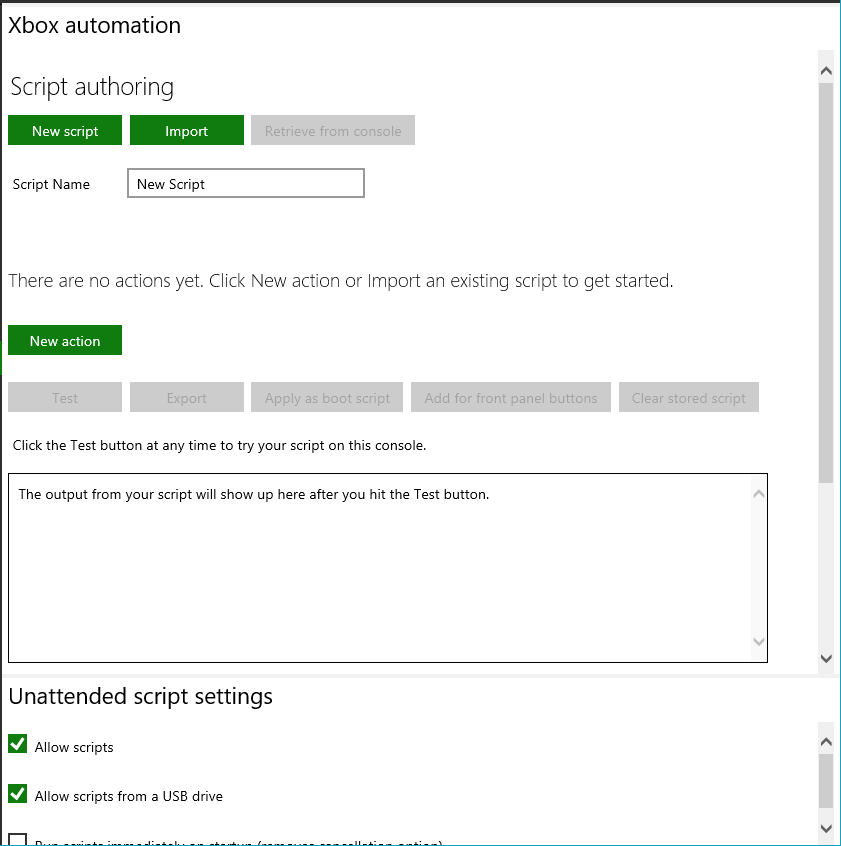
2. Create a simple “Hello World” script
Next, create a simple unattended setup script by doing the following:
- In the Script Authoring Tool, click New script.
- In the Script Name box, enter “Hello”.
- Click New action.
- In the New action dialog box, open the Utilties category, select the Show notification action, and then click Next.
- In the Display a notification on the console dialog box, enter “Hello world.” and then click Finish.
3. Test your script
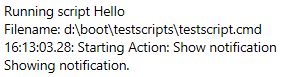
Click Test to run your new script on your Xbox One dev kit. You should see debug output similar to the following in Xbox Device Portal.
Figure 2. The “Hello World” debug output.
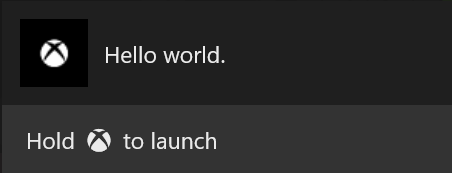
Soon afterward, the following notification should appear on your dev kit.
Figure 3. The “Hello World” notification.
4. Deploy the script
When you clicked Test in step 3, Xbox Device Portal copied your script to a temporary location on your dev kit and executed it once. Although this is convenient for script authoring, you can unlock the real power and flexibility of unattended setup scripting only by deploying the script.
You can deploy a script in the following ways:
- At startup, from internal storage. Copy the script as boot.cmd to xd:\boot\boot.cmd.
- At startup, from a connected USB storage device.
- When you press a button on the front panel of an Xbox One X dev kit, from internal storage. See Invoking scripts from the Xbox One X dev kit front panel for more information.
- At first setup, from a USB storage device which is connected prior to dev kit setup or factory reset. See Configuring Your Dev Kit with an Unattended Setup Script for more information.
As a final step, deploy the script to an external storage device and execute the script from the device by doing the following:
- Attach a blank external storage device to your development PC, such as a USB thumb drive that has been formatted with NTFS.
- In the Script Authoring Tool, click Export.
- Save the script to the root of your external storage drive.
- Disconnect the storage device from the development PC and attach it to your dev kit.
- Reboot the dev kit.
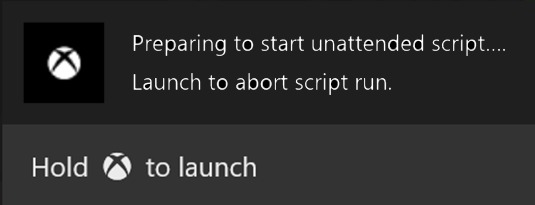
After the dev kit reboots and Developer Home on the Console (Dev Home) launches, you should see the following notification.
Figure 4. Boot script notification.
The dev kit will then run your script and display the “Hello World” notification.