Remote Control
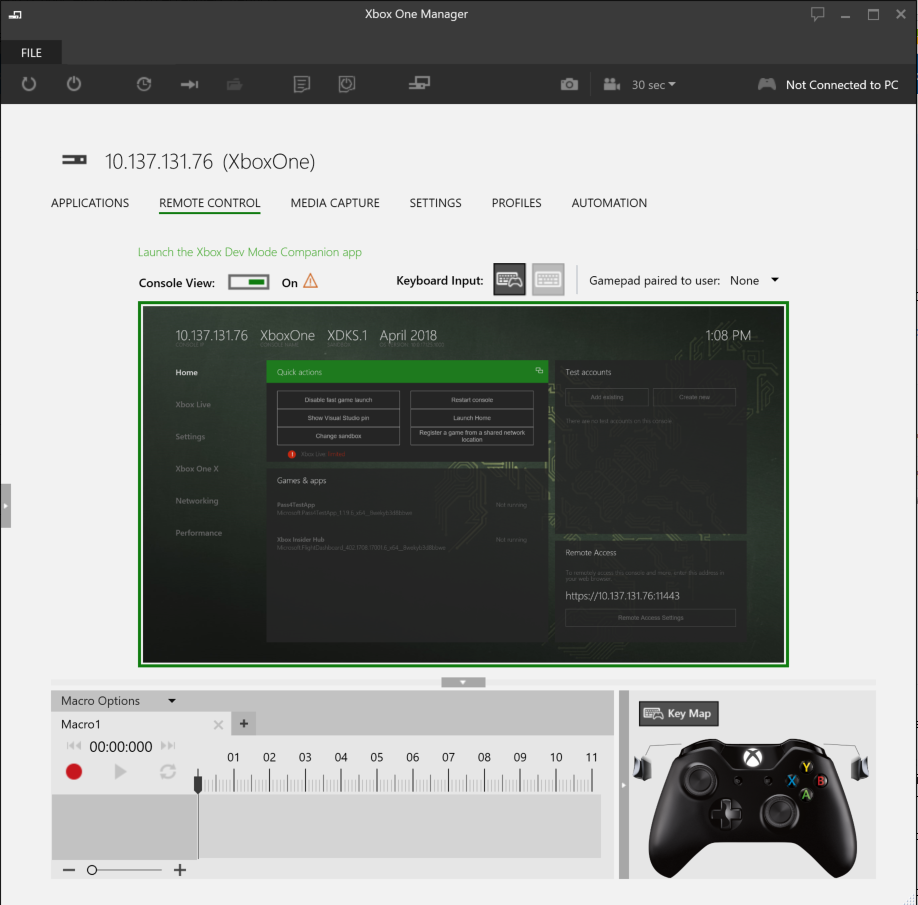
The Remote Control tab allows you to send controller button presses to the console by clicking on an image of a controller or using an Xbox 360 or Xbox One controller plugged into your PC. Controller input can also be recorded as input macros for playback.
- Real Time Display of the Console Screen
- Sending Input to the Console
- Input Macros
- Pairing a Gamepad to a User
- Remote Control of Groups
- Controller Drivers
- Xbox Dev Mode Companion
Real Time Display of the Console Screen
In addition to sending input to the console, the Remote Control tab can also display what is on the console’s screen in real time. If Console View switch is set to On, the console screen will be mirrored in Xbox One Manager.
Sending Input to the Console
The Remote Control tab allows you to send gamepad, raw keyboard input, and mouse input to a remote console.
Raw keyboard input is generated by clicking the Raw keyboard button and then typing on the keyboard to send raw keyboard input to the console. The console must have Xbox Device Portal enabled and be running an OS version that supports raw keyboard input (April 2018 or newer).
Mouse input is generated by clicking UI elements on the screenshot in the Remote Control tab. The console must have Xbox Device Portal enabled and be running an OS version that supports mouse input (May 2018 or newer).
Gamepad input is generated in one of three ways:
- Clicking the buttons on the image of the gamepad in the Remote Control tab
- Connecting a controller to the development computer and having Xbox One Manager pass button presses from that controller to the console
- Using the keyboard plugged into your development computer to emulate gamepad button presses. Click the Keyboard emulates controller button and then click on the remote console view (the image of the console) or the image of the gamepad in the Remote Control tab, and then press the appropriate key on your keyboard. For example to send a gamepad A button press to the console, press the A button on your keyboard. You can turn off keyboard support using the Keyboard input toggle switch. You can open a help dialog listing the keyboard mappings by pressing the Key Map icon above the gamepad image.
| Gamepad Key | Keyboard Key |
|---|---|
| A | A or Enter |
| B | B or Backspace |
| X | X |
| Y | Y |
| DPad Up/Down/Left/Right | Up/Down/Left/Right arrow keys |
| Nexus | Home |
| Menu | Ctrl+M |
| View | Ctrl+V |
| Left Trigger | Ctrl+T |
| Left Bumper | Ctrl+G |
| Right Trigger | Ctrl+Y |
| Right Bumper | Ctrl+H |
Note On Windows 10, if you have the Open Game bar using Nexus on a controller setting checked in the Game bar, the Nexus press will not be sent to the console from the remote control tab. To enable Nexus presses to be passed to the console, press Windows + G to open the Game bar, select the settings option (gear icon), and uncheck Open Game bar using Nexus on a controller.
Input Macros
In addition to the two methods of directly sending controller button press to the consoles, controller button presses can be recorded for later playback to the console.
To record an input macro
- Press the round record button in the macro window.
- Generate button presses using either a plugged in controller or by clicking the controller image in Xbox One Manager. As you press buttons, the button name will show up in a row on the left hand side of the macro window and a mark will show up in the timeline in the same row.
- When you’re done recording input, press the square stop button.
To playback an input macro
- Drag the time indicator to the desired point in the macro.
- Hit the triangular play button.
- Playback can be stopped by hitting the pause button.
- Playback will automatically stop when the furthest point on the timeline is hit.
To manage macros
You can create, open, and save macros using the Macro Options menu at the top of the macros window. New macros will be shown in a new tab in the macros window.
Pairing a Gamepad to a User
The Gamepad paired to user dropdown allows the gamepad input to be paired with a specific user signed into the console.
Remote Control of Groups
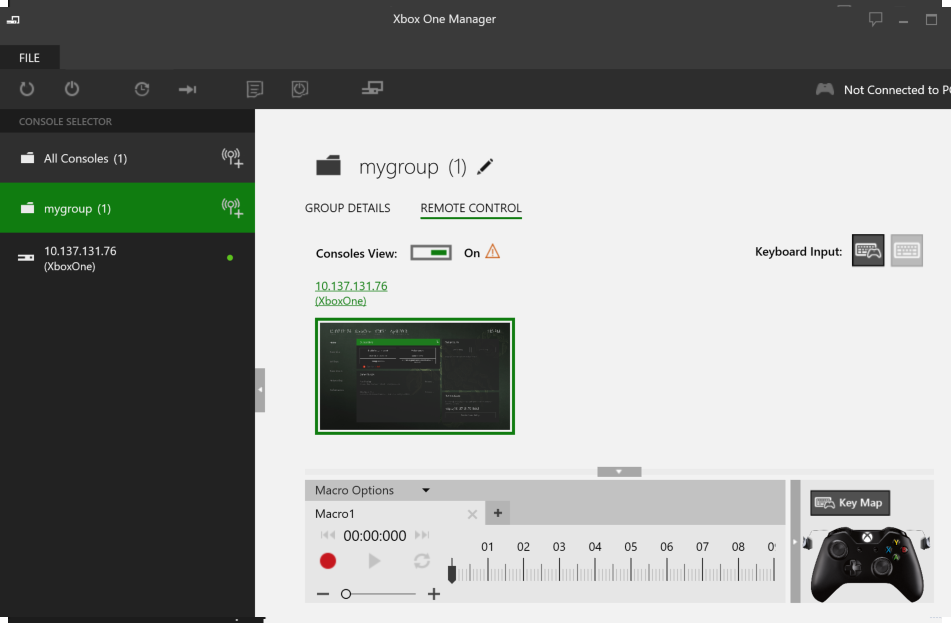
Selecting a group in the console selector displays a group REMOTE CONTROL tab that allows real time display and input for every member in that group. If Consoles View is turned on, the screen of each console in the group is displayed in real time as described in Real Time Display of the Console Screen section above. Controller input and macros work as described in the Sending Gamepad Input to the Console section above, except that input is applied to every console in the group.
Controller Drivers
You can get drivers for the Xbox One controller from http://support.xbox.com:
PC drivers for Xbox One Controller (x86)
PC drivers for Xbox One Controller (x64)
The drivers will be automatically downloaded from Windows Update - if you need them sooner, however, you can use the links above.
Xbox Dev Mode Companion
On Windows 10, the top of the Remote Control tab displays a link that allows you to install and run the Xbox Dev Mode Companion app. The Xbox Dev Mode Companion app allows developers using Xbox Dev Mode to remotely connect to an Xbox One console and control it from the app.
The Xbox Dev Mode Companion app is only supported on Windows 10.