Getting PLM Right the Second Time
Published June 15, 2015
Introduction
Xbox One is a multi-process system. This means that your game or app won’t always be running in the foreground. At any time, a player may launch an application that moves your game into the background. Although this concept is familiar for anyone with PC development experience, Xbox One is different in the way it manages shared hardware resources, such as CPU and memory, between processes. Games and applications must be designed to handle these transitions. This is known as Process Lifetime Management (PLM).
PLM is paramount in forming the overall Xbox One experience for the end user. Implementing it can seem straightforward at first. However, a number of corner cases and challenges must be accounted for in testing.
The first part of this white paper provides a brief overview of PLM and the tools available for testing. The second part looks at specific areas of PLM that can cause trouble, including the most common issues reported during certification, along with their causes and how to fix them. Instead of providing a comprehensive review of how the system operates, this paper focuses on specific error messages reported by the tools and symptoms as seen on the console.
Implementing and testing PLM
There are five states in which your game may be running at any time: Not Running, Terminated, Running, Constrained, or Suspended. It is outside the scope of this white paper to give a comprehensive overview of PLM and all of the states. Instead, the focus will mainly be on the Suspended state and the Suspending and Resuming events. For more information about PLM in general, see the References section at the end of this paper. That said, it’s still a good idea to keep the various states and transitions in mind.
Figure 1. The various states a game can be in. When activating, a game must begin rendering within 45 seconds. Any operations during Suspending and Resuming events must take less than one second.
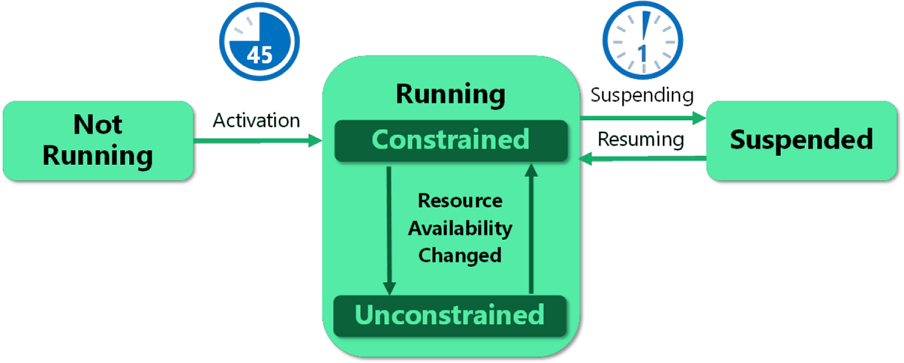
When your game is in the Running state, it has access to a significant proportion of the CPU power, GPU power, and memory on the console. If your game is moved out of the foreground, it will move to the Constrained state and have access to significantly fewer resources. It will remain in this state if it’s visible in the Big App Tile (BAT) on the dashboard. It moves to the Suspended state when it is completely moved off screen for 10 minutes; it no longer has access to any GPU or CPU resources, but the contents of RAM remain intact. Your game may transition from the Suspended state back to either Running or Constrained, depending on the actions taken by the player, and hardware resources will once again be allocated.
Note For specifics about resources allocated in different PLM states, see the PLM for Xbox One.
Before a game moves to the Suspended state, where it can potentially stay for an indefinite period of time, it briefly moves through the Suspending state. This is a brief window in which the active game is allowed to perform any critical actions before being suspended. This event is handled in title code by using the CoreApplication::Suspending event. Bear in mind that if your game is moving from Constrained to Suspended, it will have roughly half the CPU power that it would have while running to complete any tasks.
Your game must handle any operations necessary to allow the player to return to gameplay from the Suspended state, or handle the possibility that your game will be terminated while it is suspended. Any data that remains to be saved should be written to Connected Storage. The API to write to connected storage does not take a significant amount of time to execute. The majority of the time spent in the Suspending event will be any processing required to gather and compress data to be saved.
It is imperative to test handling PLM events for all possible scenarios in your game, including:
- Startup
- Active gameplay
- During heavy network load or multiplayer areas
- Loading screens
- Suspending via turning the console off with the “Instant On” option enabled
- Transitioning from Suspended to Running or Constrained
- Transitioning from Suspended to Terminated
Given the number of ways your game may be suspended and the number of distinct areas in your game that can be suspended from, this represents a large test matrix. Luckily, a number of tools that can be used to test PLM are at your disposal:
Visual Studio
You can test PLM within the IDE while debugging your game.
Command line
The xbapp command-line tool allows you to suspend and resume without a debugger attached.
Xbox Tools Framework
XTF includes an API to programmatically invoke PLM events from your own PC tools. This is identical in behavior to using xbapp. Further details about using XTF are not included in this white paper
.
User experience
You can also suspend your game by restarting the console with the “Instant On” power option, or by shifting console focus to another full screen app for 10 minutes.
GUI tools
If you’re more comfortable using point-and-click tools, PLM can be tested with Xbox One Manager (XBOM). The open source, extensible XTF Console Sample is also available if you want to customize your own tools. The latter part of this white paper does not focus on using these tools. You can find more information about XBOM in the XDK docs.
Troubleshooting suspend failures
There are a number of considerations that must be made when testing PLM. This section walks through the various types of errors you may encounter with any particular method, and how to rectify them.
Visual Studio
If you work most frequently in Visual Studio, this is the most accessible option to test PLM. When debugging a game through Visual Studio, an option will appear to move the running process into one of the relevant PLM states, or suspend and terminate the process.
Figure 2. When your game is running, this button will be available in the IDE. The drop-down menu gives you the option to suspend, resume, or suspend and shut down your game.
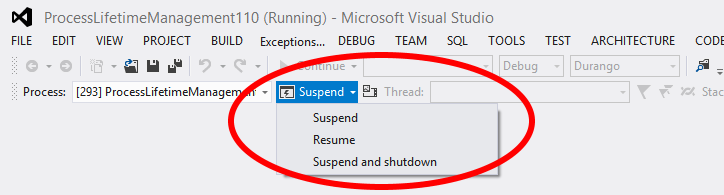
This option is not available when deploying your game without debugging (Ctrl + F5). It is only available when actively debugging your game with Visual Studio (launching with F5). If the operation completes successfully, your game threads will no longer be scheduled on the CPU, and rendering will be paused. If your game is running in full screen, it will appear on the console to be hung until it is resumed.
The application cannot be suspended
The most common error that can occur when suspending from Visual Studio results in your game crashing back to the dashboard with the following error message in Visual Studio.
Figure 3. Error message when suspending from Visual Studio.
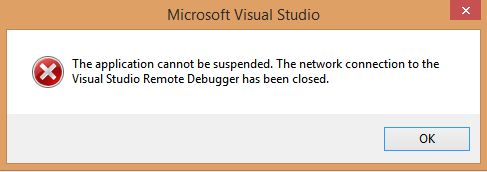
This will occur if the D3D context is not handled in the title implemented suspend handler. The ID3D11DeviceContextX::Suspend method must be called in the Suspending event handler. If it is not called, your game will be terminated regardless of whether it completes the handler within the one-second timeout.
Command line
Another popular option for testing PLM state transitions is using the Xbox One command prompt. There are a few commands to be familiar with if you’re using the command prompt:
xbapp suspend [package full name]
Suspend a package that’s currently marked for debugging. If the package is not marked for debugging, this will emit an error E308.
xbapp suspend /N [package full name]
Suspend a package that is not marked for debugging. If the application is marked for debugging, this will emit an error E307. This command is executed by launching the Settings app in full screen and circumventing the usual ten-minute timeout required for a game to move from Constrained to Suspended. This is the most popular way to test realistic suspending behavior for the console.
xbapp resume [package full name]
Resume a suspended package.
xbapp debug [package full name]
Marks a package for debugging. This should be done immediately after a package is deployed, and before it is launched. This eliminates the one-second suspending timeout.
xbapp nodebug [package full name]
Marks a package for non-debug mode. The watchdog timer will be enforced and your game must execute the Suspending handler in less than one second.
xbapp query [package full name]
Queries the current PLM state of the specified package. For example, Running, Suspended, or Terminated.
When testing PLM events and transitions from the command line, make sure to query the state of the package frequently. Querying the execution state of your game immediately after issuing the suspend command will return 2 (suspending) if it’s done quickly enough. It will then return 3 (suspended) if your game successfully suspended. If it transitions to 0 (unknown), something has gone wrong. This means that one of the following occurred and must be rectified:
- The Suspending event handler overran the one-second watchdog timer.
- The D3D context was not suspended.
- Your game crashed in the Suspending event handler and was unable to recover.
If the state transitions to 4 (terminated), your game has suspended successfully, but was shut down by the system for some reason that is not under the control of your game. This does not imply that anything has gone wrong. One example where this might occur is if the system has detected that cloud and local data have gotten out of sync. The underlying connected storage system will terminate the game to force a manual sync by the user the next time they launch the game. This can be simulated by using the following steps:
- Disconnect the Ethernet cable from the console.
- Launch your game that utilizes connected storage.
- After using connected storage, reattach the Ethernet cable.
- Suspend the game.
- The title will transition from Suspended to Terminated.
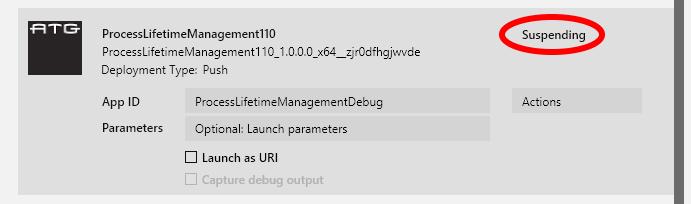
This is where a tool like XBOM can be very useful. Instead of issuing a query command from the command prompt, you can monitor the PLM state of your game in real time in the UI.
Figure 4. The PLM state is reported in real time in the Xbox One Manager UI. You can also issue commands to move a game or app into any PLM state from the Actions drop-down list. The “Suspending” state was added to the UI with the April 2015 XDK. Previous versions of XBOM report this state as “Suspended.”
Xbapp suspend /N results in unknown state
When testing PLM events from the command line on a non-debug package, it is prudent to query the execution state immediately afterward. If something has gone wrong, the output in the command prompt may look something like Figure 5.
Figure 5. You can test the speed of your suspend handler by attempting to suspend a game from the command line with the watchdog timers enabled.

If suspending your game works as expected with the package marked for debugging, and you’re seeing this output when attempting to suspend with a non-debug package, it’s safe to assume the handler is taking more than one second. The watchdog timer is assuming the suspend handler has hung and your game has been shut down.
If you’re confident that the suspend handler is not taking more than one second, the best course of action is to manually debug the code. Mark the package for debugging and make sure no exceptions are being thrown from any code paths.
Dashboard
A final scenario that must be tested cannot be done with the tools discussed thus far: turning the console off. Xbox One can turn the console off in two power modes: Instant On and Power Saver.
Instant On
The console is running in a low power state and ready to boot up very quickly. For all intents and purposes it appears to be turned off. It responds to the “Instant On” command if a Kinect sensor is present. All running processes have been moved to the Suspended state, but are still present in memory. Your game may move to the Constrained state or remain in the Suspended state when the console is reactivated.
Power Saver
The console is completely shut off. Contents of memory (RAM) are not maintained, all running processes are terminated, and the console can only be powered on with a gamepad or by pressing the power button on the console. When the console is shut down, it will take one to two minutes to restart.
It is imperative to test suspending the title via shutting the console down with the Instant On option enabled. When shutting down the console, your game and all other applications will be suspended. When the console is powered back on, the active user may or may not be signed in, depending on whether a default user is selected to be signed in immediately.
This scenario should be tested when the console is reactivated from a console that has been turned off. This can be done with the following steps from the command line:
- Set the Instant On power mode with “>xbconfig PowerMode=InstantOn”.
- Optionally, set the default user to be signed in immediately when the console is powered back on with “>xbconfig DefaultUser [myemailaddress@xboxtest.com]”.
- Launch your title with “>xbapp launch [AUMID]”.
- Navigate to the portion of your game that you want to test.
- Restart the console manually with the power button. The xbreboot only performs a cold reboot and cannot be used to test Instant On.
- Optionally, sign in to either the same profile as was previously used, or a different profile to test a change in active users.
- If there is no default user on the console, no one will be signed in when it is restarted. If this is the case, resume your title by using “>xbapp resume [package full name]”.
- Ensure that your game returns as expected.
This test should be iterated with the same user signed in before and after you restart the console, as well as different users signed in. It is more common to run into trouble when the same user is signed in before and after the console is restarted.
If a user is signed in when the console is restarted by using the Instant On option, the game will be immediately visible in the BAT. It will be running in the Constrained state. If no user is signed in, the game will remain suspended with the splash screen displayed in the BAT. Selecting the BAT in the dashboard will resume the title. The signed-in user does not have to be the previous active user for the game to resume in the Constrained state when the console is powered on.
In any case, the game must properly handle the new user information. After the console is restarted, the IUser object representing the current user will be different from any previously cached data regardless of whether the same active user is signed in. It should be updated along with any networking or multiplayer contexts used for that player. It is also imperative that this remains transparent to the active user. Even though there’s a new IUser object, it may represent the same active user as before. Make sure to test the following scenarios with Instant On:
- No user is signed in when the console is restarted (no active user, no new IUser object).
- A new user is signed in when the console is restarted (new active user, new IUser object).
- The previous active user is signed in when the console is restarted (same active user, new IUser object).
Summary
Implementing PLM correctly in your game can mean the difference between a frustrating time or a seamless experience for the player. It isn’t easy to make it perfect, but there are only a handful of ways that PLM can fail completely. Specific implementation details will be unique for every game. However, there are only three ways to fail suspending from the perspective of the system:
- Getting caught by the watchdog timer and taking more than one second to suspend
- Crashing while in the Suspending event handler
- Failing to suspend the D3D context
The requirements are simple, but that doesn’t mean they’re easy to implement. Luckily, there are a number of tools at your disposal. Consider the best tool to accomplish the job:
- Suspend and resume from Visual Studio
- Suspend and resume from the command line
- Suspend and resume and monitor game or app state from Xbox One Manager
- Customize the XTF Console Sample or create your own tools with XTF
References
- Process Lifetime Management (PLM) for Xbox One white paper for a general overview of PLM states and transitions
- Top Mistakes with Process Lifetime Management (PLM) and How to Debug Them Xfest 2015 presentation for more debugging tips
- Process Lifetime Management (PLM)–Getting It Right Xfest 2014 presentation for an overview of implementing PLM
- Managing Players and Input: Who’s Playing My Game? Xfest 2014 presentation for more information about handling active users during PLM events
Still having trouble? Check if anyone else has run into the same problem at http://forums.xboxlive.com. Post your question if no one else has done so already.