Process Lifetime Management (PLM) for Xbox One
Updated October 5, 2015
This white paper provides an overview of Process Lifetime Management (PLM) for Xbox One. The goal of this white paper is to familiarize Xbox One game architects and developers with PLM concepts and usage patterns early in their design processes so that they can plan ahead and include these concepts in their architectural design. This version is an update to the original version of this white paper, published in October 2012, and provides an expanded explanation of PLM states—specifically, the PLM Constrained state.
In this topic:
- Introduction: Instant fun and the need for modern multitasking
- PLM-related concepts for Xbox One
- PLM states
- Developer tools for PLM
- Similarities with Microsoft Store apps
- Summary
- References
Introduction: Instant fun and the need for modern multitasking
Xbox One enables instant fun for users by enabling quick access to multiple rich experiences. Users are able to almost instantly switch back and forth between recently used games and system experiences without worrying about losing any game progress. In some scenarios, users can have two distinct experiences simultaneously—for example, starting a video chat with a friend while playing a game at full capacity.
This requires a new model for multitasking—one that guarantees that game performance is not degraded by other experiences running on the system and that also ensures nearly instantaneous switching between games and experiences. Traditional multitasking models currently used in most computer systems lack the key features needed for the fast experience switching required by Xbox One.
In most current multitasking models, the user decides when an application is closed. If a user opens too many applications, the system never closes any application to release resources. Instead, the user must manually close some applications to release resources. In most cases, the user is interacting with just one application while other applications running in the background continue to use system resources, degrading the performance of the application in the foreground. An alternative design is a system in which background applications are automatically constrained or shut down to ensure that the foreground application runs smoothly.
Process Lifetime Management (PLM) is the core component of the Xbox One system that provides the multitasking model needed to enable instant-fun user experiences.
PLM-related concepts for Xbox One
User experience
The Xbox 360 console has a simple model for running games and managing their lifetimes. The game is loaded by the Xbox system kernel directly from the media. After the game is loaded and running, there is little interaction between the game and the system until the time the game exits, which the user controls. Because a user can run only one game at a time on Xbox 360, there is no multitasking.
In Xbox One, the game lifetime is controlled by the system. The user does not close a game explicitly, but instead switches to other games, Home, or other system-hosted applications. After the user switches from a game, the system will limit the resources available to that game by putting it in a Constrained state followed by a Suspended state, or in the case of launching another game, the system will transition the game to a NotRunning state to reclaim its resources. The meaning of each of these states from the development perspective is addressed in PLM states, later in this paper. From the user’s point of view, the goal is to make the games appear to be running while the user has switched away from them. When a user returns to a recently played game, the game should continue from the same state it was in when the user left the game. In this way, the user perceives that the game had been running the entire time. The user should never have to worry about saving game progress before switching to other experiences.
Processes
Unlike Xbox 360, which runs only one experience at a time, Xbox One may run multiple experiences simultaneously. Each Xbox One experience (game or app) runs in a separate process while using its own virtual memory address space. The system will control the resources (for example, CPU and GPU power, memory, and so on) available to each process based on its PLM state and the type of experience it provides. The system provides resource guarantees to high-performance games by giving them exclusive access to parts of system resources.
Windows Runtime and COM and how they relate to PLM
The Windows Runtime (WinRT) programming framework is part of the Windows 8 system. It consists of a set of system APIs that are available in all languages and programming models supported on Windows 8, which includes XAML/C++, XAML/C#, HTML/JavaScript, and DirectX/C++. The WinRT framework is based on the Component Object Model (COM), which allows easy interfacing to multiple languages.
The Xbox One API set includes a subset of WinRT APIs. Xbox One high-performance games are developed exclusively in C++ and DirectX, and, therefore, only C++ WinRT APIs are of interest to Xbox One developers. PLM-related APIs used in Xbox One are part of the WinRT API set and are defined in the Windows.ApplicationModel.* namespace and exposed via the Windows.winmd metadata file. This makes these APIs discoverable in the Visual Studio object browser. All PLM-related APIs use the WinRT data types as parameter types. We strongly encourage you to familiarize yourself with the WinRT concepts. For more information, see the References section at the end of this white paper.
PLM states
From the system point of view, an Xbox One game process is always in one of the following five PLM states:
Running
The game is loaded in memory and is fully running. The game has full access to the reserved system resources, which are at a minimum six CPU cores, at least 90 percent of the GPU’s processing power, and 5 GB of memory. The game is rendering full-screen and the user can interact with it. For information about providing even more CPU and GPU resources to a game in the Running state, see the References section at the end of this white paper.
Constrained
The game is loaded in memory and is still running, but it has limited access to the system resources. The game is not rendering full screen in this state; instead, it could be rendering to a reduced area of the screen, be significantly obscured by a system experience, or be not visible at all. The game cannot receive user input in this state. System resource limits in this state are four CPUs, 5 GB of memory, and 45 percent of the GPU’s processing power. For more information about this state, see the Constrained state section of this white paper.
Suspended
The game is loaded in memory but is not running, meaning that the system has stopped scheduling all threads in the game’s process. The game is not utilizing any of the CPUs or any of the GPU’s time, but it still has the same 5 GB of memory reserved.
NotRunning
The game is not loaded in memory and is not running. A game would be in the NotRunning state in any of these four scenarios:
- The game has not been run since the console was last in the completely powered-off state.
- The game was suspended and torn down due to another game being launched.
- The game crashed during the last execution.
- The game did not properly handle system events during the last execution and was forced to exit by the system.
Terminated
The game is not loaded in memory and is not running, which is identical to the NotRunning state in terms of system resource usage. Terminated state, however, indicates that during the last execution of the game, the game process was successfully suspended and then terminated by the system. This means that the game had a chance to save its state as it was suspended. The next time the game is activated, it can load this previous state data and continue the user experience from the same position. A game, for example, can start from the same level and position in the player’s last session without showing any front-end menu. Note that there are also cases where the NotRunning state may have successfully suspended and saved previous state. The possibility of loading previous data and continuing from the last session’s state is possible for both Terminated and NotRunning.
Figure 1. PLM states and state transitions.
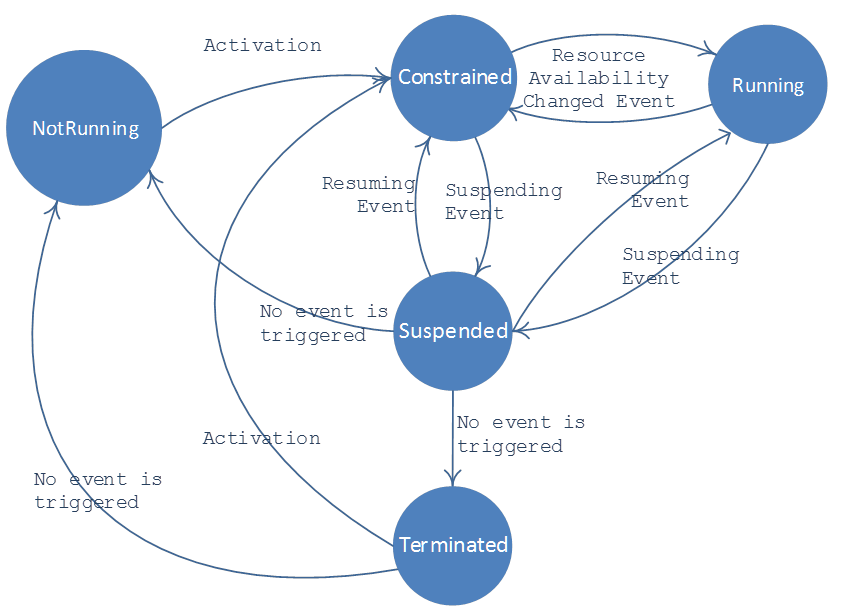
The next section focuses on how PLM manages transitions between these states and what actions the game code needs to take in each case.
Process activation
Activation is the process of loading game binaries in memory and executing them as a process. The reason the term activation is used instead of executing or running is rooted in the WinRT framework and the new model that the Xbox One system uses for starting processes.
Activation is a term originally used in COM technology. In the COM context, activation is the mechanism of loading objects in memory to allow their method calls to be invoked. Because of the dynamic nature of COM, COM activation usually involves loading a new binary (a DLL or an executable file) into memory.
COM uses two models for activation. The first model is the in-process activation, where a DLL is loaded into the same process and, therefore, the COM object method calls are invoked in the same process address space. The second model, which is more relevant to the Xbox One process-activation model, is the out-of-process activation, where an executable file is loaded in a separate process and the COM object methods are invoked in the address space of this new process by using a remote procedure call (RPC). This new process is called the server or host process for that COM object.
From the Xbox One system point of view, every process is an instance of the CoreApplication class that is activated by using the COM out-of-process model. The CoreApplication class is a WinRT class defined in the Windows::ApplicationModel::Core namespace. This class implements a few interfaces that provide methods for the system to communicate with your game code. These interface methods include ICoreApplication, ICoreApplicationInitialization, and ICoreApplicationExit, all of which implement methods and events related to initializing and shutting down the game process, PLM state changes, and managing the game window.
When the user starts a game, the system creates an instance of the CoreApplication object by using the COM’s out-of-process activation model. Using this model means that a new process is started and the CoreApplication object is instantiated in this new process address space by the system. This instance is a singleton class associated with your process for as long as it runs. From the developer’s perspective, this means that there should be no concern about creating this object at game startup or destroying it at game exit, because all of these are handled by the system. The game code uses the CoreApplication object to communicate with the system for PLM-related events.
After the system creates a new process and instantiates the CoreApplication object, it creates a main thread for the game process and starts execution of game code as a regular C++ program. In other words, the system runs the static initializers, and then executes the game entry function (that is, main function) by using the main thread associated with the process. Unlike traditional C++ program models in which your main function can start initializations and make system API calls right away, your Xbox One main function needs to perform several steps before it can interact with the system via the WinRT interfaces or render graphics on screen. These steps are presented next.
Step 1: Supply a view provider class
Your code must supply a view provider class that implements the IFrameworkView interface. The following shows a code example for a sample view provider implementation.
Code example for a sample view provider implementation.
    using namespace Windows::ApplicationModel;
    using namespace Windows::ApplicationModel::Core;
    ref class MyViewProvider : public Core::IFrameworkView
    {
    public:
      MyViewProvider();

      // IFrameworkView Methods
      virtual void Initialize(CoreApplicationView^ applicationView);
      virtual void SetWindow(Windows::UI::Core::CoreWindow^ window);
      virtual void Load(Platform::String^ entryPoint);
      virtual void Run();
      virtual void Uninitialize();
    protected:
      // Event Handlers that we will hook to CoreApplication or CoreApplicationView
      void OnActivated(CoreApplicationView ^ applicationView, Activation::IActivatedEventArgs^ args);
      void OnSuspending(Platform::Object^ sender, SuspendingEventArgs^ args);
      void OnResuming(Platform::Object^ sender, Platform::Object^ args);
    }
The view provider is an important class, because it represents the window view of your game. This class may also be the starting point for your game’s initialization, asset loading, and game loop. Event handlers for PLM state-change notifications are also part of view provider. The purpose of each method and event of view provider is discussed in subsequent sections.
Step 2: Supply a view provider factory class
Your code should supply a view provider factory class that implements the IFrameworkViewSource interface. The system will use the factory pattern and call the IFrameworkViewSource::CreateView method to instantiate the view provider object for your game process. Therefore, your implementation of CreateView should return a new instance of your view provider class.
Code example showing a sample view provider factory implementation.
    // MyViewProviderFactory - responsible for creating an instance of the
    // MyViewProvider class and passing it back to the system
    ref class MyViewProviderFactory : Windows::ApplicationModel::Core::IFrameworkViewSource
    {
      public:
        virtual Windows::ApplicationModel::Core::IFrameworkView^ CreateView();
    };

    // Instantiates a new MyViewProvider and passes it back to the system
    IFrameworkView^ MyViewProviderFactory::CreateView()
    {
        return ref new MyViewProvider();
    }
Step 3: Call the CoreApplication::Run method
Your main function must call the CoreApplication::Run method and pass in an instance of your view provider factory class.
Code example showing the CoreApplication::Run method being called.
    // Application entry point
    [Platform::MTAThread]
    int main(Platform::Array<Platform::String^>^)
    {
        auto myViewProviderFactory = ref new MyViewProviderFactory();

    Windows::ApplicationModel::Core::CoreApplication::Run( myViewProviderFactory );

        return 0;
    }
The system then takes over initialization of the game process from this point, and it starts making callbacks into your code in this order:
- The system calls the CreateView of factory class you provided. Your factory class instantiates a new view provider and passes it back to the system.
- The system calls your view provider Initialize method, passing in a CoreApplicationView instance created by the system. CoreApplicationView provides APIs to access some objects related to your game process, including your game window object or process thread. This method is where you register event handlers for PLM-related events, such as Activated, Suspending, ResourceAvailabilityChanged, and Resuming. Following is a code example for sample implementation of PLM event handler registration. Code example for a sample implementation of view provider Initialize showing how PLM event handlers are registered.
    using namespace Windows::ApplicationModel;
    using namespace Windows::ApplicationModel::Core;
    using namespace Windows::ApplicationModel::Activation;
    //---------------------------------------------------------------------------------
    // Implements the IFrameworkView::Initialize. This method is called by the system
    // during the activation. Event handlers for PLM events should be added here.
    //---------------------------------------------------------------------------------
    void MyViewProvider::Initialize(CoreApplicationView^ applicationView)
    {
      applicationView->Activated +=
        ref new TypedEventHandler<CoreApplicationView^, IActivatedEventArgs^>(this, &MyViewProvider::OnActivated);
      CoreApplication::Suspending +=
        ref new EventHandler<SuspendingEventArgs^>(this, &MyViewProvider::OnSuspending);
      CoreApplication::ResourceAvailabilityChanged +=
        ref new EventHandler<Platform::Object^>(this, &ApplicationView::OnResourceAvailabilityChanged);
      CoreApplication::Resuming +=
        ref new EventHandler<Platform::Object^>(this, & MyViewProvider::OnResuming);
    }
Note that when Initialize is called, your game window has not been created yet, and, therefore, applicationView->CoreWindow, which represents the main window, is null when this method is called. The CoreApplicationView::Activated is an event that will be triggered when this window is activated by the system. CoreApplication::Suspending and CoreApplication::Resuming are events that will be triggered when the process state is about to change. What these event handlers are supposed to do is discussed later in Suspending and Resuming processes.
- The system calls the SetWindow method of your view provider, and passes in a CoreWindow object that represents your game’s main window. From this point forward, your code also can access this CoreWindow object by calling the CoreWindow::GetForCurrentThread API. Resources and events associated with this window are initialized and now are available to your game process, so any game component that needs a window for startup can be initialized in this method. For example, this is where you can initialize your Direct3D rendering engine and connect your swap chain to the CoreWindow object by using the CreateSwapChainForCoreWindow API.
- The system calls your view provider Load method passing in the activation entry point string defined in your manifest. While this may seem like the appropriate time to begin loading all assets, you want to spend as little time as possible before getting to the Activated event (step 5). On Xbox One there is a 45-second activation timer that will tear down your game if the Activated event is not completed within 45 seconds from the user launching your game. Before the Activated event is completed, the game’s splash screen will be visible. We recommend that you load just enough to handle initial game-rendered splash screens, initial interactive screens, and loading screens so the game can render after the Activated event has completed, but not so much that the 45-second timer could be a concern.
- The system calls your application view’s Activated event handler and passes in your CoreApplicationView and an IActivatedEventArgs that provides details about your game’s activation. To complete activation, the game must call Activate on the CoreWindow and return from the Activated event handler; this will dismiss the game’s splash screen and prevent the 45-second activation timer from tearing down your game. Your game’s startup code should try to reach this point as quickly as possible to avoid any issues with the activation timeout. Before the Activated event, it is a good practice to run only code that is necessary for rendering initial screens, and begin everything else at the start of the Run method.
- The system calls the Run method of your view provider, which is where the entry point to your game loop will likely need to be implemented. At this point the game should also begin calling ProcessEvents to receive and respond to event messages such as the Suspending event and the ResourceAvailabilityChanged event. We strongly recommend that you call ProcessEvents every frame; if you don’t call ProcessEvents frequently, you can miss a Suspending event, which means that your title will be killed for not handling Suspend within one second. It is also important to make sure the game continues to call ProcessEvents during loading sequences because PLM events can arrive at any time.
If your code returns from the Run method, the system will call the view provider Uninitialize method and will return control back to your process entry function (main function). Returning from the main function will cause your game process to exit. As discussed, the game should not control when the process is shut down; instead, the process will be suspended by PLM when the user switches from the game to another game or to a system-hosted experience. PLM may terminate a suspended process to reclaim its resources, at which point no game code will be executed further (including the Uninitialize method). Therefore, your code should never return from the view provider Run method, and you should leave your Uninitialize implementation empty because it is never used during the suspension process.
Suspending and Resuming processes
Based on user interactions with the system, a game’s process may be put into the Suspended state. A suspended process is still loaded in memory, which means that all the variables and data structures in your code will remain unchanged, but the system will stop scheduling the process’s threads. A suspended process will never be visible to the user.
If the user switches back to a suspended game, the game will be brought back to life by the system by starting to schedule its threads again and sending the Resuming event. All the variables and data structures loaded in memory will remain intact, and all the game’s threads will start running from the state the game was in before being suspended. To the user, it will appear as if the game has been running in the background, and it will result in an instant transition experience. If the system does not have the resources to keep your game in memory, it will kill the process after it has been suspended to free the necessary resources. This could happen if the user started another game that needs access to the resources already in use by the suspended game. To handle cases where the process might be killed while in the Suspended state, the game must save its current state before being suspended.
The ICoreApplication interface has Resuming and Suspending events. The game typically registers handlers for these events in the view provider’s Initialize method (for a code example, see the second sample under Step 3: Call the CoreApplication::Run method). The Suspending event occurs one second before the game transitions to the Suspended state. The Resuming event is triggered when the game is returned from the Suspended state to the Running state. It’s important to note that the Suspending event has a one-second timeout. After the event is able to be processed by a call to ProcessEvents, the game has one second to return from the Suspending event handler. If a game fails to return from the Suspending event handler within one second, the system will consider this a failure to suspend in time and kill the game’s process. The one-second timeout is to ensure a fast and fluid experience, because any transition that would require the reacquisition of the game’s resources needs to wait on the game to complete suspension.
In the Suspending event handler, the game should save the game state and call Suspend on the game’s D3DDeviceContext. If the game has network connections open to other consoles or servers—depending on the nature of these connections—the game may also close these connections in the Suspending event handler. However, due to the strict one-second timeout, it may be simpler and easier to let standard network client disconnect handlers deal with a suspension.
In the Resuming event handler, the game does not need to restore the previous state because all of the game’s memory will be in exactly the same state that it was in when it became suspended. The only thing that needs to happen to restore previous functionality is to call Resume on the game’s D3DDeviceContext. While this will resume the game to its previous state, some state may need to change due to being suspended. For example, the game may have been suspended for a significant amount of time, so the game should refresh any displayed content related to the current time or date values. The game will likely need to reestablish any network connections because they will have been lost while suspended. In addition, the current user may have changed while the game was suspended, so it is important to check for this change and respond appropriately.
While the D3DDeviceContext is suspended, the game should not make any graphics calls because this may cause an assert. Generally, suspending the D3DDeviceContext should be the last call made before suspending, and resuming the D3DDeviceContext should be the first call made when resuming.
What data needs to be saved in the Suspending event handler?
As discussed earlier, the Suspending event handler should save the game state. Game state refers to all data needed to bring the game to the same state or user experience that it was in before it was suspended. If the game process is suspended and then terminated by the system, this data can be loaded during the next activation so that the user experience starts from the same position in the game.
Generally, saving the game state is the same as saving game progress. If your game saves game progress on a cadence, you already have a big portion of your game state saved, and you may just save the progress from the last save point in the Suspending event handler. We recommend this approach because it reduces the amount of data you need to save in the Suspending event handler and, therefore, makes the Suspending operation faster.
Saving a timestamp as part of game-state data is also recommended. A timestamp could help you discover how long your game was in a Suspended state.
When should the game load the state from the previous execution?
When a game process is activated, the system passes a parameter to game code that identifies the previous execution state of the game. This parameter is passed by the IActivatedEventArgs argument of the CoreApplicationView::OnActivated event handler, and is of ApplicationExecutionState enumeration type. The game should check whether the last execution state is set to Terminated or NotRunning, and then attempt to load any saved game state for the user that is activating the game so that it starts from the same place it was in the last time this user played.
In terms of user experience, loading the previous game state makes sense for recently played games. Users returning to a game will remember where they were in the gameplay, except when the game has been suspended for too long (perhaps for weeks). Because it is unlikely that a user returning to gameplay after an extended absence will recall the exact point of play before having left the game, it may not make sense to continue the game from the same state. When in doubt, give the user the option of resuming the previous game or starting a new one.
Constrained state
A game can be put into a Constrained state by the system where the game’s process is still loaded in memory and its threads are being scheduled, but its access to some system resources, such as CPU cores and GPU time, will be limited. A constrained game is not rendering full screen and the user is not interacting with it. When a game goes from Running to Constrained or from Constrained to Running, the game will receive the ResourceAvailabilityChanged event. The game can verify the current resource availability by checking the value of CoreApplication::ResourceAvailability. In the context of resource availability, Running is represented by CoreApplication::ResourceAvailability::Full, while Constrained is represented by CoreApplication::ResourceAvailability::Constrained.
When the game goes from Running to Constrained, the game will drop from running on six CPU cores down to running on four CPU cores and from ~90% of the GPU’s time down to ~45% of the GPU’s time. Any threads running on cores 5 and 6 will be ‘folded’ onto cores 3 and 4, meaning threads that were on core 5 will now be scheduled on core 3 in addition to the threads already running on core 3. One important distinction here is that we are talking about a reduction in physical CPU cores. Even when constrained, the game’s threads will seem to be running across six virtual cores. In the Running state, each virtual core will map to a physical core, but in the Constrained state, virtual cores 5 and 3 will map to physical core 3, and virtual cores 4 and 6 will map to physical core 4. When going from Constrained to Running, the threads that were folded onto cores 3 and 4 will be unfolded back to cores 5 and 6. These core transitions will be transparent to the game, but it is important to be aware of the pressure this can put on the different CPU cores.
The game may still be visible while constrained, but the user is not interacting with it. This is a significant resource drop, and the game is not expected to be able to keep running as if nothing happened. There is nothing specifically required for handling the resource drop, but games are encouraged to do whatever they feel provides the best experience to their user. Often games will open a pause menu when constrained to reduce processing and rendering resources.
Windows Runtime and COM threading: which thread runs the PLM events?
There are two threading models used in COM that are related to Xbox One. These two models are single-threaded apartment (STA) and multithreaded apartment (MTA). With STA, a single thread is affined to that COM object when the object is created, and all calls to that method’s objects would be delegated to this thread by using a cross-thread message dispatch/retrieve mechanism. This call-delegation process is usually called marshaling or serializing in COM context and means that all methods of an STA object are guaranteed to be invoked from the same thread that it is affined to. Developers, therefore, do not need to worry about data synchronization between STA object method implementations.
With MTA, multiple threads can be used to concurrently invoke the methods of that COM object. There is no thread affinity to the COM object, and no message dispatch/retrieve mechanism is used. MTA COM objects must be implemented thread-safe, because there may be concurrent calls on their methods from different threads. When a process that is using COM creates a new thread, it can specify whether it is an STA thread, which means it is affined to a specific COM object. If it is an MTA thread, it is not affined to any COM object and, therefore, can make calls to any MTA COM object. New threads are MTA by default. More details about STA and MTA models are beyond the scope of this white paper; for more information, see the References section at the end of this white paper.
The CoreApplication object created by the system uses the MTA threading model, which means that the methods of this object can be invoked concurrently and from any MTA threads. Since the main function of your game needs to invoke the CoreApplication::Run method, the main game process thread that is running the main function needs to be marked as an MTA thread. This is done by using the Platform::MTAThread attribute for the main function.
The view provider object uses the STA model, which means that the system creates a thread and associates it with the view provider object, and all calls to the view provider methods are serialized and invoked from this thread. From a developer point of view, this means that Initialize, SetWindow, Load, and Run methods are always called in the sequence presented and from the same thread.
The STA model relies on a message-queue mechanism to run the delegated method calls. The view provider Run method should always call the ProcessEvents(ProcessAllIfPresent) method inside the main game loop. This call processes any COM-related event in the message queue of this window, including COM-delegated method calls to the view provider, and includes the Suspending and Resuming events. This means that the Run method serially calls the PLM-related event handlers by calling ProcessEvents inside the game loop.
Developer tools for PLM
An Xbox One game process can be suspended, resumed, and terminated during development in a few different ways. One way is by using xbapp.exe, a command-line tool provided with the XDK. The tool has options to suspend, resume, and terminate a process running on the Xbox One development kit from a development PC. Each option is documented in the Xbox One XDK.
The Xbox One Manager, also provided with the XDK, is another tool that wraps the functionality of xbapp.exe as well as providing much more functionality beyond the scope of PLM operations.
Another way is to use the Visual Studio Debug Location toolbar. The toolbar appears when debugging a game running on Xbox One and provides UI buttons for PLM-related functionalities.
Figure 2. Visual Studio button in Debug Location toolbar for simulating PLM-related events.

For development purposes, the one-second suspend timeout and the 45-second activation timeout can be disabled by putting the game into the debug state. This is primarily used for debugging activation and suspend. When Visual Studio is used to launch the game, it is automatically put in the debug state, but this can also be enabled and disabled by using ‘xbapp.exe debug <PackageFullName>’ and ‘xbapp.exe nodebug <PackageFullName>’.
If you do not have access to the tools, you can also suspend and resume games the ‘natural’ way without using tools. Xbox One will suspend a game after it has not been visible for ten minutes. Games will also be suspended if the console is turned off while in instant-on mode (set in Settings->Power & Startup->Power Mode). A game will resume any time it needs to become visible again such as the user selecting the game’s tile. Games will only respond to these ‘natural’ suspend and resume triggers if they are not in the debug state.
Similarities with Microsoft Store apps
App model concepts are familiar concepts with modern tablet and smartphone development. The Xbox One PLM is inspired by the PLM for Microsoft Store apps. As an Xbox One developer, you would find it useful to familiarize yourself with PLM for Microsoft Store apps. Although many of Xbox One’s PLM concepts are similar to Microsoft Store PLM, they are different in some areas. The Constrained state and resource reservation for games, for example, are Xbox One-specific concepts. As a result, some Xbox One APIs and system behaviors are different from Microsoft Store apps.
In addition to the DirectX and C++ programming model, Windows 8 enables the use of different programming models that include HTML and JavaScript, XAML and C++, and XAML and C#. These models do not use the CoreApplication object directly. Instead, each model has its own PLM-related event handler APIs built atop the core WinRT APIs for PLM. These high-level APIs should not be confused with the low-level PLM APIs used in Xbox One or in a Microsoft Store DirectX/C++ game that use the CoreApplication object directly. For more information about PLM handling in Microsoft Store apps, see the References section at the end of this white paper.
Summary
- PLM is the key to fast and fluid switching of experiences on Xbox One.
- PLM makes games seem to be running all the time to the user.
- PLM controls the lifetime of a process, not the user. PLM also controls the availability of system resources to the processes based on their types and states.
- Xbox One games need to be designed with considerations around PLM states and events. You should factor in PLM-related event handling in your design during the early stages of game development. Specifically, have a plan for how you will handle PLM-related events in your game.
- The system uses the CoreApplication class to interface with your game for PLM-related events.
- Your game code has to quickly respond to PLM events to help the system create the fast experience switching. If your game takes too long to suspend, it will be forced to exit.
- In the PLM Suspending event, save the game state before entering the Suspended state.
- When your game is launched, use previous game state to start the game where the user left off, rather than starting it from the beginning.
- Consider giving the user a choice to restore previous game state or to end the state of a game that has been suspended for too long.
References
General resources
- Xbox One GPU Allocation Update, a white paper detailing GPU resources
- Accessing a 7th Processing Core, documentation detailing additional CPU resources
- Getting PLM Right the Second Time, additional documentation about troubleshooting PLM
- Xbox Requirements, the list of requirements for passing Xbox One certification
- Top Mistakes with PLM and How to Debug Them, Xfest presentation about PLM
COM
Windows Runtime
- Using the Windows Runtime from C++, talk at BUILD conference 2011 on Microsoft Channel 9
- Windows Runtime internals: understanding “Hello World”, talk at BUILD conference 2011 on Microsoft Channel 9
Application model for Window Store apps
- Application lifecycle (Microsoft Store apps), MSDN
- Create your first Microsoft Store app using DirectX, MSDN
- Fundamentals of Microsoft Store apps: how and when your app will run, talk at BUILD conference 2011 on Microsoft Channel 9
- Getting started with Microsoft Store apps, MSDN