Xbox One GPU Allocation Update
The Xbox team continually strives to enable title developers to unlock additional potential on the Xbox One platform. We continue to optimize the platform, make new technology investments, and give titles increasing flexibility to leverage the features that best meet their needs. To this end, we introduced capabilities that allowed titles to use up to 100% of GPU resources. This topic provides technical implementation details about these capabilities, the impact on exclusive and shared apps, tools to aid with development and testing, and discussions of various GPU resource-allocation configurations.
Introduction
For the Xbox One launch, exclusive apps could access 90% of the GPU, with the remaining 10% used by the system. Starting with the June 2014 XDK and recovery, exclusive apps can access up to 100% of the GPU if:
- The title does not use NUI streams based on depth and IR during gameplay; speech recognition and color are still available.
- The title handles decreased GPU allocation scenarios when it is:
- Rendering in full-screen mode and the system UI is rendering, such as “toast” user notifications.
- Rendering in fill mode—that is, a snapped app is rendering beside the title.
GPU-bound titles will benefit from the increased GPU time.
Figure 1. GPU allocations prior to the June 2014 XDK and recovery

Figure 2. GPU allocations starting with the June 2014 XDK and recovery
Titles can take the NUI and system GPU allocations under certain circumstances:
NUI GPU Reserve (4.5%)
Titles that do not use NUI streams based on depth and IR during gameplay can disable the NUI GPU Reserve and use that 4.5% GPU allocation during gameplay. Speech and color are still available to the title. The API for this functionality is:
Windows::ApplicationModel::Core::CoreApplication::DisableKinectGpuReservation = true;
Titles can disable the NUI GPU Reserve only during gameplay parts of the title. Non-gameplay parts of the title, such as menus and lobbies, are not allowed to disable the 4.5% NUI GPU Reserve. This allows NUI features such as biometric sign-in and controller association to work in these menu and lobby scenarios. A future Xbox Requirement (XR) will enforce this requirement.
The NUI GPU Reserve is independent of whether a Kinect sensor is physically connected to the console. That is, disconnecting Kinect does not automatically provide more GPU. To access the 4.5% GPU, titles must explicitly disable the NUI GPU Reserve.
Standard System GPU Reserve (0–3%)
As with Xbox 360, the Xbox One system typically reserves a small, variable amount of GPU—from 0 to 3%—for system UI rendering, such as for toasts, the virtual keyboard, and message dialogs. In this mode, the system GPU usage depends on what it needs to render; if the system needs only 1%, the title will have access to all of the remaining GPU. Titles needs to accommodate this occasional frame-to-frame variation of up to 3%.
There is currently no notification sent to the title when the system takes the Standard System GPU Reserve.
Extended System GPU Reserve (4%)
In some situations, responding to user interaction, the system might request an Extended System Reserve mode that increases the system reservation to a fixed 4% per display frame. This mode will typically be enabled when another application is snapped next to a title. This mode can be activated or deactivated at any time, and the title must continue to run uninterrupted with full functionality across the transition.
While it is in this mode, the title is encouraged to adapt its rendering workload dynamically to the more constrained GPU budget by, for example, dynamically changing resolution or reducing effects quality. The title is typically shown in fill mode—that is, scaled down to 1440×810 pixels when the TV output mode is 1080p—or otherwise obscured when this Extended System Reserve is enabled; a small decrease in resolution or effects quality is less likely to have a significant impact on the experience.
A title cannot disable the Extended System Reserve mode, but it can request that Extended System Reserve mode always be enabled; that way, the title doesn’t have to handle the complication of dynamic switches in and out of Extended System Reserve mode (GpuAvailability set to fixed in the app manifest).
Titles are notified through the ResourceAvailabilityChanged PLM event when the mode is about to be transitioned; the title has 0.5 seconds to accommodate before the GPU scheduler change takes effect. The ResourceAvailability enumeration value for the transition into Extended System Reserve usage is FullWithExtendedSystemReserve. The title has 0.5 seconds from the time the event is dispatched to return from the event handler. Blocking in this event handler for too long might result in the title being considered unresponsive and killed.
Note The 4% Extended System GPU Reserve encompasses all system rendering, so the title does not need to account for an additional 0 to 3% for the Standard System GPU Reserve.
For titles not using NUI gestures
Titles that do not use NUI streams based on depth or IR can use up to 100% of the GPU during gameplay; NUI speech and color are still available. A title that does not use NUI depth and IR will have the following GPU allocations:
Figure 3. Full screen during title gameplay

Figure 4. Extended System Reserve—for example, fill mode—during title gameplay

When the title is not in gameplay—that is, while in menus and lobbies—it does not have access to the NUI GPU Reserve and has 4.5% less GPU:
Figure 5. Full screen, non-gameplay
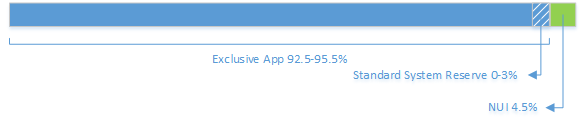
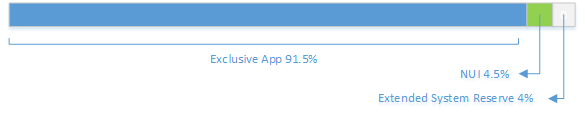
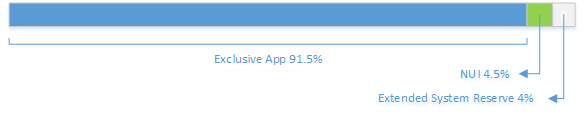
Figure 6. Extended System Reserve, non-gameplay (for example, fill mode)
Reallocating the NUI GPU Reserve back to NUI enables features such as biometric sign-in and controller pairing. A future XR will enforce this.
To disable the NUI GPU Reserve, titles must set the following property:
Windows::ApplicationModel::Core::CoreApplication::DisableKinectGpuReservation = true;
For titles using NUI gestures
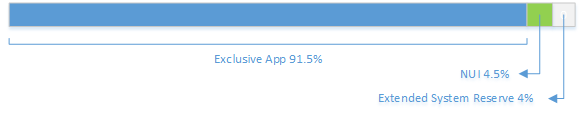
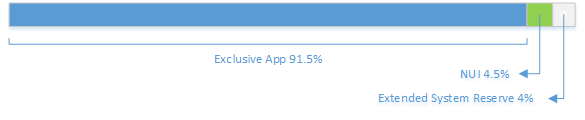
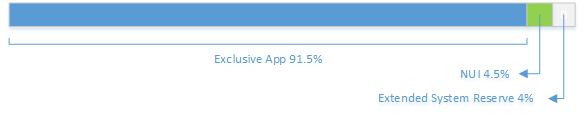
Titles using NUI streams based on depth or IR cannot disable the NUI GPU Reserve; the two possible GPU allocations that a NUI title must support are 92.5–95.5% in full screen or 91.5% in fill mode.
Figure 7. Full screen
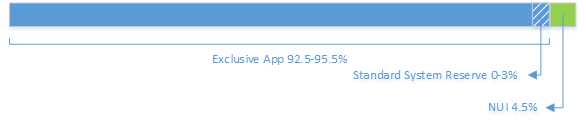
Figure 8. Extended System Reserve (for example, fill mode)
Avoiding variable GPU availability
Users can toggle between full-screen and fill mode at any time. Titles that do not want to handle the corresponding complication of adapting dynamically to different GPU allocations can opt out of this variability. Doing so will lock the title’s GPU allocation to the minimum allocation:
Titles not using NUI gestures:
Figure 9. 96% during gameplay

Figure 10. 91.5% when not in gameplay
Titles using NUI gestures:
To avoid handling the variability of the Extended System Reserve, titles would change the value for the <XboxSystemResources> in its manifest from variable to fixed where <Extensions> is a sub-element of the <Application> node.
  <Extensions>
    <mx:Extension Category="xbox.system.resources">
      <mx:XboxSystemResources>
        <mx:GpuAvailability>variable</mx:GpuAvailability>
      </mx:XboxSystemResources>
    </mx:Extension>
  </Extensions>
The XPath query for this element would be:
m:Package\m:Applications\m:Application\m:Applications\m:Extensions\mx:Extension\mx:XboxSystemResources\mx:GpuAvailability
Notes:
- Values variable and fixed are case-sensitive and are the only two valid values for this element.
- Any other values will fail to compile when building the package.appxmanifest.
- If the appxmanifest.xml file is generated by some other means, any values other than variable and fixed are undefined and not supported.
To ensure backward compatibility, if the <el>GpuAvailability</el> entry is not in the manifest, then the Exclusive App will get the pre-June 2014 allocation of 90%.
Tools support
PIX displays the GPU allocations in its GPU timeline.
Testing different GPU allocations:
- To test the Extended System Reserve, snap any app.
- To test the Standard System Reserve, use
xbstress systemui, a stress test that periodically uses a variable amount of GPU untilxbstress stopis called. The stress test consumes GPU resources, not exceeding 3%, every 5 or 10 seconds, simulating a worst-case scenario for the Standard System Reserve. Typical usage scenarios—for example, system toast overlays—occur more frequently in retail than are tested with this tool.
NUI interactions for opt-out titles and snapped shared apps
Because an exclusive app can elect to disable the NUI GPU Reserve, there is no guarantee that the shared app will have the available GPU processing resources to receive these Kinect streams. Beginning with the June 2014 recovery, shared apps no longer support NUI depth, skeletal tracking, or IR while they are snapped, although they can continue to leverage them when they are full screen.
Both for exclusive apps that disable the NUI GPU Reserve and all snapped shared apps, the specific behaviors for existing NUI APIs are as follows:
- A number of NUI streams are not available:
- BodyFrame
- BodyIndexFrame
- DepthFrame
- InfraredFrame
- LongExposureInfraredFrame
- FaceFrame
- HighDefinitionFaceFrame
- VisualGestureBuilderFrame
- The KinectSensor::IsAvailable property continues to reflect accurately whether the sensor is plugged in and not disabled in the Settings app.
- Streams that are not available will not generate frames:
- *FrameReader::AquireLatestFrame always returns nullptr.
- *FrameReader::FrameArrived events never fire.
- MultiSourceFrame reader does not generate frames if the app has requested anything more than color and/or audio.
- Gesture input, including PointerPoint input, is not supported.
Summary
| NUI GPU Reserve/Opt-Out | Extended System GPU Reserve/GPUAvailability | Percentage of GPU available to title |
|---|---|---|
| N/A | No manifest entry | Exclusive app gets 90%. Titles built with the June 2014 XDK or newer should add a <GpuAvailability> manifest entry. |
| No | Fixed | Exclusive app: 91.5% NUI: 4.5% Extended System Reserve: 4% |
| No | Variable | Full screen during gameplay:Exclusive app: 92.5-95.5% Standard System Reserve: 0-3% NUI: 4.5% Extended System Reserve—for example, fill mode—during gameplay: Exclusive app: 91.5% NUI: 4.5% Extended System Reserve: 4% |
| Yes | Fixed | Exclusive app: 96% Extended System Reserve: 4% |
| Yes | Variable | Full screen during gameplay: Exclusive app: 97–100% Standard System Reserve: 0–3% Extended System Reserve—for example, fill mode—during gameplay: Exclusive app: 96% Extended System Reserve: 4% |