Multiple Experiences at Once: App Views and Focus States on Xbox One
With Xbox One, users can now view and enjoy more than one experience simultaneously. Taking advantage of this feature requires that the display area be shared by different applications. This topic describes how the Xbox One system lays out multiple windows on the screen and how titles should handle the different window views and input states associated with the feature.
Overview
Xbox One supports two types of applications, exclusive and shared.
- Exclusive apps are high-performance titles that run on a special partition (the exclusive partition) that provides deterministic resource reservations for titles. Exclusive apps, sometimes referred to as titles in this topic, are developed with the Xbox One Development Kit (XDK).
- In comparison with exclusive apps (titles), shared apps are relatively lightweight, and run on a separate partition called the shared partition. The Xbox One architecture is designed such that the system resources that are available to the shared partition are separate from the resources reserved for the exclusive partition. Therefore, shared apps do not have any performance impact on exclusive apps. A shared app might create an experience that relates to an exclusive title—for example, a hub app that’s associated with a game—or it might create independent experiences such as a browser, video player, or mini game. Shared apps are developed with the Xbox One Application Development Kit (ADK).
Xbox One runs only one exclusive app at a time, but it can run multiple shared apps in parallel with the title. In all scenarios, the user can see a maximum of two apps on the screen but can interact with only one of them at a time.
There are two concepts related to this model, the application window view state and focus state.
Application view state
The app view state determines how an app window is arranged and shown on the screen. The view states on Xbox One are as follows:
Full view
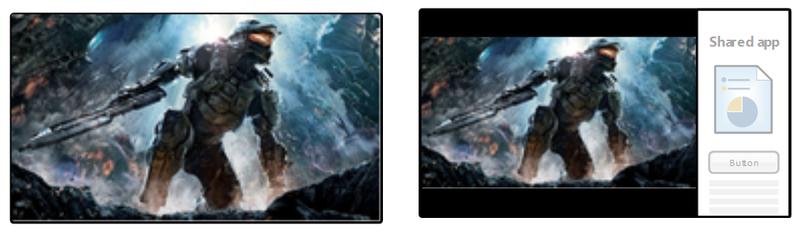
Applies to both shared and exclusive apps. In full view, the app window fills the entire screen using a resolution of 1920×1080 pixels and an aspect ratio of 16:9.
Snapped view
Applies only to shared apps. In this view, the app window is shown as a narrow region on the right side of the screen using a resolution of 480×1080 pixels and an aspect ratio of 4:9.
Fill view
Applicable to both shared and exclusive apps. This view state is used when two apps are sharing the screen: one is in snapped mode on the right side of the screen, and the other app’s window fills the remaining screen area not occupied by the snapped app. In this view mode, the system automatically scales the app window to fit in letterbox mode, which uses a resolution of 1440×810 pixels and an aspect ratio of 16:9.
Not visible
An app window can become completely hidden from the user while the app is still running. When the user switches away from an exclusive title to a shared app in full screen, the exclusive title continues running in the constrained state for some time. When a user switches away from a shared app to another app in full screen, the shared app continues running for 12 seconds before entering a suspended state. See the references in the Additional resources section for more details on PLM for shared apps and exclusive titles.
Note The term constrained in this context refers to the process lifetime management (PLM) state in which the game is loaded in memory and is still running, but has limited access to the system resources. For more information about PLM states on Xbox One, see the white paper PLM for Xbox One available on the Xbox Game Developer site.
Figure 1. Application view states. Left: full-screen. Right: Snapped view with app on right. Letterbox 16:9 fill view—app on left.
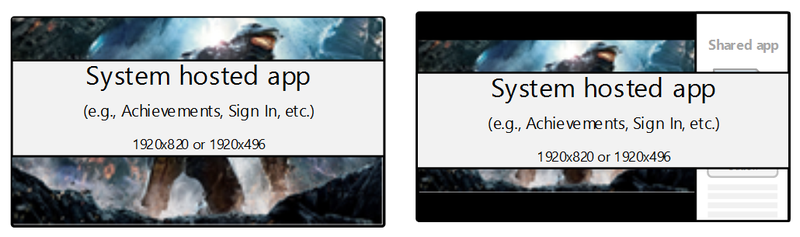
There is also a special view state, called overlay view, which is reserved for system-hosted apps and UIs. In this mode, the app window is shown as an overlay on top of all other windows. It uses a resolution of either 1920×820 or 1920×496 pixels. An achievement UI and a marketplace purchase app are examples of system apps that use this view mode.
Figure 2. Overlay view examples
Application focus state
Although multiple apps might be visible simultaneously, the user can interact with only one of them at a time. The app that the user is interacting with at any given time is said to have input focus. All input data from all input devices—including gamepads, NUI voice and gesture, SmartGlass–enabled devices, and so on—is sent only to the app in focus. If an app is not in focus, it does not receive input data from any input device.
While two apps are shown side by side in fill and snapped view modes, a user can switch focus between them at any time by doing one of the following:
- Double-tapping the Xbox button on the gamepad.
- Speaking the voice command “Xbox, switch.”
- Switching to the Home screen by tapping the Xbox button once and selecting the other app tile from the Home screen.
When two apps are shown side by side in fill and snapped view modes, the app that doesn’t have focus is still visible to the user but the user is not interacting with it. Titles and shared apps can handle the focus-lost state in any manner that fits the type of gameplay or experience they are creating. As a general guideline, in cases where the experience needs full user engagement, such as in a car-racing game, the gameplay should be paused when input focus is lost.
In cases where full user engagement is not needed, such as cut-scene video playback or a slow-paced game like chess, the game doesn’t necessarily need to be paused. Online multiplayer titles can handle a focus-lost scenario in the same manner when an online player disconnects his or her gamepad and stops interacting with the game. This is usually handled by keeping the game simulation and online connections live, marking the player as inactive in the game session, and removing the player from the game if he or she doesn’t return to gameplay within a given grace period.
Another scenario in which a visible window loses focus is when the user presses the Xbox button on the gamepad or uses the “Xbox, home” voice command to go to the Home screen. When this happens, the system scales down the current view on the screen, whether it’s a single app in full-screen view or two apps in fill and snapped view modes. Then the view changes to a large tile in the Home screen. The tile that shows the most recent user experience is called the big app tile, which is designed to allow users to go back to their recent experience very quickly. When a title or shared app is in the big app tile view, it is still visible but has lost focus. Exclusive titles enter the constrained PLM state in this scenario. Titles and shared apps do not receive any window size-changed event notification as they display in big app tile view.
A displayed big app tile is not a different view state from the shared app or title’s perspective. It is identical to when a user switches focus from the title window to another app, or when a system-hosted UI is shown on top of the app window. In all these scenarios, the app window is still visible to the user but has lost focus, and therefore these scenarios should all be handled in a way that fits the type of experience the title or shared app is creating.
The Xbox One system handles mixing audio produced by concurrently running titles and shared apps so that the overall audio experience is appropriate to the types of experiences that are being simultaneously presented. In some scenarios, the system might mute one of the apps and play only the audio from the other app in view. In others, it might mix the audio from both apps and play them together. Therefore, titles and shared apps do not need to take any specific measures in terms of how audio is presented in different view states. The general guideline is that titles and shared apps should continue to create audio in the same way whether they are in full, fill, or snapped view states, and whether they have window focus or not.
As a best practice, to help users identify which app they are interacting with, titles and shared apps should update the UI as their app window loses focus. This can be achieved in different ways depending on the type of experience being presented. A title or shared app that is showing menus or on-screen controls can show a translucent wash as an overlay on top of the interactive controls, ensuring that the user understands that he or she is not interacting with those controls. A title that is presenting a gaming experience or playing cut-scene video can pause or maintain gameplay or video playback as appropriate. A title should make a pause obvious to the user by showing an appropriate visual—for example, by showing a “Game paused” text message or a pause icon on the screen.
Screen safe areas
The screen area is divided into what’s referred to as the overscan area-the outermost edges of the screen-and the remaining screen area, called the action-safe area. On some televisions, the overscan area is covered by a bezel, which essentially makes that portion of the screen hidden from users. On Xbox One, the outer edges of the action-safe area are sometimes used to display system UI elements. The remainder of the screen area is called the title-safe area. Applications should make sure that important content such as menu items or text are shown only in the title-safe area.
For an app rendering in a 1920×1080 pixel full-screen state, the overscan area is 64 pixels wide at the left and right edges and 36 pixels wide on the top and bottom edges. This yields an action-safe area of 1792×1008 pixels. The title-safe area is 1720×1000 pixels and is centered inside the action-safe area as shown in Figure 3.
Figure 3. Safe areas in the full-screen state
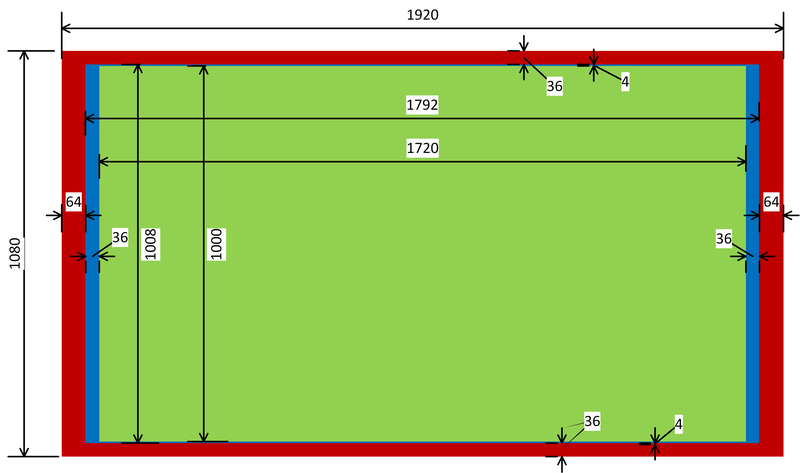
- Total screen area (red): 1920×1080 pixels
- Action-safe area (blue): 1792×1008 pixels
- Title-safe area (green): 1720×1000 pixels
For a shared app rendering in 480×1080 pixels in the snapped state, the overscan area is 64 pixels wide on the right and 36 pixels on the top and bottom edges. There is no overscan area on the left side of the window, resulting in an action-safe area that is 416×1008 pixels. The title-safe area is 388×1000 pixels and is placed inside the action-safe area, as shown in Figure 4.
Figure 4. Safe areas in the snapped view state
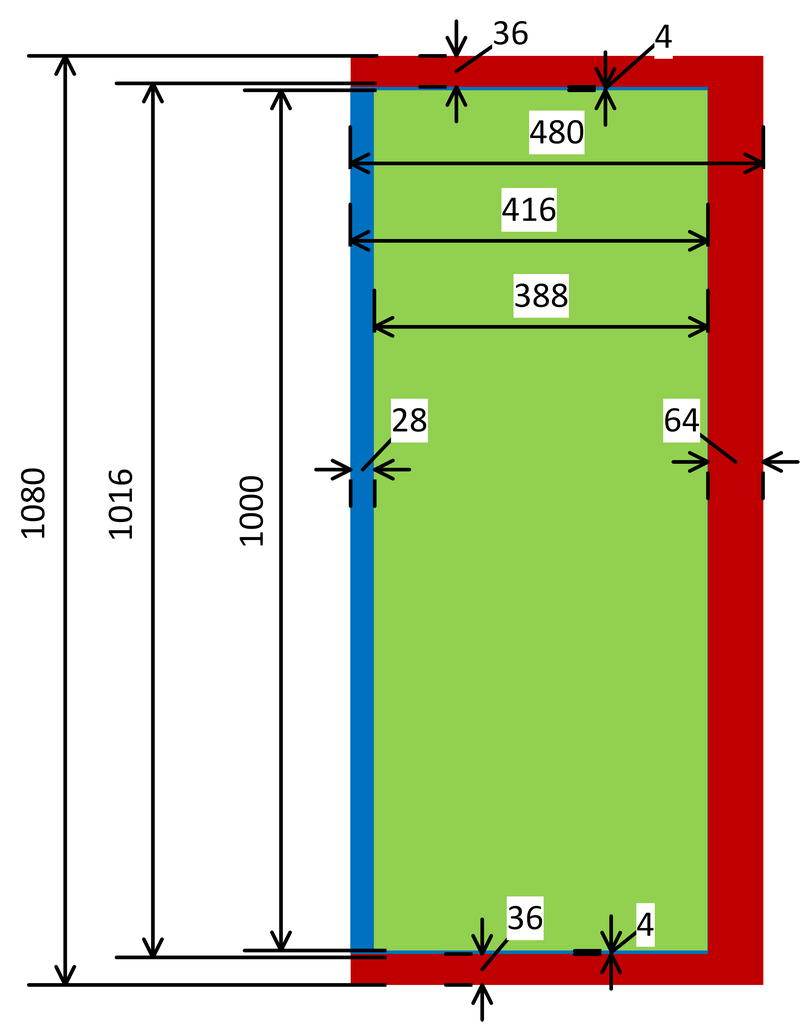
- Total screen area (red): 480×1080 pixels
- Action-safe area (blue): 416×1008 pixels
- Title-safe area (green): 388×1000 pixels
Apps rendering in letterbox fill-view state are auto-scaled by the system from 1920×1080 to 1440×820 pixel resolution. Therefore, they should use the same safe-area margins as the full-screen view state.
Related APIs
Title code can register for the CoreWindow::VisibilityChanged, CoreWindow::SizeChanged, and CoreWindow::Activated events so that the title will be notified about changes the app’s visibility, view, and focus states, respectively. In cases when an app’s view and focus states change at the same time, these events could be raised by the system in any order or even simultaneously. Alternately, title code can use the CoreWindow::Visible and CoreWindow::Bounds properties to poll the visibility and view states of the app at any time. Note that there is no API for querying the focus state of the app, and using the CoreWindow::Activated event is the only method available to title code.
The Xbox One XDK does not include an API to enable apps to change their focus, visibility, or view states programmatically. The application window states are meant to be set only by the system, based how the user is interacting with the system.
Summary and best practices
With Xbox One, users will be able to enjoy multiple experiences at once or to switch quickly between apps. Here are best practices for titles to be good citizens in the multitasking world of Xbox One:
- Design your title to handle visibility, focus, and view state–change events.
- Handle focus-lost events in each part of the game in a way that is appropriate to the kind of experience your title delivers. For fast-paced gameplay that needs user engagement, pause the gameplay but keep all simulations running. For slow-paced games or experiences that don’t need full user engagement, such as cut-scene video playback or menu navigations, do not pause the game.
- When focus is lost, update the title UI in a way that helps the user identify when he or she is no longer interacting with your title. In most scenarios, title gameplay should be paused when the title loses visibility. Keep all the simulations and network connections active so that the game can be resumed immediately when the user switches back.
- Follow the action-safe and title-safe area guidelines to ensure that your title’s important UI elements can be seen properly on all display types in all view states.
Additional resources
Process Lifetime Management (PLM) for Xbox One (Developer Education Materials > All NDA Whitepapers), a white paper on the Xbox Game Developer site.
Process Lifetime Management, a talk presented at Xfest 2013 in the CPU/System track.
Hub Apps, a talk presented at Xfest 2013 in the Producer track.
Xbox One Application Development Kit (ADK) documentation, on the Xbox Game Developer site.
Xbox Requirements, on the Xbox Game Developer site.