The NUI Runtime for Xbox One
This topic provides an introduction to the Xbox One’s NUI runtime, which offers a new, streamlined approach to all types of data based on what the Kinect sensor can see.
In this topic:
- Commonly used terms
- New features of NUI
- NUI runtime architecture
- Introduction to NUI Windows Runtime APIs
- The new body
- Image sources
- Aligning images and body
- Further reading
Commonly used terms
The following table contains a list of terms used in this topic, and their definitions.
| Term | Definition |
|---|---|
| Modeless tracking | [Xbox One only] A means of player tracking that does not differentiate between whether a player is standing or seated. |
| NUI | Natural user input. Player input in the form of body motion or voice. |
| Pay-to-play | Value-add NUI functionality that requires additional resources—CPU, GPU, memory—to be charged to the title. |
| Stream | In this white paper, stream is used to refer to visual data, such as body (skeleton), color, depth, and active IR. |
| System-provided NUI | Core features of the NUI runtime that are continuously running—for example, color and body streams. |
| Tracking mode | Indicates whether tracking is for standing or seated players. This applies only to NUI on Xbox 360. |
New features of NUI
With the introduction of Xbox One, the NUI runtime has been streamlined and simplified. This white paper describes new features of NUI on Xbox One, as well as key differences between NUI on Xbox One and NUI on Xbox 360
The NUI runtime on Xbox One introduces several new features. First, the most frequently used NUI features (for example, color input and skeleton tracking) along with many additional features, such as biometric identity, are handled by the system.
Xbox One actively tracks six simultaneous players. The new skeleton model introduces hand tip, thumb, and additional spine joints, and the hip joints have been moved to more anatomically correct locations. Also new to NUI on Xbox One are rotation normals for each joint.
Along with these new skeleton features, NUI on Xbox One now tracks additional player data, including hand state-open, closed, and lasso-and facial expression. Facial expressions provide information about the player’s state, such as happy or neutral, facial actions such as talking, and the player’s level of engagement in the experience. Player data now also indicates how physically active the player is, based on the motion of the body.
The NUI runtime for Xbox One also introduces two new stream types for active IR and the body index. (In NUI on Xbox 360, body index data is part of the stream of type NUI_IMAGE_TYPE_DEPTH_AND_PLAYER_INDEX.) The NUI runtime also adds new camera resolutions for color and depth data.
The following table highlights some of the notable changes from Xbox 360 to Xbox One.
| NUI features | Xbox 360 | Xbox One |
|---|---|---|
| Active players tracked | 2 | 6 |
| Biometric identity | Tracked by the title | Tracked by the system |
| Skeleton joints (per player) | 20 | 25 |
| Color resolution | 640×480 | 1920×1080 |
| Depth resolution | 320×240 | 512×424 |
| Depth range | 0.8 – 4.0m | 0.5 – 4.5m |
| Active IR resolution | Not applicable | 512×424 |
NUI runtime architecture
On Xbox One, NUI is a core feature of the platform. The NUI runtime is implemented by using a client-server architecture. In contrast, NUI on Xbox 360 is statically linked to each title.
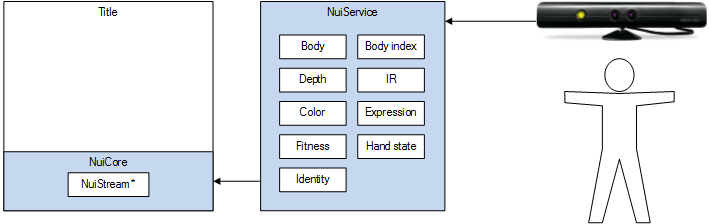
Figure 1 illustrates the client-server architecture and highlights the features that are always running. These features are exposed by the NuiStream API.
Figure 1. NUI features that are always running on Xbox One
NUI is provided by the system
On Xbox One, the NUI runtime is implemented as a service and is always running. The runtime provides continuous access to core features of NUI—for example, color, skeleton tracking, and biometric identity. Streams containing color, active IR, depth, body index, and body are always being processed, and new players are continually identified.
Note On Xbox One, the skeleton stream and related structures have been renamed to body. Within the body structures, the collection of a player’s joints is still called the skeleton.
The method by which titles interact with each of the streams has been unified. On Xbox 360, there is a distinction between the image streams (color and depth) and skeleton tracking. Xbox One eliminates this distinction and unifies all streams under the same API. Titles register for this data via the NuiCore API, and they receive it as the service completes its processing.
Player identification has been made much simpler. On Xbox One, the system automatically recognizes biometrically enrolled players. Titles need not continually check the enrollment index and trigger identification or enrollment.
What does this mean to the title? How much does NUI cost?
As part of the system, the always-on features of NUI levy no direct cost to the title. The resources available to the title are the same regardless of which streams are consumed.
Some additional, less frequently used features will be made available and incrementally charge the title based on the functionality used. These features are known as pay-to-play and are generally outside of the core set of NUI features (for example, features provided by the NuiGesture API).
The remainder of this topic discusses the system-provided NUI runtime exclusively.
Introduction to NUI Windows Runtime APIs
- Sensor acquisition and startup
- Basic frame pattern
- Source
- FrameReader
- FrameReference
- Frame
- Frame lifetime
- Putting it all together: source, reader, frame template definition
- Putting it all together: basic DepthFrame polling code
With Xbox One, all NUI APIs are exposed as Windows Runtime (WinRT) APIs, as with other APIs for the platform. These APIs generally follow the standard Windows Runtime API Design Guidelines, but affordances have been made to ensure that the NUI APIs support the level of control that you need to develop AAA titles.
This section is an overview of the NUI API and of the common patterns repeated throughout. Specific details about features and APIs are in their specific sections.
All of these APIs are in the Windows.Kinect Namespace.
Sensor acquisition and startup
The KinectSensor Class is the root object. This class provides direct access to the sensor, allows you to open the sensor, and gives you access to individual frame types. Until the sensor is open, the KinectSensor instance will not provide any frames.
C++ code example:
  KinectSensor^ sensor = KinectSensor::GetDefault();
      sensor->Open();
Basic frame pattern
Once a sensor is open, you can use it to gain access to the individual frame sources: color, depth, body, body index, and infrared. Each source has four basic pieces:
Source
Source lets you inspect or set the source settings and allows you to open a reader.
Reader
Reader gives you access to the source’s frames via an event or polling.
Frame reference type
Pass this piece in event arguments. It lets you refer to a frame without acquiring and locking the frame. This piece also gives you the ability to acquire.
Frame
Frame gives you access to the data from a particular frame from the source.
Source
The job of the source type is to give you access to the source, to allow you to configure the source, and to open a reader. Each source has its own type, but all types share the same basic functionality.
| Member | Behavior |
|---|---|
| OpenReader | Opens a reader for this source. |
| IsActive | Indicates whether there are any active readers for this source. |
| FrameDescription | Describes the size and layout of image frame payloads. |
| KinectSensor | A back pointer to the sensor that this source is exposed from. |
FrameReader
A FrameReader provides access to a source’s frames through polling and event APIs. If a source has active FrameReaders associated with it, that source is active and is processing frames. The IsActive property on a source returns true if there are any active FrameReaders.
Each source has its own type of reader, but readers all share the same basic functionality. Separate components in an app can each have their own reader without impacting other the components directly. You can pause and poll the readers independently of each other.
| Member | Behavior |
|---|---|
| AcquireLatestFrame | Allows apps to poll for the latest available frame. Returns immediately with the latest frame not yet acquired from this reader, or returns with null if no new frames are available. |
| FrameArrived | An event that an app can subscribe to that notifies the app when new frames are available. If apps subscribed to FrameArrived on a UI thread, the FrameArrived will fire on that thread. Otherwise, this event will fire on a background thread. |
| IsPaused | Controls whether or not frames will be delivered to the users of this particular source reader instance. This member will have no effect on the source itself or on other open readers. As soon as IsPaused is set to true, the FrameReady event will stop firing, which means that even frames that have already been delivered to the runtime, but have not been fired for this reader, will not be delivered. |
| Close | Closes the reader. When the last open reader for a source is closed, the source itself will be disabled. |
| FooSource | A back pointer to the source that this reader was opened from. |
FrameReference
The FrameArrived event on a reader fires whenever an event is available, but by the time the app receives the event, the event may no longer be available. FrameReference notifies an app that a frame has arrived and FrameReference gives the application the AcquireFrame method, which acquires and opens the frame.
AcquireFrame returns null if the frame expires before the method is called. The code example below shows how to use a ColorFrameReference from a color reader’s FrameArrived event handler.
  void MainPage::OnColorFrameArrived(ColorFrameReader ^sender, ColorFrameArrivedEventArgs ^eventArgs){
      {
          ColorFrame ^frame = eventArgs->FrameReference->AcquireFrame();
          if (frame != nullptr){
              //Do stuff with color frame
          }
  }
Frame
Frames are the individual chunks of data that the sensor delivers. These frame objects allow you to copy frame data into an app’s buffer or even to provide access to the underlying system buffer.
Each source has its own frame type, but all types share the same basic functionality. While each frame does have many similarities, the following table describes the types that are most different between each individual stream.
| Member | Behavior |
|---|---|
| CopyPixelDataToArray | Copies the frame’s pixel data to an app-provided, array-based buffer. |
| CopyPixelDataToBuffer | Copies the frame’s pixel data to an app-provided IBuffer. |
| LockImageBuffer | Gives app access to the underlying buffer used by the system to store this frame’s data. This type provides an additional lock on the buffer, and this type needs to be closed, along with the frame itself, for frames to keep being delivered. This is a read-only buffer, and attempts to write into it will fail. See MSDN for more information on IBuffer. |
| RelativeTime | Provides a TimeSpan representing when this frame was created. This TimeCounter does not allow you to determine absolute, real-world times, but for a given sensor, TimeCounter does allow you to know when frames were delivered in relation to each other both within and between frames. |
| FooSource | A back pointer to the source that provided this frame. |
| Dispose/Close | Releases the handle to the underlying system buffer. After this is called, all other operations will fail. |
| FrameDescription | Provides the information the app needs to know about how to allocate a buffer for this frame. Does not apply to BodyFrame. |
Frame lifetime
For performance reasons, only one active frame of each source type can be open in a process at any point. If a frame is still open when the next frame of that type is ready, then the incoming frame will be dropped.
While the reader pattern provides different components with the ability to independently acquire frames, only one frame of any type can be open. So components keeping frames alive too long will cause all code in the process to drop frames.
To avoid frame drops, we recommended that you perform any expensive frame processing on copies of frame data rather than on the frame itself.
Each process is allocated its own frame buffers, so one app cannot cause another app to drop frames.
Putting it all together: source, reader, frame template definition
  public sealed ref class InfraredFrameSource : INotifyPropertyChanged
  {
    public:
      bool IsActive { get() ;}
      FooFrameReader OpenReader()
      FrameDescription FrameDescription { get() ; }
      event PropertyChangedEventHandler PropertyChanged;
      KinectSensor KinectSensor { get (); }
  }

  public sealed ref class InfraredFrameReader : INotifyPropertyChanged, IDisposable
  {
    public:
      FooFrame AcquireLatestFrame() ;
      event EventHandler<FooFrameArrivedEventArgs> FrameArrived;

      bool IsPaused { get(); set(); }

      InfraredFrameSource InfraredFrameSource { get() ; }
      void Dispose() ;
      event PropertyChangedEventHandler PropertyChanged;
  }

  public sealed ref class InfraredFrameArrivedEventArgs
  {
    public:
      InfraredFrameReference FrameReference { get() ; }
  }

  public sealed ref class InfraredFrameReference
  {
    public:
      FooFrame AcquireFrame() ;
      TimeSpan RelativeTime { get() ; }
  }

  public sealed ref class InfraredFrame : IDisposable
  {
    public:
      void CopyFrameDataToArray([WriteOnlyArray] UInt16[] frameData) ;
      void CopyFrameDataToBuffer(IBuffer buffer) ;
      IBuffer LockFrameBuffer() ;

      TimeSpan RelativeTime { get() ; }
      FrameDescription FrameDescription { get() ; }
      InfraredFrameSource InfraredFrameSource { get() ; }
      void Dispose();
   }
Putting it all together: basic DepthFrame polling code
  void MainPage::InitKinect()
  {
    KinectSensor^ sensor = KinectSensor::GetDefault();
    sensor->Open();
    reader = sensor->DepthFrameSource->OpenReader();
  }
  void MainPage::PollForDepthFrame(){
    DepthFrame ^frame = depthReader->AcquireLatestFrame();
    if (frame != nullptr){
      frame->CopyFrameDataToArray(depthImage);
    }
  }

  //Zero-copy version of polling that directly access the underlying system buffer
  void MainPage::PollForFrame(){
    DepthFrame ^frame = depthReader->AcquireLatestFrame();
    if (frame != nullptr){
      ComPtr<IUnknown> spBuffer = (IUnknown*)depthFrame->LockImageBuffer();
        ComPtr<IBufferByteAccess> spBufferByteAccess;
          spBuffer.As(&spBufferByteAccess);

          byte* pPixelBuffer = nullptr;
          spBufferByteAccess->Buffer(&pPixelBuffer);
          UINT16* depthPixelBuffer = reinterpret_cast<UINT16*>(pPixelBuffer);
            //Use the depth data
    }
  }
The new body
In the NUI runtime for Xbox One, the skeleton source and data structures have been renamed to reflect the new focus on all aspects of a player’s body. This renaming includes not only a player’s skeleton, but also the state of the player’s hands (open or closed), facial expression, facial activity, and engagement level.
The new BodyFrame
With Xbox One, NUI supports simultaneously tracking the skeletons of six players. In addition, all players are actively tracked, and passive tracking has been removed in Xbox One. The BodyFrame, accessed from the BodyFrameReader, provides access to the individual bodies via the method: OverwriteBodyData.
This method takes an IVector<Body> and updates the Body instances with the values from the current BodyFrame. If the IVector is null, then IVector will be filled with a new Body object. The input vector must have the size BodyFrameSource::BodyCount
This pattern allows for zero-allocation retrieval of the Body object, while still allowing for future additions to the class without breaking compatibility.
The following code example shows how to open a sensor, how to subscribe to the BodyFrameArrived event, and how to fill the bodies vector with the current body data.
  void MainPage::InitKinect()
  {
    KinectSensor^ sensor = KinectSensor::GetDefault();
    sensor->Open();
    bodyReader = sensor->BodyFrameSource->OpenReader();
    bodyReader->FrameArrived +=
     ref new EventHandler<typename BodyFrameArrivedEventArgs^> (this,
        &MainPage::OnBodyFrameArrived);
    bodies = ref new Platform::Collections::Vector<Body^>(6);
  }

  void MainPage::OnBodyFrameArrived(BodyFrameReader ^sender, BodyFrameArrivedEventArgs ^eventArgs){
    BodyFrame ^frame = eventArgs->FrameReference->AcquireFrame();
    if (frame != nullptr){
      frame->OverwriteBodyData(bodies);
    }
  }
Bookkeeping change
For Xbox One, body data is handled exactly like the image sources, like color and depth. All source types use the same source, reader, and frame pattern, and you must release all frames when no longer needed by the title. If you do not release frames, future frames of that type will be dropped. If you are using C++ /CX, a BodyFrame will be released automatically when the BodyFrame goes out of scope.
When you were developing titles for Kinect for Xbox 360, skeleton frames were essentially fire and forget—the underlying NUI system did not track these frames, and titles were free to retain the returned frames for as long as desired. This process has changed in Xbox One, and now frames behave the same as all other source types.
Modeless tracking
One of the requirements of NUI on Xbox 360 is for titles to explicitly enable tracking support for either seated or standing players. This requires that skeleton tracking be completely stopped and restarted to switch between modes. With Xbox One, there is no concept of tracking modes; standing and seated poses are seamlessly tracked, with a full skeleton being returned in all cases.
Using the Body class
The Body class, as retrieved from BodyFrame::OverwriteBodyData, provides access to detailed information about the bodies tracked by the Xbox One sensor. Body definition:
  public ref class Body
  {
    public IMapView<JointType,Joint> Joints { get ; }
    public IMapView <JointType, JointOrientation> JointOrientations { get ; }
    public Int32 JointCount { get ; }

    public DetectionResult Engaged { get ; }

    public IMapView <Expression, DetectionResult> Expressions { get ;}
    public IMapView <Activity, DetectionResult> Activities { get ;}
    public IMapView <Appearance,DetectionResult> AppearanceModifiers { get; }

    public HandState HandLeftState { get ; }
    public DetectionResult HandLeftConfidence { get ;}
    public HandState HandRightState { get ; }
    public DetectionResult HandRightConfidence { ; }

    public FrameEdges ClippedEdges{ get ;}

    public Int64 TrackingId { get
    public BodyTrackingState BodyTrackingState { get;}
  }
For every piece of data, you can find out what the NUI pipeline calculated and its confidence in the result. For types of data that include many individual items, such as Joints and Expressions, an IMapView allows you to easily index into the desired values for the calculated value and the confidence.
For individual data points, such as Engaged and HandLeftState, a single value is provided. Joints and JointNormals provide both a value and a confidence, and so further structs are defined to provide all of this data as a single value type.
The following code is an updated version of the OnBodyFrameArrived implementation that finds the head location, whether the body being tracked is happy, and whether the user is engaged:
  void MainPage::OnBodyFrameArrived(Platform::Object ^sender,
     BodyFrameArrivedEventArgs ^eventArgs){
  {
    BodyFrame ^frame = eventArgs->FrameReference->AcquireFrame();
    if (frame != nullptr){
      frame->OverwriteBodyData(bodies);
    }

    for each (Body ^body in bodies)
    {
      Joint headJoint = body->Joints->Lookup(JointType::Head);
      CameraSpacePoint headLocation = headJoint.Position;
      TrackingState headTrackingState = headJoint.TrackingConfidence;

      DetectionResult happyResult = body->Expressions->Lookup(Expression::Happy);
      bool isHappy = (happyResult == DetectionResult::Maybe
          || happyResult == DetectionResult::Yes);

      DetectionResult engagement = body->Engaged;
      }
    }
  }
Skeleton changes
With Xbox One, the skeleton model has changed to be more detailed and anatomically correct. For example, the additional spine joints enable a more accurate determination of the lean of a player’s torso.
The skeletons tracked by NUI are oriented as if the player were looking into a mirror. This facilitates natural interactions with the game world. For example, to have the player touch an object on the right hand side of the screen, use the right joints:
- JointType::HandRight
- JointType::HandTipRight
- JointType::ThumbRight
For more information, see JointType Enumeration.
Figure 2 compares skeleton models in NUI on Xbox 360, at left, and in NUI on Xbox One, at right. The green squares indicate new and repositioned joints.
Figure 2. Skeleton models in NUI on Xbox 360 (left) and Xbox One (right)
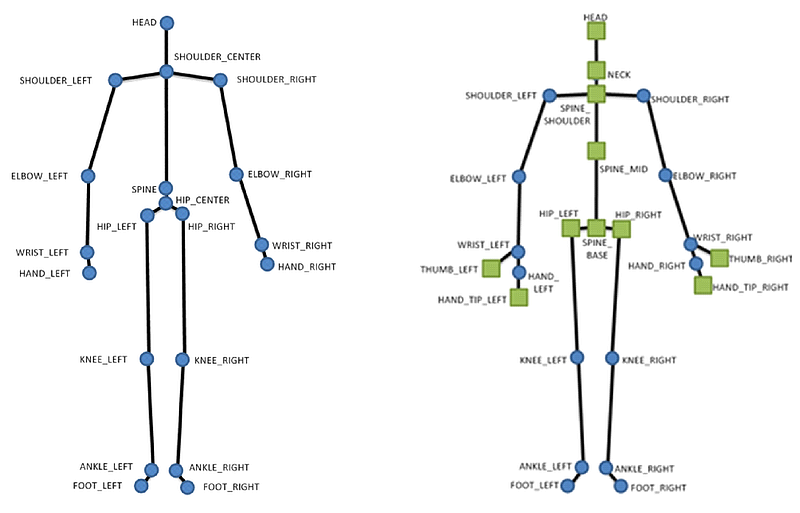
The following table highlights the major changes in the skeleton model for Xbox One.
| NUI on Xbox 360 | NUI on Xbox One | Comments |
|---|---|---|
| NUI_SKELETON_POSITION_HIP_CENTER | JointType::SpineBase | Renamed/Repositioned |
| NUI_SKELETON_POSITION_SPINE | JointType::SpineMid | Renamed/Repositioned |
| JointType::SpineShoulder | New | |
| NUI_SKELETON_POSITION_HEAD | JointType::Head | Repositioned |
| NUI_SKELETON_POSITION_SHOULDER_CENTER | JointType::Neck | Renamed/Repositioned |
| JointType::HandTipLeft | New | |
| JointType::ThumbLeft | New | |
| JointType::HandTipRight | New | |
| ThumbRight | New | |
| NUI_SKELETON_POSITION_HIP_LEFT | JointType::HipLeft | Repositioned |
| NUI_SKELETON_POSITION_HIP_RIGHT | JointType::HipRight | Repositioned |
For more information, see JointType Enumeration.
Joint normals
Xbox One adds a normal for each skeleton joint that describes rotation. Rotation is expressed as the vector, in world space, perpendicular to the attached bones in the joint hierarchy. For example, to determine the roll of the right elbow, the immediate parent joint in the hierarchy, the right shoulder, is used to determine the plane of the bone.
Figure 3. Right elbow joint with a normal describing rotation, expressed as a vector
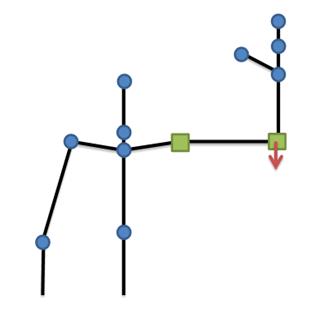
Figure 3 shows the bone relationship with the parent joint—the green squares. The player’s upper arm is parallel to the ground, and the normal for the right elbow points toward the floor.
Joint hierarchy
Joint hierarchy flows from the center of the body to the extremities, and from the top-most to bottom-most joints. These connections are described as bones. For example, the bones of the right arm, not counting the thumb, consist of the following connections:
- Right hand – Right hand tip
- Right wrist – Right hand
- Right elbow – Right wrist
- Right shoulder – Right elbow
By convention, bones are described as parent/child connections.
Who is being tracked?
On Xbox 360, the dwEnrollmentIndex and dwUserIndex fields of NUI_SKELETON_DATA are used to determine the user’s biometric identity. These fields are not in the equivalent structure on Xbox One—the Body structure. To determine a body’s identity, use the BodyController and User APIs. Bodies that are being tracked are represented as BodyController objects. The Id property is set to the TrackingId of the corresponding Body instance.
Once a body has been recognized as a biometrically enrolled user, the BiometricUserId property of the BodyController is set to the Id of the corresponding identified user.
Biometric identity is even better on Xbox One
Biometric identity debuted with NUI on Xbox 360. For players, standing in front of the console, waving and being visually recognized is an amazing experience. With NUI on Xbox One, biometric identity becomes even better.
With Xbox 360, titles are required to manage the identity system. They must check the NUI_SKELETON_DATA.dwEnrollmentIndex to see whether the skeleton has been identified. If it hasn’t, a call to NuiIdentityIdentify is required. Once the player has been identified, the title must call NuiIdentityEnroll to register the player’s skeleton with his or her identity.
With the NUI runtime for Xbox One, titles do not need to initiate player identification. Instead, biometric recognition is automatic, and enrollment is handled by the system. Because it is being managed by the system, biometric identity does not get in the way of the fun. Titles need only to assign score and other rewards to the currently identified player.
NUI on Xbox One also brings improved lighting robustness to biometric identity. Biometric recognition should be significantly more resilient to variations in lighting level (low or high) and configuration (side- or back-lit). Although misidentification may still occur, it will be handled by the system.
With NUI on Xbox One, titles can obtain a player’s identity in two ways: by polling for identity or through event-based identification.
What is HandData?
The HandLeftState and HandRightState properties provide information about the state of each of the player’s hands. You can use this information to determine if a player is interacting with an object in the title’s world.
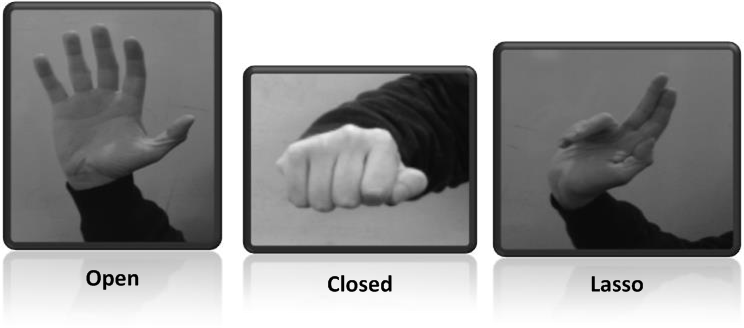
The states returned are:
- Open
- Closed Lasso
- NotTracked
- Unknown
Figure 4 illustrates the hand states.
Figure 4. Hand states in NUI on Xbox One
Using the lasso hand state
Although it is straightforward to think of scenarios in which the open and closed hand states are useful, the lasso state can be a bit challenging.
There are no strict rules for using the lasso state. The lasso may be evaluated in gesture mechanics such as:
- Selecting an area by using a circular motion
- Activating a region, such as a screen object
- Drawing on the screen
- Rotating a screen object—for example, rotating a player’s avatar during character creation
There are countless uses for the lasso state. Specific uses will vary by title design and the intended player experience.
Overriding hand-state behavior
By default, hand state is tracked for the two bodies closest to the sensor. Hand state tracking of these bodies persists until one or more leaves the scene, at which point the next closest body, or bodies, is selected.
There may be scenarios in which you wish to change the default behavior for tracking hand state. To address this need, NUI on Xbox One provides the BodyFrameSource::OverrideHandTracking method.
The following example demonstrates overriding hand state for a specific user.
  Body body1;
  Body body2;
  BodyFrameSource bodyFrameSource;
  // ...

  // replace tracking of body 1's hand state with body 2
  HRESULT hr = NuiOverrideActiveHandTracking( bodyFrame.BodyData[3].TrackingID,
      bodyFrame.BodyData[4].TrackingID )
  bodyFrameSource->OverrideHandTracking(bodyFrame, body1.TrackingId,body2.TrackingId);
Expressions, activities, and appearance
The Expressions, Activities, and Appearance properties provide information about a player’s facial expression, activity, and engagement level.
Supported expressions include:
- Happy
- Neutral
Supported activities include:
- Talking
- EyeLeftClosed
- EyeRightClosed
- MouthOpen
- MouthClosed
Engagement
The Body::Engaged property allows you to determine how engaged particular body is with the console. This property returns a singular DetectionResult indicating the confidence of the system that the body is engaged.
Image sources
Xbox One provides support for the following image sources:
- Color
- Active IR
- Depth
- Body index
Key depth and body index changes
With NUI on Xbox 360, there are three depth sources. On Xbox One, the matrix has a single depth source, and Xbox One has a new source: BodyIndexFrameSource. NUI on Xbox One has only one depth resolution.
| NUI on Xbox 360 | NUI on Xbox One | ||||
|---|---|---|---|---|---|
| Stream | Resolution | Pixel width (bytes) | Source | Resolution | Pixel width (bytes) |
| NUI_IMAGE_TYPE_DEPTH | 320×240 | 2 | DepthFrameSource | 512×424 | 2 |
| NUI_IMAGE_TYPE_DEPTH_AND_PLAYER_INDEX | 320×240 | 2 (13+3 bits) | BodyIndexFrameSource | 512×424 | 1 |
| NUI_IMAGE_TYPE_DEPTH_80x60 | 80×60 | 2 | |||
| NUI_IMAGE_TYPE_DEPTH_AND_PLAYER_INDEX_80x60 | 80×60 | 2 (13+3 bits) |
New source type: body index
Xbox One introduces a new source: BodyIndexFrameSource. This source returns information about pixels in the depth frame—specifically, which pixels correspond to each of the tracked players and which pixels are part of the background.
With this new source, you do not need to apply a mask to the value of the depth pixel to determine the player.
Full resolution depth
Because the body index is no longer contained within the depth pixel value, Xbox One returns the full 16 bits of depth resolution to titles. Titles no longer need to shift bits to the right to obtain an accurate distance value for the depth pixel.
Porting from Xbox 360 to Xbox One: initialization
The following example shows, side-by-side, code to retrieve an image frame from NUI on Xbox 360 and on Xbox One. While the example uses the depth source, the code (with the exception of the source type specified) is the same for all image sources (color, IR, depth, body index).
You do not need to specify a resolution when opening a frame source. Frame sources have a fixed resolution, which you can determine by reading the FrameDescription property on the FrameSource.
| NUI on Xbox 360 | NUI on Xbox One |
|---|---|
DWORD nuiFeatures =  NUI_INITIALIZE_FLAG_USES_DEPTH_AND_PLAYER_INDEX;

  HRESULT hr = NuiInitialize( nuiFeatures,
      NUI_INITIALIZE_DEFAULT_HARDARE_THREAD );
  if( FAILED(hr) )
  {
      // ...
  }

  DWORD imageType =
      NUI_IMAGE_TYPE_DEPTH_AND_PLAYER_INDEX;
  DWORD imageResolution =
      NUI_IMAGE_RESOLUTION_320x240;
  DWORD imageFlags = 0;
  DWORD frameLimit = 1;
  HANDLE nextFrameEvent = NULL;
  hr = NuiImageStreamOpen( imageType,
      imageResolution, imageFlags, frameLimit,
      nextFrameEvent, &g_DepthStreamHandle );
  if( FAILED(hr) )
  {
      // ...
  }
|
KinectSensor^ sensor =
    KinectSensor::GetDefault();
  sensor->Open();
  colorReader =
   sensor->ColorFrameSource->OpenReader();
  ColorFrame ^frame =
   colorReader->AcquireLatestFrame();
|
Aligning images and body
There are times when you might want to determine the location of points from depth, color, or camera space in another space. For example, if you want to know where in a color image the player’s head is located.
You can use the CoordinateMapper pay-to-play class, which is available from the KinectSensor instance.The following code example shows how to get the color pixel (ColorSpacePoint) represented by the body’s head joint.
  void MainPage::OnBodyFrameArrived(Platform::Object ^sender,
      BodyFrameArrivedEventArgs ^eventArgs){
  {
    BodyFrame ^frame = eventArgs->FrameReference->AcquireFrame();
    if (frame != nullptr){
      frame->OverwriteBodyData(bodies);

    for each (Body ^body in bodies)
    {
      Joint headJoint = body->Joints->Lookup(JointType::Head);
      CameraSpacePoint headLocation = headJoint.Position;
      TrackingState headTrackingState = headJoint.TrackingConfidence;

      CoordinateMapper ^mapper =
       frame->BodyFrameSource->KinectSensor->CoordinateMapper;
      ColorSpacePoint headPoint = mapper->MapCameraPointToColorSpace(headLocation);
    }
    }
  }
Further reading
Throughout this topic, some subjects were described only briefly. For more detailed information, see the following documents on the Xbox Game Developer (XGD) site:
- Xbox One Roadmap
- Introduction to Kinect on Xbox One, on the Xbox One White Papers Page.