SpeechLab Console and Voice Studio
Overview
SpeechLab Console and Voice Studio are console apps for testing speech grammars and collecting data for speech grammars, respectively. They are designed to be used in conjunction with the SpeechLab PC tool that is included in the Xbox One XDK and Xbox One ADK.
Important SpeechLab Console and Voice Studio are not installed on your dev kit by default. You must manually install these apps from the %DurangoXDK%\sideload\SpeechLab and %DurangoXDK%\sideload\VoiceStudio folders under your XDK installation.
SpeechLab Console
SpeechLab Console is a console app for testing the grammars you have set up in your projects in the SpeechLab PC tool.
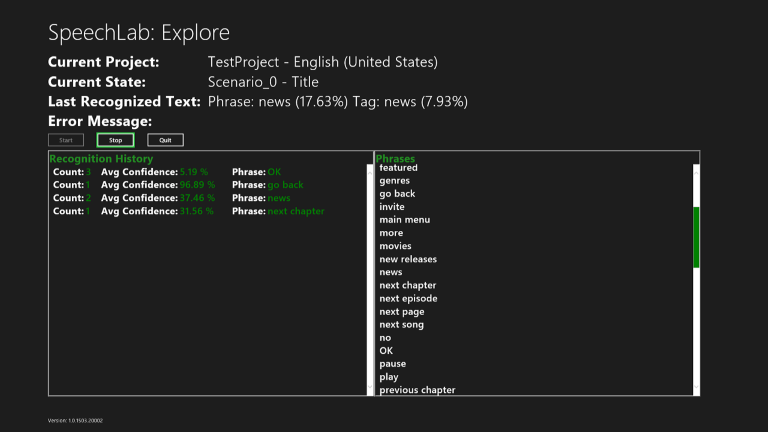
Figure 1. SpeechLab Console
SpeechLab Console operates in two modes:
- Explore: Allows ad hoc testing of grammars. Ad hoc testing is intended to allow you to do very basic testing of your grammars to get a rough estimate of how well they work. Ad hoc testing should not be used as a replacement for more in-depth testing using data collected from a variety of people who represent your target demographic.
- Automation: Allows for more in-depth testing of your grammars by using audio data collected prior to testing. The results of automation can be imported back into the SpeechLab PC tool for analysis.
Explore Mode
Explore Mode is invoked by clicking the Explore button under the Test window in the SpeechLab PC tool. When in Explore Mode, the SpeechLab Console app displays which phrases in your grammar were recognized by the speech engine. SpeechLab Console is listening as soon as it starts.
The SpeechLab Console app displays the following information in Explore Mode:
- Current Project: The name of the project being tested
- Current State: The name of the state being tested
- Last Recognized Text: The last phrase in your grammar that the speech engine recognized, along with the confidence that it was recognized at
- The Recognition History window displays the following information for each recognized phrase:
- Phrase: The phrase that was recognized
- Count: How many times each phrase has been recognized
- Avg Confidence: The average confidence that the engine had when recognizing that phrase
- The Phrase List window shows the list of phrases from your grammar. This list is scrollable.
When you are done with ad hoc testing, click the Quit button in SpeechLab Console and resume work in the SpeechLab PC tool.
Automation
Test Automation is started by clicking Start under Automation in the Test window in the SpeechLab PC tool. Note that automation requires that you first collect audio for your grammar using Voice Studio. When automation starts, SpeechLab Console displays its progress on the screen. No user input is required until the end or until you manually stop automation. The progress bar provides a visual indicator of how far into the test pass the automation run has reached.
The SpeechLab Console app displays the following information during Test Automation:
- Current Project: The name of the SpeechLab project and the locale being tested
- Current State: The current state of the SpeechLab project being tested
- Prompt Progress: How many of the phrases within the grammar being tested have actually been tested
- Current Prompt Text: The phrase currently being tested
- Current File Path: The path on your PC to the WAV file containing the specific audio file being used
To manually stop test automation, press the Quit button.
Test automation tests your grammar with audio data for the current state as well as from other states. Audio for the current states is used to test the “correct accept” (CA) rate, which indicates how well the speech engine is recognizing phrases that are part of that state. Audio for other states is used to test the “false accept” (FA) rate, which indicates how often the speech engine is recognizing phrases from outside that state’s grammar as a phrase from that state’s grammar.
After automation is complete, SpeechLab Console shows a list of any errors encountered. To import the test results to the PC for further analysis, click Quit to exit the application and then click Import in the SpeechLab PC tool.
Voice Studio
Voice Studio is a data collection app for your projects in the SpeechLab PC tool.
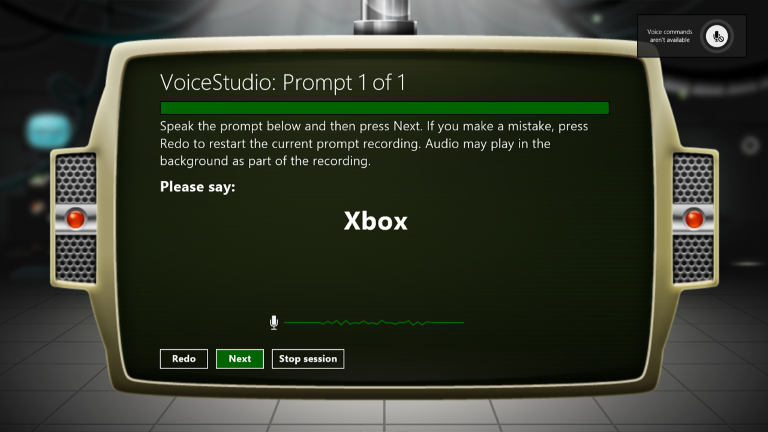
Figure 2. Voice Studio
To get the best results when collection data using Voice Studio, do the following:
- Set up an environment that represents the usage environment that you intend (for example, a living room).
- Collect data from a wide variety of people that match your target demographic.
- Collect at least 20 utterances for each phrase in your grammar. In practice, this means that the data collection for your project should involve at least 20 people who match your target demographics (for example, 20 adult males, 20 adult females, 20 teenage males, and 20 teenage females).
After setting up your grammars in Voice Studio, you can collect data for your project in your chosen locale by clicking Start under Voice Studio Data Collection in the Test window. This launches the Voice Studio app on your devkit. The first step of the data collection is to set up a profile using the following information:
- Specify the age, gender, country raised in, and region within that country for the current speaker.
- Specify information about the room and audio setup.
The profile information is saved. If the next speaker has the same profile, select Use Saved Profile.
At this point, the data collection can start. The progress bar provides a visual indicator of how far into the collection the speaker has progressed.
The Voice Studio app displays the following information:
- Current Project: the name and locale of the project that data is being collected for
- Prompt: Numerical progress indicator through the collection
- Please Say: The phrase that the speaker must say
- Error: Any errors encountered during the collection
The Voice Studio app contains the following buttons:
- Redo: Allows the speaker to say the prompt again if he or she made a mistake
- Next: Advances to the next prompt
- Stop Session: Terminates the data collection session
After the final prompt, Voice Studio displays the following buttons to allow you to perform another data collection or exit the app:
- Pick New Collection: Allows you to select a different collection that is on the console
- Pick a New Profile: Returns you to the profile selection screen
- Quit: Exits Voice Studio
After exiting the app, click Import under Voice Studio Data Collection in the Test window of the SpeechLab PC tool. This copies the audio data from your devkit onto the audio repository on your PC. You can then run test automation for that state.