Visual Gesture Builder: Overview
Visual Gesture Builder (VGB) generates data that titles use to perform gesture detection at run time. Even for simple cases, gesture detection is a challenging task that may require many lines of code to obtain reliable results, considering all of the different players and play spaces that a title might encounter. By using a data-driven model, VGB shifts the emphasis from writing code to building gesture detection that is testable, repeatable, configurable, and database-driven. This method provides better gesture recognition and reduces development time.
Machine learning technologies, or algorithms, are at the core of VGB. The user selects the technology to use—namely AdaBoostTrigger Machine Learning or RFRProgress Machine Learning—and tags frames in a clip related to a meaningful event, such as a punch or a kick. At the end of the tagging process, VGB builds a gesture database; with this data, a title can process gesture input from a player to, for example, detect a hit or swing progress.
Note For long-term preservation of clips, we recommended that you record raw XRF captures by using NUIView, and then convert them to processed XEF clips with the KSConvert - Kinect Studio Clip Conversion Tool before tagging gestures.
- Use KSConvert - Kinect Studio Clip Conversion Tool to recreate the processed XEF clips from the original raw sensor captures (XRF).
- Rebuild the VGB gesture database (a .gbd file) that is used by the VGB runtime and Live Preview. Rebuilding the VGB database does not require any changes to the metadata or to the tagging data.
The following are some of the results of using VGB:
- Mitigating the current code-intensive approach.
- Reusing gesture data in different versions of the same title.
- Sharing gesture data among titles.
- Creating a library of gesture data.
- Improving predictability and reliability of gesture data.
- Testing framework for gesture detection.
- Analyzing and visualizing gesture-detection results.
- Managing a large quantity of data in a user friendly IDE.
Using Visual Gesture Builder
The following are the basic steps for using Visual Gesture Builder:
- Create a solution.
A solution contains a group of gesture projects. - Create one or more gesture projects.
A gesture project has a gesture tag and a machine learning technology associated with it. - Add a set of clip files to each project.
A clip is a source file with example data that machine learning technologies can train on. - Tag the frames in the clip files associated with each gesture.
- Build a training database.
For more information about using VGB to create a gesture detector, see Tutorial: Building a Gesture Detector.
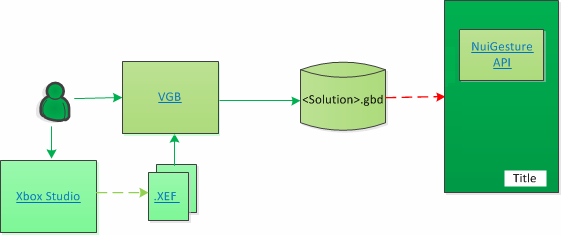
The following illustration shows the context in which Visual Gesture Builder is used.
Figure 1. Visual Gesture Builder in Context
Brief Survey of Additional Features
| Feature | Description |
|---|---|
| AdaBoostTrigger Machine Learning | The AdaBoostTrigger Machine Learning is a binary technology type. It uses the Adaptive Boosting (AdaBoost) machine learning algorithm to determine when a player performs a certain gesture. |
| Command Line | Allows running Visual Gesture Builder from the command line. This is useful when building or analyzing multiple gesture databases using a batch file. See VGB Command Line Options. |
| Live Preview | Enables a developer to quickly view the results of a gesture database on the console in real-time, without having to integrate the database into a title. |
| RFRProgress Machine Learning | The RFRProgress Machine Learning is an analog technology type. It uses the Random Forest Regression (RFR) algorithm to determine the progress of a gesture performed by a player. Compared to older techniques, such as PCAProgress machine learning, it generates more accurate results, runs faster, and uses less memory at run time. |
| Training Optimization |
|
| Viewing 2D | Allows rendering of 2D depth and infrared stream. |
| Viewing 3D | Allows rendering of 3D accessory, depth, infrared, and body frame. |