PIX Setup and Getting Started
PIX is a debugging and perfomance tool that runs on the development computer, communicating with a PIX engine running on the Xbox One console. It is installed along with the rest of the Xbox One XDK, and is designed to work closely with Direct3D 11.x and Direct3D 12.x.
Getting started with using PIX
To start PIX on the development computer
Locate and launch PIX in the version of Windows installed on your development computer.
- For Windows 8, on the Start screen, click the PIX tile. On Windows 7, on the Start menu, locate Microsoft Xbox One XDK, then click PIX.
- The PIX window appears. If the What’s New screen appears, after reading it you can press the Esc key or the back-arrow at the top left corner, to close the What’s New screen.
To select a console for use with PIX
PIX must be configured with the IP address of at least one Xbox One development kit. An IP address can be set by configuring a default address for all remote tools in the XDK, or by specifying an IP address in PIX that is only for use with PIX.
To set a default IP address for all remote tools, use Connect (xbconnect.exe).
Or, to specify a console just for use with PIX:
- In the top left of the PIX HOME tab, in the drop-down list, click Connect. The Select Development Kit dialog box appears. If a default console has been set through use of the remote tools, that console will appear as the default console in PIX.
- Enter a name and the IP address of the targeted Xbox One console.
- Get the IP address from the console UI; it appears as the Tools IP address.
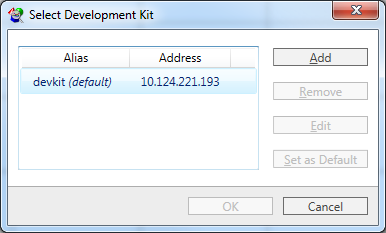
- To set the specified console as the default for all Command Line Tools in the XDK, click Set as Default.
PIX can be used with multiple consoles, though only one console is active at any one time.
Set PIX Profiling Mode
Profiling Mode, on the console, simply starts the debugging systems on the console, that are requirement for most debugging work.
You may have set this mode already as part of the console setup, if not set Profiling Mode on the console, using Configuration (xbconfig.exe):
xbconfig profilingmode=on
Profiling Mode can also be set from within PIX (a dialog box will be displayed if Profiling Mode is required for a feature, but is disabled). When Profiling Mode is not enabled, PIX will only allow System Monitor and GPU captures for the connected console, with GPU captures requiring free memory in the title partition to succeed, and all other features requiring a remote console are disabled including timing captures and GPU capture analysis.
Using instrumented devices
For most features of PIX, ensure the Direct3D device is instrumented, by following the steps below.
The Direct3D Game template, and the samples, also provide examples of creating the Direct3D device correctly.
To link an application to the instrumented device
- In Solution Explorer in Visual Studio, right-click the project and select Properties.
- Select Configuration Properties, Linker then Input.
- In Additional Dependencies ensure the project is linked to d3d11_x.lib.
- Ensure the D3D11_CREATE_DEVICE_INSTRUMENTED flag is set when creating the Direct3D device.
- Ensure that your app compiles without errors.
- Run the app on the console by following the instructions in Running the XDK Samples.
Note
There are several graphics debugging tools available with similar names to PIX, but with somewhat different functionality:
- PIX for Xbox One. This is described in the present set of documentation topics.
- Debugging features integrated into Visual Studio. These are useful for debugging at the API level, including for graphics development.
- The debugging features in Visual Studio Graphics Diagnostics.
- PIX for Xbox 360.